Google Workspace Email Authentication: SPF, DKIM, and DMARC Setup Guide
-
 Mohit
Mohit - 14 Apr, 2026
- Updated 27 Oct, 2026

If your organization uses Google Workspace for email, configuring SPF, DKIM, and DMARC is not optional. It is foundational. Without these three DNS records, your domain is vulnerable to spoofing, your outbound email lands in spam, and you will fail modern email security audits. This guide walks IT admins through each record, explains what it does, shows exactly how to set it up, and covers the rollout, troubleshooting, and maintenance steps that most guides skip.
Why Email Authentication Matters
Since February 2024, Gmail requires authentication from everyone who sends to personal Gmail accounts:
| Requirement | All senders | More than 5,000 messages/day |
|---|---|---|
| SPF or DKIM | Required (SPF or DKIM) | Required (SPF and DKIM) |
| DMARC record | Recommended | Required (policy can be p=none) |
| From: domain aligned with SPF or DKIM | - | Required for direct mail |
| Spam rate in Postmaster Tools | Below 0.30% (target below 0.10%) | Below 0.30% (target below 0.10%) |
| One-click unsubscribe | - | Required for marketing and subscribed mail |
| Valid forward and reverse DNS, TLS | Required | Required |
Other mailbox providers, including Yahoo and Microsoft’s consumer Outlook.com service, have introduced similar rules for high-volume senders. If your organization sends any significant volume (newsletters, alerts, invoices, or regular business correspondence) misconfigured authentication means bounced mail or silent spam-folder delivery.
Beyond deliverability, email authentication is a baseline security control. Without it, anyone can send email that appears to come from your domain, which makes phishing your customers and staff trivially easy.
Before You Start: Inventory Every Sender
The most common reason DMARC rollouts stall is an unknown sender. Before touching DNS, list every system that sends mail as your domain:
- Google Workspace (users, Groups, Google Forms notifications)
- CRM and sales tools (Salesforce, HubSpot)
- Marketing platforms (Mailchimp, Brevo)
- Helpdesk and ticketing (Zendesk, Freshdesk, Jira Service Management)
- Billing and finance systems (invoicing, payroll)
- Website forms, monitoring alerts, printers, and scanners
- Any third-party SMTP relay (SendGrid, Amazon SES)
For each one, note whether it can sign with your domain’s DKIM key (best), needs an SPF include, or should be moved to a subdomain such as mail.yourdomain.com. Your DMARC reports will reveal anything you missed.
The Three Records Explained
SPF (Sender Policy Framework)
SPF is a DNS TXT record that lists which mail servers are authorized to send email for your domain. When a receiving server gets a message claiming to be from @yourdomain.com, it checks your SPF record to see whether the sending server is on the approved list.
Google Workspace SPF record (Workspace is your only sender):
v=spf1 include:_spf.google.com ~allAdd this as a TXT record at your domain root (@).
Google recommends ~all (softfail). Some organizations move to -all (hardfail) once DMARC is enforcing and every sender is confirmed, but with DMARC at p=reject the practical difference is small: DMARC, not the SPF qualifier, decides what happens to failing mail.
If you send from other services, add each one to the same record:
v=spf1 include:_spf.google.com include:_spf.salesforce.com include:servers.mcsv.net ~allEach provider publishes its own include value. Check their documentation rather than guessing.
Important: SPF allows a maximum of 10 DNS lookups per evaluation (RFC 7208). Every
include:,a,mx,ptr,exists, andredirectcounts, and so do the lookups inside nested includes. Exceed it and SPF returns a permanent error. Google’s own guidance caps a record at 10include:tags; in practice you’ll hit the lookup limit sooner because of nesting.
Subdomains need their own records. Each domain and subdomain that sends mail needs its own SPF record: the root record doesn’t cover mail.yourdomain.com.
DKIM (DomainKeys Identified Mail)
DKIM adds a cryptographic signature to every email your domain sends. Receiving servers verify the signature against a public key published in your DNS, confirming the message came from you and wasn’t altered in transit. Because it survives forwarding better than SPF, DKIM is the record DMARC relies on most.
Generating DKIM in the Google Workspace Admin Console:
- Go to Admin Console → Apps → Google Workspace → Gmail → Authenticate email
- Select your domain
- Click Generate new record
- Choose 2048 bit key length if your DNS provider supports it (choose 1024 only if it doesn’t)
- Keep the default prefix selector,
google - Copy the generated TXT record value
- Add it as a TXT record at the hostname shown (typically
google._domainkey.yourdomain.com) - Return to the Admin Console and click Start authentication
Google says you need to sign in as a super admin to generate the key (managing Gmail settings in general uses the Gmail Settings administrator privilege). DKIM can take up to 48 hours to start working after you publish the record. If you’ve just turned on Gmail for a new domain, you may need to wait 24–72 hours before you can generate the key at all.
Long-key tip: some DNS providers limit a single TXT string to 255 characters. If your provider rejects the 2048-bit key, check whether it supports splitting the value into multiple quoted strings before falling back to 1024-bit.
DMARC (Domain-based Message Authentication, Reporting & Conformance)
DMARC ties SPF and DKIM together. It checks that at least one of them passes and aligns with the domain in the visible From: address, tells receiving servers what to do when that check fails, and sends you reports about who is sending mail as your domain.
Starting DMARC policy (monitor mode):
v=DMARC1; p=none; rua=mailto:dmarc-reports@yourdomain.comAdd this as a TXT record at _dmarc.yourdomain.com. Google advises waiting 48 hours after setting up SPF and DKIM before adding DMARC.
| Tag | Value | Meaning |
|---|---|---|
p | none / quarantine / reject | Policy: monitor only, send failures to spam, or reject them |
rua | mailto: address | Where daily aggregate reports are sent |
pct | 1–100 | Percentage of failing mail the policy applies to (defaults to 100) |
sp | none / quarantine / reject | Separate policy for subdomains (inherits p if omitted) |
adkim / aspf | r (relaxed, default) / s (strict) | How exactly the DKIM/SPF domain must match the From: domain |
Where to send reports: aggregate reports are XML files, and a busy domain receives many each day. Use a dedicated mailbox, a Google Group, or a DMARC reporting service rather than a personal inbox. If the rua address is on a different domain, that domain must publish a TXT record authorizing it.
The recommended DMARC rollout:
- Weeks 1–4:
p=none: collect reports and identify every sending source - Weeks 5–8:
p=quarantine; pct=10: quarantine 10% of failing mail - Weeks 9–12:
p=quarantine; pct=100: quarantine all failing mail - Week 13+:
p=reject: reject failing mail (full enforcement)
Never jump straight to p=reject. You will break legitimate mail flows you didn’t know existed. Move to the next stage only when your reports show that every legitimate source passes.
Reading DMARC Aggregate Reports
Aggregate reports list, for each sending IP, how many messages it sent as your domain and whether SPF and DKIM passed and aligned. When you review them, sort sources into three groups:
| What you see | What it usually means | Action |
|---|---|---|
| Google IPs, DKIM pass and aligned | Your Workspace mail | Nothing to do |
| A known vendor, DKIM fails or isn’t aligned | A service sending as you without your domain’s DKIM key | Set up DKIM in that vendor with your domain, or add its SPF include |
| Unknown IPs in unexpected countries, everything fails | Spoofing attempts | This is what p=quarantine/p=reject will block |
| Forwarders and mailing lists, SPF fails but DKIM passes | Normal forwarding behavior | No action; DKIM alignment carries DMARC |
A reporting tool that groups results by sending organization makes this review far quicker than reading raw XML.
Verifying Your Setup
Use these free tools to confirm all three records are working:
- Google Admin Toolbox (toolbox.googleapps.com): the Check MX tool validates SPF, DKIM, and DMARC from Google’s perspective
- MXToolbox (mxtoolbox.com): SPF, DKIM, and DMARC lookup and validation, including an SPF lookup counter
- Gmail “Show original”: open a message you sent to a Gmail account, choose Show original, and check that SPF, DKIM, and DMARC all say PASS
- Google Postmaster Tools: for higher-volume senders, track spam rate and authentication over time
Admin Console verification: Admin Console → Apps → Google Workspace → Gmail → Authenticate email. The status shows whether Google is signing outbound mail with your DKIM key.
Common Mistakes and How to Avoid Them
Multiple SPF records: A domain can have only one SPF TXT record. If you publish a second one, SPF returns an error. Combine all includes into a single record.
SPF lookup limit exceeded: Each include: costs at least one lookup, and nested includes count too. Remove services you no longer use, move bulk senders to a subdomain with its own SPF record, or use a flattening service, but remember that flattened records must be updated when a provider changes its IPs.
Choosing a short DKIM key unnecessarily: 1024-bit keys still meet Gmail’s minimum, but 2048-bit is more secure and recommended. Use 1024 only when your DNS host can’t store the longer key.
Skipping DMARC reports: Reports are the only way to see who is sending mail as your domain. Set up rua from day one, even at p=none.
Jumping to p=reject immediately: Mailing lists, forwarding services, and marketing tools may fail authentication. Ramp up gradually.
Forgetting non-sending domains: Parked or unused domains are prime spoofing targets. Publish v=spf1 -all and v=DMARC1; p=reject on any domain that never sends mail.
Ongoing Maintenance
Email authentication is not set-and-forget:
- Review DMARC reports monthly: new sending services appear over time, often without IT being told
- Rotate DKIM keys periodically: generate a new key in the Admin Console, publish it, start authentication with it, then remove the old record
- Audit SPF when adding new SaaS tools: every new email-sending service needs DKIM with your domain or an SPF include
- Watch the lookup count: re-check SPF whenever you add an include
- Tighten DMARC policy over time: the goal is
p=rejectfor maximum protection
Conclusion
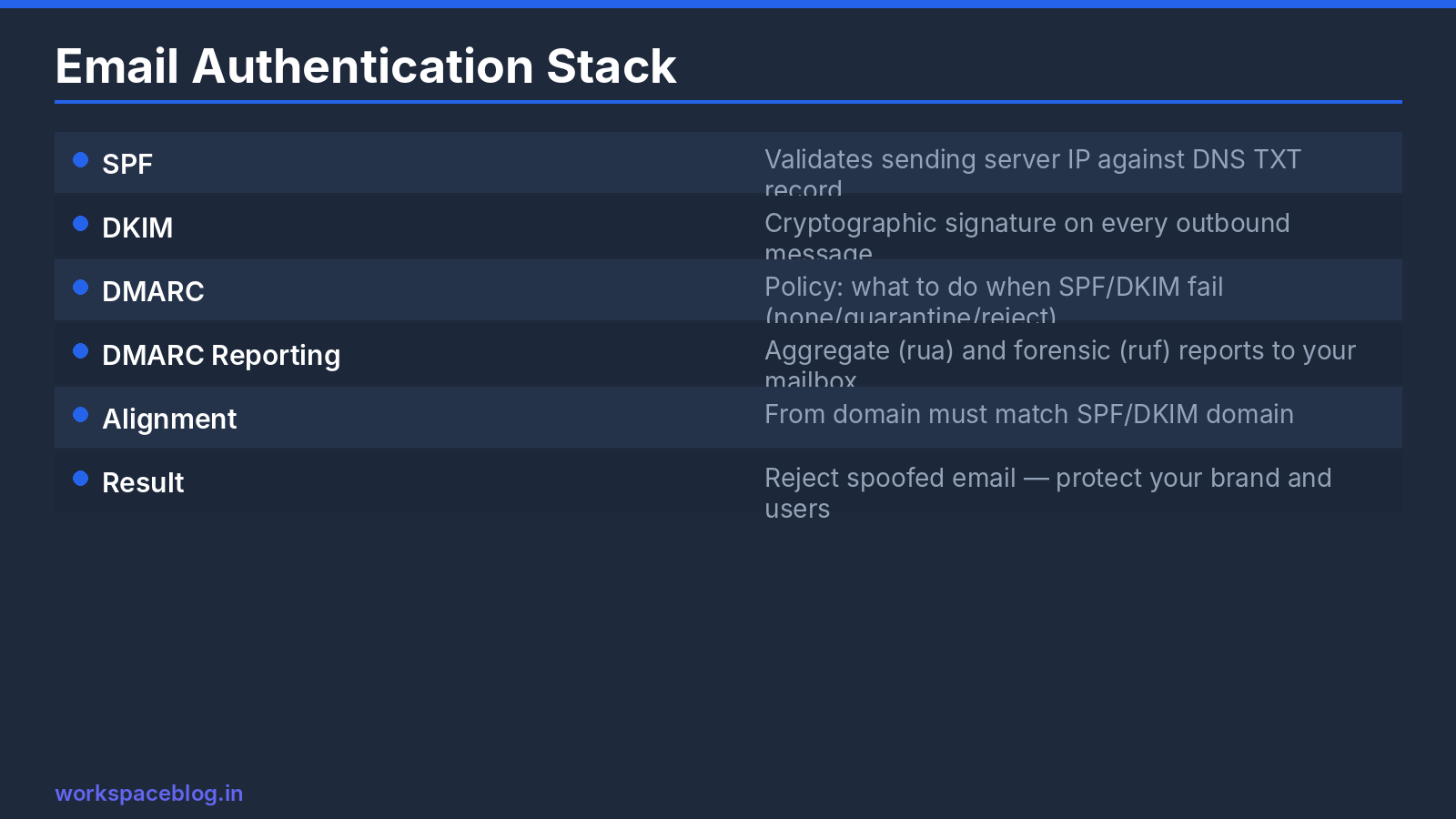
SPF, DKIM, and DMARC are the foundation of email security and deliverability for any Google Workspace deployment. SPF authorizes your sending servers, DKIM signs your messages, and DMARC enforces policy and gives you visibility.
Set them up in sequence (inventory your senders, publish SPF, turn on DKIM, then add DMARC in monitor mode) and you’ll have a complete authentication stack within a week. Reaching p=reject safely takes about three months of reviewing reports, and it’s worth it: it’s the single strongest protection against your domain being used to phish your own customers and staff.
Official Google documentation:
Related reading:
- Google Workspace Admin Security: 10-Point Hardening Guide: email authentication is item one on the security checklist; this guide covers the remaining nine controls.
- Google Workspace Business Plans Comparison: not sure which plan includes the email security controls you need?
- Google Workspace and Microsoft 365 Coexistence: running both platforms? Email authentication gets more complex in a hybrid setup.
DNS changes can take up to 48 hours to propagate. Always verify your records are live before starting DKIM authentication or moving DMARC to enforcement.
This guide contains referral or affiliate links. If you sign up through one, Workspace Blog may earn a commission at no extra cost to you. Learn more.
Frequently Asked Questions
- What SPF record should I use for Google Workspace?
- If Google Workspace is the only service that sends mail for your domain, publish a single TXT record at the domain root: v=spf1 include:_spf.google.com ~all. If other services send mail as your domain, add their include mechanisms to the same record. A domain must have only one SPF record.
- Should I use a 1024-bit or 2048-bit DKIM key?
- Use 2048-bit if your DNS provider supports it, because longer keys are more secure. Choose 1024-bit only if your DNS host can't store a 2048-bit TXT record. Gmail's sender guidelines require DKIM keys of at least 1024 bits and recommend 2048.
- How long does it take for DKIM to start working in Google Workspace?
- After you publish the DKIM TXT record, authentication can take up to 48 hours to start working. If you've just turned on Gmail for a new domain, you may also need to wait 24 to 72 hours before the Admin console lets you generate a DKIM key.
- Is DMARC required to send email to Gmail users?
- For senders of more than 5,000 messages a day to personal Gmail accounts, yes: Google requires SPF, DKIM, and a DMARC record, which can use p=none. All senders must use SPF or DKIM. Even below the bulk threshold, DMARC is strongly recommended because it's the only record that tells receivers what to do with mail that fails authentication.
- Why do some legitimate emails fail DMARC after I move to p=reject?
- Usually because a service sends mail as your domain without aligned SPF or DKIM, such as a CRM, helpdesk, or marketing platform that wasn't set up with your domain's DKIM key. Mailing lists and forwarding can also break SPF. Review your DMARC aggregate reports before tightening the policy and fix each sender first.