Google Workspace Shared Drives: Complete Setup, Permissions, and Admin Guide
-
 Mohit
Mohit - 21 Apr, 2026
- Updated 27 Oct, 2026

Shared drives are one of the most important features in Google Workspace for keeping company data under company control. Unlike My Drive (where files belong to an individual and can disappear when they leave) files in a shared drive belong to the organization. They stay when people change roles or leave, which makes shared drives the right home for any team or project content.
This guide covers everything an IT admin needs: shared drives vs. My Drive, edition differences, creating and managing shared drives, access levels, per-drive and organization-wide settings, external sharing, migration from My Drive, governance, and troubleshooting.
Shared Drives vs. My Drive
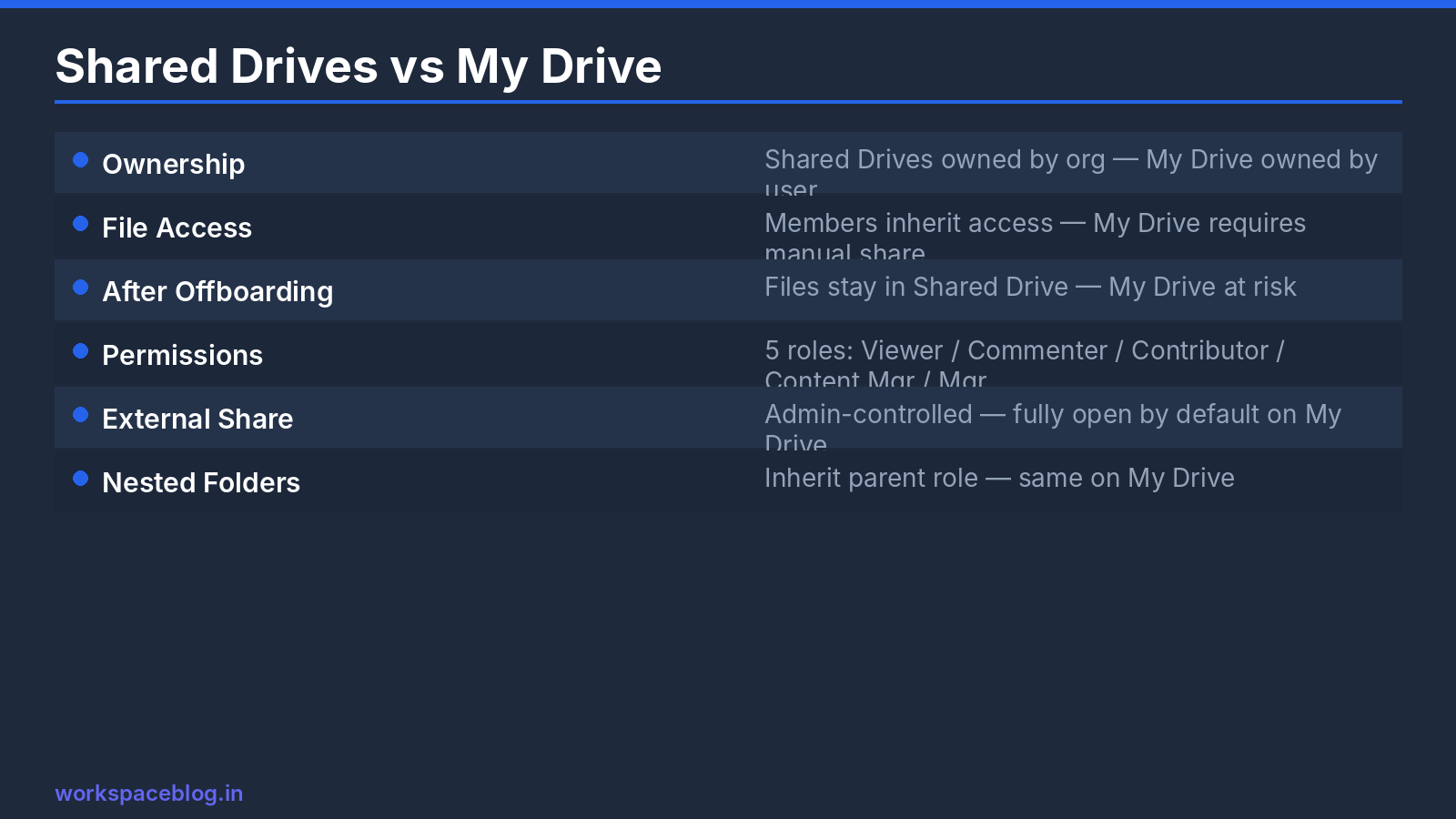
| Feature | My Drive | Shared drives |
|---|---|---|
| File ownership | The individual user | The organization |
| When the owner leaves | Admin must transfer files | Files stay in place |
| Access model | Shared file by file | Members get access to the whole drive |
| Default membership changes | Manual per file | Add or remove a member or group once |
| Admin visibility | Limited | Central list in the Admin console |
| Storage | Counts against the owner | Counts against the organization’s pool |
The business case is simple: anything that belongs to the organization (project documents, templates, runbooks, contracts, finance records) should live in a shared drive, not in someone’s My Drive.
Shared Drives by Edition
| Edition | Shared drives | Admin and security controls |
|---|---|---|
| Business Starter | Yes, since September 2024 | Fundamental version: admins can manage members and restrict moving content externally, but can’t set default shared drive settings, and some access controls aren’t included |
| Business Standard / Plus | Yes | Full shared drive settings |
| Enterprise and Education | Yes | Full settings, plus features such as DLP rules and Context-Aware Access on supported editions |
If you’re on Business Starter, plan around the missing controls: keep sensitive data in drives with tightly managed membership.
Creating Shared Drives
Google is clear that you create shared drives in Drive, not in the Admin console. The Admin console is where you manage them afterwards.
Admin-created drives (recommended for governance)
If you restrict creation to admins, or want to set up a structure for widely used drives before users start creating their own:
- In Drive, open Shared drives in the left menu and click + New
- Name it using your naming convention
- Add members and groups with the right access levels
- Manage it from Admin Console → Apps → Google Workspace → Drive and Docs → Manage shared drives
User-created drives
Users create shared drives the same way in Drive. They can do this unless an admin has turned it off for their OU.
Controlling who can create shared drives
Admin Console → Apps → Google Workspace → Drive and Docs → Sharing settings → Shared drive creation. The checkbox is Prevent users in [OU] from creating new shared drives. Turn creation off for most OUs and handle requests through IT (or allow it only for team leads) to prevent sprawl.
Access Levels
Shared drive access applies to the whole drive and everything in it.
| Access level | View | Comment | Add & edit files | Move & delete files | Manage members & settings |
|---|---|---|---|---|---|
| Viewer | ✓ | ||||
| Commenter | ✓ | ✓ | |||
| Contributor | ✓ | ✓ | ✓ | ||
| Content manager | ✓ | ✓ | ✓ | ✓ | |
| Manager | ✓ | ✓ | ✓ | ✓ | ✓ |
Manager: can add and remove members, change access levels, change drive settings, and delete the drive. Give this to two or three people per drive.
Content manager: can move, delete, and organize files and folders. Good for team leads who curate content.
Contributor: standard access for most team members: create, edit, and upload, but not delete other people’s files.
Best practice: add groups, not individuals, as members. Team membership then controls drive access automatically.
Per-Drive Settings
Managers (and admins) can tighten settings on each shared drive. The options include whether:
- People outside the organization can be given access to files in the drive
- People who aren’t members of the shared drive can be given access to individual files
- Viewers and commenters can download, print, and copy files
- Content managers can share folders
For a sensitive drive (HR, legal, M&A), turn off external access and access for non-members, and stop viewers from downloading. On Business Starter, users can’t change these settings.
Default settings for new shared drives
Admins can set the defaults applied to newly created shared drives per OU from Drive and Docs → Sharing settings. This is the easiest way to make “no external access” the norm for new drives. (Not available on Business Starter.)
Organization-wide external sharing
Organization-level Drive sharing settings still apply on top of shared drive settings. If external sharing is off for an OU, members in that OU can’t share externally from a shared drive either. Many organizations allow external sharing only with allowlisted domains of trusted partners.
Managing Shared Drives as an Admin
Admin Console → Apps → Google Workspace → Drive and Docs → Manage shared drives lists every shared drive in the organization. From here admins can:
- Add or remove members and change access levels
- Add a manager to a drive that has none (for example, after the last manager left)
- Change a drive’s settings
- Restore a deleted shared drive within 25 days of deletion
- Move a shared drive to a different OU, so the right OU-level policies apply
Shared drives belong to OUs. A shared drive’s organizational unit decides which Drive policies (and, on supported editions, data regions and other controls) apply to it. Use this to apply stricter rules to sensitive drives.
Migrating Files from My Drive to Shared Drives
Small volumes: users move their own content
Users with Contributor, Content manager, or Manager access to a shared drive can move files they own or can edit from My Drive into it. Files owned by someone else need that owner (or an admin) to move them. In Drive, select the items → Organize → Move → choose the shared drive.
What changes when files move:
- The organization becomes the owner
- Members of the shared drive get access according to their role
- Links to the files keep working
- People who had access through individual sharing keep it unless you remove it
Large volumes: plan a project
For hundreds of users or terabytes of data, use a migration tool that can copy or move content into shared drives while preserving folder structure and permissions, and plan by team:
- Agree a shared drive structure with each department
- Create the drives and add groups as members
- Move content team by team, starting with a pilot
- Communicate where things moved and update bookmarks
- Remove leftover sharing of moved files to people outside the team
Governance Best Practices
Naming conventions: decide before sprawl starts. For example, [Department] - [Team or Project]: “HR - Recruiting”, “Finance - FY26 Budget”.
At least two managers per drive. Single-manager drives become orphaned when that person leaves.
Groups for membership. Use team groups (and, on supported editions, dynamic groups) so access follows team changes.
Quarterly membership reviews. Have drive managers confirm members and external access; remove people who’ve changed roles.
Lifecycle rules. Define what happens when a project ends: switch members to Viewer, move the drive to an “Archive” OU with stricter settings, and delete only according to your retention policy.
Mind the limits. A shared drive can hold up to 500,000 items, including files, folders, shortcuts, and items in trash. Very large departments should split content across several drives.
Troubleshooting
| Problem | Likely cause | Fix |
|---|---|---|
| Users can’t create shared drives | Creation turned off for their OU | An admin creates it in Drive, or change the OU setting |
| Can’t share a file externally | Drive setting or OU sharing policy blocks it | Check the drive’s settings and the member’s OU sharing settings |
| Can’t move files into a shared drive | Not enough access on the destination drive, or the user doesn’t own or can’t edit the files | Give the user at least Contributor access, or ask the file owner to move them |
| Drive has no manager | Last manager left | Admin adds a manager in Manage shared drives |
| Former employee still has access | Added individually rather than through a group | Remove them, and switch membership to groups |
Conclusion
Shared drives are the foundation of team file governance in Google Workspace. They stop files disappearing when employees leave, give admins visibility and control, and make collaboration across teams cleaner than sharing from My Drive.
Move team content out of My Drive, restrict and name new drives, add groups rather than individuals, keep two managers per drive, and set sensible defaults for external access. Those steps alone will greatly improve your organization’s Drive governance.
Official Google documentation:
- Shared drive limits in Google Drive
- Manage shared drives as an admin
- Allow users to create shared drives
- Set up shared drives for your organization
Related reading:
- Google Workspace Admin Security: 10-Point Hardening Guide: includes Drive sharing controls as part of a broader security framework.
- Google Workspace Business Plans Comparison: shared drive controls differ between Business Starter and higher plans.
- Google Workspace User Lifecycle: Onboarding and Offboarding: shared drives are essential to clean offboarding.
This guide contains referral or affiliate links. If you sign up through one, Workspace Blog may earn a commission at no extra cost to you. Learn more.
Frequently Asked Questions
- Does Google Workspace Business Starter include shared drives?
- Yes. Google rolled out shared drives to Business Starter from September 2024, after moving Starter to pooled storage. Starter gets a fundamental version: users can create shared drives and manage members, but some admin and security controls, such as setting default shared drive settings and controlling access to items in a shared drive, aren't included.
- Who owns files in a shared drive?
- The organization owns them, not an individual. When someone leaves and their account is deleted, files they added to a shared drive stay in the shared drive, which is why team and project content belongs there rather than in My Drive.
- What are the shared drive access levels?
- There are five: Viewer, Commenter, Contributor, Content manager, and Manager. Contributors can add and edit files; Content managers can also move and delete files; Managers can additionally manage members and shared drive settings.
- How do I stop users from creating shared drives?
- In the Admin console, go to Apps > Google Workspace > Drive and Docs > Sharing settings and change the shared drive creation setting for the organizational unit. Shared drives are created in Drive, not the Admin console, so when creation is restricted an admin creates the drive in Drive and adds the members.
- What happens to a shared drive if its only manager leaves?
- The shared drive and its files remain, but nobody may be able to manage membership. Admins can add a new manager from Apps > Google Workspace > Drive and Docs > Manage shared drives. To avoid this, keep at least two managers on every shared drive.