Gemini Notebook Enterprise (Formerly NotebookLM Enterprise): Features, Limits, Security, and Admin Setup
-
 Mohit
Mohit - 27 Oct, 2026

NotebookLM became one of Google’s most loved AI tools because it does one thing very well: it answers questions only from the sources you give it, with citations, and turns those sources into summaries, audio overviews, mind maps, and reports. For businesses, the question was always whether it was safe for company documents.
Gemini Notebook Enterprise (renamed from NotebookLM Enterprise in July 2026) is Google’s answer: the same research experience, running in your Google Cloud project with enterprise identity, sharing controls, data residency, VPC Service Controls, and customer-managed encryption keys.
This guide covers what it does, how it differs from the consumer version, the limits, editions, security controls, and how to set it up. If your users already work in Google Workspace, this is the version to consider when notebooks will hold regulated or confidential content.
Table of contents
Open Table of contents
- What Gemini Notebook Enterprise (NotebookLM Enterprise) Does
- Enterprise vs. Consumer: What’s Different
- Platform Limits
- Editions and Licensing
- Sharing Notebooks
- Security and Compliance
- Admin Setup: Step by Step
- Moving Users Off Consumer Notebooks
- Rollout Tips
- Gemini Notebook Enterprise vs. Enterprise Search
- Conclusion
What Gemini Notebook Enterprise (NotebookLM Enterprise) Does
Users create notebooks, add sources, and then chat with them. Answers are grounded in those sources, with citations back to the passages used.
Supported sources
| Type | Examples |
|---|---|
| Google files | Google Docs, Google Slides |
| Office files (enterprise only) | DOCX, PPTX, XLSX |
| Documents | PDF, TXT, Markdown |
| Web | Public URLs, YouTube videos |
| Media | Audio files, image files |
| Text | Copied text |
Uploaded sources become a static copy: the original file isn’t changed, and later edits to the original don’t flow into the notebook automatically.
What it can generate
| Output | Daily limit per user |
|---|---|
| Audio overviews (podcast-style discussions) | 20 |
| Video overviews | 20 |
| Mind maps | 20 |
| Reports | 20 |
| Slide decks | 15 |
| Infographics | 15 |
| Quizzes | 100 |
| Flashcards | 100 |
Typical business uses
- Policy and compliance Q&A: a notebook of policies, standards, and audit findings
- Sales enablement: product docs, pricing guides, and case studies; reps ask questions before calls
- Onboarding: a team handbook new hires can question, with an audio overview for the commute
- Due diligence and research: contracts, reports, and filings, summarized into a briefing report
- Project handover: specs, decisions, and meeting notes in one place
Enterprise vs. Consumer: What’s Different
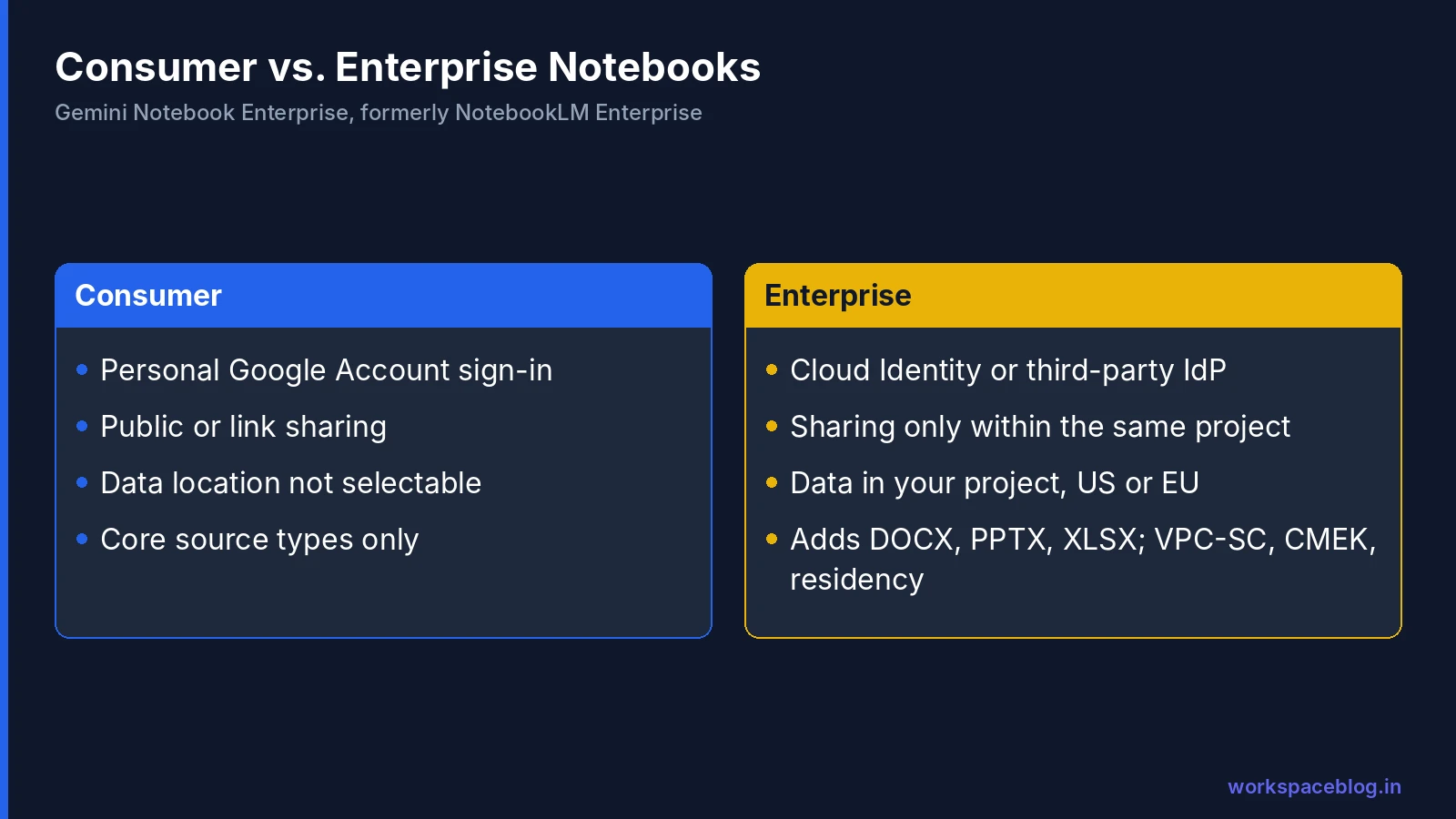
| Area | Consumer Gemini Notebook | Gemini Notebook Enterprise |
|---|---|---|
| Where data lives | Not user-selectable | Your Google Cloud project, US or EU multi-region |
| Sign-in | Personal Google Account | Cloud Identity or a third-party IdP (Microsoft Entra ID, Okta, Ping, any OIDC or SAML 2.0 provider) |
| Office file sources | Core types only | Adds DOCX, PPTX, XLSX |
| Interface | Public website | A project- and region-specific URL on cloud.google.com |
| Sharing | Public or link sharing | Only within the same Google Cloud project; no public sharing |
| Audio overview sharing | Shareable by link | Only as part of the notebook |
| Compliance | ✗ | VPC Service Controls, CMEK, data residency |
| Terms | Consumer terms | A Generative AI Service under your Google Cloud agreement |
Google also states that source data stored in the project is accessible only to Gemini Notebook Enterprise, not to other Google Cloud services such as Cloud Storage. Deleting a notebook deletes its data; deleting the project deletes everything.
Platform Limits
| Item | Limit |
|---|---|
| Notebooks per user | 500 |
| Sources per notebook | 300 |
| Size per source | 500 MB or 500,000 words |
| Queries per user per day | 500 |
| YouTube transcript | 500,000 words |
Excel tip: each sheet is processed separately, with roughly 150,000 active cells per sheet. Conversion adds structural characters that count toward the 500,000-word limit, so a large workbook can exceed it even if the visible text doesn’t. Split very large workbooks or export only the sheets you need.
Editions and Licensing
You can buy Gemini Notebook Enterprise standalone or as part of Gemini Enterprise. From Google’s edition comparison:
| Capability | Business | Standard | Plus | Frontline | Pay-as-you-go |
|---|---|---|---|---|---|
| Create and publish notebooks | ✓ | ✓ | ✓ | ✗ | ✗ |
| Chat with published notebooks | ✓ | ✓ | ✓ | ✓ | ✗ |
Notebooks are available from both the Gemini Notebook Enterprise and Gemini Enterprise apps when they share the same project and location. Google also has a Public Preview that lets users search their notebooks by title from Gemini Enterprise.
Gemini Notebook in the Gemini App (Google Workspace)
This one applies to Gemini Notebook in Google Workspace, not to the Google Cloud enterprise version described above. Since October 23, 2026, Gemini Notebook is a Connected App in the Gemini app: users can type @Gemini Notebook to create, edit, and delete notebooks, add or remove sources, save notes, and ask questions answered from their notebooks without leaving the chat. It’s on by default, except in the European Economic Area where it’s off by default, and it’s available to users in an OU or group where both Gemini and Gemini Notebook are turned on in the Admin console. Users manage it under Settings > Connected Apps. Google’s announcement doesn’t mention Gemini Notebook Enterprise.
For quota pooling and overage rules across Gemini Enterprise, see our billing guide.
Sharing Notebooks
Notebooks are private by default.
| Role | Can do |
|---|---|
| Owner | Everything, including sharing and deleting |
| Editor | Nearly everything the owner can, but can’t delete, share, or revoke access |
| Viewer | Interact with the notebook, but not upload sources or add notes |
Rules to know:
- Recipients must be in the same project and workforce pool, have the Cloud NotebookLM User role, and hold a Gemini Notebook Enterprise or Gemini Enterprise license
- You can share with groups: Google groups and Microsoft Entra ID groups. Group members get an email link; the notebook appears in My Notebooks after they open it
- With Entra ID without SCIM, you may need the group’s Object ID instead of its name, and no email is sent: copy the link from the Share dialog
- When someone gets access through several groups, the highest permission wins
- Shared users can always see the sources
- You can’t share with personal or Plus Gemini Notebook accounts
- Notebooks with sources added from Gemini Enterprise search results can’t be shared, and once shared, you can’t add Gemini Enterprise sources to them
That last rule protects permission-aware search: a source a user found through Gemini Enterprise search might not be visible to everyone they’d share with.
External sharing in Google Workspace (not the enterprise version)
Don’t confuse the rules above with a separate Workspace setting. Since September 2026, Workspace admins can control external sharing for Gemini Notebook in the Admin console at the domain, OU, or group level, with four options: Off (the default), Trusted Domains, On, and On with public notebook sharing. Google’s announcement covers Gemini Notebook in Google Workspace and doesn’t mention Gemini Notebook Enterprise, whose documentation still limits sharing to users in the same Google Cloud project.
Security and Compliance
| Control | What it gives you |
|---|---|
| VPC Service Controls | Keep notebook data inside your service perimeter |
| CMEK | Encrypt notebook data with your own keys |
| Data residency | Store source data in the US or EU multi-region; EU data residency and ML processing commitments were added in June 2026, but Studio outputs (such as audio and video overviews) have no ML processing commitment, and Discover Sources has no residency commitment at all |
| Model Armor | Screen prompts and responses for prompt injection and sensitive data |
| Sensitive data protection | Detect and protect sensitive data in sources |
| Usage audit logging | Record who used notebooks and how |
A breaking change to know about
On September 9, 2026, Google blocked website URL ingestion for Gemini Notebook Enterprise projects under VPC Service Controls. If your users add web pages as sources inside a perimeter, that no longer works. They need to save the content as a file and upload it instead. Tell users before they hit the error.
Data handling guidance for users
- Add only the sources the notebook needs: a smaller, focused notebook gives better answers
- Don’t paste credentials, customer card data, or other regulated data into sources unless your data classification allows it
- Remember that shared users can see every source, not just the answers
Admin Setup: Step by Step
- Enable the Gemini Notebook capability in the project’s Google Cloud console
- Configure identity: Cloud Identity (Google) or a workforce identity pool for your third-party IdP
- Grant roles:
| Role | ID | For |
|---|---|---|
| Cloud NotebookLM Admin | roles/discoveryengine.notebookLmOwner | Admins: configure identity, grant access, get the user URL; full access to all notebooks |
| Cloud NotebookLM User | roles/discoveryengine.notebookLmUser | Users: sign in and create notebooks |
- Assign licenses (standalone or Gemini Enterprise); free-trial users also need the User role
- Distribute the URL: the interface is at a project- and region-specific address; publish it on your intranet
- Turn on Model Armor, audit logging, and CMEK if required
- Train users on sharing rules and what not to upload
Note on the Admin role: because it grants full access to all notebooks, assign it to as few people as possible and review it quarterly, just as you would for Vault or super admin rights. Our Vault guide covers similar access-review practices on the Workspace side.
Moving Users Off Consumer Notebooks
Many employees already use the consumer version with personal accounts, often with work documents in them. A rollout is a good moment to bring that usage inside your controls:
- Announce the approved option. Tell users the enterprise version exists, where its URL is, and why it’s the one to use for work content.
- Explain what changes. Sources and notebooks don’t move automatically between personal and enterprise accounts, and sharing between them isn’t possible. Users re-create important notebooks by re-uploading the sources.
- Set a cut-off date after which work documents shouldn’t be in personal notebooks, and include it in your acceptable-use policy.
- Offer templates. Pre-built team notebooks (policies, product docs, runbooks) give people a reason to switch on day one.
- Ask users to delete work material from personal notebooks once they’ve moved. Deleting a notebook deletes its data.
- Review periodically with your security team, using DLP and cloud access reports where you have them, for work documents still flowing to personal AI tools.
The smoother the enterprise experience, the less you’ll need enforcement.
Rollout Tips
- Start with a curated notebook per team (HR policies, IT runbooks, sales playbook), owned by a named person who keeps sources current
- Use groups for sharing, mapped to your org structure
- Refresh sources monthly, since uploaded sources are static copies
- Promote audio overviews for long documents. They’re often the feature that drives adoption
- Measure queries per user and generated outputs in the first month to decide which teams need more licenses
Review slide decks and video overviews before they’re generated
Since October 19, 2026, Google has been rolling out a review step for slide decks and video overviews in Gemini Notebook: users can check the outline or producer notes, give feedback, and then choose Proceed to generate the final output. Google announced it for all Gemini Notebook users and hasn’t said separately whether it has reached Gemini Notebook Enterprise, so check your project before promising it in training.
Gemini Notebook Enterprise vs. Enterprise Search
| Gemini Notebook Enterprise | Gemini Enterprise search and assistant | |
|---|---|---|
| Scope | Only the sources in the notebook | Everything connected through data stores |
| Best for | Deep work on a defined set of documents | Finding anything across the company |
| Freshness | Static copies until refreshed | As fresh as connector syncs |
| Outputs | Audio and video overviews, mind maps, reports, slides, infographics | Answers, Deep Research reports, agent actions |
They complement each other: search to find the right documents, then put them into a notebook for focused analysis. For connector details, see our connectors guide.
Conclusion
Gemini Notebook Enterprise keeps everything people like about NotebookLM (grounded answers with citations, audio overviews, mind maps, and reports) and adds what IT needs: data in your own project and region, enterprise sign-in, project-only sharing, VPC Service Controls, CMEK, and audit logging. Generous limits (300 sources per notebook, 500 queries per user per day) make it practical for real work.
Set it up with tight admin roles, clear sharing rules, and curated team notebooks, and it becomes the place where your organization’s important documents are actually read: alongside the files your teams keep in Google Workspace.
Official Google documentation:
- What is Gemini Notebook Enterprise?
- Share notebooks
- Compare editions of Gemini Enterprise
- Gemini Enterprise release notes
- Manage external sharing for Gemini Notebook in the Admin console (Workspace Updates)
- Take actions on your notebooks from Gemini Notebook in the Gemini app (Workspace Updates)
Related reading:
- Gemini Enterprise Connectors and Data Stores: search everything, then go deep in a notebook.
- Gemini Enterprise Pay-as-you-go, Quotas, and Overages: editions and notebook availability.
- Gemini for Google Workspace: Admin Guide: AI features already built into Workspace apps.
This guide contains referral or affiliate links. If you sign up through one, Workspace Blog may earn a commission at no extra cost to you. Learn more.
Frequently Asked Questions
- What is Gemini Notebook Enterprise?
- Gemini Notebook Enterprise is the enterprise version of Gemini Notebook (formerly NotebookLM), an AI research and writing tool that grounds its answers in sources users add, such as PDFs, Google Docs and Slides, Office files, and websites. Google renamed NotebookLM Enterprise to Gemini Notebook Enterprise in July 2026. Data stays in your Google Cloud project, and it supports VPC Service Controls, CMEK, and data residency.
- How is Gemini Notebook Enterprise different from consumer NotebookLM?
- The enterprise version keeps data in your Google Cloud project in the US or EU multi-region, signs users in with Cloud Identity or a third-party identity provider such as Microsoft Entra ID or Okta, supports DOCX, PPTX, and XLSX sources, and only allows sharing inside the same Google Cloud project. No public links. It also supports VPC Service Controls, customer-managed encryption keys, and data residency commitments.
- What are the limits in Gemini Notebook Enterprise?
- Google lists 500 notebooks per user, 300 sources per notebook, 500 MB or 500,000 words per source, and 500 queries per user per day. Daily per-user limits for generated outputs are 20 audio overviews, 20 video overviews, 20 mind maps, 20 reports, 15 slide decks, 15 infographics, 100 quizzes, and 100 flashcard sets.
- Which Gemini Enterprise editions include notebooks?
- Google's edition comparison shows Business, Standard, and Plus users can create, publish, and chat with Gemini Notebook Enterprise notebooks. Frontline users can chat with published notebooks but not create them. The Pay-as-you-go edition doesn't include notebook creation or chatting with published notebooks. Gemini Notebook Enterprise can also be bought as a standalone product.
- What roles do admins and users need?
- Admins use Cloud NotebookLM Admin (roles/discoveryengine.notebookLmOwner) to configure identity, grant access, and get the user URL; it has full access to all notebooks. Users need Cloud NotebookLM User (roles/discoveryengine.notebookLmUser) to sign in and create notebooks. Notebook owner, editor, and viewer roles are assigned in the notebook's sharing settings.