Google Workspace Admin Security: 10-Point Hardening Guide
-
 Mohit
Mohit - 14 Jul, 2026
- Updated 27 Oct, 2026

Google Workspace is the backbone of modern business productivity, but with great power comes serious administrative responsibility. As a Workspace admin, you’re not just managing email and documents; you’re the last line of defense between your organization’s data and a growing range of threats.
This guide walks through every critical security configuration in the Google Admin Console that every administrator must implement, verify, and audit regularly.
Why Google Workspace Security Demands Active Management
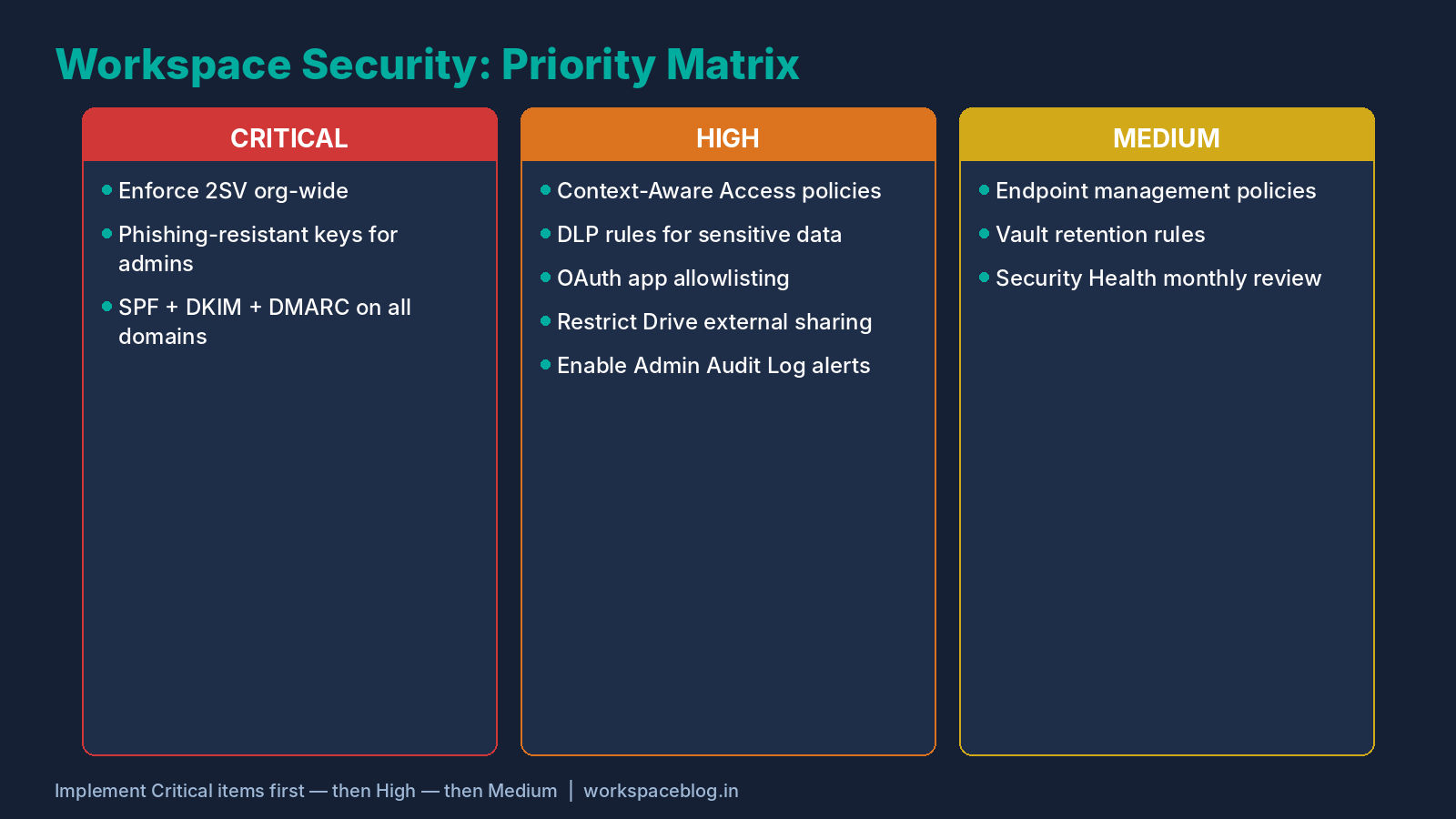
The infrastructure behind Google Workspace is rock-solid, but the biggest security risks come from misconfiguration and user behavior, not Google’s servers. Phishing attacks, account takeovers, overly permissive sharing settings, and third-party app access are the top vectors for breaches in Workspace environments.
The good news: Google gives admins powerful tools to close every one of these gaps. The challenge is knowing which levers to pull and in what order.
1. Enforce 2-Step Verification (2SV) Org-Wide
Single-factor authentication (just a password) is the lowest-hanging fruit for attackers. Google’s research has found that adding a second factor blocks the vast majority of automated account-takeover attempts.
How to enforce 2SV:
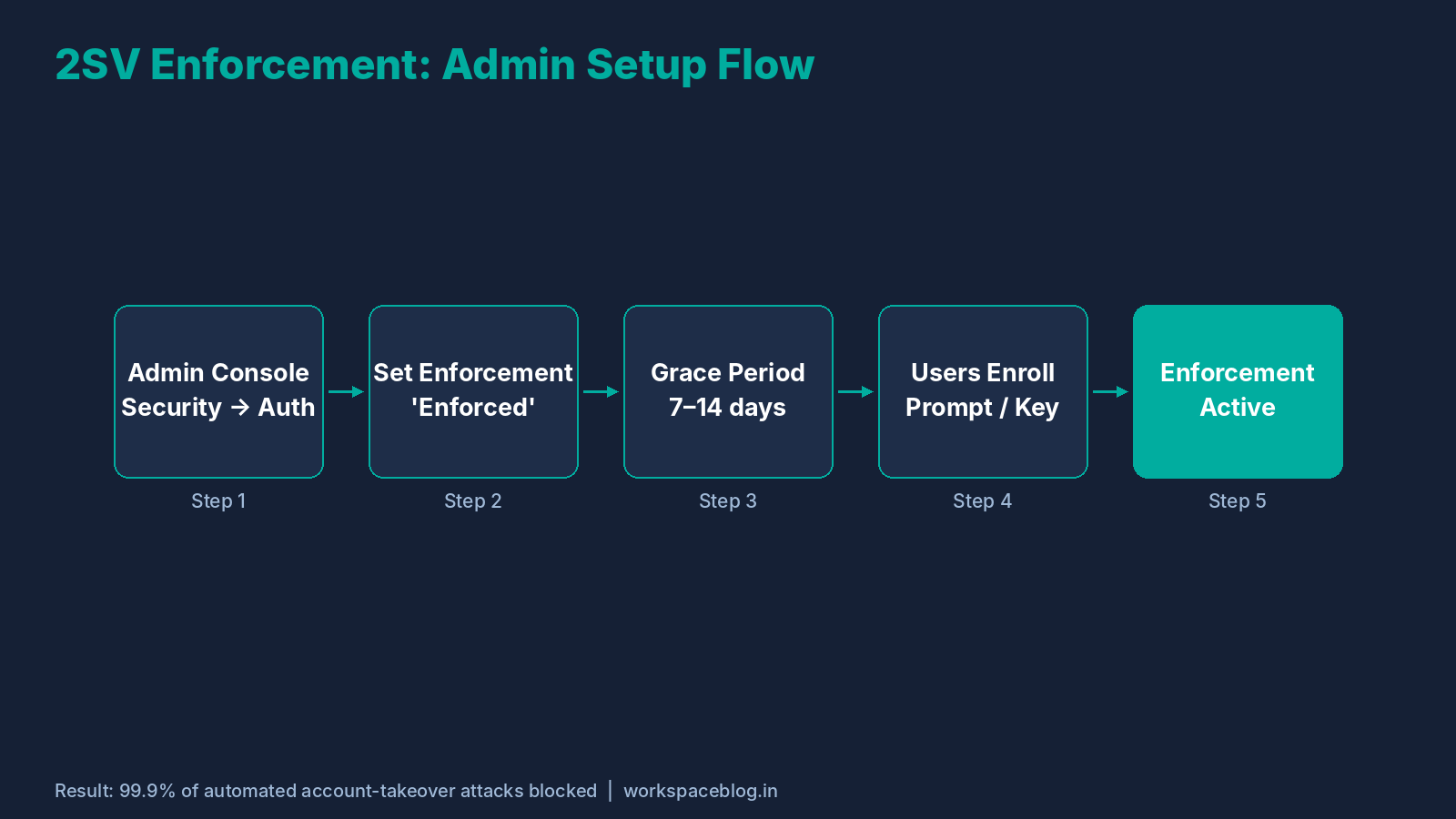
- Go to Admin Console → Security → Authentication → 2-Step Verification
- Check “Allow users to turn on 2-Step Verification” and leave Enforcement set to Off while users enroll
- When most users are enrolled, set Enforcement to On (starts right away) or Turn on enforcement from date (Google says enforcement can begin within 24 to 48 hours of the chosen date, so use On if you need an exact start)
- Set a New user enrollment period (7 to 14 days works well; the console allows 1 day to 6 months) so new users have time to enroll. During that period they can sign in with just a password
- Under Frequency, leave Allow user to trust the device unchecked unless users often move between devices; Google doesn’t recommend skipping 2SV on trusted devices otherwise
- Require a Security Key or Google Prompt rather than just SMS: SMS is vulnerable to SIM-swap attacks
Recommended settings for high-security environments:
- Enforce phishing-resistant 2SV (hardware security keys or Passkeys)
- Under Methods, choose Any except verification codes via text, phone call or Only security key (which also supports passkeys) if your risk profile warrants it
- Use the 2SV enrollment report (
Admin Console → Reporting → User reports → Security) to identify non-enrolled accounts
Pro tip: Create a separate OU for service accounts and break-glass admin accounts with different 2SV policies. Never exclude entire OUs from 2SV enforcement.
2. Configure Context-Aware Access (CAA)
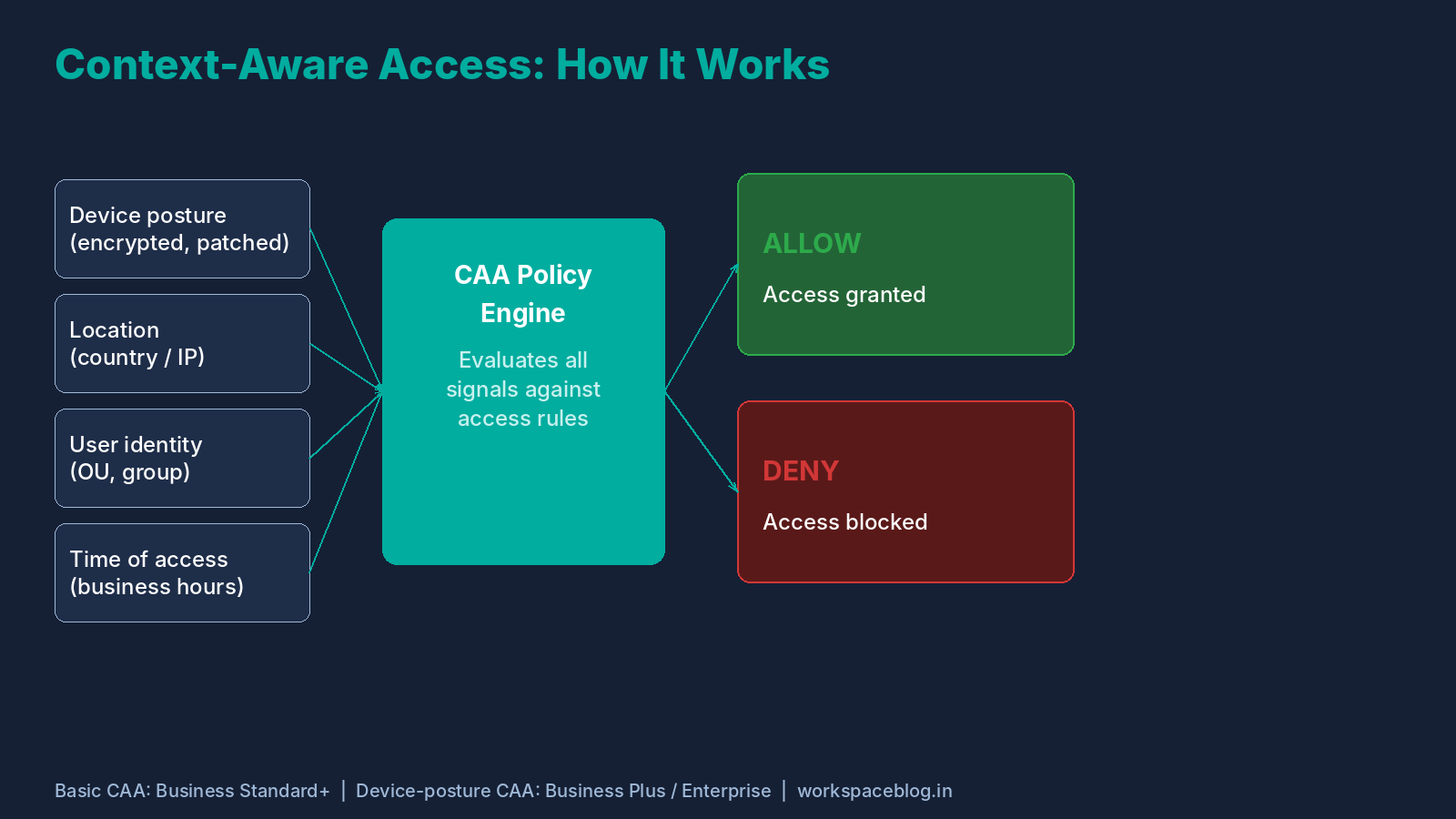
Context-Aware Access lets you set granular access policies based on device posture, location, and user attributes, blocking logins from unmanaged or non-compliant devices even with correct credentials.
What CAA can block:
- Access from non-corporate devices
- Access from specific countries (geo-restriction)
- Access from devices without disk encryption or screen lock
- Access to sensitive apps (Drive, Gmail) from personal devices
Setup path: Admin Console → Security → Access and data control → Context-Aware Access
You’ll create Access Levels (conditions) and Assign them to apps within your organization. CAA is available on Enterprise Standard and Plus, Frontline Standard and Plus, Education Standard and Plus, Enterprise Essentials Plus, and Cloud Identity Premium. It is not included in Business editions.
3. Set Up Data Loss Prevention (DLP) Policies
DLP policies scan outgoing email and Drive files for sensitive data patterns (credit card numbers, Social Security numbers, IBAN codes, custom regex patterns) and can block, quarantine, or warn before data leaves your organization. DLP rules need an Enterprise, Frontline, or Education edition (Drive DLP is also in Enterprise Essentials Plus).
DLP for Gmail:
- Admin Console → Rules → Create rule → Data protection (choose Gmail in the rule’s Apps section)
- Create a rule: if an outgoing message contains a credit card number, block or quarantine it and alert admins
- On editions without DLP, Gmail’s content compliance setting (Apps → Google Workspace → Gmail → Compliance) can quarantine or reject messages that match patterns you define
DLP for Drive:
- Admin Console → Rules → Create rule → Data protection (choose Drive in the rule’s Apps section)
- Scan files for PII, block external sharing of flagged documents
Example high-value DLP rules to implement:
| Rule | Trigger | Action |
|---|---|---|
| Credit card data | Outbound email contains Luhn-valid number | Block + notify |
| Passports/IDs | Drive doc shared externally | Warn user |
| Custom keywords | Email body contains “confidential” | Audit only (log the event) |
When several Gmail DLP rules match the same message, Gmail applies only the most restrictive action (block, then quarantine, then warn). Start new rules with the Audit only action for a pilot group before enforcing, to avoid false positives disrupting business.
4. Manage Third-Party App Access with OAuth Controls
Every time a user connects a third-party app to their Google account (“Sign in with Google” or granting Drive access), that app gets an OAuth token. Unchecked, this creates a shadow IT problem where thousands of apps have access to corporate data.
Audit current app access: Admin Console → Security → Access and data control → API controls → App access control
The Accessed apps list shows every app that has used OAuth to reach your users’ data, how many users access it, and which Google services it requests. Before you trust a new app, check it the way our Google Workspace Marketplace apps guide describes.
Hardening steps:
- Under unconfigured app settings, keep Trust internal apps on and limit unreviewed third-party apps (for example, allow only apps that request basic Sign in with Google info)
- Set sensitive Google services such as Gmail and Drive to Restricted, so only apps you mark Trusted or Specific Google data can reach them
- Build an allowlist of approved apps by setting their access to Trusted, and set unwanted apps to Blocked
- Review the Accessed apps list regularly to find and block suspicious apps
5. Enable and Monitor Admin Audit Logs
The Admin Audit Log is your flight recorder. Every action taken in the Admin Console is logged: admin logins, policy changes, user provisioning, group modifications, and more.
Accessing audit logs: Admin Console → Reporting → Audit and investigation → Admin log events
Critical events to alert on:
- Super Admin access granted: alert immediately
- 2SV policy changes: should be rare; flag any changes
- User suspended/deleted: verify it was intentional
- External sharing policy changes: large-scope changes deserve review
- OAuth app allowlisted: validate against change management tickets
Set up email alerts: Admin Console → Rules → Create activity rule (activity rules need Enterprise Standard or Plus, Frontline Plus, Education Plus, Enterprise Essentials Plus, Cloud Identity Premium or Chrome Enterprise Premium)
Route critical alerts to a security alias (e.g., security-alerts@yourdomain.com) rather than an individual admin’s inbox, so alerts aren’t missed if someone is on leave.
6. Control External Sharing in Google Drive
Unintentional “Anyone with the link” sharing is one of the most common ways corporate data leaks. A single misconfigured folder can expose sensitive documents to anyone on the internet.
Recommended Drive sharing policy (Admin Console → Apps → Google Workspace → Drive and Docs → Sharing settings → Sharing options):
- Sharing outside of [your organization]: Off or Allowlisted domains for teams that don’t need open external sharing. Where it stays On, turn on the warning shown when users share files outside the organization
- Publishing files to the web: Don’t allow it
- Visitor sharing (sharing with people who don’t have a Google account): Off unless a team needs it
- Access Checker: “Recipients only”, so when someone sends a Drive link in Gmail or Calendar, Drive only offers to share the file with those recipients, not the whole organization or the public
- General access default: keep new files private to their owner, so link sharing has to be turned on per file
For highly regulated industries (healthcare, finance), turn external sharing off or limit it to allowlisted partner domains. Turning it off later also removes external users’ access to files already shared with them.
7. Configure Email Security: SPF, DKIM, and DMARC
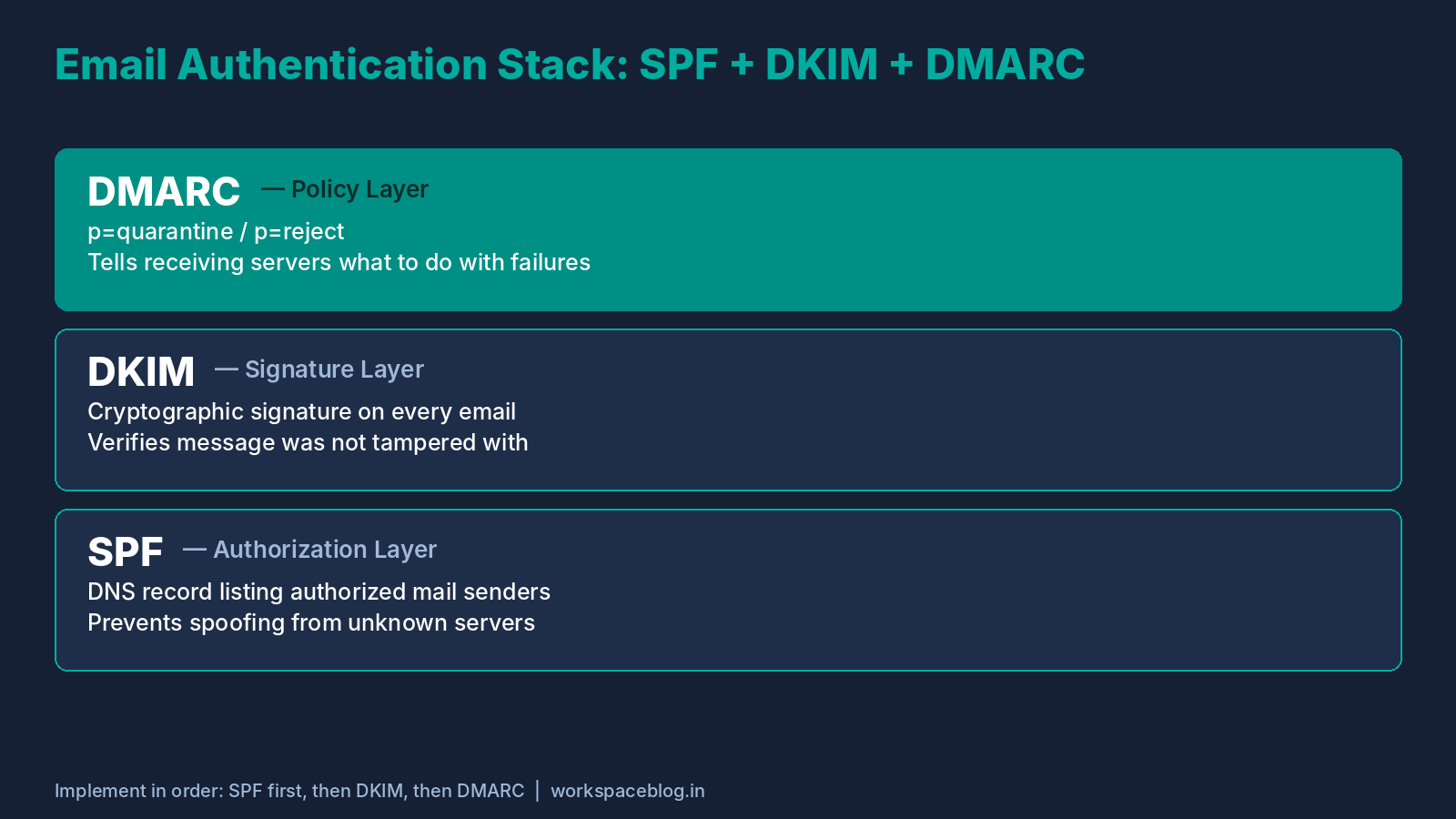
These three protocols work together to authenticate your outbound email and prevent spoofing and phishing attacks using your domain.
SPF (Sender Policy Framework): A DNS TXT record listing authorized mail servers for your domain.
v=spf1 include:_spf.google.com ~allDKIM (DomainKeys Identified Mail): A cryptographic signature added to outgoing email. Generate and activate DKIM keys in: Admin Console → Apps → Google Workspace → Gmail → Authenticate email
DMARC (Domain-based Message Authentication, Reporting, and Conformance): Tells receiving servers what to do with emails that fail SPF/DKIM checks.
v=DMARC1; p=quarantine; rua=mailto:dmarc-reports@yourdomain.com; pct=100Start with p=none (monitoring only), review DMARC aggregate reports, then move to p=quarantine and finally p=reject once you’re confident in your mail flow.
8. Workspace Vault for eDiscovery and Retention
If your organization needs to comply with legal holds or data retention regulations, Google Vault (included in Business Plus and Enterprise) is essential.
What Vault handles:
- Retention rules: Automatically preserve email, Drive, Chat, and Meet data for a set period
- Holds: Legal hold specific user data to prevent deletion during litigation
- Exports: Extract data for compliance reviews or eDiscovery requests
- Audit reports: Track who searched or exported Vault data
Vault itself runs at vault.google.com; the Vault service and admin privileges are managed from the Admin console.
9. Endpoint Management and Mobile Device Policy
Any device accessing corporate Workspace data should meet minimum security standards. Google’s endpoint management (formerly Mobile Device Management) lets you enforce policies on Android, iOS, Chrome OS, and Windows/Mac.
Minimum recommended endpoint policies:
- Require screen lock with PIN/biometric
- Enable remote wipe capability
- Require disk encryption (enforced on Android/Chrome OS)
- Approve only company-owned devices for access to sensitive data (via CAA)
Admin Console → Devices → Mobile & endpoints
With advanced management, Android devices use the Android Device Policy app and iOS devices use the Google Device Policy app.
10. Regular Security Health Check: The Workspace Security Dashboard
Google provides a built-in Security center with a Security health page (Enterprise, Frontline Standard and Plus, Education, and Enterprise Essentials Plus editions) that surfaces misconfiguration risks.
Admin Console → Security → Security center → Security health
This page shows the status of each monitored security setting (such as 2-Step Verification for users and admins) across your organizational units, with recommendations wherever a setting needs attention. Treat it as your monthly security checklist.
For Enterprise customers, the Security Investigation Tool allows deep forensic analysis, tracing a phishing email through your environment, seeing who received it, and taking action (such as deleting the messages) from the same interface.
Quick Reference: Security Hardening Checklist
| Area | Action | Priority |
|---|---|---|
| Authentication | Enforce 2SV org-wide | 🔴 Critical |
| Authentication | Require phishing-resistant keys for admins | 🔴 Critical |
| Access | Configure Context-Aware Access | 🟠 High |
| Data | Set DLP policies for sensitive data | 🟠 High |
| Apps | Audit and restrict OAuth app access | 🟠 High |
| Implement SPF, DKIM, DMARC | 🔴 Critical | |
| Drive | Restrict external sharing defaults | 🟠 High |
| Monitoring | Enable audit log alerts | 🟠 High |
| Devices | Enforce endpoint management policies | 🟡 Medium |
| Compliance | Configure Vault retention rules | 🟡 Medium |
Conclusion
Google Workspace security is not a one-time setup. It’s an ongoing practice. The Admin Console gives you everything you need to build a defense-in-depth security posture, but it requires intentional configuration and regular review.
Start with the critical items: 2SV enforcement and SPF/DKIM/DMARC. Then layer in Context-Aware Access, DLP policies, and OAuth controls. Schedule a monthly audit of your Security Health dashboard and review the Admin Audit Log weekly for anomalies.
For organizations handling sensitive data or subject to compliance requirements (HIPAA, GDPR, SOC 2), consider pairing these native controls with a third-party SIEM integration via the Google Workspace Audit API for real-time alerting.
Your users trust you with their productivity, and your organization’s data. These controls ensure that trust is well-placed.
Official Google documentation:
- Deploy 2-Step Verification
- Set up DMARC
- Protect your business with Context-Aware Access
- About the audit and investigation tool
- Create and manage data protection rules
- Create and manage activity rules
- Get started with the security health page
Related reading:
- Gemini for Google Workspace: Complete Admin Guide: once your security posture is solid, this covers how to roll out AI features responsibly.
- Gemini Enterprise Workspace Add-On: Features, Pricing & IT Admin Guide: Enterprise-grade compliance controls including CMEK and audit logging for AI interactions.
- Google Workspace Business Plans Comparison: choosing the right plan before configuring your admin controls.
- Google Workspace Password Policy and 2SV Enforcement: a step-by-step rollout for the sign-in controls in this checklist.
This post reflects Admin Console configurations and best practices current as of July 2026. Google Workspace is actively developed. Always verify menu paths and feature names against the current Admin Console UI.
This guide contains referral or affiliate links. If you sign up through one, Workspace Blog may earn a commission at no extra cost to you. Learn more.