Google Chat Admin Guide: Spaces, Configuration, Governance, and Enterprise Rollout
-
 Mohit
Mohit - 25 Aug, 2026

Google Chat is the team messaging component of Google Workspace. It has grown into a full enterprise collaboration tool with spaces (persistent topic-based rooms), direct and group messages, external collaboration, apps and integrations, and compliance controls through Vault.
This guide gives IT admins the configuration essentials, governance decisions, retention setup, app controls, and a rollout plan for Google Chat.
Google Chat vs. Microsoft Teams: Quick Context
For organizations choosing between platforms or running both:
| Area | Google Chat | Microsoft Teams |
|---|---|---|
| Integration | Gmail, Meet, Drive, Calendar | Outlook, SharePoint, OneDrive, Office apps |
| File sharing | Google Drive | SharePoint / OneDrive |
| Meetings | Google Meet | Teams meetings |
| Apps | Chat apps and Google Workspace Marketplace | Teams app store |
| Admin | Google Admin console | Teams admin center + PowerShell |
| eDiscovery | Google Vault | Microsoft Purview |
Chat fits naturally when you’re already standardized on Workspace: spaces sit alongside Gmail, files are Drive files, and meetings start in Meet. For organizations running both platforms, Google and its partners offer interoperability options. See our coexistence guide.
Where Chat Settings Live
Admin Console → Apps → Google Workspace → Google Chat
Most settings can be applied per organizational unit, so you can pilot stricter or looser settings with one team first. The key areas are:
| Setting area | Controls |
|---|---|
| Service status | Whether Chat is on for an OU |
| History for chats | Whether direct and group messages are kept |
| Space history | History options for spaces |
| External Chat Settings | Chatting with people outside your organization |
| External spaces & group direct messages | Spaces that include outside people |
| Chat apps | Whether users can install Chat apps |
External Chat
One-to-one chats with outside people
External Chat Settings → Allow users to send messages outside your organization:
- Off: users can only chat internally
- On: users can chat with external Google users
- Only allow this for allowlisted domains: restrict to trusted partner domains
- Auto-accept chat invites from familiar contacts: skip invitation prompts for known external contacts
External spaces and group messages
External spaces & group direct messages is an organization-wide setting (not per OU). When it’s on, users can create and join spaces and group messages with outside people, optionally only from allowlisted domains. It only works when external chat is also on.
Recommendations
| Organization type | External chat | External spaces |
|---|---|---|
| Regulated (finance, healthcare, legal) | Allowlisted domains only | Allowlisted domains only, or off |
| Agency or consultancy working with clients | On, or allowlisted clients | On with allowlist |
| Internal-only collaboration | Off | Off |
Restricting external chat keeps sensitive conversations inside your audit and retention boundary. Allowlisting key partners is usually the right balance.
Chat History and Retention
History for direct and group messages
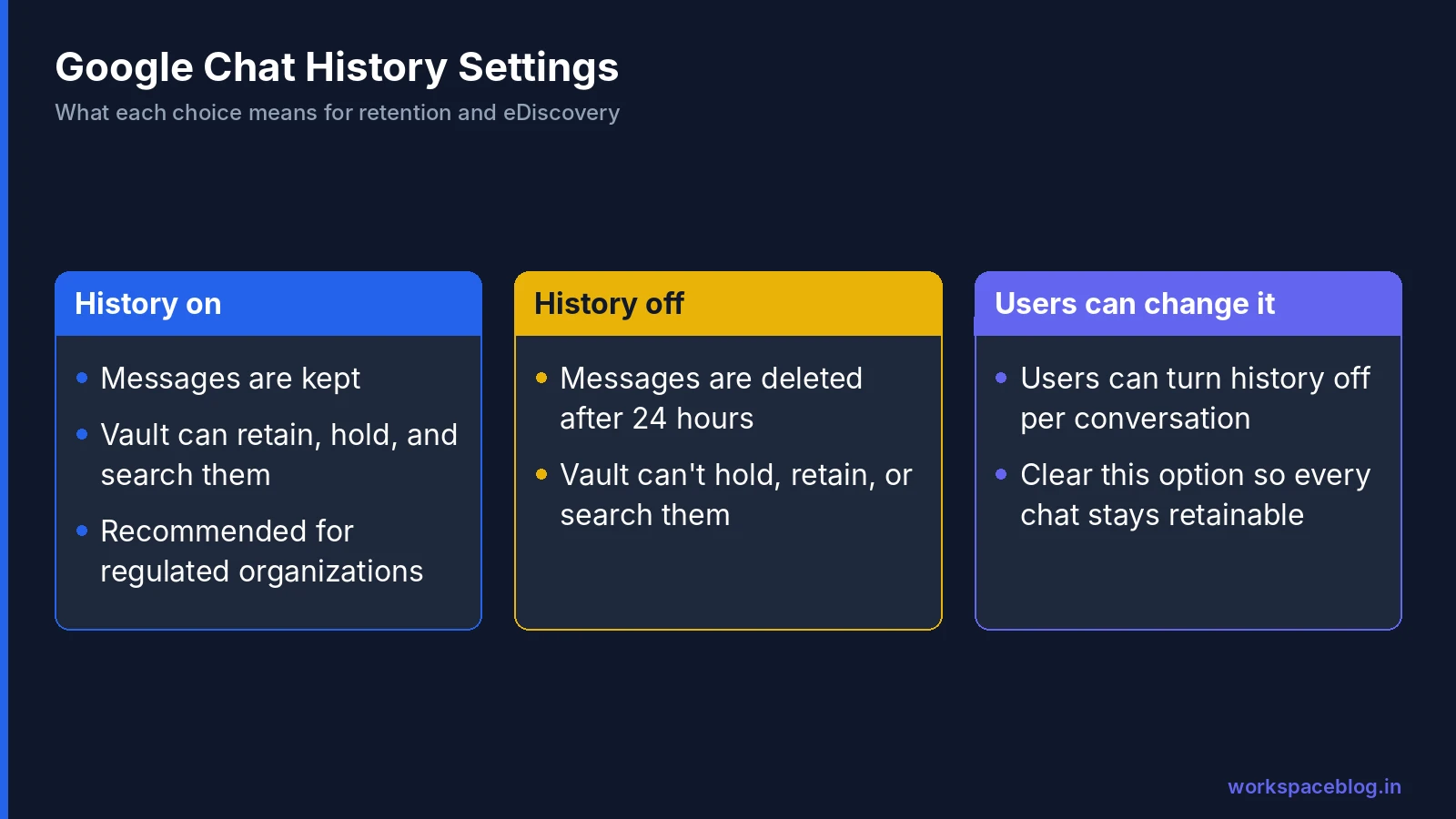
History for chats:
- On: messages are kept and can be covered by Vault
- Off: messages are deleted after 24 hours, and Vault can’t hold, retain, or search them
- Allow users to change their history setting: lets users turn history off per conversation
Recommendation for regulated organizations: set history On and clear Allow users to change their history setting, so every conversation can be retained and searched.
Space history
Spaces have their own history option, set separately. Most organizations keep space history on, because spaces hold team decisions and project discussions.
Vault retention for Chat
On editions with Vault, Chat messages (with history on) can be retained, held, searched, and exported:
- Open vault.google.com → Retention → Google Chat
- Set a default rule matching your records policy (often several years for business communications)
- Add custom rules for OUs or specific spaces if they need different periods
- Decide what happens when retention expires
Without a retention rule, messages users delete are gone. See our Vault guide for holds and exports.
Spaces: Organizing Team Collaboration
Conversation types
| Type | Use |
|---|---|
| Space | Persistent, named, topic-based rooms for teams, projects, and communities |
| Group message | Short-lived conversations with a few people |
| Direct message | One-to-one conversations |
Spaces can be discoverable so people in the organization can find and join them, or private to invited members.
Space naming and ownership
Without governance, space names become cryptic and abandoned spaces pile up. Establish conventions:
[Team] - [Topic], for example “IT - Security Alerts”, “Finance - Month Close”[Project] - [Phase], for example “ERP Migration - Planning”- Prefix external spaces, for example “EXT - Acme Corp”, so everyone knows outsiders can read them
Make sure every space has at least one manager who’s responsible for membership and for archiving it when the project ends.
Space types for announcements
For announcement-style spaces (company news, IT notices), restrict posting to managers so the space stays readable.
Chat Apps and Integrations
Chat apps can post messages, respond to commands, and connect Chat to other systems.
Admin control
Chat apps → Allow users to install Chat apps: turn this off if you want IT to approve integrations first. Users who can install Google Workspace Marketplace apps can still install any app you allow there, so manage the Marketplace apps allowlist (Apps → Google Workspace Marketplace apps) at the same time.
Recommendation: start restrictive, publish a list of approved apps, and evaluate new requests for the data they access and who builds them.
Common integrations
Many vendors publish Chat apps, including incident management (PagerDuty), issue tracking (Jira), source control (GitHub), and Google’s own apps such as Meet, Drive, and Calendar. Review each third-party app’s requested access before approving it.
Building your own Chat apps
Custom apps can be built with Google Apps Script (low-code) or the Google Chat API in languages such as Python, Java, and Node.js. Common IT examples:
- A helpdesk app that creates a ticket from a slash command
- An alerting app that posts infrastructure or security alerts into a space
- An on-call app that answers “who’s on call?”
Incoming webhooks are an even simpler way to post automated alerts into a space from monitoring tools.
Auditing Chat
Admin Console → Reporting → Audit and investigation → Chat log events records activity such as messages posted, spaces created, and membership changes. Use it alongside Vault: logs show what happened and when, Vault holds the message content.
Review external spaces and newly installed Chat apps monthly.
Google Chat Rollout Strategy
Phase 1 (weeks 1–2): Turn Chat on for IT. Configure history, external settings, and app policies. Test Vault retention and search.
Phase 2 (weeks 3–4): Add department leads. Agree space naming and ownership conventions. Create the first team and announcement spaces.
Phase 3 (weeks 5–8): Roll out to everyone. Run short training sessions per department and publish a one-page “when to use Chat vs. email” guide.
Adoption tip: Chat only replaces email threads if teams commit to it. Agree that day-to-day team coordination and project updates happen in spaces, and that email is for external and formal communication.
Chat Configuration Checklist
| Control | Recommended setting |
|---|---|
| History for chats | On; users can’t change it (regulated orgs) |
| Space history | On |
| External chat | Allowlisted domains |
| External spaces | Allowlisted domains or off |
| Chat apps | Admin-approved only |
| Vault retention | Default Chat rule matching records policy |
| Space conventions | Naming, ownership, external prefix |
Conclusion
Google Chat is a capable enterprise messaging platform when it’s configured deliberately. Decide on history, external collaboration, app installation, and retention before rollout, not after users have built habits around the defaults.
Turn history on, set Vault retention, restrict external chat to trusted domains, approve apps centrally, and give spaces clear names and owners. With those in place, Google Workspace Chat becomes a compliant, well-governed collaboration channel.
Official Google documentation:
- Control external Chat and spaces chat options
- Turn chat history on or off for an organization
- Allow users to install Chat apps
Related reading:
- Google Workspace Vault: eDiscovery and Compliance: Vault is the tool for Chat retention, holds, and eDiscovery.
- Google Workspace Audit Logs: Monitoring Guide: Chat events are logged and searchable in the investigation tool.
- Google Meet Enterprise Admin Guide: Chat and Meet are tightly integrated; configure both together.
This guide contains referral or affiliate links. If you sign up through one, Workspace Blog may earn a commission at no extra cost to you. Learn more.
Frequently Asked Questions
- Can I limit Google Chat to specific external domains?
- Yes. In Apps > Google Workspace > Google Chat > External Chat Settings, turn on Allow users to send messages outside your organization and check Only allow this for allowlisted domains. A separate organization-wide setting controls external spaces and group messages, with its own allowlist option.
- What happens to Google Chat messages when history is off?
- With history off, direct and group messages are deleted after 24 hours, and Vault can't hold, retain, or search them. If you have retention or eDiscovery requirements, turn history on and consider removing users' ability to change it.
- Is Google Chat covered by Google Vault?
- Yes, on editions that include Vault, as long as chat history is on. Vault can retain, hold, search, and export Chat messages; rich text formatting isn't retained in exports.
- How do I stop users installing third-party Chat apps?
- In Apps > Google Workspace > Google Chat > Chat apps, turn off Allow users to install Chat apps. Also review your Google Workspace Marketplace allowlist, because users who can install Marketplace apps can install any app you allow there.
- Where are Google Chat activities logged for admins?
- Chat activity such as messages sent in spaces, space creation, and membership changes appears in Chat log events under Reporting > Audit and investigation in the Admin console.