Gemini for Google Workspace: Everything Admins and Users Need to Know
-
 Mohit
Mohit - 18 Aug, 2026
- Updated 26 Oct, 2026

Generative AI has moved from buzzword to business infrastructure, and Google’s answer for Workspace customers is Gemini for Google Workspace. If you’ve been wondering how to roll it out, what it actually does inside your apps, or how to govern it as an admin, this is your definitive guide.
What Is Gemini for Google Workspace?
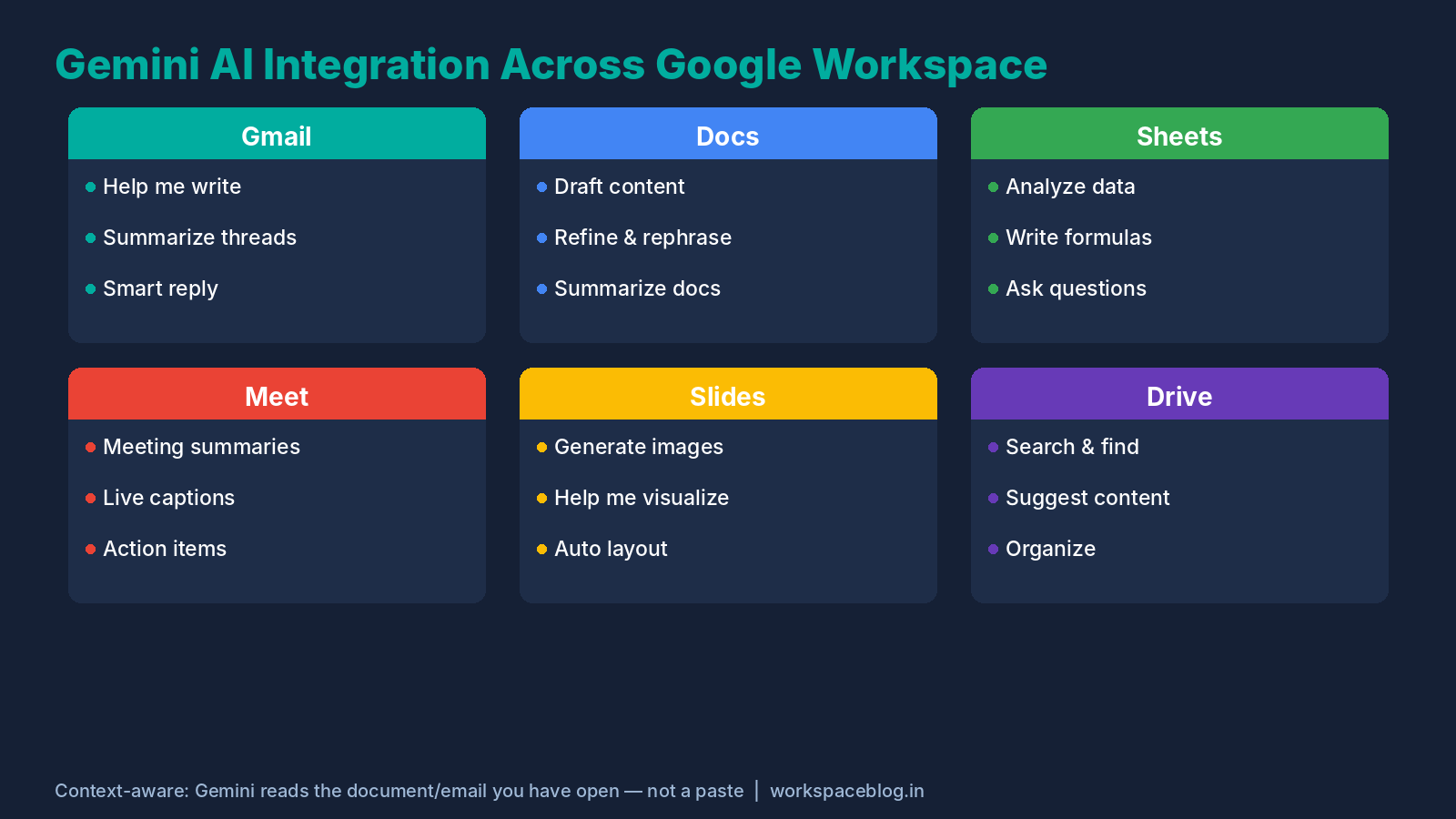
Gemini for Google Workspace is Google’s AI assistant deeply integrated into the productivity apps your organization already uses: Gmail, Google Docs, Sheets, Slides, Meet, Drive, and Chat. Unlike standalone AI tools that require copy-pasting context back and forth, Gemini works within your Workspace apps, with direct access to the document or email you’re working on.
Key capabilities at a glance:
- Help me write in Gmail and Docs: generate drafts from a brief prompt
- Summarize long email threads, documents, and meeting transcripts
- Analyze and explain data in Google Sheets with natural language queries
- Generate images in Slides (for eligible plans)
- Real-time translation and captions in Google Meet
- Meeting summaries via Gemini in Meet: auto-generated after every call
Gemini for Workspace is distinct from the standalone Gemini app (gemini.google.com), though they share the same underlying models. The Workspace integration is context-aware: when you ask Gemini to summarize a document in Docs, it reads that document, not a paste.
Gemini in Gmail: Write Better Emails, Faster
Gmail is where most people meet Gemini first.
Help Me Write
Click the pen icon in the compose window, describe what you need, and Gemini generates a full draft.
Example prompts that work well:
- “Write a professional follow-up email to a client who hasn’t responded in two weeks. Polite but firm.”
- “Draft a meeting invitation for a quarterly business review with our leadership team, Tuesday at 2pm.”
- “Compose a rejection email for a job applicant: kind and encouraging about reapplying in the future.”
Gemini pulls on the context of your previous emails in that thread when you’re replying, meaning the generated response is often ready to send with minimal editing.
Summarize Email Threads
For long threads (especially project threads with 30+ replies), the Summarize button collapses the entire conversation into a bullet-point summary. This is a genuine time-saver for catching up after vacation or understanding a thread someone forwarded.
Smart Reply and Smart Compose
These Gmail features predict what you’re about to type and suggest completions. While less dramatic than full draft generation, they meaningfully speed up high-volume email triage.
AI Inbox
AI Inbox is a newer view in Gmail that pulls suggested to-dos (action items and deadlines from incoming email) and short summaries of topics to catch up on into one place. Users open it from AI Inbox in the Gmail menu on the web or in the mobile app.
What admins should know:
- Availability: Google’s Workspace Updates post (October 15, 2026) lists Business Starter, Standard and Plus, Enterprise Starter, Standard and Plus, AI Pro for Education and Frontline Plus, with Starter and Education editions following “in the coming months”. The Gmail Help Center currently lists Enterprise Plus with Gemini Beta access for work accounts, so check both pages for your edition.
- Rollout: gradual from October 12, 2026 for Rapid Release domains and from October 26, 2026 for Scheduled Release domains.
- Location and language: US users with English only, for now.
- Admin control: Google states there is no admin setting for AI Inbox itself. It only works when the user’s smart features in Google Workspace and smart features in other Google products are turned on, so include it in your user guidance and acceptable use policy.
- What it reads: only mail in the Primary tab. It skips spam, archived, deleted, muted and snoozed messages, attachments, delegated inboxes and encrypted email. The first to-dos can take up to 7 days to appear.
Gemini in Google Docs: Your First Draft is No Longer a Blank Page
The hardest part of writing is starting. Gemini in Docs eliminates that friction.
Help Me Write (Docs)
Open a new document, click the Help me write prompt at the top, and describe the document you need.
Effective prompt examples:
- “Write a 500-word IT policy on acceptable use of AI tools in the workplace.”
- “Create an onboarding guide for new Google Workspace users, covering Gmail, Drive, Meet, and Calendar basics.”
- “Draft a quarterly business update for stakeholders: revenue flat, customer satisfaction up, one product launch planned.”
The output isn’t perfect, but it gives you structure and a starting point. Editing a draft is far faster than writing from scratch.
Docs Live on mobile
Available on the Google Docs mobile app for Android and iOS, Docs Live allows you to create structured documents using just your voice. Working as a hands-free thought partner, it pulls context securely from your Gmail, Drive, Chat, and the web to draft meeting summaries, project updates, proposals, and more.
It is ON by default for users with Gemini in Docs enabled. This feature is available for Business Standard and Plus, Enterprise Standard and Plus, Google AI Pro and Ultra, Google AI Pro for Education, and AI Expanded Access users.
Refine and Rephrase
Select any text in Docs and use the Help me refine option to:
- Make it more formal or casual
- Shorten or expand a section
- Fix grammar and clarity
- Translate to another language
Summarize Long Documents
For lengthy reports or SOPs, the Summarize sidebar option distills the document into a few key bullets: useful before meetings where you need to quickly internalize a document someone else wrote.
Gemini in Google Sheets: Data Analysis Without SQL
For non-technical users, Gemini in Sheets is arguably the biggest change.
Help Me Organize
Describe your data structure and Gemini generates column headers, templates, and formula suggestions. Tell it “I want to track employee onboarding progress with status, start date, manager, and completion percentage” and it scaffolds the sheet.
Ask Questions About Your Data
With the Ask Gemini sidebar (available in eligible plans), you can ask natural language questions about your spreadsheet data:
- “Which 5 rows have the highest value in column D?”
- “What’s the average of column B for rows where column C says ‘Completed’?”
- “Create a chart showing monthly revenue by product category.”
This brings basic data analysis to users who would otherwise need a data analyst, or a crash course in VLOOKUP.
Analyze BigQuery Data in Sheets
Users on Business Standard and Plus, Enterprise Standard and Plus, Google AI Pro and Ultra, Google AI Pro for Education and AI Expanded Access can use Gemini to interact with BigQuery data conversationally in Google Sheets via Connected Sheets, as long as they have permission to query the connected data. Queries run against the full dataset in BigQuery, not just what is visible in the spreadsheet. This allows users to ask natural language questions (for example, “What were total sales last quarter?”), ask follow-up questions, and have Gemini build a new spreadsheet tab with native, connected, refreshable objects such as database formulas, pivot tables, and charts. Business users get answers without writing SQL, and data teams get fewer reporting requests. This feature started a gradual rollout on 19 October 2026, is on by default, and has no separate admin control.
Gemini in Sheets on Mobile
Gemini in Google Sheets is available on iOS and Android devices for Business Starter, Standard and Plus, Enterprise Starter, Standard and Plus, Google AI Pro for Education, and Google AI Plus, Pro and Ultra subscribers. Tap the Gemini spark icon to ask questions about your data, generate analytical insights, and create charts directly from your mobile device while on the go. To help users get started, the interface includes suggested prompts such as “Summarize this table,” and “Analyze for insights.” This allows professionals to review financial trackers or employee databases without needing a desktop computer. This functionality started rolling out to domains on 15 October 2026.
Formula Generation
Stuck on a complex formula? Describe what you want to calculate in plain English and Gemini writes the formula. It even explains what each part does, so you learn while you work.
Gemini in Google Meet: Intelligent Meeting Infrastructure
Meet’s Gemini features focus on reducing the cognitive load of meetings themselves.
Meeting Summaries
After a recorded or transcribed meeting, Gemini generates:
- A summary of what was discussed
- Action items assigned to named participants
- Key decisions made
This lands in the Google Doc automatically linked to the Meet event: accessible to attendees and shared after the meeting. No more “wait, what did we decide?” moments.
Meeting Recaps in Google Chat
To make it easier for teams to move from planning to action, meeting recaps now provide a convenient summary directly in Google Chat. These recaps include a high-level meeting summary highlighting key discussion topics, direct links to the notes document, recording, and transcript, as well as key decisions reached and action items with designated owners. They appear automatically for any conversation with ‘Take notes for me’ enabled in Google Meet, in the Chat space associated with that meeting. The feature is delivered silently to reduce distraction and can be deleted by participants. It is on by default for organisations with Gemini for Google Workspace enabled, follows your existing “Take notes for me” policies, and is available on Business Standard and Plus, Enterprise Standard and Plus, and Frontline Plus. It started rolling out on October 16, 2026 for Rapid Release domains and October 27, 2026 for Scheduled Release domains.
Real-Time Captions and Translation
Meet offers live translated captions during meetings: useful for international teams. Gemini-powered transcription handles accents and technical jargon significantly better than earlier generations.
Studio Lighting and Background Features
On supported hardware, Meet uses AI to automatically improve video quality, adjusting for poor lighting and blurring/replacing backgrounds. Small quality-of-life features, but meaningful for distributed teams on video calls all day.
Gemini in Google Slides: Generate Images and Outlines
Generate Images
Type a text prompt and Gemini generates an image directly in your slide. No need to export to another tool.
Prompt tips:
- Be specific about style: “photorealistic,” “flat illustration,” “infographic style”
- Include the context: “a cloud server infrastructure diagram with blue and white colors”
- Iterate: click “Generate more” to see variations
Note: Image generation is available on Business Standard/Plus and Enterprise plans.
Help Me Visualize
Select slide text and ask Gemini to suggest how to present it visually. It may recommend charts, diagrams, or layouts based on the content type.
Admin Controls: Governing Gemini in Your Organization
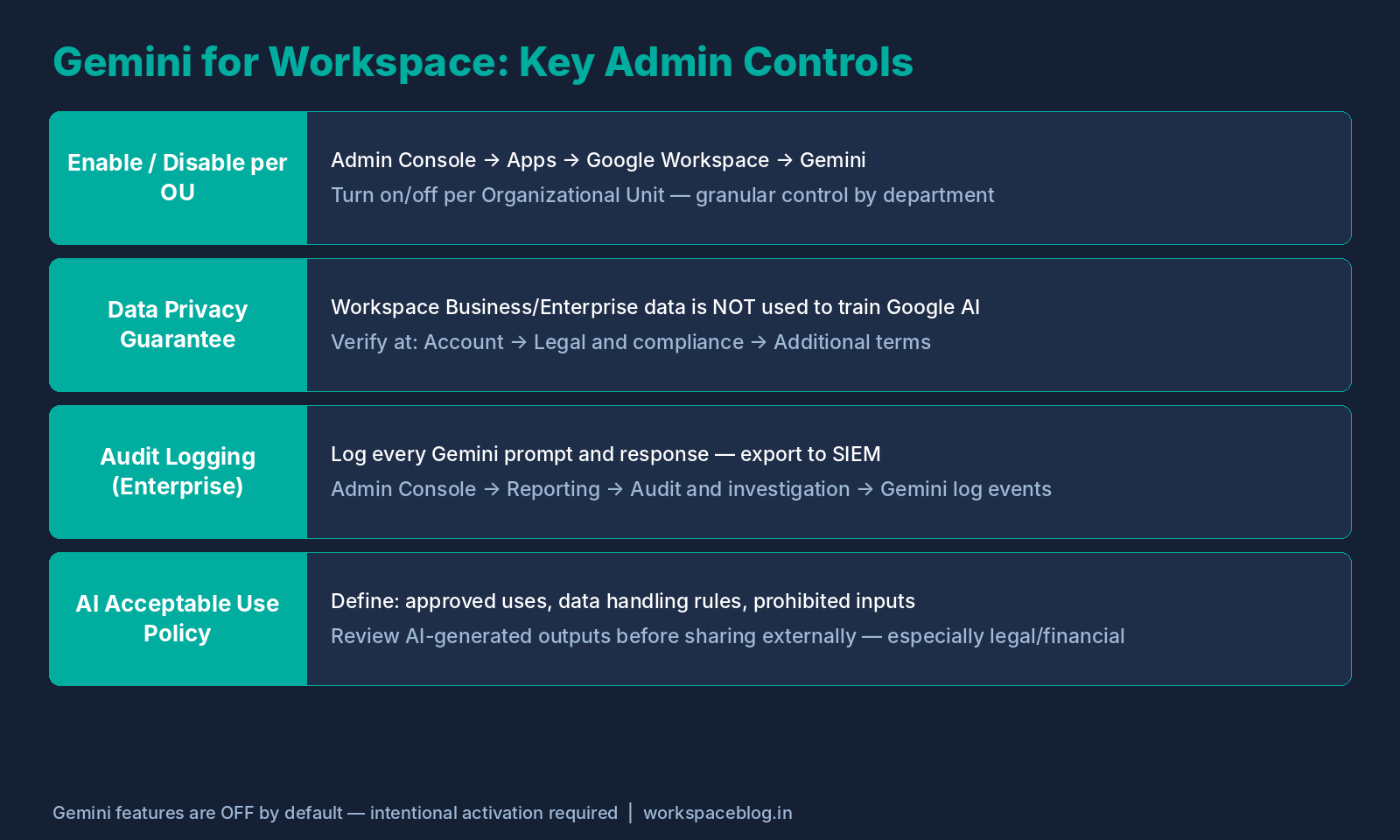
This is where Workspace admins earn their keep. Gemini features in Workspace services are on by default, so decide deliberately who should have them.
Enabling Gemini Features
Admin Console → Generative AI → Gemini for Workspace → Feature access
Key settings:
- Gemini for Gmail/Docs/Sheets/Slides: Enable per OU or organization-wide
- Workspace data for model training: By default, Workspace data is NOT used to train Google’s AI models (with a Business or Enterprise subscription). Verify this in your Customer Agreement.
- Audit logging for Gemini: Gemini for Workspace log events record when and where users use Gemini features (Reporting → Audit and investigation); they log usage, not the text of prompts and responses
Gems are becoming skills
Google is replacing Gems with skills: reusable instructions that work in the Gemini app and in most Workspace apps, and that can be combined in one prompt. Skills started rolling out in the Gemini app on October 13, 2026, with completion expected by mid-November. The rollout of skills in Workspace apps, planned for October, was delayed on October 13, 2026 “until further notice” for both Rapid and Scheduled Release domains, and Google says it will share a new timeline once confirmed. Skills do not sync between the Gemini app and Workspace apps. On November 17, 2026, Gems move to Settings in the Gemini app and still work. From no earlier than March 1, 2027 for Business and Enterprise editions (June 1, 2027 for Education), users can no longer create, edit or use Gems, Studio flows with an “Ask a Gem” step stop working, and remaining Gems are migrated to inactive draft skills that their owners must review and turn on.
Google’s transition article still lists the Gems dates above; check it for changes now that Workspace skills are delayed. Before the cut-off, turn skills on for the right OUs when they reach your domain, tell users the dates for your edition, and ask owners of important Gems and Studio flows to rebuild them as skills early.
Data Governance and Privacy
A critical question IT admins face: does Gemini read my organization’s data to train AI models?
For Google Workspace for Business and Enterprise customers, the answer is no by default. Your data is processed to generate responses but is not used to improve Google’s models. This is covered under the Google Workspace Terms of Service and the Cloud Data Processing Addendum (CDPA, previously the Data Processing Amendment).
You can review and manage these settings at: Admin Console → Account → Account settings → Legal and compliance
Creating an AI Acceptable Use Policy
Before rolling out Gemini org-wide, create a short AI Acceptable Use Policy covering:
- Appropriate use cases (drafting, summarizing, data analysis)
- Data handling. Don’t paste customer PII into AI prompts
- Review of AI-generated outputs before sharing externally
- Prohibited uses (AI-generated content presented without disclosure in certain contexts)
Rollout Strategy: Phased Gemini Deployment
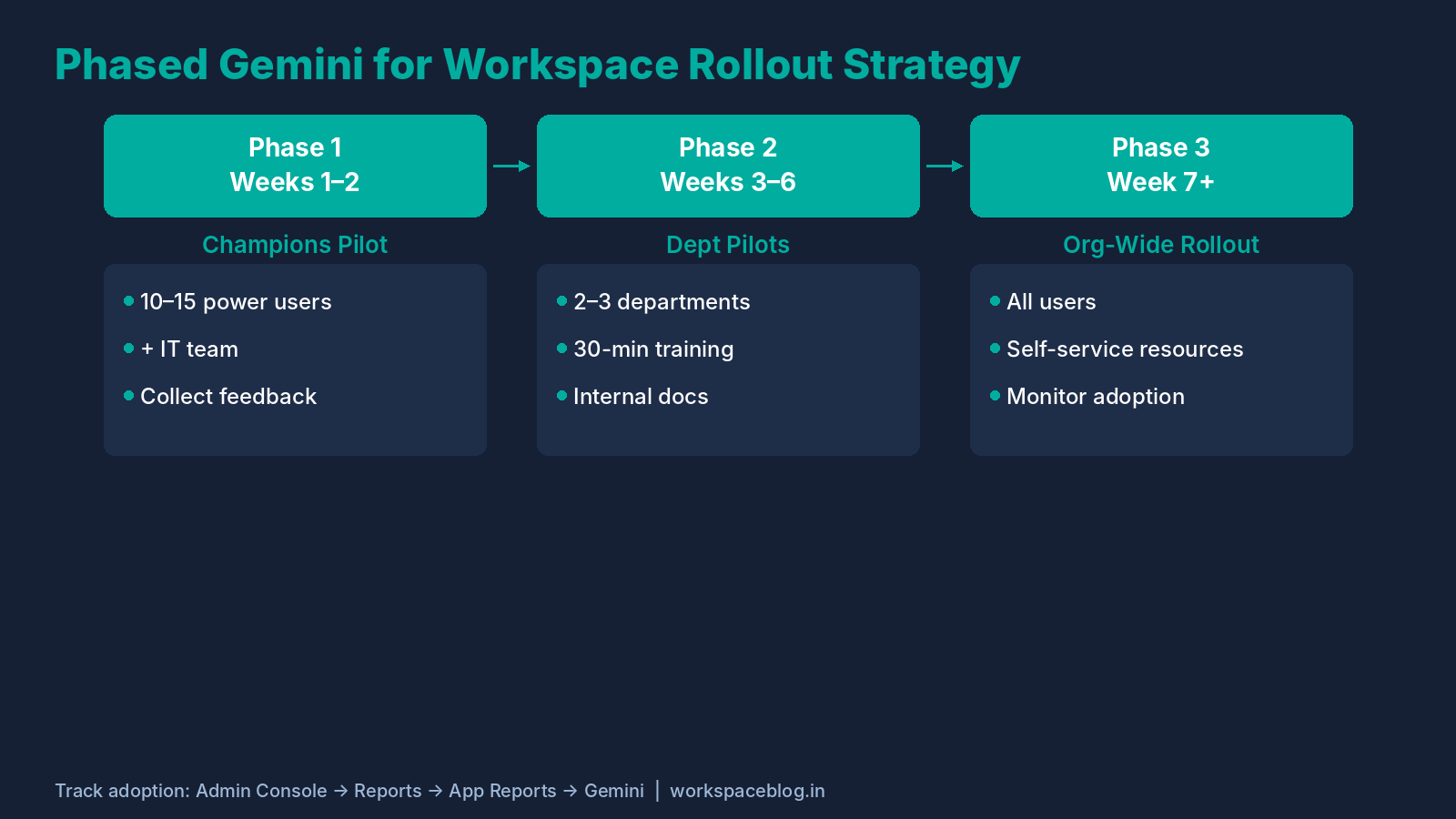
Rather than enabling Gemini for all 500 users overnight, a phased rollout reduces support burden and builds organizational fluency.
Recommended phases:
Phase 1: Champions (weeks 1–2). Enable for 10–15 power users and IT team. Collect feedback on which features drive the most value.
Phase 2: Department pilots (weeks 3–6). Roll out to 2–3 departments (e.g., HR, Sales, Engineering). Provide a 30-minute training session and create internal documentation.
Phase 3: Org-wide (week 7+). Full rollout with self-service learning resources. Monitor usage via Workspace Admin Reports.
Tracking adoption: Admin Console → Generative AI → Gemini reports
This report shows feature usage by user, department, and time: useful for identifying low adoption areas that need additional training.
Real-World Use Cases by Role
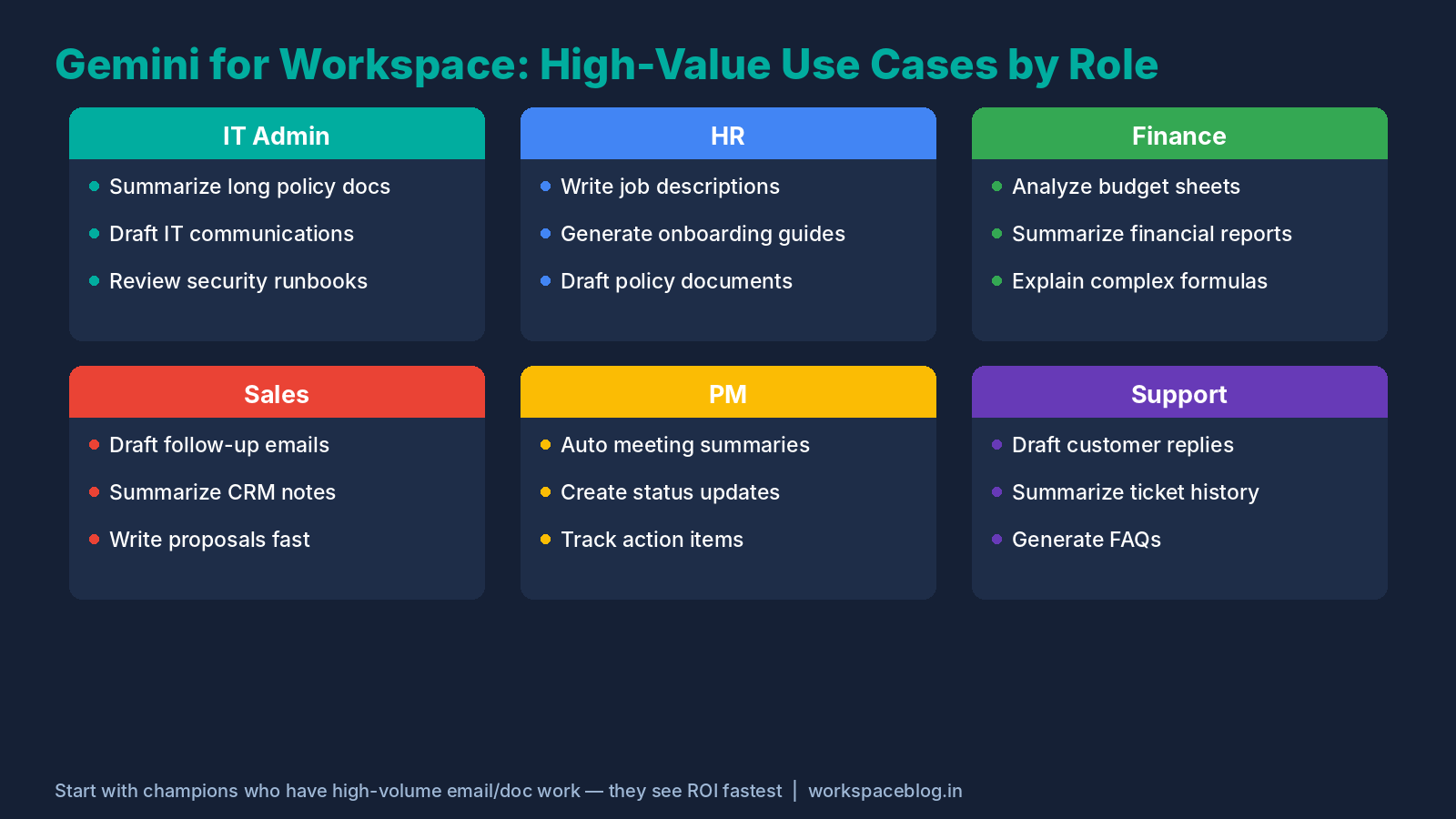
| Role | High-Value Gemini Use |
|---|---|
| IT Admin | Summarize long policy documents; draft IT communications |
| HR | Generate job descriptions, onboarding guides, policy drafts |
| Finance | Analyze budget spreadsheets; summarize financial reports |
| Sales | Draft personalized follow-up emails; summarize CRM notes |
| Project Manager | Generate meeting summaries; create project status updates |
| Support | Draft customer responses; summarize ticket history |
What Gemini for Workspace Is NOT
It’s not a search engine. Most Gemini features in Workspace apps work with the document or email you have open and your own Workspace content. Some newer features, such as Docs Live, can also draw on the web, but for open-ended research the standalone Gemini app is the better tool.
It’s not infallible. Gemini can hallucinate: generate plausible but incorrect information. Always review AI-generated content before relying on it, especially for technical, legal, or financial content.
It’s not a data exfiltration risk (by default). Google says your interactions with Gemini stay within your organization and that customer data is not used to train models without your permission. Third-party apps connected to Gemini fall under their own terms.
Conclusion
Gemini for Google Workspace isn’t AI as a gimmick. It’s AI woven into the workflow your organization already lives in. The productivity gains are most dramatic for high-volume email work, long document summarization, and data analysis tasks that previously required technical skills.
As an administrator, your job is to enable it thoughtfully: with the right governance policies, a phased rollout, and clear training on what Gemini does well and where human review is still essential.
The organizations getting the most from Gemini are the ones treating it as a tool to augment skilled workers, not replace them. Used that way, it makes a real difference.
Official Google documentation:
- Manage access to Gemini features in Workspace services
- Gemini for Workspace log events
- Review Gemini usage in your organization
- Turn the Gemini app on or off
- Turn Gemini Notebook on or off for users
- Gmail’s AI Inbox is rolling out to paid Workspace users
- Manage to-dos and topics with AI Inbox (Gmail Help)
- Create structured documents using just your voice with Docs Live
- Analyze BigQuery data using natural language with Gemini in Google Sheets
- Gemini in Google Sheets is now available on iOS devices
- Follow through on your meeting tasks with meeting recaps in Google Chat
- About the transition from Gems to skills
- Skills in the Gemini app
- An update on the launch of skills in the Gemini app and Workspace
Related reading:
- Google Workspace Admin Security: 10-Point Hardening Guide: before rolling out AI features, make sure your security baseline is in place.
- Gemini Enterprise Workspace Add-On: Features, Pricing & IT Admin Guide: ready to go beyond Business tier? This covers CMEK, audit logging, NotebookLM Enterprise, and extended context windows.
- Google Workspace Business Plans Comparison: not sure which plan includes the Gemini features you need? Start here.
This guide reflects Gemini for Google Workspace features current as of October 2026. Feature availability varies by Workspace edition. Always verify at the Google Workspace Admin Console or the official feature comparison page.
This guide contains referral or affiliate links. If you sign up through one, Workspace Blog may earn a commission at no extra cost to you. Learn more.