Gemini Enterprise Workflow Builder (Formerly Agent Designer): Build No-Code Agents and Automated Workflows
-
 Mohit
Mohit - 21 Oct, 2026

Most organizations have dozens of small, repetitive processes that nobody has time to automate: triaging a shared inbox, chasing approvals, compiling a weekly status update, routing leads. Workflow Builder in Gemini Enterprise is Google’s answer: a no-code tool where business users describe an agent or a workflow in plain language, connect it to the systems they already use, and switch it on.
Workflow Builder was previously called Agent Designer, and it became generally available on September 3, 2026. This guide explains the two things you can build (chat agents and workflows), how triggers and steps work, the limits that matter, and how admins keep it governed.
Because Workflow Builder runs inside the Gemini Enterprise app with connectors for Gmail, Drive, Calendar, and Chat, it fits naturally with Google Workspace, but it also connects to Microsoft 365, Jira, ServiceNow, Slack, and more.
Table of contents
Open Table of contents
- Where Gemini Enterprise Workflow Builder Fits
- Two Things You Can Build
- How Workflows Work: Triggers and Steps
- Building Your First Workflow: A Worked Example
- Testing, Versions, and Run History
- Limits That Matter
- Gotchas From Google’s Documentation
- Sharing Agents and Workflows
- Admin Governance
- Ten Workflow Ideas to Start With
- Conclusion
Where Gemini Enterprise Workflow Builder Fits
Google now has three ways to build agents. Workflow Builder is the one for business users:
| Tool | Built for | Where |
|---|---|---|
| Workflow Builder | Business users and team leads | Gemini Enterprise web app |
| Agent Studio | Technical makers and developers | Agent Platform in the Google Cloud console |
| Agent Development Kit (ADK) | Developers | Code, in your IDE |
If you’re a developer, see our Agent Studio guide or ADK tutorial instead.
Two Things You Can Build
Chat agents
Chat agents are conversational and mostly non-deterministic. They’re good for open-ended questions, dynamic tasks, and lookups.
Examples:
- An HR policy agent that answers questions from the handbook and benefits documents
- A sales research agent that pulls account history from your CRM and recent news
- An IT help agent that searches the knowledge base and Jira for known fixes
Workflows
Workflows are sequences of steps started by a trigger. They combine AI with fixed logic and human decisions, which makes them good for processes that must happen the same way every time.
Examples:
- New-hire onboarding across Gmail and Calendar
- AI drafting with approval: the agent writes, a person approves, then it’s published
- Lead routing by region and budget
| Chat agent | Workflow | |
|---|---|---|
| Starts when | A user chats with it | A trigger fires (manual, schedule, or event) |
| Behavior | Flexible, conversational | Step-by-step, repeatable |
| Best for | Q&A, research, lookups | Processes, approvals, routing |
| Human input | Throughout the chat | At defined Request info steps |
How Workflows Work: Triggers and Steps
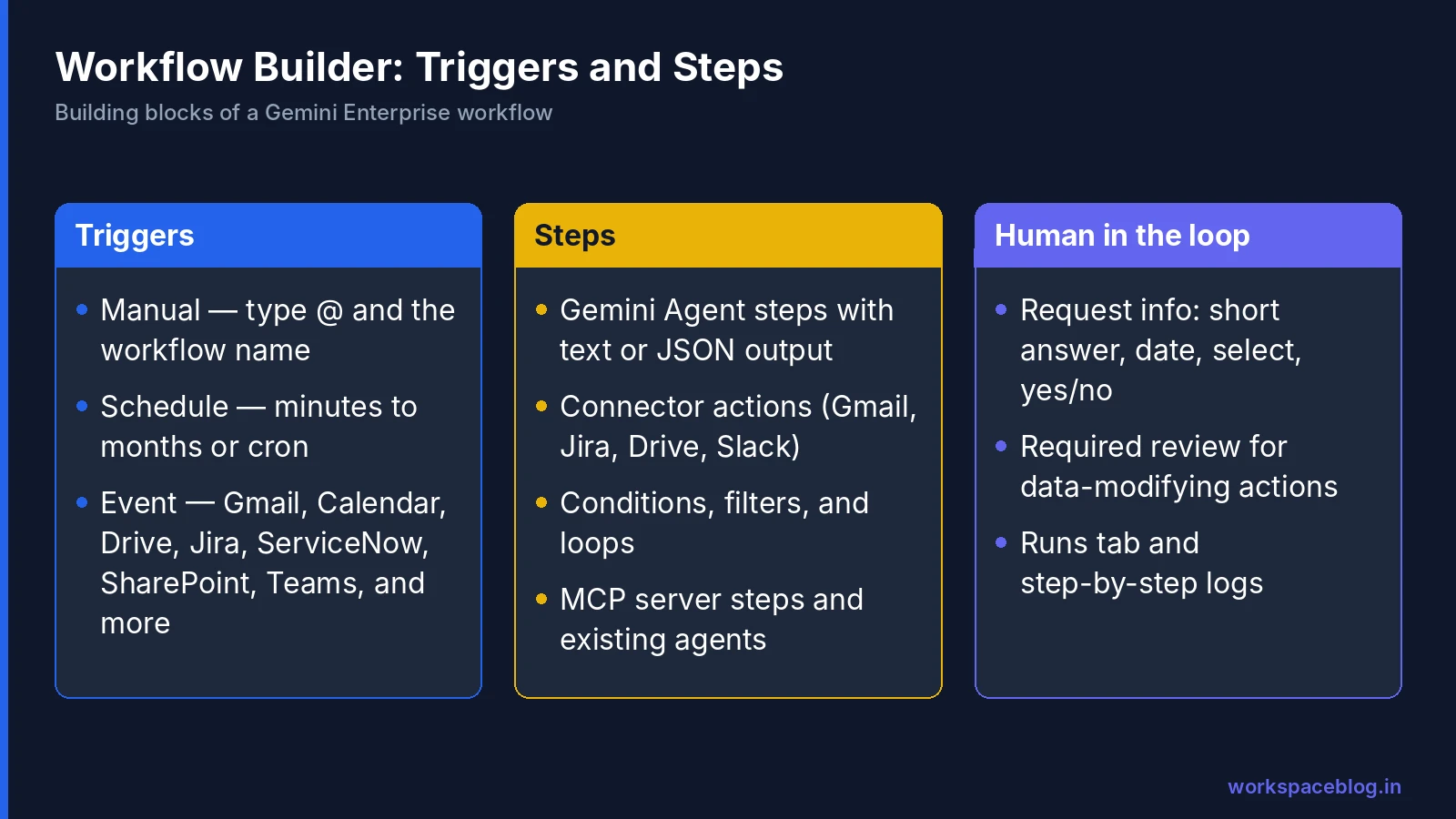
Triggers
| Trigger | How it starts | Notes |
|---|---|---|
| Manual | A user types @ and the workflow name in chat | Can require input fields |
| Schedule | At a set frequency (minutes to months, or a cron expression) in a chosen time zone | Supported only in multi-region deployments (such as us or eu); runs can start up to 5 minutes late |
| Event | When data changes in a connected system, filtered by criteria | 5–10 minute delay is normal; event order isn’t guaranteed |
Supported event connectors: Gmail (email sent or received), Google Calendar (updated events), Google Drive (new files in a connected data store), Confluence, Jira Cloud, OneDrive, Outlook, ServiceNow, SharePoint, and Teams.
To add one: in the web app, go to Agents → Create agent → Start manually → App event, choose the connector and event, and add steps below it.
Steps
| Step | What it does |
|---|---|
| Gemini Agent | An AI step that reads, reasons, and responds using instructions and knowledge; output can be plain text or structured JSON |
| Connector actions | Search and act in systems such as Gmail, Jira, Google Drive, and Slack |
| Flow control | Conditions for branching, data filtering, and loops |
| Human-in-the-loop (Request info) | Asks a person for input: short answers, dates, single-select, or yes/no |
| MCP servers | Use a connected MCP server as a step or as a tool for an agent step |
| Existing agents | Hand a task to another specialized agent |
Gemini Agent steps support Gemini 3.0 and later models.
Building Your First Workflow: A Worked Example
Goal: when a new email arrives in the IT support inbox, classify it, look for a known fix, draft a reply, and send it after a technician approves.
- Create: Agents → Create agent → Start manually
- Trigger: App event → Gmail → When an email is received, filtered to the support address
- Step 1 (Gemini Agent): “Classify this request as access, hardware, software, or other. Return JSON with category and urgency.”
- Step 2 (Condition): if urgency is high, branch to a Chat notification; otherwise continue
- Step 3 (Gemini Agent with Jira search): “Find resolved Jira issues similar to this request and summarize the fix.”
- Step 4 (Gemini Agent): “Draft a friendly reply using the fix. If no fix was found, ask for more details.”
- Step 5 (Request info): ask the on-duty technician Send this reply? (yes/no)
- Step 6 (Gmail action): send the reply if approved
- Simulate, then turn on
You could also start by describing all of this in one natural-language prompt and let Workflow Builder draft the flow, then refine it in the visual editor.
Testing, Versions, and Run History
- Preview and simulate before turning a workflow on: the integrated test environment shows how each step behaves
- Drafts and versions: save drafts, turn a version on, and later compare or restore earlier versions
- Runs tab: lists each run with its date and time, trigger, and status; execution logs show a step-by-step trace
Make the Runs tab part of your weekly routine for any workflow that sends email or updates records.
Limits That Matter
From Google’s Workflow Builder quotas page:
Creation quotas (pooled per project, reset daily at midnight Pacific)
| Edition | Agents a user can create per day |
|---|---|
| Frontline Starter / Worker | 0 (can run shared agents) |
| Standard | 1 |
| Plus | 10 |
| Pay-as-you-go | Unlimited |
Capacity and complexity
| Limit | Value |
|---|---|
| Agents per user | 1,000 |
| Agents per app | 10,000 (admins can adjust) |
| Individual accounts an agent can be shared with | 1,500 (a Google Group counts as one) |
| Sub-agent depth | 1 level |
| Sub-agents a chat root agent can route to | 50 |
| Nodes per flow | 100 |
| Skills per node | 20 |
| MCP servers linked to an agent | 100 |
Knowledge files
| Limit | Value |
|---|---|
| Max file size | 20 MB |
| Files per agent | 100 |
| Files per upload batch | 10 |
| Combined context | 800,000 tokens |
| Types | PDF, DOCX, TXT, PPTX, CSV, XLSX, HTML, Markdown |
Uploaded knowledge counts toward the project’s pooled storage, with overage at $5 per GiB per month. See our billing guide for how pooled storage works.
Gotchas From Google’s Documentation
- Data-modification actions require human review. Plan approval steps for anything that sends, updates, or deletes.
- Enable the matching search action. Mutative actions need their supporting search actions turned on, or they fail at runtime with errors such as
ENTITY_NOT_FOUND. - Full Drive or OneDrive tools override restricted knowledge. If you enable the full Drive tool on an agent node, it overrides any file- or folder-restricted knowledge you set.
- Unlinked connectors pause triggers silently. If an admin unlinks a connector, triggers using it pause and users aren’t notified.
- Failed event runs can’t be retried manually.
- Schedule credentials expire every 14 days, so schedules must be refreshed by hand to keep running.
- Gmail self-tests: to trigger with an email you send yourself, use When an email is sent, not received.
Sharing Agents and Workflows
Agents and workflows can be shared with specific users or Google Groups. Use groups: a group counts as a single share no matter how many members it has, and access follows group membership as people join and leave. Admins can also transfer ownership of shared agents (added September 21, 2026), which matters when a creator leaves.
Admin Governance
Workflow Builder is safe to roll out widely because agents can only use what admins provision. Google says agents’ actions and tools are limited to the connectors, tools, and permissions the administrator provides.
Setup checklist
- Turn on the Workflow Builder feature toggle in Gemini Enterprise admin settings: event triggers require it
- Connect data stores deliberately: only the systems you want agents to read
- Agree which actions builders may turn on: in a Gemini Agent step, search actions are toggled one by one, while data-modification actions are all or nothing per connector
- Pick editions by role: makers on Plus (10 agents per day), most staff on Standard, frontline staff on Frontline as agent users only
- Agree sharing rules: share through groups; require a named owner
- Plan for leavers: add “transfer agent ownership” to offboarding
- Review runs and costs monthly
A simple approval policy
| Agent type | Approval needed |
|---|---|
| Personal chat agent, read-only data | None |
| Team chat agent, read-only data | Team lead |
| Workflow that sends email or changes records | IT review |
| Anything touching HR, finance, or customer personal data | IT and data owner review |
For the permissions side, remember that agents respect existing access: clean up over-shared Drive and SharePoint content before connecting it. Our Shared Drives guide helps on the Workspace side.
Ten Workflow Ideas to Start With
- Shared-inbox triage: classify, draft, and route customer emails
- Weekly status digest: every Friday, summarize Jira updates into a Doc and post to Chat
- Meeting prep: before calendar events with customers, compile account notes
- Contract intake: when a contract lands in a Drive folder, extract key terms and request legal review
- Expense question bot: a chat agent over the expense policy
- New-hire checklist: schedule welcome emails and calendar invites
- Lead routing: branch by region and budget, then notify the right owner
- Incident summaries: when a ServiceNow incident closes, draft the post-incident summary
- Content approvals: AI drafts a newsletter section; a manager approves it
- Knowledge base gaps: weekly report of questions the help agent couldn’t answer
Conclusion
Workflow Builder turns Gemini Enterprise from an assistant into an automation platform that business users can drive themselves. Chat agents cover questions and research; workflows cover repeatable processes with triggers, conditions, approvals, and actions across Workspace, Microsoft 365, and tools like Jira and ServiceNow.
The guardrails come from admins: provision connectors and actions carefully, require approvals for anything that changes data, share through groups, and keep an eye on run history. Start with two or three high-volume, low-risk workflows (inbox triage and weekly digests are reliable first wins) and expand from there across your Google Workspace teams.
Official Google documentation:
- Workflow Builder overview
- Workflows overview
- Set up event triggers
- Workflow Builder quotas and limits
Related reading:
- Agent Studio: Build AI Agents Visually: the developer-oriented builder on Agent Platform.
- Gemini Enterprise Pay-as-you-go, Quotas, and Overages: how agent creation and storage quotas are billed.
- Google’s New Gemini Agent: Gemini at Work 2026: where workflows fit in Google’s agent vision.
- Google AppSheet for IT Admins: when a no-code app suits the job better than an agent.
This guide contains referral or affiliate links. If you sign up through one, Workspace Blog may earn a commission at no extra cost to you. Learn more.
Frequently Asked Questions
- What is Gemini Enterprise Workflow Builder?
- Workflow Builder is the no-code, low-code tool in the Gemini Enterprise web app for creating chat agents and workflows from a natural-language prompt or a visual editor. You can connect Google, third-party, and custom data sources and tools, test and simulate, schedule runs, add human approval steps, and share agents with specific users or groups. It was previously called Agent Designer and became generally available on September 3, 2026.
- What's the difference between a chat agent and a workflow in Workflow Builder?
- A chat agent is conversational and mostly non-deterministic, suited to open-ended questions, dynamic tasks, and data lookups. A workflow is a sequence of steps started by a trigger that combines AI steps, connector actions, conditions, loops, and human-in-the-loop steps, suited to multi-step processes, approvals, and conditional routing.
- What can trigger a Workflow Builder workflow?
- Workflows can be started manually by typing @ and the workflow name in chat, on a schedule (from minutes to months or with a cron expression), or by an app event. Supported event connectors include Gmail, Google Calendar, Google Drive, Confluence, Jira Cloud, OneDrive, Outlook, ServiceNow, SharePoint, and Teams. Google notes event triggers can be delayed by 5 to 10 minutes.
- How many agents can users create in Workflow Builder?
- Creation quotas are pooled per project and reset daily: 1 agent per user per day on Standard, 10 on Plus, and unlimited on Pay-as-you-go. Frontline users can't create agents but can run agents shared with them. Each user can own up to 1,000 agents, and an app can hold up to 10,000 by default.
- Can Workflow Builder agents change data, such as sending emails or updating tickets?
- Yes, through connector actions such as Gmail, Jira, Google Drive, and Slack, but only with connectors and permissions the administrator has provisioned. Google says data-modification actions require human review, and they need their supporting search actions enabled or they fail at runtime.