Google Workspace Audit Logs: Security Monitoring and Compliance Guide for Admins
-
 Mohit
Mohit - 30 Jun, 2026
- Updated 27 Oct, 2026

Audit logs are how you know what actually happened in your Google Workspace environment. When an account is compromised, a file is shared externally, or an admin makes a configuration change, the audit log recorded it. For compliance, incident response, and security monitoring, audit logs are non-negotiable.
This guide covers the log types available, how long they’re kept, how to search them, practical investigation playbooks, alerting with reporting and activity rules, the Alert Center, long-term retention with BigQuery, and SIEM integration.
Audit Log Types in Google Workspace
Google Workspace keeps separate logs for each service and for administrative actions. The most useful ones:
| Log | What it records |
|---|---|
| Admin log events | Admin console changes: users created or suspended, settings changed, admin roles granted |
| User log events (formerly the Login audit log) | Sign-ins, failed sign-ins, suspicious sign-ins, 2SV challenges, and account changes such as password and 2SV changes |
| Drive log events | File views, edits, downloads, sharing changes, moves, deletions |
| Gmail log events | Message delivery and handling, including spam and phishing classification |
| Groups log events | Membership and settings changes |
| Device log events | Device enrollment, compromised-device signals, wipes |
| OAuth log events | Third-party apps granted or revoked access |
| SAML log events | Sign-ins to SAML apps |
| Rule log events | DLP and other rule matches |
| Gemini log events | Gemini activity in Workspace apps |
| Vault log events | Matters, holds, searches, and exports |
Find them at Admin Console → Reporting → Audit and investigation.
How Long Logs Are Kept
| Data | Retention |
|---|---|
| Most log events and reports (Admin, Login, Drive, Gmail, and others) | About 6 months |
| Vault log events | Indefinitely |
| Email Log Search | 30 days |
| Usage data through the API | 15 months |
Admins can’t delete log events or change these periods. If your compliance requirements call for more than six months, export logs before they age out. See Long-Term Retention below.
Most important logs (Admin, Login, Drive, Gmail) appear within a couple of minutes, so they’re useful during an incident, not just afterwards.
Searching Audit Logs
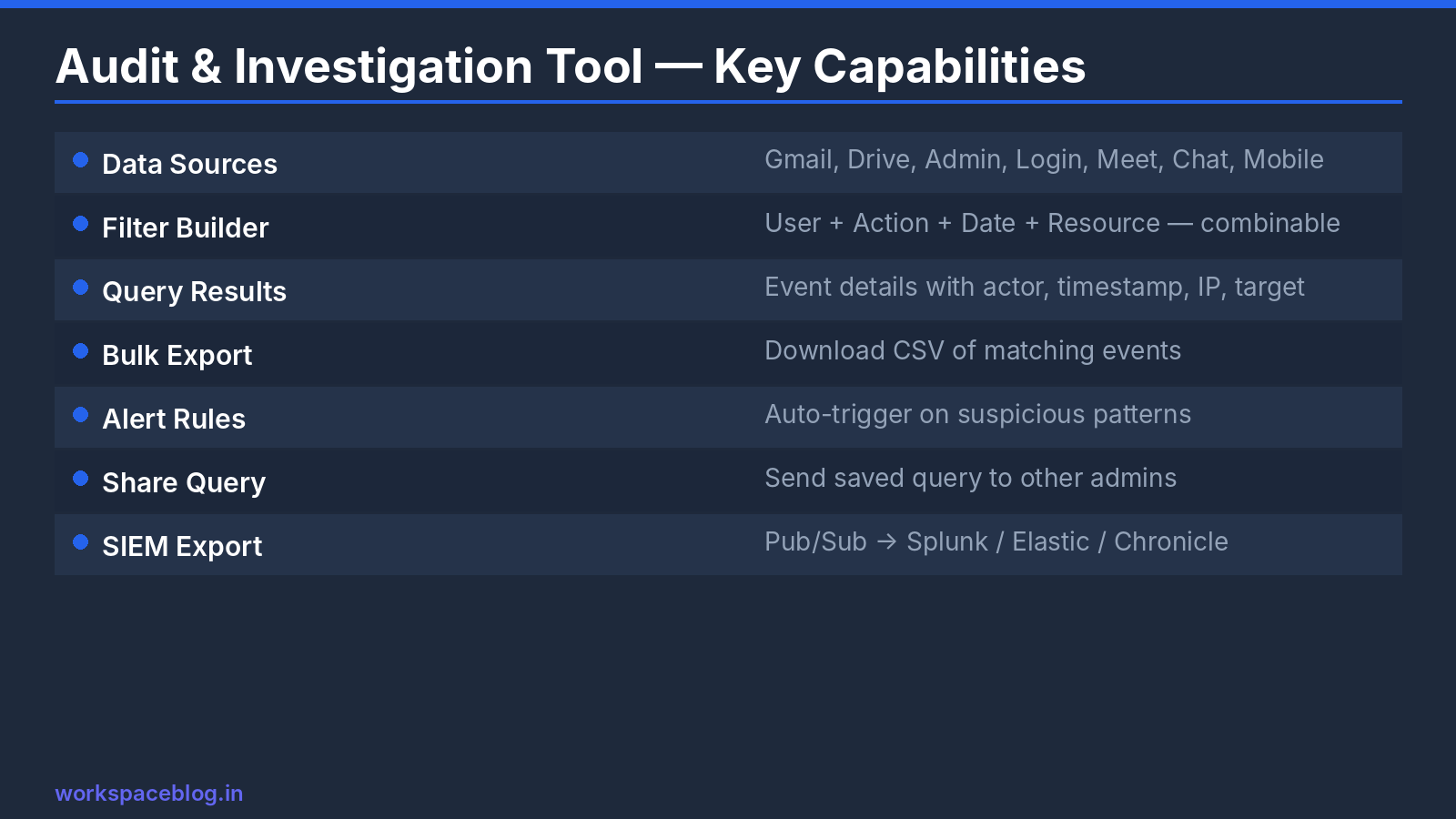
- Admin Console → Reporting → Audit and investigation
- Choose the log (for example, Drive log events)
- Add filters: Date, Actor, Event, and attributes such as document title, visibility, IP address, or target user
- Combine conditions with AND / OR for precise searches
- Download results (up to 100,000 rows) to Sheets or CSV for deeper analysis
Investigation playbooks
Who viewed or downloaded a specific file?
- Log: Drive log events
- Filter: Document title (or ID) = the file; Event = View, Download
Who shared files outside the organization this week?
- Log: Drive log events
- Filter: Event = change in visibility or change in access scope; Visibility = shared externally / people with link
Did a user’s account get compromised?
- Log: User log events. Look for successful sign-ins from unfamiliar IPs or countries, failed 2SV challenges, and “suspicious login” events
- Log: OAuth log events, new app grants right after the suspicious sign-in
- Log: Gmail log events and the user’s mail settings, new forwarding rules or filters are a classic sign of account takeover
- Log: Drive log events, bulk downloads or sharing after the sign-in
What did an admin change?
- Log: Admin log events
- Filter: Actor = the admin; Date = the period in question
Which third-party apps were granted access?
- Log: OAuth log events
- Filter: Event = Authorize
Save these as bookmarked searches or a runbook so anyone on the team can run them during an incident.
Alerts: Reporting Rules and Activity Rules
Searching logs only helps if someone looks. Rules turn important events into notifications.
Reporting rules
Throughout September 2025, reporting rules became activity rules. In all editions you can still run a search in the audit and investigation tool and create a rule from it, or go to Rules → Create activity rule, to send an alert (to the Alert Center and, optionally, by email) whenever matching events occur.
Activity rules (security investigation tool)
On Enterprise Standard and Plus, Frontline Plus, Education Plus, Enterprise Essentials Plus, Cloud Identity Premium, and Chrome Enterprise Premium, activity rules gain advanced features such as thresholds, more than 7 conditions, and automatic actions, and the security investigation tool (Security → Security center → Investigation tool) can create them too. These rules can alert and take action automatically, for example suspending a user or forcing a password change when conditions are met. Actions can’t be added to rules based on Drive log events.
Recommended alerts
| Alert | Priority |
|---|---|
| Super admin role granted | Critical |
| Admin privileges granted or a new admin role created | Critical |
| 2SV turned off for an admin | Critical |
| Suspended user unsuspended | High |
| New Gmail forwarding to an external address | High |
| Drive file shared with “Anyone with the link” from a sensitive OU | High |
| DLP rule triggered (high severity) | High |
| OAuth access granted to an app requesting broad scopes | High |
| Many failed sign-ins for one user | Medium |
| Mobile device wiped or marked compromised | Medium |
Start with a small set of critical alerts that someone will act on. An inbox full of ignored alerts is worse than none.
The Alert Center
Admin Console → Security → Alert center collects alerts from Google’s own detection systems and from your rules, for example:
- Suspicious sign-in activity and possible account takeover
- Government-backed attack warnings
- Phishing and malware reclassifications in Gmail
- Device compromise signals
- DLP and reporting rule alerts
- Configuration changes such as new super admins
Built-in alerts need no setup. Assign alerts to people, track their status, and add notes so investigations are recorded. Review open alerts at least weekly, and daily for critical ones.
Long-Term Retention: BigQuery and SIEM
Export to BigQuery
On Frontline Standard and Plus, Enterprise Standard and Plus, Education Standard and Plus, and Enterprise Essentials Plus, you can export activity logs and usage reports to BigQuery. The export covers Admin, Calendar, Devices, Gmail, Drive, Login, Groups, OAuth token, and SAML events, among others, into daily tables you can query with SQL and keep for as long as your Google Cloud retention settings allow.
Typical uses:
- Keeping logs well beyond the six-month console limit
- Joining Workspace activity with other data (HR leaver dates, asset inventories)
- Building dashboards in Looker Studio
SIEM integration
For organizations with a SIEM (Google Security Operations, Splunk, Microsoft Sentinel, Elastic), Workspace logs can be ingested through:
- The SIEM vendor’s Google Workspace connector, which pulls from the Reports API
- Google Security Operations, which has native Workspace ingestion and parsers
- BigQuery or Google Cloud logging pipelines, for organizations already using Google Cloud
SIEM integration lets you correlate Workspace events with endpoint, network, and identity data, for example, matching a suspicious Workspace sign-in with a VPN log from the same IP.
If you have none of these, schedule a monthly export of key logs (Admin and Login) from the audit tool to a restricted shared drive. It’s manual, but it preserves evidence beyond six months.
Building a Monitoring Routine
| Frequency | Task |
|---|---|
| Daily | Review critical alerts in the Alert Center |
| Weekly | Review external sharing from sensitive OUs, new OAuth grants, and failed sign-in trends |
| Monthly | Review admin role changes and admin log events; export logs if you lack BigQuery |
| Quarterly | Review alert rules: remove noisy ones, add rules for new risks |
Compliance Use Cases
SOC 2 Type II: Admin log events show administrative access control and change management. Export the relevant events for each audit period.
ISO 27001: Login and Admin logs support controls for access monitoring and privileged-user tracking.
HIPAA: Drive log events for files containing patient data provide an access audit trail; combine them with sharing restrictions and DLP on supported editions.
GDPR: Login and Drive logs help demonstrate that access to personal data is monitored, and support breach investigations within notification deadlines.
Conclusion
Google Workspace audit logs are your main visibility into what happens in your environment. Learn the key logs and playbooks before you need them, set up a small number of alerts that someone will act on, review the Alert Center regularly, and export logs before the six-month window closes if your compliance requirements demand longer retention.
Official Google documentation:
- About the audit and investigation tool
- Data retention and lag times
- About reporting logs and BigQuery
- User log events
- Create and manage activity rules
Related reading:
- Google Workspace Admin Security: 10-Point Hardening Guide: audit log configuration is a core hardening step.
- Google Workspace DLP: Data Loss Prevention Guide: DLP events appear in rule log events; configure alerts for them.
- Google Workspace Vault: eDiscovery and Compliance: Vault’s own log events are kept indefinitely.
This guide contains referral or affiliate links. If you sign up through one, Workspace Blog may earn a commission at no extra cost to you. Learn more.
Frequently Asked Questions
- How long does Google Workspace keep audit logs?
- Most log events and reports, including Admin, Login, Drive, and Gmail logs, are kept for about 6 months, and admins can't change that. Vault log events are kept indefinitely. To keep logs longer, export them to BigQuery on supported editions or forward them to a SIEM.
- Where do I find audit logs in the Google Admin console?
- Go to Reporting > Audit and investigation, then choose the log you need, such as Admin log events, User log events, Drive log events, or Gmail log events. Filter by date, actor, event, and other attributes, and download up to 100,000 rows.
- What is the difference between the audit and investigation tool and the security investigation tool?
- The audit and investigation tool under Reporting is available to admins for searching log events. The security investigation tool under Security > Security center adds premium features such as saving and sharing investigations, activity rules, custom charts, and taking action on results; it's available on Enterprise, Frontline Standard and Plus, Education Standard and Plus, Enterprise Essentials Plus, and Cloud Identity Premium.
- Can I export Google Workspace logs to BigQuery?
- Yes, on supported editions: Frontline Standard and Plus, Enterprise Standard and Plus, Education Standard and Plus, and Enterprise Essentials Plus. Exports include activity logs for services such as Admin, Calendar, Devices, Gmail, Drive, Login, Groups, OAuth tokens, and SAML, plus usage reports.
- How quickly do events appear in Google Workspace audit logs?
- Admin, Login, Drive, and Gmail log events usually appear in near real time, within a couple of minutes. Some other events, such as certain user account events, can take tens of minutes.