Google Workspace Vault: eDiscovery, Legal Hold, and Archiving Guide for Admins
-
 Mohit
Mohit - 09 Jun, 2026
- Updated 26 Oct, 2026

Google Vault is the eDiscovery and information-governance tool built into Google Workspace. It lets compliance, legal, and IT teams retain, hold, search, and export data from Gmail, Drive, Chat, Groups, Calendar, Meet recordings, Voice, and the Gemini app, regardless of whether users have deleted it from their own accounts. Gemini in Workspace conversations can also be exported.
If your organization faces legal discovery obligations, regulatory retention requirements, or internal investigations, Vault is one of the most important tools in your Workspace tenant. This guide covers editions, retention rules, holds, searches, exports, permissions, auditing, and the practical policies that make Vault work.
Which Editions Include Vault
Vault licenses are included for all users in:
- Business Plus
- Enterprise Standard and Enterprise Plus
- Frontline Standard and Frontline Plus
- All Education editions
- Enterprise Essentials and Enterprise Essentials Plus (domain-verified)
Business Starter and Business Standard don’t include Vault; you may be able to buy add-on licenses through Google sales. Every Vault admin also needs a Vault license to sign in at vault.google.com.
What Vault Covers
| Service | Retention | Holds | Search & export | Notes |
|---|---|---|---|---|
| Gmail | Yes | Yes | Yes | Messages, indexed attachments, drafts |
| Drive | Yes | Yes | Yes | Docs, Sheets, Slides, Forms, Vids, new Sites, uploaded files |
| Google Chat | Yes | Yes | Yes | Chat history must be on |
| Google Groups | Yes | Yes | Yes | Conversation history must be on |
| Google Meet | Through Drive rules (or Meet-specific rules) | Through Drive holds | Through Drive | Recordings and related files are Drive files |
| Google Calendar | Yes | Yes | Yes | Primary calendar events only |
| Google Voice | Yes | Yes | Yes | Requires Voice Standard or Premier |
| Gemini app | Yes | Yes | Yes | Prompts and responses (not attached media, Gems or generated media) |
| Gemini in Workspace | No | No | Export only | Prompts and responses, including images |
Chat and Groups data is only kept if history is turned on. Check those settings before you depend on Vault for those services.
Core Vault Concepts
Retention rules
Retention rules tell Vault how long to keep data, even after users delete it or empty their trash.
Without any retention rule or hold, data stays only as long as users keep it. For example, Drive files that a user deletes and removes from trash are immediately unavailable to Vault (admins can still restore them for 25 days from the Admin console, but that’s a recovery window, not retention).
Two kinds of rules:
- Default retention rule: one per service, covering all data that no custom rule or hold covers
- Custom retention rules: scoped to organizational units, shared drives, Chat spaces, Gmail search terms, or date ranges
When rules overlap, a custom rule always takes precedence over the default rule, even if the custom rule is shorter. Among custom rules that apply to the same data, the one with the longest retention period wins.
Creating a retention rule:
- Open Vault (vault.google.com) and click Retention
- Choose the service (Gmail, Drive, Chat, Groups, Calendar, Voice, Gemini app)
- Set Default rules or click Create for a custom rule
- Choose the scope (entire organization, OU, shared drives, or conditions)
- Set the retention period (for example, 7 years for finance communications) or retain indefinitely
- Decide what happens when it expires (purge, or keep for default-rule data)
- Save and confirm
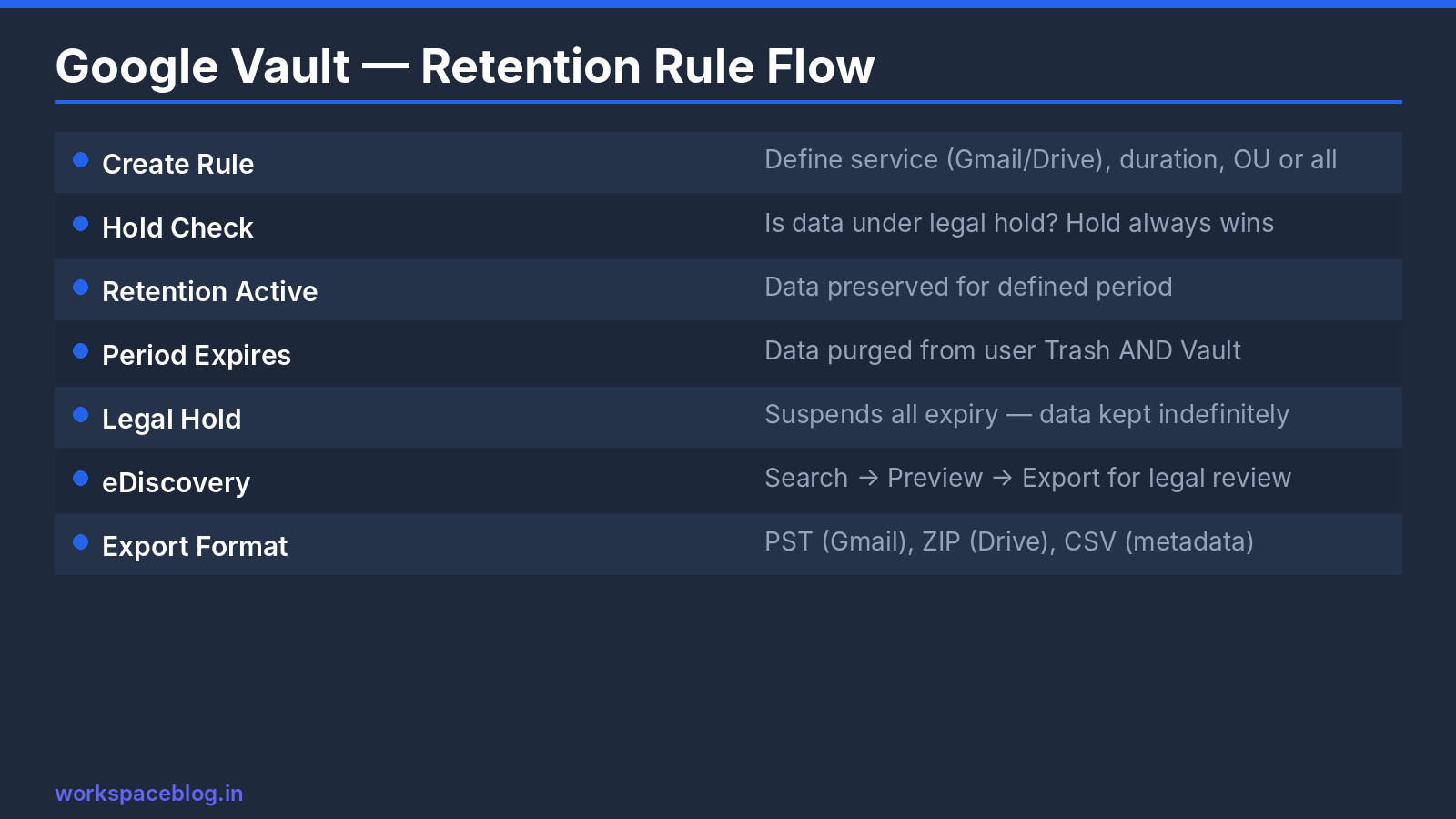
What happens when a rule expires: data no longer covered by any rule or hold is removed from the user’s view (usually within hours to days for Gmail) and kept in Vault for about 30 more days before it’s purged. Plan rule changes carefully: shortening a rule can remove years of data.
Legal holds
A hold preserves data for specific people or places indefinitely, overriding retention rules, for as long as the hold exists. Use holds when litigation, a regulatory inquiry, or an internal investigation is reasonably anticipated.
Creating a hold:
- Vault → Matters → Create a matter (name it for the case or investigation)
- Inside the matter → Holds → Create
- Select the service (Gmail, Drive, Chat, Groups, Calendar, Voice, Gemini app)
- Choose the scope: specific accounts, an organizational unit, or (for Drive and Chat) shared drives and spaces
- Optionally add conditions such as dates or search terms (Gmail and Groups)
- Save
Important behaviors:
- Users don’t see that they’re on hold, and holds don’t change their experience
- Data under a hold isn’t purged, even if users delete it
- When you remove a hold, the data immediately becomes subject to any retention rules again: release holds only after Legal confirms
Departing employees on hold: if you delete a user whose data is on hold, the held data can be lost along with the account unless you take the steps in Google’s “Delete a user with data on hold” guidance (for example, keeping the account with an Archived User license or exporting first). Check holds as part of every offboarding.
Running eDiscovery Searches
Creating a search
- Vault → Matters → open the matter → Search
- Select the service
- Define the scope: accounts, an organizational unit, shared drives, spaces, or the entire organization
- Set a date range and time zone
- Add search terms
- Run the search and review the result counts and previews
Gmail search operators:
from:user@domain.com
to:external@company.com
subject:"project alpha"
has:attachment filename:pdf
after:2025/01/01 before:2026/01/01
Drive searches can match file content and titles, and can be limited to specific shared drives or accounts.
Search before you hold. Running a search first shows how much data a hold or export will involve and helps you tune terms before involving outside counsel.
Reviewing results
Preview results in Vault before exporting to refine the query and remove irrelevant data. Use Save to keep a search query in the matter so it can be rerun consistently.
Exporting Data for Legal Review
- From the search → Export
- Name the export
- Choose the format for Gmail, Groups, and Chat message content: PST or MBOX
- For Drive, choose whether to include access level information for accounts with indirect access; for Gmail, you can also export linked Drive files
- Click Export
Processing time depends on volume. Export files are available for 15 days after you start the export; after that, they’re deleted and you’ll need to export again. Each export includes metadata files that help reviewers and support chain-of-custody documentation.
Gemini in Workspace filtered exports
Administrators can perform filtered exports of Gemini in Workspace conversations (from Gmail, Drive, Docs, Sheets, Slides, and Meet).
- Scope: Define exports by specific user accounts or organizational units up to 5,000 users, filtered by date range and time zone.
- Format: Exported in JSON format, aligning with the generative AI conversation format used in the Gemini app.
- Context: Includes user prompts, AI responses, generated attachments (like images), and links to referenced Workspace files (like Drive documents) and citations.
This functionality is available for Business Plus, Frontline Standard and Plus, Enterprise Essentials Plus, Enterprise Standard and Plus, and Education Fundamentals, Standard and Plus editions, as well as with Vault add-ons. The API support will follow the UI rollout. Note that this feature only captures conversations created when conversation history is enabled.
Vault Permissions
Vault access is controlled through admin roles in the Admin console, not inside Vault:
- Admin Console → Account → Admin roles → Create new role
- Under Google Vault, select the privileges the role needs
- Assign the role to the relevant people (they also need a Vault license)
The main Vault privileges are:
| Privilege | Allows |
|---|---|
| Manage Matters | Create matters and share them with collaborators |
| View All Matters | See every matter in the organization |
| Manage Holds | Create and change holds in matters they can access |
| Manage Searches | Search data in matters they can access |
| Manage Exports | Export search results |
| Manage Retention Policies | Create and change retention rules |
| View Retention Policies | See retention rules without changing them |
| Manage Audits | View the Vault audit log |
| Access All Logs | Access all Vault logs |
Hold, search, export, and matter privileges can be restricted to an organizational unit, which is useful for regional legal teams.
Separation of duties: give investigators only the privileges they need, keep retention-policy changes with a small compliance group, and avoid giving the IT admins who run day-to-day operations routine access to HR investigation matters.
Auditing Vault Activity
Every action in Vault (creating matters, changing holds, running searches, exporting data) is logged. Vault log events are kept indefinitely, unlike most Workspace logs, which are kept for six months. Review them from Vault’s audit view or in the Admin console’s audit and investigation tool.
Regulators and opposing counsel may ask you to show that eDiscovery was done properly and that data wasn’t accessed for other purposes. The audit log is how you prove it.
Vault Is Not Backup
Google is explicit: Vault isn’t designed to be a backup or archive tool, and it has no automated recovery tools. You can’t use it to restore a user’s mailbox to how it looked last month. For recovery:
- Recently deleted data: the Admin console’s Restore data option restores a user’s Drive or Gmail data deleted within the last 25 days
- Long-term, point-in-time recovery: use a third-party backup service
Many organizations need both: Vault for legal and compliance, and backup for operational recovery. Our backup guide covers the options.
Recommended Vault Policies
| Policy | Typical starting point |
|---|---|
| Default Gmail retention | Match your records policy (commonly several years); avoid “retain forever” unless required |
| Finance or regulated teams | Longer custom rules by OU |
| Chat | Turn history on for the OUs where Chat is used for business decisions |
| Drive | Default rule plus custom rules for shared drives holding contracts or financial records |
| Gemini app | Decide explicitly: prompts can contain sensitive information |
| Holds | Create a matter at the first credible sign of litigation |
Document your rules in a records-retention policy agreed with Legal, and review it yearly.
Vault and GDPR
Under GDPR, data subjects may request deletion of their personal data. Retention rules and legal holds can conflict with that: data under an active hold can’t be deleted until the hold is released. Work with Legal to define how erasure requests are handled when data is subject to a hold or a legal retention duty: generally, a legal obligation to preserve takes precedence while it applies.
Conclusion
Google Vault is the compliance backbone for Google Workspace organizations subject to retention requirements, litigation, or regulatory audits. Set up retention rules before you need them: data that users delete without a rule in place may not be recoverable. Create matters and holds at the first sign of potential litigation, control access with narrowly scoped privileges, and remember that Vault complements backup rather than replacing it.
If you’re on Business Starter or Standard, Vault isn’t included; weigh your compliance obligations against an upgrade to Business Plus or an Enterprise edition.
Official Google documentation:
- Supported services and data types
- How retention works
- Export data from Vault
- Set up Vault privileges
- Google Vault now supports filtered exports for Gemini in Workspace
Related reading:
- Google Workspace DLP: Data Loss Prevention Setup Guide: DLP prevents sensitive data from leaving; Vault preserves it for discovery.
- Google Workspace Backup and Data Recovery Guide: why Vault isn’t backup, and what to use instead.
- Google Workspace Admin Security: 10-Point Hardening Guide: Vault access controls fit within the broader security framework.
This guide contains referral or affiliate links. If you sign up through one, Workspace Blog may earn a commission at no extra cost to you. Learn more.
Frequently Asked Questions
- Which Google Workspace editions include Vault?
- Vault licenses are included for all users in Business Plus, Enterprise Standard and Enterprise Plus, Frontline Standard and Frontline Plus, all Education editions, and Enterprise Essentials and Enterprise Essentials Plus (domain-verified). For other editions, you may be able to buy Vault add-on licenses through Google sales.
- Is Google Vault a backup tool?
- No. Google states that Vault isn't designed to be a backup or archive tool and has no automated recovery tools. It preserves, searches, and exports data for legal and compliance purposes. To recover recently deleted Drive or Gmail data, use the Admin console's Restore data option; for long-term point-in-time recovery, use a third-party backup service.
- How long are Vault exports available to download?
- Export files are available for 15 days after you start the export. After that they're deleted, and you need to create the export again.
- Do legal holds override retention rules in Vault?
- Yes. Holds take precedence over retention rules, and data under a legal hold isn't purged. Holds stay in place until you remove them; once a hold is removed, the data becomes subject to any applicable retention rules immediately.
- Which Google services can Vault retain and search?
- Vault supports Gmail, Google Drive (including Docs, Sheets, Slides, Forms, new Sites, Vids, and Meet recordings stored as Drive files), Google Groups, Google Chat, Google Calendar primary-calendar events, Google Voice for Workspace, and Gemini app prompts and responses. Gemini in Workspace conversations can be exported, but Vault doesn't retain, hold, or search them.