Google Meet Enterprise Admin Guide: Recording, Compliance, and Policy Controls
-
 Mohit
Mohit - 01 Sep, 2026
- Updated 26 Oct, 2026

Google Meet is where Google Workspace users spend a large part of their working day. As an IT admin, the decisions you make for Meet affect security (who can join), compliance (whether recordings and transcripts are kept), user experience (quality and features), and cost (storage used by recordings).
This guide covers Meet features by edition, where the settings live, recording and transcripts, attendance, safety and external access, live streaming, quality settings, Gemini in Meet, hardware, retention, and a compliance checklist.
Meet Features by Edition
| Feature | Business Starter | Business Standard | Business Plus | Enterprise Standard | Enterprise Plus |
|---|---|---|---|---|---|
| Max participants | 100 | 150 | 500 | 500 | 1,000 |
| Recording to Drive | ✗ | ✓ | ✓ | ✓ | ✓ |
| Transcripts | ✗ | ✓ | ✓ | ✓ | ✓ |
| Noise cancellation | ✗ | ✓ | ✓ | ✓ | ✓ |
| Breakout rooms, polls, Q&A | ✗ | ✓ | ✓ | ✓ | ✓ |
| Attendance tracking | ✗ | ✗ | ✓ | ✓ | ✓ |
| Live streaming | ✗ | ✗ | ✗ | ✓ | ✓ |
Check Google’s comparison page for the current list: Meet features change often, and Gemini features depend on your Gemini licensing.
Where Meet Settings Live
Admin Console → Apps → Google Workspace → Google Meet
Settings are grouped into:
- Meet video settings: recording, transcription, streaming, attendance reporting, video quality, integrations, and more
- Meet safety settings: which meetings users can join, who can join your meetings without asking, host management, and external participant warnings
- Meet hardware settings: for rooms with Google Meet hardware
Most settings apply per organizational unit, and some to configuration groups, so you can give different teams different policies.
Recording and Transcripts
Turning recording on
Meet video settings → Recording → Let people record their meetings
Recording is controlled by OU. Turn it on for the teams that need it (training, sales, support) and leave it off where conversations are sensitive (HR, legal), if that suits your policy.
Where recordings go: recordings save to the organizer’s Google Drive in the Google Meet folder, with a subfolder for each meeting, and count toward your pooled storage. Since July 2026 the old Meet Recordings folder is renamed Legacy Meet Recordings and sits inside that folder.
Who is recorded: the recording setting controls who can start a recording. Everyone in the meeting is notified when recording starts; people who don’t want to be recorded need to leave the meeting.
Transcripts
Meet video settings → Meeting transcription lets users create transcripts, saved to Drive as Google Docs. Transcripts are often more useful than recordings for searching what was agreed, and they’re also discoverable, so treat them as business records.
Recording quality
Meet video settings → Recording quality has one option, Record at highest available resolution when conditions allow, which records at up to 1080p. Unchecking it limits screen share recording quality, which saves Drive storage for teams that record a lot.
Attendance Reporting
Meet video settings → Attendance reporting (Business Plus and higher)
After meetings with two or more attendees, organizers get a report with each participant’s name, email, and time in the meeting. It’s useful for mandatory training, webinars, and client calls where attendance must be documented.
Safety and External Access
Which meetings users can join
Meet safety settings let you control whether users in an OU can join meetings hosted by other organizations, or only meetings hosted inside your organization. Most organizations allow external meetings; restrict them only for high-risk OUs.
Who can join your meetings without asking
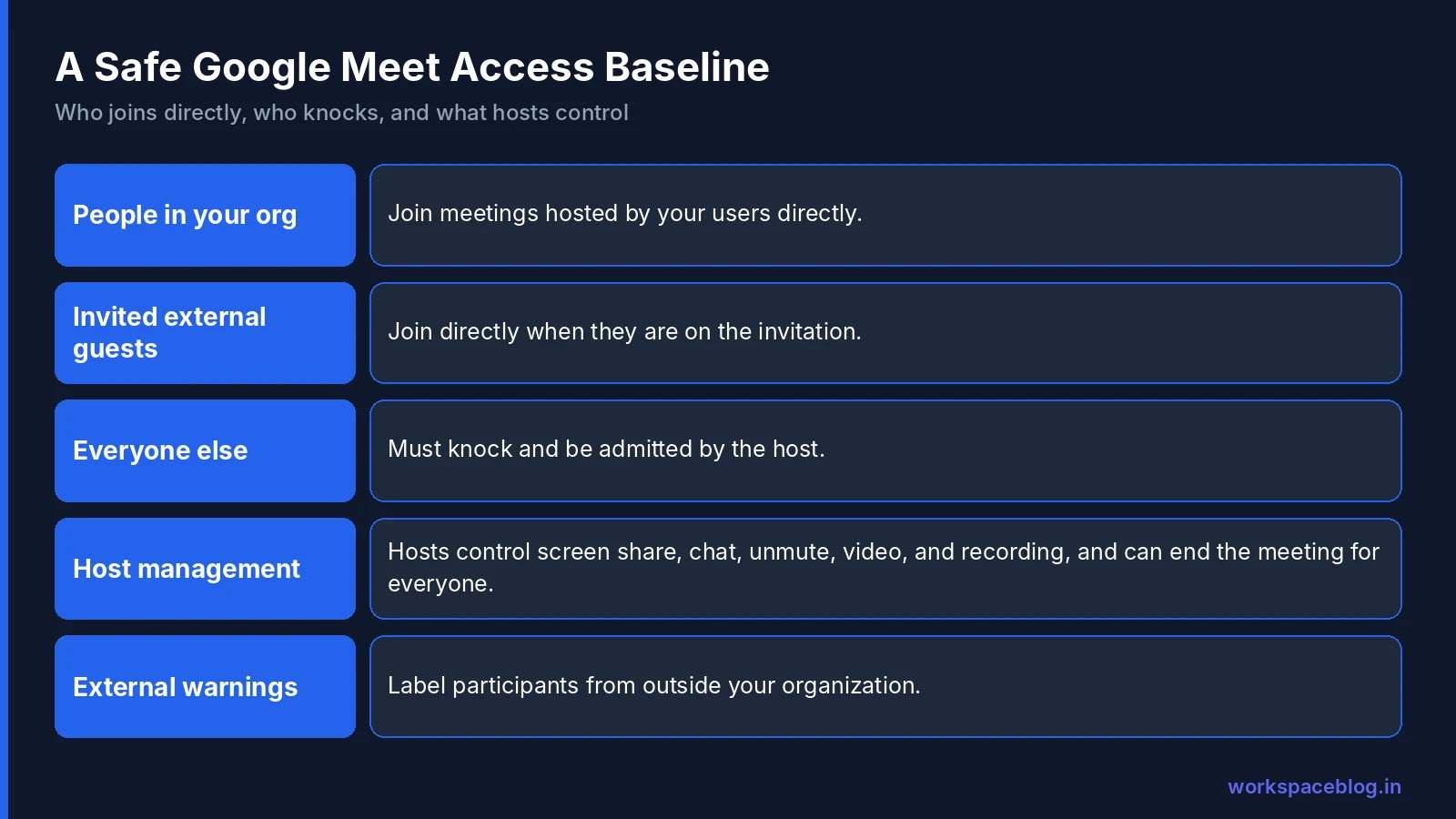
The access setting decides who can join meetings hosted by your users without “knocking”. A common baseline:
- People in your organization join directly
- External guests who were invited join directly
- Everyone else must knock and be admitted by the host
Host management
With host management on, meeting hosts (and co-hosts) get controls over who can share their screen, chat, unmute, turn on video, and start recordings or streams, and can end the meeting for everyone. Turn it on by default for large meetings and webinars.
External participant warnings
Turn on warnings that label participants from outside your organization, so people know when they’re speaking in front of external guests.
Live Streaming
Live streaming (Enterprise Standard, Enterprise Plus, Education Plus) broadcasts a meeting to a large, view-only audience. All-hands meetings, announcements, and training.
Meet video settings → Stream:
- Let people stream their meetings: in-house streams for your organization (up to 100,000 viewers on the top editions). With the opt-in Adaptive meeting type, hosts can also invite specific external users or limit a stream to chosen users or groups; there is no admin control for this
- Trusted Workspace domains: add up to 50 domains you own (for example, subsidiaries) whose users can watch
- Let people use YouTube to stream meetings: stream to the host’s YouTube channel; YouTube’s privacy settings control who can watch, and there’s no viewer cap
Viewers can’t unmute or turn on video. If host management is on, only hosts and co-hosts can start a stream. Changes can take up to 24 hours to apply.
Audio and Video Quality
- Noise cancellation (Business Standard and higher) filters background noise such as typing and traffic
- Default video quality sets the starting video resolution; lower it for OUs with limited bandwidth, such as branch offices or field teams
- Visual effects controls backgrounds and filters
Network quality matters more than settings: Meet needs reliable bandwidth and low latency. The Meet quality tool in the Admin console shows per-meeting diagnostics for troubleshooting complaints (meetings from the last 28 days).
Video tile pairing on mobile
Meet users on Android and iOS can now pair their video tile with another participant, so both tiles appear side by side for everyone else in the call. It is built for accessibility: a sign language interpreter and the person they are interpreting for stay together on screen instead of drifting apart in the grid. The same option was already available on the web.
Gemini in Meet
With the appropriate Gemini licensing, Meet can take notes for users, generate summaries and action items, translate captions, and more. Features and their admin settings change frequently, so check the current Gemini settings in the Admin console before rollout.
Real-time speech translation
Gemini-powered speech translation in Google Meet supports 63 languages across web and mobile devices (Android and iOS), with listening support on Google Meet hardware devices.
Powered by Gemini 3.5 Live Translate, the feature automatically detects the spoken language and translates it into each listener’s preferred language in near real-time, even when multiple languages are spoken or speakers switch languages. Participants can independently enable speech translation using the meeting toolbar and configure languages they already understand so those are not translated. Captions are automatically synchronized with the translated audio.
This feature is available for up to 90 minutes per meeting for eligible base Workspace and Google AI Pro plans, and up to 8 hours for AI Expanded Access, AI Ultra Access and Google AI Ultra plans. It’s ON by default for eligible editions (Business Standard/Plus, Enterprise Standard/Plus, Frontline Plus, Google AI Pro/Ultra, AI Expanded/Ultra Access, Google AI Pro for Education) when the Gemini for Meet admin setting is enabled. For users it starts off at the beginning of each meeting until they turn it on. Room hardware only listens: speech from a room device is not translated for remote participants. The expansion reached Rapid Release domains from October 22, 2026, and rolls out to Scheduled Release domains from November 2, 2026.
For compliance, remember that AI-generated notes and transcripts are saved as Google Docs in Drive. They’re covered by your Drive retention rules and holds, and they’re discoverable in Vault. Decide which OUs should have these features and communicate how notes are stored. See our Gemini for Workspace guide.
Google Meet Hardware
For conference rooms with Google Meet hardware:
Admin Console → Devices → Google Meet hardware
From here you can enroll devices, link each one to its room’s calendar resource, push settings, monitor device health and issues, and manage updates.
Best practices:
- Put all Meet hardware in a dedicated OU with consistent settings
- Link every device to its room calendar so meetings appear on the room display
- Turn on update policies so devices stay current
- Review device health alerts weekly to catch broken cameras or microphones before meetings fail
Planning new rooms? Google is moving Meet hardware from ChromeOS to Android (AOSP), and ChromeOS compute systems go off sale in 2027. See Googlebook and Google Meet Hardware on Android for the dates and certified devices.
Retention and Vault
Meet recordings, transcripts, and notes are Drive files. That means:
- They’re covered by Vault Drive retention rules and holds (unless you set Meet-specific rules)
- They’re searchable and exportable through Vault’s Drive search
- They count toward storage
Agree a policy for recordings, for example, keep recordings of client meetings for your contractual period and delete internal stand-ups after 90 days, and set Vault rules to match. Our storage guide covers keeping recordings under control.
Compliance Checklist for Google Meet
| Control | Setting | Location |
|---|---|---|
| Recording | On only for OUs that need it | Meet video settings → Recording |
| Transcription | Aligned with your records policy | Meet video settings → Meeting transcription |
| Attendance reporting | On (Business Plus+) | Meet video settings |
| Who can join without knocking | Organization and invited guests | Meet safety settings |
| Host management | On by default | Meet safety settings |
| External participant warnings | On | Meet safety settings |
| Live streaming | Only for OUs that run broadcasts | Meet video settings → Stream |
| Vault retention for recordings | Matches records policy | Google Vault |
| Gemini meeting features | Decided per OU | Gemini settings |
Conclusion
Google Meet’s admin controls give IT real influence over security, compliance, and user experience. Decide on recording, transcripts, and AI notes (and how long they’re kept) before you roll Meet out widely, because retrofitting compliance later is always harder.
Check which features your edition includes, lock down who can join without knocking, turn on host management, use live streaming for large broadcasts, and treat recordings and transcripts as business records. Google Workspace Business Plus and Enterprise editions add the attendance, retention, and streaming features most larger organizations need.
Official Google documentation:
- Compare Meet features across Google Workspace editions
- Manage Meet settings (for admins)
- Turn live streaming on or off for Meet
- Invite external users to Meet live streams
- Set recording quality limits for Google Meet
- Record a video meeting (Meet Help)
- Turn Meet recording on or off for your organization
- Real-time speech translation in Google Meet expands to 63 languages
- Video tile pairing is now available on Google Meet mobile
Related reading:
- Gemini for Google Workspace: Complete Guide: Meet’s AI features are covered in depth.
- Google Workspace Vault: eDiscovery and Compliance: Meet recordings and transcripts are discoverable via Vault.
- Google Chat Admin Guide: Chat and Meet are tightly integrated in Google Workspace.
This guide contains referral or affiliate links. If you sign up through one, Workspace Blog may earn a commission at no extra cost to you. Learn more.
Frequently Asked Questions
- Which Google Workspace editions can record Google Meet meetings?
- Recording to Drive is available in Business Standard, Business Plus, Enterprise, and other higher editions, but not Business Starter. Admins control it in Apps > Google Workspace > Google Meet > Meet video settings > Recording.
- How many participants can join a Google Meet meeting?
- Business Starter allows 100 participants, Business Standard 150, Business Plus 500, Enterprise Standard 500, and Enterprise Plus 1,000. Maximum meeting length on Enterprise editions is 24 hours.
- Which editions include Google Meet live streaming?
- Live streaming is available in Enterprise Standard, Enterprise Plus, and Education Plus. In-house streams are for your organization by default (up to 100,000 viewers on the top editions), and hosts using the Adaptive meeting type can also invite specific external users or limit a stream to chosen users or groups, you can add up to 50 trusted Workspace domains, and YouTube streams have no viewer cap.
- Does Google Meet have attendance tracking?
- Yes, on Business Plus and higher editions. With attendance reporting on, organizers get a report of who joined and for how long after meetings with two or more attendees.
- Where are Google Meet recordings and transcripts saved?
- In Google Drive, in the organizer's Google Meet folder, with a subfolder for each meeting. Because they're Drive files, they count toward storage and are covered by Vault's Drive retention rules and holds unless you use Meet-specific rules.