Google Workspace DLP: Configuring Data Loss Prevention Rules for IT Admins
-
 Mohit
Mohit - 02 Jun, 2026

Data Loss Prevention (DLP) in Google Workspace lets IT admins automatically detect and control the sharing of sensitive content (credit card numbers, government ID numbers, health information, and custom patterns like internal project codes) before it leaves your organization. DLP rules scan Gmail messages, Drive files, and Chat messages, trigger actions such as warn, block, or quarantine, and log every match for compliance teams.
This guide covers which editions include DLP, how rules are built, step-by-step examples for Drive and Gmail, detectors and thresholds, testing, rollout, and what to do if your edition doesn’t include DLP.
Which Editions Include DLP
DLP is a premium feature. Check your edition before planning a rollout:
| Edition | DLP for Drive | DLP for Gmail |
|---|---|---|
| Business Starter / Standard / Plus | Not included | Not included |
| Enterprise Standard / Plus | Included | Included |
| Frontline Standard / Plus | Included | Included |
| Education Fundamentals / Standard / Plus | Included | Included |
| Enterprise Essentials Plus | Included (Drive) | - |
DLP for Chrome also needs the Chrome Enterprise Premium add-on. If you’re on a Business edition, skip to Alternatives on Business editions below.
What DLP Covers in Google Workspace
| App | What’s scanned | Typical actions |
|---|---|---|
| Drive | Docs, Sheets, Slides, Forms, Vids, uploaded documents (.docx, .pdf, .xlsx, .csv), images, compressed files, source code, file names and labels | Block or warn on external sharing, apply labels, audit only |
| Gmail | Message body, subject, attachments (Office, PDF, text, compressed files, images with OCR) | Block, warn, quarantine outgoing mail; audit or label incoming mail |
| Chat | Messages and attachments | Block or warn |
| Calendar | Event content | Depends on rule configuration |
| Chrome | Uploads, pastes, prints (with Chrome Enterprise Premium) | Block, warn, audit |
Not scanned: comments in Docs, Sheets, Slides, and Drawings; Google Sites content; Forms responses other than file uploads; video and audio; and the contents of password-protected files.
How DLP Rules Work
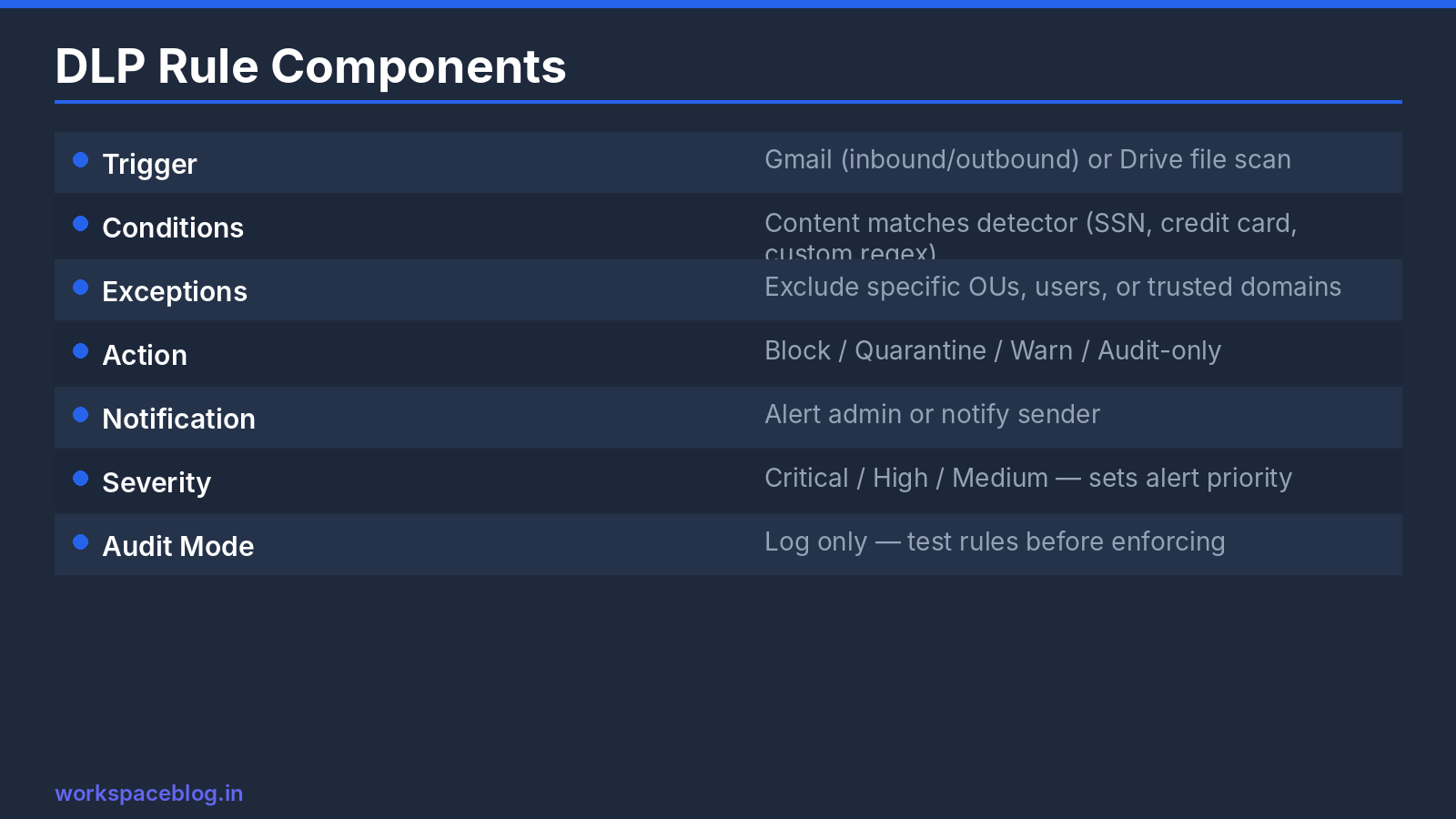
A data protection rule is built from these parts, in the order the Admin console asks for them:
- Name and description
- Apps and triggers: for example, the Drive “Drive files” trigger, or Gmail “Message sent”
- Actions: what happens on a match (options depend on the app)
- Alerting: severity (Low, Medium, High) for the DLP incident dashboard, and optional Alert Center notifications
- Scope: all users, or selected organizational units and groups (a group assignment takes precedence over an OU)
- Conditions: detectors and other content conditions, combined with AND, OR, and NOT
- Rule status: Active or Inactive
When two rules match the same content, the stricter action wins.
You need the “View and Manage DLP rule” privilege to create rules.
Creating Your First DLP Rule
Drive rule: warn before sharing files with US Social Security numbers externally
- Admin Console → Rules → Create rule → Data protection
- Name:
Drive – SSN – warn on external share - Apps: Google Drive → Drive files trigger (the rule runs when files are created, modified, uploaded, or shared)
- Actions: Warn on external sharing (users can cancel or share anyway, and their choice is logged)
- Alerting: severity Medium; send to Alert Center
- Scope: a pilot OU or group first
- Conditions: content matches predefined detector United States – Social Security Number, likelihood High, minimum match count 1
- Rule status: Active → Create
Once the pilot shows few false positives, change the action to Block external sharing for the data you can’t afford to leak.
Gmail rule: block outgoing credit card numbers
- Admin Console → Rules → Create rule → Data protection
- Name:
Gmail – credit cards – block outbound - Apps: Gmail → Message sent
- Actions: Block message, with a custom message to the sender: “This message contains a payment card number and can’t be sent. Remove the number or use the approved secure payment process.”
- Alerting: severity High
- Scope: all users (after testing)
- Conditions: content matches Global – Credit card number, minimum match count 1
- Create
| Field | Value |
|---|---|
| Trigger | Message sent |
| Detector | Credit card number (predefined) |
| Action | Block message + custom sender note |
| Severity | High |
Quarantine vs. block: Quarantine message holds the email for review in an admin quarantine instead of rejecting it. It’s useful when some matches are legitimate (finance sending card numbers to an approved processor) and a reviewer should decide.
Predefined and Custom Detectors
Predefined detectors
Google provides a large library of predefined detectors covering payment cards, bank details, national ID numbers, passports, driver’s licenses, tax IDs, and credentials for many countries. Common starting points:
| Detector | Typical use |
|---|---|
| Credit card number | PCI DSS |
| United States – Social Security Number | US personal data |
| Global – Passport number | Identity documents |
| IBAN | Banking details |
| Country-specific national ID and tax numbers | Local privacy law |
| Global – Email address (high counts) | Bulk export of contact lists |
Tuning: likelihood and match counts
Each detector condition has settings that control false positives:
- Likelihood threshold: how confident the match must be (for example, High)
- Minimum match count: how many matches in one file or message trigger the rule
- Minimum unique matches: how many different values must be found
A single credit card number in an email is worth blocking; a single email address isn’t. Set “email address” rules to trigger only on dozens of unique matches, which indicates a list being exported.
Custom detectors
For organization-specific data (project codes, customer account numbers, confidential code names), create your own detector using a regular expression, a word list, or a text string.
Example: internal project codes
- Detector type: Regular expression
- Pattern:
\bPRJ-\d{6}\b - Use in: a Drive rule that warns on external sharing
Example: confidential code names
- Detector type: Word list
- Words: the names of unreleased products or acquisition targets
- Use in: Drive and Gmail rules scoped to the teams that know them
Test regular expressions against sample text before using them in a blocking rule: a pattern that’s too broad can match ordinary numbers.
OCR for images and scanned PDFs
Turn on OCR in the rule to scan text inside images and scanned PDFs. OCR is best-effort and can miss text, so treat it as an extra layer rather than a guarantee.
Gmail DLP Details
- Outgoing and incoming: use Message sent for outbound mail and Message received for inbound. Block, warn, and quarantine only apply to outgoing mail; for incoming mail you can audit or apply classification labels.
- Custom notes: Add custom note adds a header or footer to matching messages, useful for “This email contains confidential information” banners.
- Encrypted attachments: password-protected files can’t be scanned. Use Gmail attachment compliance rules to quarantine or block encrypted archives if your policy requires it.
Testing Before Enforcing
Before enabling blocking actions, run rules in audit mode to understand the volume and nature of matches:
- Create the rule with an Audit only action (Drive) or a non-blocking action, scoped to a pilot group
- Review matches in Reporting → Audit and investigation → Rule log events and in the DLP incident dashboard
- Tune detectors: raise thresholds, add minimum unique matches, refine patterns, or exclude teams with a legitimate need
- Move to Warn, then to Block, once the false positive rate is acceptable
Skipping the audit phase is the most common DLP mistake. A poorly tuned rule that blocks legitimate email creates a support burden and erodes trust in security controls.
DLP and Gemini
Google also offers DLP for Gemini, which applies data protection rules to restrict Gemini’s access to sensitive content. If you’re rolling out Gemini in Workspace, review it alongside your Drive rules: files your DLP rules protect are often the same ones you don’t want summarized or surfaced in AI responses.
Rollout Plan
| Phase | Rules | Action |
|---|---|---|
| Weeks 1–2 | Payment cards, national IDs, bank details | Audit only, pilot group |
| Weeks 3–4 | Same rules | Warn, all users |
| Weeks 5–6 | Highest-risk data | Block (external sharing / outbound mail) |
| Ongoing | Custom detectors, OCR, Chat | Add one at a time with the same audit → warn → block cycle |
Communicate before each phase: tell users what the warning will look like and what to do instead (for example, use a shared drive with restricted access, or send card details through the approved payment portal).
Alternatives on Business Editions
If you’re on Business Starter, Standard, or Plus, you don’t get DLP rules, but you can still reduce the risk of data leaks:
- Restrict external sharing in Drive and shared drives for sensitive OUs, or allow it only to allowlisted domains
- Use shared drives with restricted membership for confidential projects
- Gmail compliance rules: content and attachment compliance settings can quarantine or reject messages matching patterns you define
- Review the Drive audit log regularly for files shared with “Anyone with the link”
- Plan an upgrade for regulated teams: Enterprise editions add DLP, Context-Aware Access, and the security investigation tool
Best Practices
Start with high-confidence detectors. Payment cards and national IDs have low false positive rates when thresholds are set sensibly.
Use audit mode for at least two weeks before enabling blocking, and review matches daily during that period.
Layer DLP with other controls. DLP doesn’t replace access control. Combine it with external sharing restrictions, shared drive governance, and Context-Aware Access.
Explain, don’t just block. Custom messages that say why something was blocked, and what to do instead, reduce helpdesk calls and teach users.
Review incidents weekly. False positives will occur; tune rules promptly so users don’t start working around them.
Conclusion
DLP is the automated enforcement layer that makes your data security policies real. Without it, acceptable use policies are documents users may or may not follow. With Google Workspace DLP, policies are enforced at the technical level, with the logging compliance teams need.
Confirm your edition supports it, start with the highest-risk data types, deploy in audit mode, tune aggressively in the first month, and layer DLP with your sharing and access controls.
Official Google documentation:
Related reading:
- Google Workspace Admin Security: 10-Point Hardening Guide: DLP is one of the ten hardening controls covered in detail.
- Google Workspace Vault: eDiscovery and Compliance Guide: DLP prevents data from leaving; Vault preserves it for investigations.
- Google Workspace Audit Logs: Monitoring Guide: DLP rule events appear in the audit logs; set alerts for them.
This guide contains referral or affiliate links. If you sign up through one, Workspace Blog may earn a commission at no extra cost to you. Learn more.
Frequently Asked Questions
- Which Google Workspace editions include DLP?
- Data protection (DLP) rules for Drive are supported in Frontline Standard and Plus, Enterprise Standard and Plus, Education Fundamentals, Standard, and Plus, and Enterprise Essentials Plus. DLP for Gmail is supported in Frontline, Enterprise, and Education editions. Business Starter, Standard, and Plus don't include DLP rules.
- Does Google Workspace DLP scan incoming email?
- Yes. Gmail DLP rules can use the Message sent trigger for outgoing mail and the Message received trigger for incoming mail. Received messages are scanned before they reach the mailbox, but only Audit only and Apply classification labels are available for them; blocking, warning, and quarantining apply to outgoing messages.
- Can DLP scan password-protected files?
- No. Contents of password-protected files aren't scanned by Drive or Gmail DLP. To control encrypted attachments in email, Google recommends using attachment compliance rules to block or quarantine them.
- Can Google Workspace DLP read text inside images and scanned PDFs?
- Yes, if optical character recognition (OCR) is turned on for the rule. OCR works on a best-effort basis and might miss some images, so don't rely on it alone for highly sensitive data.
- How should I test a DLP rule without disrupting users?
- Create the rule with an audit-only action for a pilot organizational unit or group, review the matches in the rule log events and DLP incident reporting for a couple of weeks, tune the detector thresholds, then switch to warn or block.