Google Workspace Groups Administration: Mailing Lists, Dynamic Groups, and Best Practices
-
 Mohit
Mohit - 28 May, 2026

Google Groups in Google Workspace serve several purposes: email distribution lists, access control for Drive, Calendar, and apps, Collaborative Inboxes for team mailboxes, discussion forums, and (as configuration groups) a way to apply settings. Configuring and governing groups well is a core IT admin skill; poorly managed groups are one of the most common causes of overshared data and mail going to the wrong people.
This guide covers group types, creating groups, access types, organization-wide policies, dynamic groups, external access, using groups for access control, Collaborative Inbox, and governance.
What Groups Are Used For
| Use | Example |
|---|---|
| Email list | team-finance@, all-staff@ |
| Announcement list | announce-all@ where only comms can post |
| Collaborative Inbox | support@ or billing@ handled by a team |
| Access control (security group) | Members get access to a shared drive or SAML app |
| Configuration group | Members get a setting that differs from their OU |
| Discussion forum | Internal Q&A board |
Most groups serve more than one purpose: a team group is usually both an email list and the way the team gets access to its shared drive.
Creating Groups in the Admin Console
Admin Console → Directory → Groups → Create group (requires the Groups administrator privilege)
- Group name: clear and descriptive (up to 73 characters)
- Group email: the address the group receives mail at
- Description: what the group is for and who owns it
- Group owner(s): the people responsible for membership
- Security label (optional): mark the group as a security group if it controls access
- Access type: Public, Team, Announcement only, or Restricted (see below)
- Adjust individual access settings if needed and click Create group
Users can also create groups from the Google Groups app at groups.google.com, if your organization policy allows it.
Access types
Each access type is a preset of permissions for owners, managers, members, the whole organization, and (where allowed) external users:
| Access type | Typical use |
|---|---|
| Public | Open groups anyone in the organization can find, join, and post to |
| Team | Department or project lists: members post, the organization can find the group |
| Announcement only | Company-wide or department announcements, only owners and managers post |
| Restricted | Sensitive groups: only members can see conversations and membership |
Changing any individual setting turns the group into a Custom access type. Key individual settings include who can contact owners, view conversations, post, view members, and manage members.
Organization-Wide Groups Policies
Admin Console → Apps → Google Workspace → Groups for Business → Sharing settings
These policies set the limits that every group must fit within:
| Setting | Options | Recommendation |
|---|---|---|
| Creating groups | Only organization admins / Anyone in the organization (default) / Anyone on the internet | Only admins, or anyone in the organization with naming rules |
| Accessing groups from outside this organization | Private (default) / Public on the internet | Private |
| Default for who can view conversations | From owners only up to anyone on the web | All organization users or narrower |
| External members | Group owners can or can’t allow external members (default: can’t) | Can’t, unless partners need it |
| Incoming email from outside | Group owners can or can’t allow emails from external users (default: can’t) | Allow only for lists like support@ |
Turning on external email or external members for every group is a common cause of spam and data leakage; enable them only for the groups that need them.
Dynamic Groups
Dynamic groups update their membership automatically from user attributes, removing the manual maintenance that makes groups go stale.
Supported editions: Frontline Standard and Plus, Enterprise Standard and Plus, Education Standard and Plus, Enterprise Essentials Plus, and Cloud Identity Premium.
Creating a dynamic group
- Admin Console → Directory → Groups → Create dynamic group
- Build the membership query by choosing conditions (for example, User department equals
Finance): the query text appears as you build it - Click Preview to see who would be included
- Save, then enter the group name, description, and email
Queries use Google’s Common Expression Language (CEL). For example, all users whose address country is the US:
user.addresses.exists(address, address.country_code=='US')Use the condition builder rather than typing queries by hand; it produces valid syntax and shows a preview.
Limits and behavior
- Up to 500 dynamic groups per organization (you can request more)
- One query per group, up to 10,000 characters
- Only users can be members, and a dynamic group can’t be added to another group
- Dynamic groups work for email lists, moderated groups, Collaborative Inboxes, and security groups
- To use a dynamic group as a configuration group, add the security label
Keep attributes clean. Dynamic groups are only as accurate as the data behind them. If department and location come from HR or Active Directory through GCDS or your IdP, fix the data at the source.
Email Settings for Groups
In each group’s settings (Admin console or Google Groups):
- Who can post: members only for team lists, owners and managers only for announcements
- External senders: allowed only where the org policy permits; moderate them for public-facing lists
- Message moderation: moderate all messages, only non-member messages, or none
- Reply settings: replies to the whole group (discussion) or to the author only (announcements)
- Spam handling: keep spam moderation on
Groups as Access Control
Beyond email, groups are the best way to control access:
Shared drives: add a group to a shared drive with a role. People who join the group get access; people who leave the group lose it.
Calendars and rooms: share team calendars and restricted rooms with a group instead of individuals.
SAML and other apps: turn apps on for a group in Web and mobile apps, so access follows group membership.
Configuration groups: apply Admin console settings (such as Gemini access for a pilot) to a group of users across OUs.
Best practice: grant access to groups, never to individuals. Then onboarding and offboarding become “add or remove from the right groups”, and access reviews only need to look at group membership.
Collaborative Inbox: Team Mailboxes
For support, helpdesk, and other teams that share an address (support@, info@, billing@), a Collaborative Inbox turns a group into a shared queue:
- Assign conversations to team members
- Mark conversations as completed or in progress
- See who’s handling what, and filter by assignment or status
Turn it on in the group’s settings in Google Groups (the group’s Group settings page). Group owners can then manage the queue without any extra software.
Governance: Preventing Group Sprawl
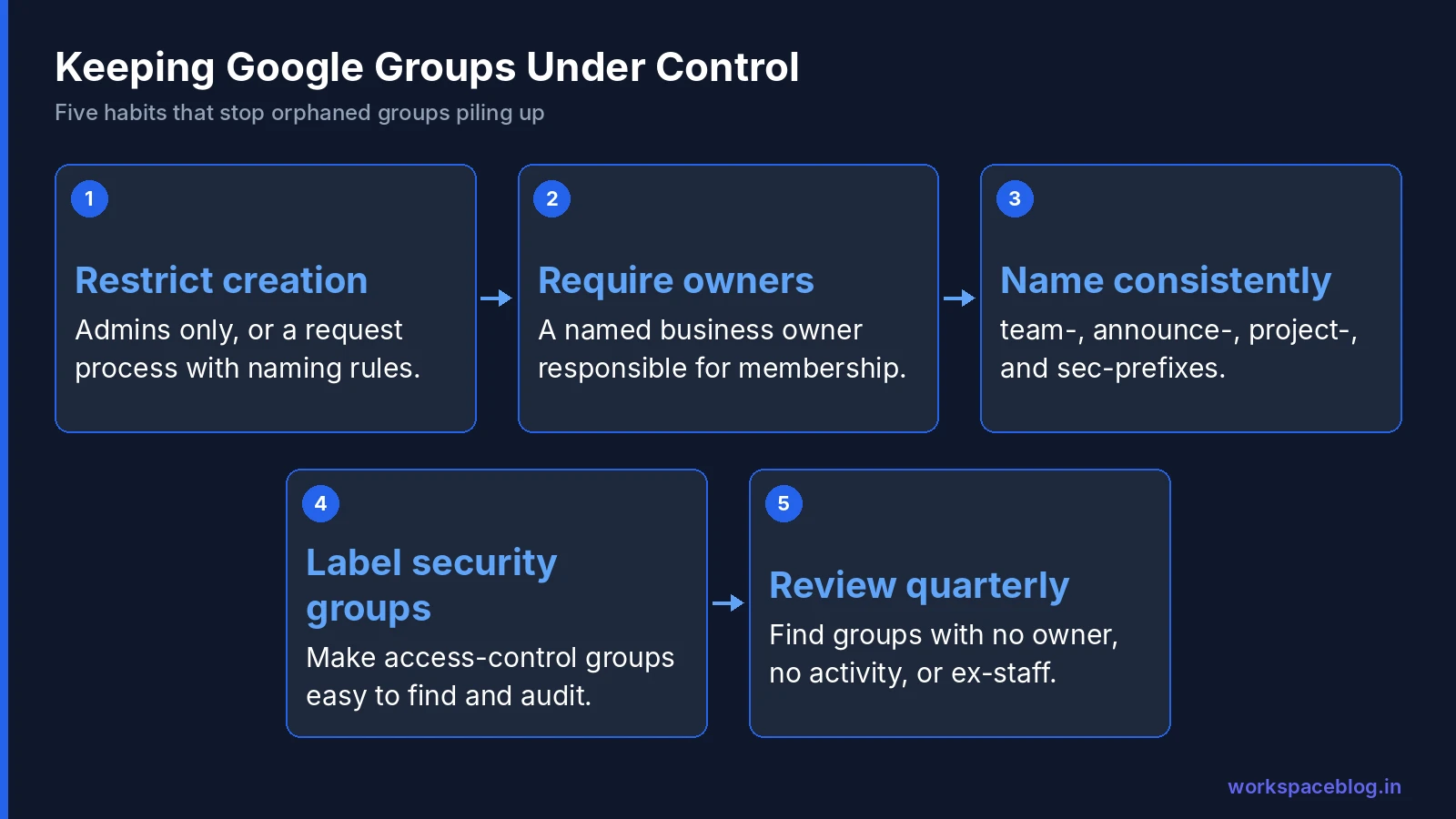
Without governance, directories fill up with hundreds of orphaned groups nobody maintains.
Restrict creation to admins, or to everyone with a request process and naming rules.
Require owners. Every group needs at least one named owner from the business (not just IT) responsible for its membership.
Use naming conventions:
team-[department]for team lists (team-finance)announce-[scope]for announcements (announce-all, announce-emea)project-[name]for projects (project-crm-migration)sec-[resource]for security groups (sec-finance-drive)
Review quarterly. Export the group list from Directory → Groups and look for groups with no owner, no recent messages, external members, or former employees.
Label security groups so access-control groups are easy to find and audit.
Troubleshooting Common Group Issues
| Problem | Likely cause | Fix |
|---|---|---|
| External sender’s mail bounces | Group doesn’t accept external email (the default) | Allow external senders for that group if the org policy permits |
| Members don’t receive mail | Delivery set to digest or no email in their membership settings | Check each member’s subscription setting |
| Messages stuck in moderation | Moderation on for non-members | Approve senders or change moderation |
| User can’t join | Access type doesn’t allow joining | Add them, or change the join setting |
| Group can’t be used as configuration group | Created in the Groups app, or dynamic without the security label | Recreate in the Admin console or add the label |
Conclusion
Google Groups are the multipurpose tool of Google Workspace: email, access control, team inboxes, and settings. Set sensible organization-wide policies, give every group an owner, use dynamic groups where your edition allows to automate membership, grant access to groups rather than individuals, and review groups regularly to keep the directory clean.
Official Google documentation:
- Create a group in your organization
- Set organization-wide policies for using groups
- Manage membership automatically with dynamic groups
Related reading:
- Google Workspace Organizational Units: Admin Guide: OUs are for settings; groups are for email and access. Know the difference.
- Google Workspace Shared Drives: Setup and Permissions: share shared drives with groups for cleaner access management.
- Google Workspace User Lifecycle: Onboarding and Offboarding: add and remove group membership as part of onboarding and offboarding.
This guide contains referral or affiliate links. If you sign up through one, Workspace Blog may earn a commission at no extra cost to you. Learn more.
Frequently Asked Questions
- Which Google Workspace editions support dynamic groups?
- Dynamic groups are supported in Frontline Standard and Plus, Enterprise Standard and Plus, Education Standard and Plus, Enterprise Essentials Plus, and Cloud Identity Premium. You can create up to 500 dynamic groups, and each group has one membership query of up to 10,000 characters.
- How do I stop users from creating Google Groups?
- In the Admin console, go to Apps > Google Workspace > Groups for Business > Sharing settings, and under Creating groups choose Only organization admins can create groups. The default lets anyone in the organization create groups.
- Can people outside my organization email a Google Group?
- Only if the organization-wide policy allows it and the group's own settings allow external senders. By default, Groups for Business doesn't allow emails from external users or external members, and group owners can change this per group only when the organization policy permits.
- What is a security group in Google Workspace?
- A security group is a group with the Security label, used to control access to resources rather than for email. The label can be added when you create the group in the Admin console. Dynamic groups need the security label to be used as configuration groups.
- What is a Collaborative Inbox in Google Groups?
- A Collaborative Inbox turns a group into a shared team mailbox where members can assign conversations, mark them as completed, and see who is handling each one. It's a good fit for addresses like support@ or info@.