Google Workspace Backup: Third-Party Solutions and Data Recovery Strategies
-
 Mohit
Mohit - 28 Jul, 2026
- Updated 27 Oct, 2026

A common misconception: because Google Workspace runs on Google’s infrastructure, your data is automatically backed up. Google does protect against infrastructure failures, but not against the most common causes of data loss: user error, malicious deletion by an insider, compromised accounts and ransomware syncing encrypted files, third-party apps corrupting data, and administrative mistakes.
This guide explains what Google protects, the native recovery options and their limits, how backup differs from Vault, how to choose a third-party backup service, and how to build and test a recovery plan.
The Shared Responsibility Model
Google Workspace works on a shared responsibility model: Google keeps the service running and your data durable; you’re responsible for who can access and delete it, and for recovering from changes made by your own users, admins, and connected apps.
What Google handles
- Infrastructure redundancy: data is replicated across multiple data centers, so hardware failures and data-center outages don’t cause data loss
- Service availability: backed by Google’s Workspace service level agreement
- Short recovery windows: trash for users, plus admin restore options for a limited time
What you’re responsible for
| Scenario | What Google offers | Your exposure |
|---|---|---|
| User deletes important email and empties trash | Admin Restore data within 25 days | After 25 days, it’s gone (unless Vault retention or holds apply) |
| User deletes Drive files and empties trash | Admin Restore data within 25 days | After 25 days, it’s gone |
| Admin deletes a user | Restore the user within 20 days | After 20 days, untransferred data is gone |
| Ransomware on a laptop syncs encrypted files to Drive | Version history for each file | Limited for non-Google files (30 days or 100 versions); restoring many files one by one is slow |
| Malicious insider deletes a shared drive | Admin restore within 25 days | Data lost if discovered late |
| Third-party app overwrites Calendar or Contacts | No point-in-time restore | Manual cleanup |
Data loss is often discovered weeks or months after it happened, when someone needs the file for an audit or a dispute. That’s why short recovery windows aren’t a backup strategy.
Native Recovery Options in Google Workspace
Know what’s built in before you buy anything.
User trash
Users can restore their own Gmail and Drive items from trash. Items in trash are deleted after a period (30 days for Drive trash) or as soon as the user empties trash.
Admin “Restore data” for Drive and Gmail
When users have emptied trash, admins can still recover recent data:
- Admin Console → Directory → Users
- Find the user → More options → Restore data
- Choose a date range that includes when the data was deleted (only the last 25 days can be restored)
- Choose the application (Drive or Gmail)
- Click Restore
Drive data comes back to its original location, but users must reshare restored items. The restore covers everything removed in the date range (you can’t pick individual files) and only one restore can run at a time.
Drive version history
- Google Docs, Sheets, and Slides have their own detailed version history, which handles most accidental edits.
- Non-Google files (PDFs, Office documents, images) keep previous versions, but a version can be deleted after 30 days or once there are 100 newer versions, unless someone marks it Keep forever.
For ransomware that syncs encrypted copies of files into Drive, version history can help, but restoring hundreds of files version by version is slow and the 30-day limit applies.
Restoring a deleted user
Admin Console → Directory → Users → More options → Recently deleted users, then point to the user and recover them. This works for 20 days after deletion and needs a super administrator. Restore the user before trying to transfer their data.
Shared drives
Admins can restore a deleted shared drive from the Admin console (Drive and Docs → Manage shared drives, filter by deleted status) within 25 days of deletion. Files removed from a shared drive’s trash can also be restored within 25 days. After that, the contents are gone unless retained by Vault or backed up.
Backup vs. Vault: Different Jobs
| Google Vault | Third-party backup | |
|---|---|---|
| Purpose | Legal hold, retention, eDiscovery | Operational recovery |
| Restores into user accounts | No: exports only | Yes, usually to the original location |
| Point-in-time view | No | Yes |
| Granular restore (one email, one folder) | Export and manual re-import | Built in |
| Included in | Business Plus, Enterprise Standard and Plus, Frontline Standard and Plus, Education, Enterprise Essentials and Essentials Plus | Separate subscription |
Google says plainly that Vault isn’t designed to be a backup or archive tool and has no automated recovery tools. Many organizations need both: Vault for compliance and backup for recovery. See our Vault guide.
Third-Party Backup Solutions for Google Workspace
Several established vendors offer Google Workspace backup, including Datto Backupify, Veeam, Spanning (Kaseya), Dropsuite, CloudAlly, Afi, and others. Features and pricing change often, so compare them against your own requirements rather than a fixed ranking.
What a good solution provides
- Automatic backups at least daily (many run several times a day)
- Point-in-time restore: restore data as it was on a specific date
- Granular restore: single emails, files, folders, or calendars, back to the original account or a different one
- Coverage of shared drives, not just My Drive
- Long or unlimited retention options
- Storage outside Google’s own infrastructure, or in a region you choose
- Immutable or protected backups that a compromised admin account can’t delete
- Admin audit logs of every restore and export
Evaluation checklist
| Question | Why it matters |
|---|---|
| Which services are covered: Gmail, Drive, shared drives, Calendar, Contacts, Chat, Sites? | Shared drives and Chat are the most common gaps |
| How often does it back up, and how fast is restore? | Determines your achievable RPO and RTO |
| Can it restore to a different user or export to PST/ZIP? | Needed for departing employees and legal requests |
| Where is backup data stored? | Data residency, GDPR, sector regulations |
| Are backups immutable? Is admin access protected by MFA? | Ransomware and insider threats target backups too |
| How is it licensed: per active user, archived users, storage? | Former employees can quietly add cost |
| What permissions does it request? | Backup apps need broad API access; review the OAuth scopes and restrict them to the backup service account |
Run a real restore during the trial: delete a test mailbox folder and a shared drive folder, then time how long it takes to get them back.
Building Your Data Recovery Strategy
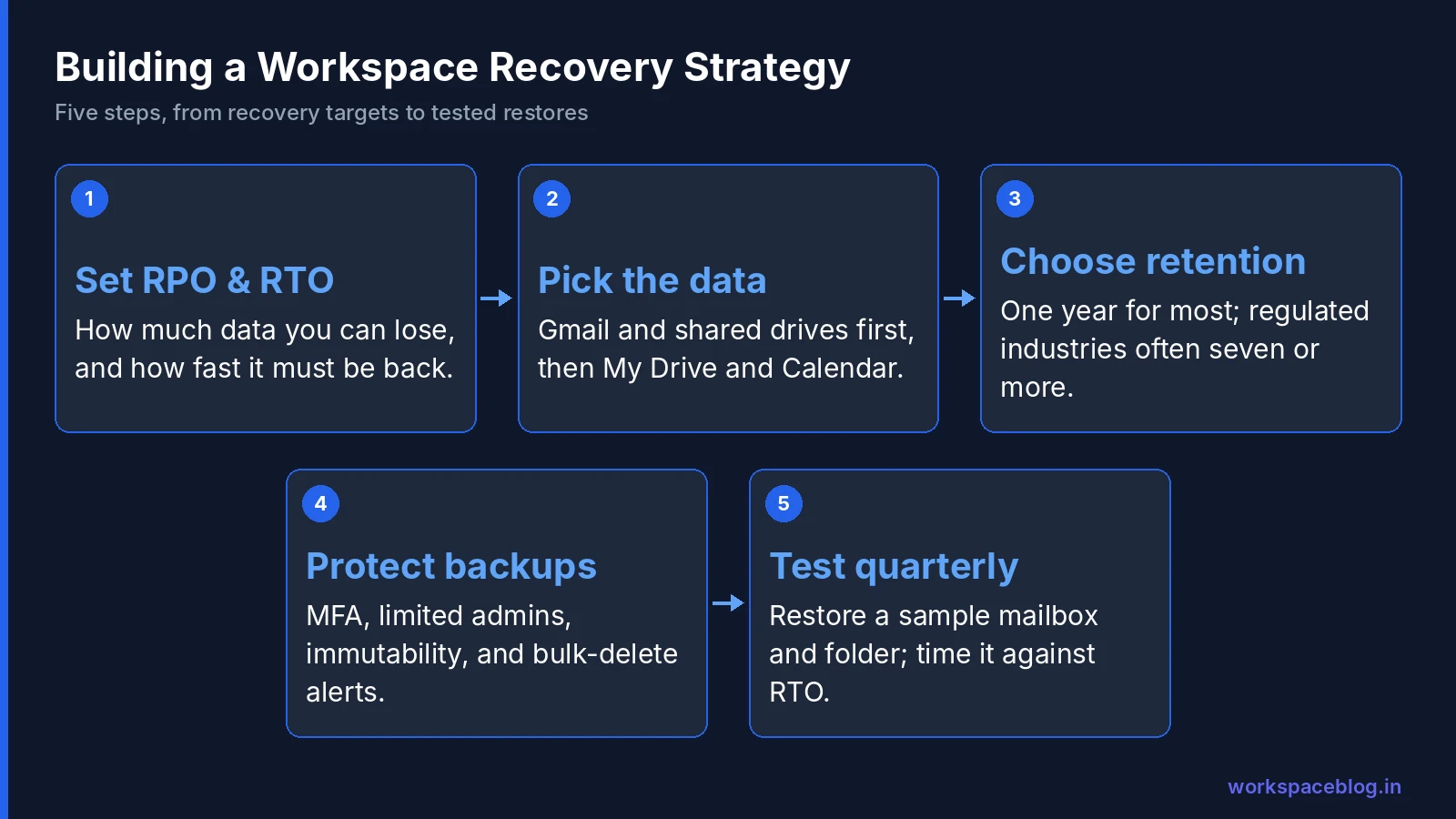
Step 1: Define RPO and RTO
- Recovery Point Objective (RPO): how much data you can afford to lose, for example, no more than 24 hours
- Recovery Time Objective (RTO): how quickly data must be back, for example, within 4 hours for executives and finance
Step 2: Decide what needs backup
| Data | Typical priority |
|---|---|
| Gmail | High, often irreplaceable |
| Shared drives | High: contracts, finance, projects |
| My Drive | Medium: reduce by moving team files to shared drives |
| Calendar | Medium |
| Contacts | Low to medium |
| Chat | Depends on how your teams use it |
Step 3: Choose retention
One year of backup history covers most operational recovery needs. Regulated industries (finance, healthcare, legal) often need seven years or more. Check whether Vault retention already covers the compliance side so backup retention can stay shorter.
Step 4: Protect the backups
Restrict who can administer the backup service, require MFA, enable immutability or deletion protection, and alert on bulk deletions or exports from the backup console.
Step 5: Test restores quarterly
A backup that hasn’t been tested isn’t a backup. Each quarter, restore a sample mailbox from six months ago and a shared drive folder, check the data is complete, and record how long it took against your RTO.
Ransomware and Account Compromise Playbook
- Contain: suspend the affected account, reset its password and sign-in cookies, and disconnect the infected device from Drive for desktop
- Assess: use Drive log events to find files modified or deleted in the attack window
- Recover: restore affected files from backup to a point before the attack (or use version history for a small number of Google-native files)
- Review: check OAuth app grants and forwarding rules created during the incident, and close the entry point
Having backup in place turns this from a crisis into a few hours of work.
Data Export as a Lightweight Alternative
Smaller organizations on a tight budget can use Google Workspace’s Data export tool (Admin Console → Data → Data import & export → Data export, super administrator only) to export the organization’s data, including Gmail, Calendar, Chat, Contacts, Drive, Groups, Keep, and Voice. By default the export lands in a temporary, Google-provided Cloud Storage bucket, and the files there are deleted 60 days after the export starts, so copy anything you want to keep to storage you control. Google asks organizations with more than 1,000 users to contact Workspace support before using the tool.
This isn’t a backup system: exports are point-in-time snapshots and restoring from them is manual. But a periodic export copied to your own storage is far better than nothing.
Conclusion
Backup isn’t automatic in Google Workspace. Trash, the 25-day admin restore, and the 20-day user restore are a short-term safety net, not a recovery strategy. Define your RPO and RTO, use Vault for compliance where you have it, add a third-party backup service with point-in-time and granular restore, protect it from compromised admins, and test restores every quarter.
The cost of backup is small compared with the cost of data you can’t get back.
Official Google documentation:
- Recover deleted files and folders for Drive users
- Check activity and file versions (Drive Help)
- Options to preserve former employee data
Related reading:
- Google Workspace Vault: eDiscovery and Compliance Guide: Vault handles compliance; backup handles operational recovery.
- Google Workspace User Lifecycle: Onboarding and Offboarding: offboarding is a high-risk data loss window; have backup in place.
- Google Workspace Storage Management Guide: understand what’s in your storage before designing a backup policy.
This guide contains referral or affiliate links. If you sign up through one, Workspace Blog may earn a commission at no extra cost to you. Learn more.
Frequently Asked Questions
- Does Google back up my Google Workspace data?
- Google protects against infrastructure failures by replicating data across data centers, but it doesn't keep point-in-time backups you can restore from months later. Native recovery is limited to trash, a 25-day admin restore window for Drive and Gmail, and a 20-day window to restore deleted users.
- How long can an admin restore deleted Google Drive files?
- Admins can restore Drive data within 25 days after a user empties their trash, from Directory > Users > the user > More options > Restore data. The restore covers everything removed in the selected date range and puts files back in their original location. If the whole account was deleted, the window is 20 days from deletion.
- Is Google Vault a backup for Google Workspace?
- No. Google states that Vault isn't designed to be a backup or archive tool and has no automated recovery tools. Vault preserves and exports data for legal and compliance purposes; use the Admin console's restore options or a third-party backup service for operational recovery.
- How long does Google Drive keep old versions of files?
- For non-Google files such as PDFs and Office documents, a version can be permanently deleted after 30 days or once there are 100 newer versions, unless you mark it Keep forever. Google Docs, Sheets, and Slides have their own version history, separate from Drive file versions.
- What should I look for in a Google Workspace backup service?
- Check coverage of shared drives, Calendar, Contacts, and Chat; how often backups run; point-in-time and granular restore; retention length; where backup data is stored; immutability and ransomware protection; admin audit logs; and per-user pricing. Always run a test restore during the trial.