MCP Servers in Gemini Enterprise: Connect Custom Tools and Data Securely With the Model Context Protocol
-
 Mohit
Mohit - 26 Oct, 2026
- Updated 27 Oct, 2026

The Model Context Protocol (MCP) has become the standard way to give AI agents tools. Instead of building a custom integration for each AI product, you build one MCP server for your system (an internal ticketing tool, a pricing database, a homegrown CRM) and any MCP-capable agent can use it. Gemini Enterprise supports custom MCP servers too: this guide shows what a Gemini MCP server needs, how to connect one, and how to keep its actions safe.
Gemini Enterprise supports MCP in three places: custom MCP server data stores for chat and agents, MCP steps and tools in Workflow Builder, and MCP servers in Agent Registry for Agent Studio and Agent Platform. This guide covers how to connect an MCP server, the security model, Google’s Workspace MCP servers, and design tips for MCP server developers.
If you’re new to how agents talk to other agents, see yesterday’s post on the A2A protocol: MCP is the agent-to-tool counterpart.
Table of contents
Open Table of contents
Where MCP Fits in Gemini Enterprise
| Surface | How MCP is used | Who sets it up |
|---|---|---|
| Custom MCP server data store | The server’s tools become actions users and agents can call | Gemini Enterprise admin |
| Workflow Builder | Dedicated MCP steps, or MCP tools inside Gemini agent steps | Agent builders, using admin-provisioned servers |
| Agent Registry (Agent Platform) | Registered MCP servers attached to Agent Studio agents | Cloud admins and developers |
| Gemini agent tools registry | Google said at Gemini at Work 2026 the Gemini agent supports “any MCP server” | Admins |
Custom MCP server data stores became generally available in August 2026, off by default. A no-authentication option was added in Preview in July 2026.
Requirements Before You Start
Server requirements
| Requirement | Detail |
|---|---|
| Transport | Streamable HTTP only: the older SSE transport isn’t supported |
| URL | HTTPS, usually ending in /mcp |
| TLS | Certificate from a publicly trusted CA: self-signed certificates aren’t supported, even for private servers |
| Cloud Run | If authentication is required, grant roles/run.invoker to the Gemini Enterprise service agent; Google-signed ID tokens are sent only to default .run.app URLs, not custom domains |
Admin and policy requirements
- IAM: Discovery Engine Editor (
roles/discoveryengine.editor) - Organization policy: override the constraint that blocks custom MCP data store creation, and allow the domains (FQDNs, not full URLs) of the MCP server, authorization URL, and token URL
- VPC Service Controls / project enforcement: add
custom_mcpto the allowed data sources - OAuth client: register Gemini Enterprise with your identity provider (Okta, Microsoft Entra ID, Google, or another) with the redirect URL
https://vertexaisearch.cloud.google.com/oauth-redirect
Step-by-Step: Connect a Custom MCP Server
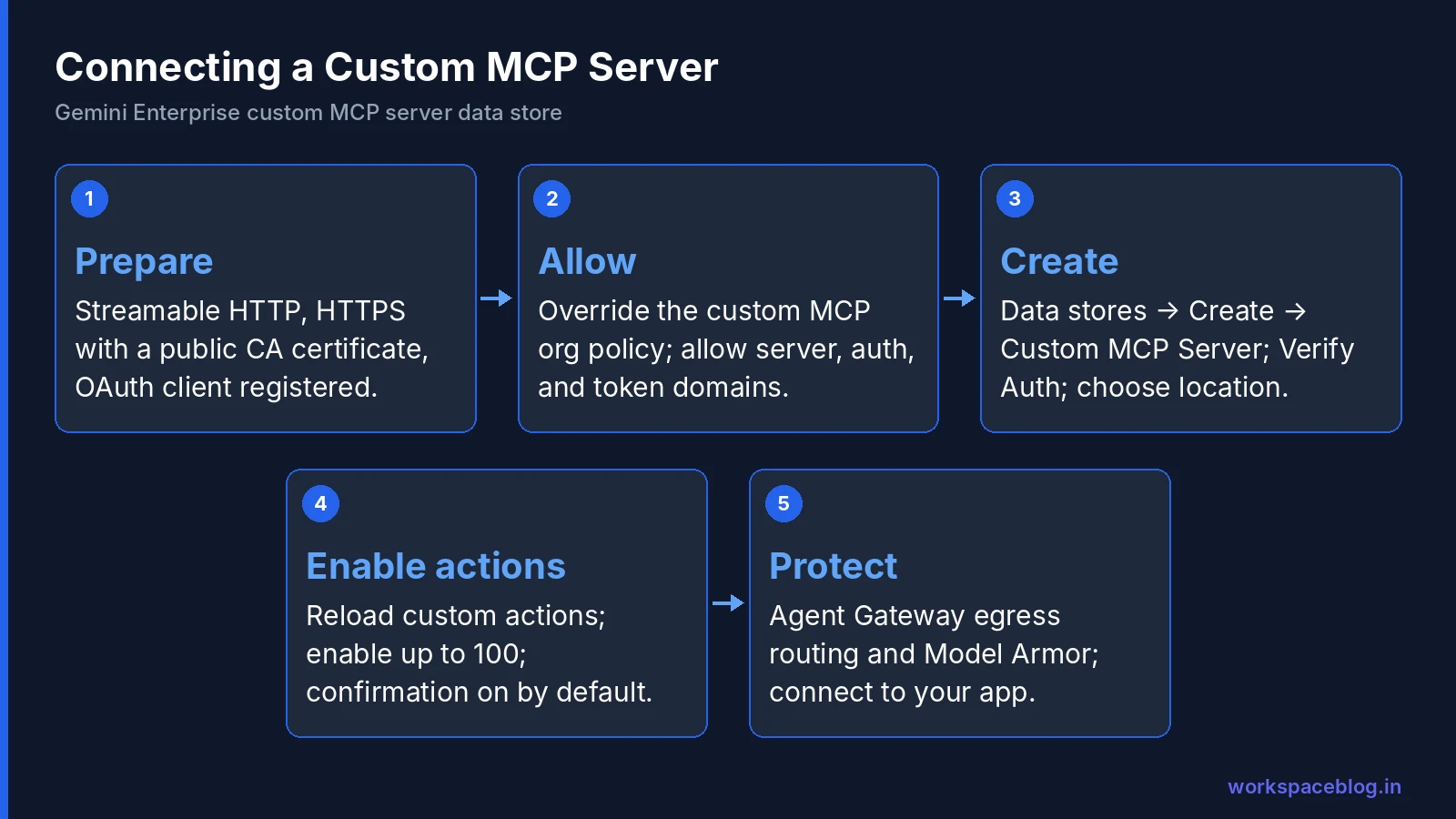
- Google Cloud console → Gemini Enterprise → Data stores → Create data store
- Search for Custom MCP Server → Add MCP server
- Choose the authentication option and fill in the fields (below)
- For OAuth, click Verify Auth, then Continue
- Choose the data connector location (multi-region), name it, and click Create
- Wait for the state to go from Creating to Active
- Enable actions (next section), then connect the data store to your app
OAuth fields
| Field | What to enter |
|---|---|
| MCP Server URL | The HTTPS endpoint |
| Authorization URL | Base URL only: Gemini Enterprise appends standard OAuth parameters |
| Authorization URL Parameters (optional) | Extras such as access_type=offline&prompt=consent for refresh tokens, or an audience |
| Token URL | Where the authorization code is exchanged for a token |
| Client ID / Client Secret | From your OAuth app |
| Enable PKCE Support (optional) | Recommended if your provider supports it |
| Scopes | Space-separated; include offline_access for refresh tokens; must cover every enabled tool |
With OAuth, each user authorizes the connector and the server sees the user’s own token, so the MCP server can apply that user’s permissions. That’s the model to prefer for anything with per-user data.
No-authentication option
Select No authentication and enter only the server URL. Use it for genuinely public, read-only tools (a public product catalog, a holiday calendar), never for internal data.
Enabling Actions
Every tool the server exposes is imported as an action, and all actions are off by default.
- Open the data store → Actions → Reload custom actions (this re-authenticates and runs the MCP
tools/listcall) - Select up to 100 actions
- Click Enable actions
Reload whenever the server’s tools or annotations change.
Confirmation and tool annotations
By default, every action call requires user confirmation. Server developers control this with standard MCP tool annotations:
| Annotation | Effect in Gemini Enterprise |
|---|---|
readOnlyHint: true | Tool runs without asking the user to confirm |
destructiveHint on data-changing tools | Keeps confirmation in place |
| No annotation | Confirmation required |
This is a sensible default: lookups feel instant, while anything that writes, sends, or deletes asks first.
MCP in Workflow Builder
Workflow Builder uses the same custom MCP data stores in two ways:
| Dedicated MCP step | MCP tool in a Gemini agent step | |
|---|---|---|
| How | Add step → MCP servers | Tools & Integrations → turn on Authorize for the connector |
| Runs | At a fixed point in the workflow | Whenever the model decides it’s needed |
| Can | Call tools, list resources, query the server | Call tools during reasoning |
| Best for | Deterministic steps (“create the ticket”) | Flexible lookups (“find related incidents”) |
See our Workflow Builder guide for triggers, approvals, and limits. Google’s Workflow Builder quotas page caps a flow at 100 nodes and 20 skills per node, and an agent at 100 linked MCP servers.
Google’s Workspace MCP Servers
Google has also published MCP servers for Google Workspace, which can be added to Gemini Enterprise as custom MCP data stores:
| Server | Covers |
|---|---|
| Universal | Gmail, Drive, Calendar, and Chat in one connector |
| Individual | Gmail, Google Drive, Docs, Sheets, Slides, Calendar, Chat, and the People API |
What they enable: natural-language search and summaries across email, files, events, Chat messages, and contacts, plus drafting emails and cross-service tasks (“find the Q3 deck, summarize it, and draft an email to the team”).
Requirements (from Google’s codelab):
- Enrollment in the Google Workspace Developer Preview Program
- Gemini Enterprise Standard or Plus
- A Business or Enterprise Google Workspace account with Chat access and smart features on
- Overriding the custom MCP organization policy, enabling the Workspace MCP service APIs, an OAuth consent screen with the right scopes, and one custom MCP data connector per service
Most scopes are read-only; write-capable scopes include Gmail compose, Drive file access, Docs/Sheets/Slides editing, and Chat message creation. Calendar scopes are read-only. Because this is a developer preview, treat it as a pilot, not a production dependency: the generally available Google Drive, Gmail, and Calendar connectors remain the standard option (see our connectors guide).
Security Model
What Google builds in
- Actions off by default: nothing runs until an admin enables it
- User confirmation by default for every action call
- Per-user OAuth: the server receives the user’s token, preserved in the
Authorizationheader (on Cloud Run, a Google-signed ID token is sent in a separate header) - Organization policy: custom MCP creation is blocked unless explicitly allowed, and allowed domains are listed explicitly
What you must add
- Agent Gateway routing. Google notes that outbound MCP traffic bypasses Agent Gateway unless you configure egress routing under Advanced options when creating the data store. Configure it for anything sensitive.
- Model Armor. Enable it to screen malicious inputs and outputs: MCP tool results can carry prompt-injection attempts.
- Least-privilege scopes. Request only the OAuth scopes the enabled tools need.
- Server-side authorization. The MCP server should check the user’s permissions on every call, not trust the agent.
- Logging. Log tool calls with the user identity on the server side for audit.
Threats to plan for
| Threat | Mitigation |
|---|---|
| Prompt injection via tool output (a ticket description that says “ignore your instructions”) | Model Armor; treat tool output as untrusted; confirmations on write tools |
| Tool poisoning (a server changes a tool’s description to steer the model) | Only connect servers you control or trust; review tools after every reload |
Over-broad tools (run_sql, send_any_email) | Design narrow tools with specific parameters |
| Token misuse | Short-lived tokens, PKCE, refresh tokens only when needed |
| Data exfiltration | Agent Gateway egress routing; VPC Service Controls; allowlisted domains |
Example: Connecting an Internal Ticketing System
Say your IT team runs a homegrown ticketing system and wants employees to check and create tickets from Gemini Enterprise.
- Build the MCP server with three tools:
search_tickets(query)andget_ticket(ticket_id)markedreadOnlyHint: true, andcreate_ticket(summary, category, urgency)marked withdestructiveHint. - Host it on Cloud Run with Streamable HTTP at
https://tickets-mcp.example.com/mcp, behind a load balancer with a public CA certificate. - Register an OAuth client in your identity provider with the Gemini Enterprise redirect URL, so the server receives each user’s token and only returns tickets that user may see.
- Allow the domains in the custom MCP organization policy, then create the data store and Verify Auth.
- Reload and enable the three actions; turn on Agent Gateway egress routing and Model Armor.
- Pilot with the IT team: searches run instantly, while “create a ticket” asks the user to confirm first.
Result: employees ask “what’s the status of my laptop request?” in Gemini Enterprise and get an answer from the ticketing system, with per-user permissions and an audit trail on the server.
Tips for MCP Server Developers
- Design narrow tools.
get_order_status(order_id)beatsquery_database(sql). - Write descriptions for the model. Say exactly when to use the tool and what each parameter means.
- Annotate honestly. Mark lookups
readOnlyHint: true; mark anything that changes data withdestructiveHint. - Enforce permissions server-side using the user’s OAuth token.
- Return concise, structured results. Large unfiltered dumps waste tokens and confuse the model.
- Support Streamable HTTP and a public CA certificate from day one.
- Version carefully. Tool changes take effect after an admin reloads actions: communicate changes.
Conclusion
MCP lets you plug any internal system into Gemini Enterprise once and use it everywhere: in chat, in agents, and in Workflow Builder automations. The setup is straightforward (Streamable HTTP, HTTPS with a public certificate, OAuth, and an organization policy override), and Google’s defaults are cautious: actions off until enabled, confirmation on every call unless a tool is marked read-only.
The parts that need your attention are the ones that sit outside Google’s defaults: route MCP traffic through Agent Gateway, turn on Model Armor, keep tools narrow, and enforce permissions on the server. Do that, and MCP becomes the fastest way to make Gemini Enterprise genuinely useful with the systems your teams (in Google Workspace and beyond) rely on every day.
Official Google documentation:
- Set up your custom MCP server data store
- Connect MCP servers in Workflow Builder
- Google Workspace MCP server connectors in Gemini Enterprise (codelab)
- Agent Registry overview
Related reading:
- Agent2Agent (A2A) Protocol Explained: the agent-to-agent counterpart to MCP.
- Gemini Enterprise Workflow Builder Guide: use MCP servers in automated workflows.
- Gemini Enterprise Connectors and Data Stores: the built-in connectors.
This guide contains referral or affiliate links. If you sign up through one, Workspace Blog may earn a commission at no extra cost to you. Learn more.
Frequently Asked Questions
- Can Gemini Enterprise connect to MCP servers?
- Yes. Admins create a custom MCP server data store that points to a remote MCP server. Gemini Enterprise imports the server's tools as actions, which admins enable individually, and users can then use them in chat, agents, and Workflow Builder workflows. Google made custom MCP server data stores generally available in August 2026, off by default.
- What are the requirements for a custom MCP server in Gemini Enterprise?
- The server must use the Streamable HTTP transport (SSE isn't supported) and an HTTPS URL with a certificate from a publicly trusted CA. Admins need the Discovery Engine Editor role, must override the organization policy that blocks custom MCP data stores, and allow the server's domains. For user authentication you register an OAuth client with redirect URL
https://vertexaisearch.cloud.google.com/oauth-redirect. - Do MCP tool calls in Gemini Enterprise require user confirmation?
- By default, every action call requires user confirmation. Server developers can mark read-only tools with the readOnlyHint annotation set to true so they run without confirmation, and use destructiveHint on tools that change data to keep confirmation in place.
- How many MCP tools can I enable?
- All tools from the server are imported as actions, and all are off by default. After running Reload custom actions, an admin can select and enable up to 100 actions per data store.
- Are there Google-built MCP servers for Google Workspace?
- Yes. Google's codelab describes Workspace MCP servers for Gmail, Drive, Docs, Sheets, Slides, Calendar, Chat, and the People API, plus a universal connector, which can be added to Gemini Enterprise as custom MCP data stores. Access is part of the Google Workspace Developer Preview Program and requires Gemini Enterprise Standard or Plus.