Gemini Enterprise With Microsoft 365: Connecting SharePoint, OneDrive, Outlook, and Teams
-
 Mohit
Mohit - 23 Oct, 2026

Plenty of organizations run both ecosystems: Google Workspace for some teams, Microsoft 365 for others, or Microsoft 365 for everything with Google Cloud for AI. Gemini Enterprise is designed for that reality. Its Microsoft connectors let one question search SharePoint, OneDrive, Outlook, and Teams alongside Drive, Jira, and ServiceNow, and, increasingly, act in them.
This guide covers each Microsoft 365 connector, the Entra ID app registration and permissions, federated vs. ingested modes, actions, limits, and a rollout plan that keeps your Microsoft admins comfortable.
For connector fundamentals (data stores, sync types, and permission-aware search) start with our connectors guide.
Table of contents
Open Table of contents
- Gemini Enterprise Microsoft 365 Connectors at a Glance
- Federated or Ingested? The Microsoft-Specific Trade-Offs
- SharePoint: Setup and Permissions
- Outlook: Mail, Calendar, and More
- Teams: Channels, Chats, and Schedules
- Identity: Making Permissions Work Across Clouds
- Security Considerations for Microsoft Admins
- Troubleshooting Common Errors
- A Rollout Plan
- Conclusion
Gemini Enterprise Microsoft 365 Connectors at a Glance
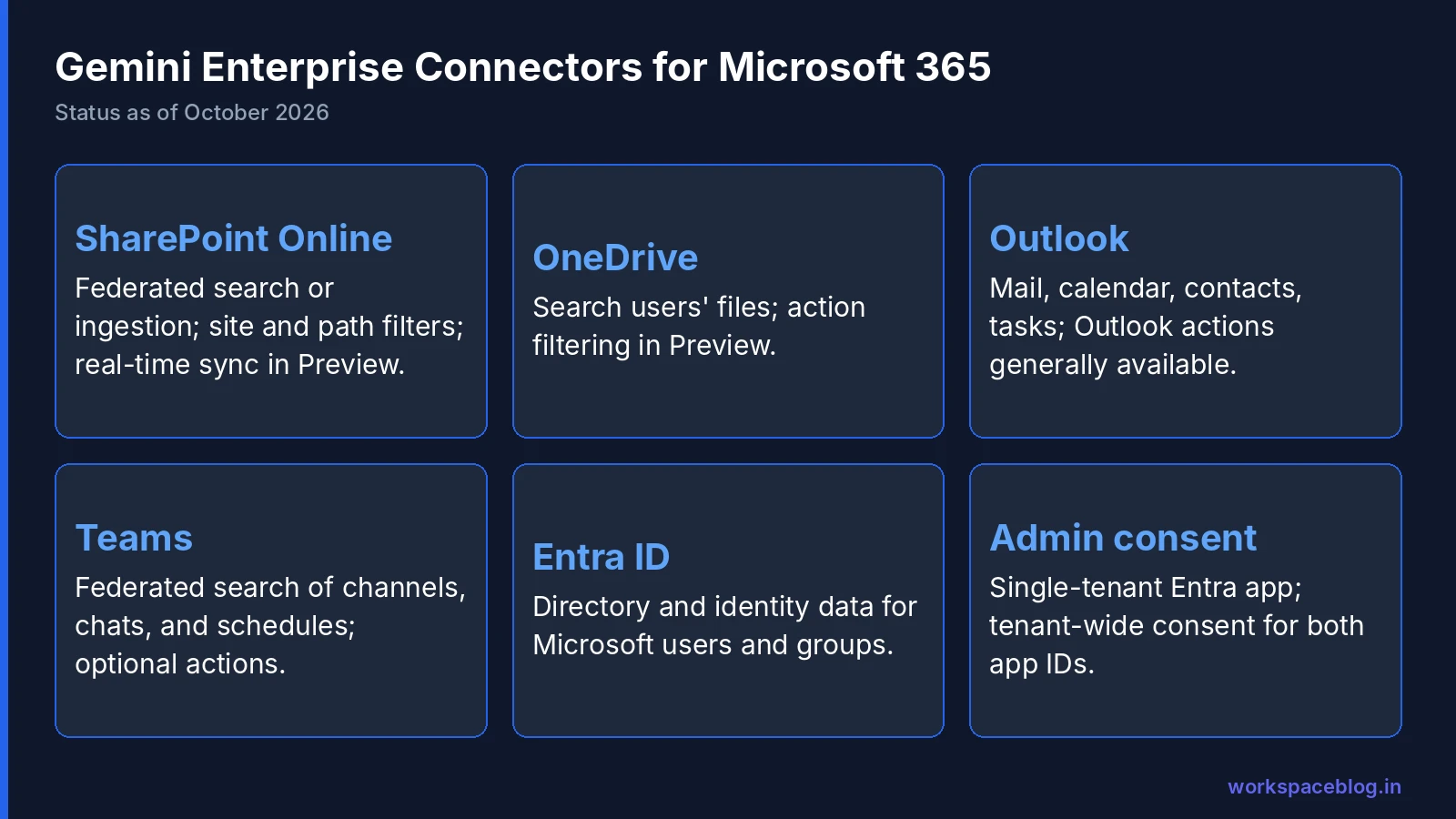
| Connector | Modes | What it covers | Status |
|---|---|---|---|
| SharePoint Online | Federated search or data ingestion | Sites, files, pages, events, comments, attachments | GA; filters GA (June 2026); real-time sync in Preview |
| OneDrive | Search, plus actions | Users’ OneDrive files | GA; action filtering in Preview |
| Outlook | Federated search or data ingestion | Mail (own, shared, and all mailboxes for ingestion), calendar, contacts, tasks, Office files | GA; Outlook actions GA (September 29, 2026) |
| Teams | Federated search, or federated search with actions | Channels, chats, schedules | Federated data store GA (July 28, 2026) |
| Entra ID | Identity | Users and groups for permissions | GA |
In September 2026 Google also added actions for OneDrive, Outlook, SharePoint, and Teams in Preview, so agents can create, update, and send, not just search.
Google also said at Gemini at Work 2026 that the Gemini agent can be accessed from Microsoft 365, alongside Workspace and Slack. Google hasn’t published setup details or availability dates for that integration, so this guide focuses on the connectors you can deploy today.
Federated or Ingested? The Microsoft-Specific Trade-Offs
| Federated search | Data ingestion | |
|---|---|---|
| How it works | Queries Microsoft APIs at search time; results are blended with other sources | Syncs and indexes content in Gemini Enterprise |
| Permissions needed | Delegated, read-only (smaller footprint) | Application permissions (broader) |
| Storage | None | Counts toward pooled storage |
| Search quality | Depends on Microsoft search | Usually better |
| Setup time | Minutes | Initial ingestion can take several hours |
| Data flow | Queries go to Microsoft; Google notes an LLM may rewrite the query using session history, so parts of the conversation can reach the Microsoft API | Data stored in your chosen Google Cloud location (global, US, or EU) |
Rule of thumb: start with federated for Teams and Outlook (fast-changing, personal content) and decide between federated and ingested for SharePoint based on how good your SharePoint search is today.
SharePoint: Setup and Permissions
1. Register an app in Entra ID
In the Entra admin center → Entra ID → App registrations → New registration:
- Account type: Accounts in this organizational directory only (single tenant)
- Redirect URIs (Web):
https://vertexaisearch.cloud.google.com/console/oauth/sharepoint_oauth.htmlhttps://vertexaisearch.cloud.google.com/oauth-redirect
- Collect the Client ID, a client secret (copy the value immediately), the Tenant ID, and your instance URI:
https://DOMAIN.sharepoint.comfor all sites orhttps://DOMAIN.sharepoint.com/sites/SITEfor one
For ingestion with federated credentials, add a federated credential with issuer https://accounts.google.com and the subject identifier shown in the Google Cloud console while creating the data store. No long-lived secret required.
2. Grant API permissions
| Mode | Microsoft Graph | SharePoint |
|---|---|---|
| Federated search | None | Sites.Search.All, AllSites.Read (delegated) |
| Ingestion (federated credentials) | GroupMember.Read.All (app), User.Read (delegated), Sites.FullControl.All or Sites.Selected (app), User.Read.All or User.ReadBasic.All (app) | Sites.FullControl.All or Sites.Selected (app) |
| Ingestion (OAuth refresh token) | GroupMember.Read.All, User.Read, User.Read.All, Sites.FullControl.All or Sites.Selected | AllSites.FullControl or Sites.Selected (delegated) |
| Actions (optional) | Sites.ReadWrite.All, Files.ReadWrite, Files.ReadWrite.All, Sites.Manage.All (delegated) | AllSites.Write (delegated, refresh token method) |
3. Use Sites.Selected to limit scope
Sites.FullControl.All is a big ask for most security teams. Sites.Selected limits the app to sites you choose:
- Grant
fullcontrolto the app on each site with PnP PowerShell (Grant-PnPAzureADAppSitePermission -Permissions FullControl) or a GraphPOST /sites/{SITE_ID}/permissionscall. Run by a site owner - Then set the instance URI to that site, or add precise siteName filters on the data store
4. Grant admin consent
Tenant-wide admin consent is required, and Google calls it a critical failure point. There are two app IDs to consent: the data store connection and the “Upload from OneDrive/SharePoint” button in chat. If users see “Need admin approval,” an admin must sign in to the Gemini Enterprise web app and choose Consent on behalf of your organization: recreating the data store won’t fix it.
5. Create the data store
In the Gemini Enterprise console: Data stores → Create → Microsoft SharePoint, choose the mode, authenticate, set the site URL and cloud environment, add filters, pick entities and sync schedules, choose actions, select the region and encryption, and create. Then connect it to your app.
You’ll need the Discovery Engine Editor role in Google Cloud.
SharePoint filters and options
- Federated: filter by exact site URL, or by path (subpaths, folders, document libraries), each as include or exclude
- Ingestion: include or exclude entities by key
- Real-time sync (Preview, ingestion only): webhook-based updates for document entities; permission changes still wait for scheduled syncs
- US government tenants: match the environment type and cloud (GCC High or DoD)
Important: if you only want read access, disable the default write actions. Leaving them on without matching write scopes in Entra ID causes authentication and sync errors.
Outlook: Mail, Calendar, and More
| Details | |
|---|---|
| Federated (delegated) | Mail.Read, Mail.Read.Shared, Calendars.Read, Contacts.Read |
| Ingestion (application) | Includes Mail.Read, Calendars.Read, Contacts.Read, and user read scopes; limited to 10,000 API requests per 10 minutes |
| Actions (delegated) | Mail.Send, Mail.ReadWrite, Calendars.ReadWrite, Contacts.ReadWrite; files need Files.ReadWrite.All; tasks need Tasks.ReadWrite |
Actions available: send (with attachments), forward, reply, move, download attachments, create and update drafts; create, update, and RSVP to events; create and update contacts; read and edit Excel workbooks; create Word and PowerPoint files in OneDrive; and convert Word and PowerPoint to PDF.
Limits to plan around:
- Mailboxes must be fully in Exchange Online: hybrid or on-premises mailboxes fail with
MailboxNotEnabledForRESTAPI - One Azure tenant per data store: multi-tenant organizations need one per tenant
- Roughly one transaction per second per node, with Graph retry-after handling
- 25 MB maximum file size for uploads and downloads
If you’re mid-migration between Exchange and Gmail, our coexistence guide explains routing, and why hybrid mailboxes complicate API access.
Teams: Channels, Chats, and Schedules
The Teams data store lets users search and act on channels, chats, and schedules. It’s federated (nothing is ingested) with two modes:
| Mode | Permissions (all delegated) |
|---|---|
| Federated search | Read permissions such as Chat.Read, ChannelMessage.Read.All, Team.ReadBasic.All |
| Federated search and actions | Adds write permissions such as ChannelMessage.Send, Chat.ReadWrite, Schedule.ReadWrite.All |
Group.Read.All lets the connector read sensitivity labels for redaction.
Actions include sending, updating, and creating channel and chat messages, channels, and chats; adding members to channels; creating schedules; and creating and updating time-off entries. Supported locations are global, us, and eu, and the connector requires Teams 2.1 or later.
Identity: Making Permissions Work Across Clouds
Permission-aware search depends on Gemini Enterprise knowing that alex@company.com in Google and alex@company.com in Entra ID are the same person. You have two broad options:
- Google identity: users sign in to Gemini Enterprise with Google accounts (Workspace or Cloud Identity); Google made Google Identity support for third-party data sources generally available in August 2026, except for Microsoft 365 data ingestion, so this option suits federated Microsoft 365 data stores while ingested SharePoint and Outlook data stores need workforce identity federation; the Entra ID connector brings in Microsoft directory data
- Workforce identity federation: users sign in with Entra ID through a workforce identity pool, and Gemini Enterprise maps that identity to Microsoft permissions
Either way, keep user principal names and email addresses consistent across both directories: mismatches are the top cause of “I can see it in SharePoint but not in Gemini.” If you already federate Google sign-in to Entra ID, our SSO guide covers the SAML side.
Security Considerations for Microsoft Admins
| Concern | How to address it |
|---|---|
| Broad app permissions | Prefer federated mode or Sites.Selected; avoid Sites.FullControl.All where possible |
| Write actions | Disable by default; enable per connector after review |
| Over-shared SharePoint content | Fix “Everyone except external users” sharing before connecting |
| Query data reaching Microsoft | Expected in federated mode; document it in your data processing records |
| VPC Service Controls | Can’t be applied to existing Teams or Outlook data stores: create them inside the perimeter from the start |
| Sensitivity labels | Grant Group.Read.All for Teams label-based redaction |
| Secrets | Prefer federated credentials over client secrets for ingestion |
Troubleshooting Common Errors
| Symptom | Likely cause | Fix |
|---|---|---|
| Users see “Need admin approval” | Tenant-wide consent missing for one of the two app IDs | Admin signs in to the web app and chooses Consent on behalf of your organization |
| SharePoint sync or auth errors after setup | Default write actions enabled without write scopes in Entra ID | Disable write actions or add the matching delegated scopes |
Sites.Selected returns nothing | App not granted fullcontrol on the site, or instance URI is tenant-wide | Grant per-site permission and use the site URL or precise siteName filters |
MailboxNotEnabledForRESTAPI in Outlook | Hybrid or on-premises mailbox | Move the mailbox to Exchange Online, or exclude it |
HTTP 403 accessDenied on actions | Missing delegated permission (for example Mail.Send) | Add the scope and re-consent |
| Results missing for some users | Identity mismatch or stale identity sync | Align UPNs and emails; increase identity sync frequency |
| Can’t apply VPC Service Controls | Data store created before the perimeter | Recreate the data store inside the perimeter |
A Rollout Plan
| Week | Step |
|---|---|
| 1 | Agree scope with the Microsoft 365 team: which sites, mailboxes, and teams; federated vs. ingested |
| 1 | Register the Entra app(s); grant least-privilege permissions; admin consent for both app IDs |
| 2 | Connect one SharePoint site (Sites.Selected) and Outlook federated for a pilot group |
| 2 | Test permissions with users in different groups; confirm restricted content stays hidden |
| 3 | Add Teams federated search; evaluate search quality with real questions |
| 4 | Decide on actions; enable Outlook actions for the pilot with approval steps in workflows |
| 5+ | Expand sites and users; schedule identity syncs frequently; monitor connector metrics |
Conclusion
Gemini Enterprise treats Microsoft 365 as a first-class source. SharePoint, OneDrive, Outlook, and Teams connectors are generally available, Outlook actions are GA, and actions across the rest of Microsoft 365 are arriving in Preview. The work is mostly on the Microsoft side: a well-scoped Entra app, the right permissions, admin consent, and clean sharing in SharePoint.
Start federated, scope tightly with Sites.Selected, and keep write actions off until you need them. Whether your organization is all-in on Microsoft, mixed, or moving toward Google Workspace, one permission-aware search across both ecosystems is one of the quickest wins Gemini Enterprise offers.
Official Google documentation:
- Microsoft SharePoint configuration
- Set up a Microsoft SharePoint data store
- Microsoft Teams connector
- Microsoft Outlook connector
- Gemini Enterprise release notes
- Connect a third-party data source
Related reading:
- Gemini Enterprise Connectors and Data Stores: federated vs. ingested data and sync schedules.
- Google Workspace vs. Microsoft 365: how the two suites compare.
- Google Workspace and Microsoft 365 Coexistence: running both side by side.
- Migrating from Microsoft 365 to Google Workspace: if you are moving off Microsoft 365 rather than connecting to it.
This guide contains referral or affiliate links. If you sign up through one, Workspace Blog may earn a commission at no extra cost to you. Learn more.
Frequently Asked Questions
- Does Gemini Enterprise work with Microsoft 365?
- Yes. Gemini Enterprise has generally available connectors for SharePoint, OneDrive, Outlook, Teams, and Entra ID, so users can search Microsoft 365 content alongside Google and third-party sources with permission-aware results. Outlook actions are generally available, and actions for OneDrive, SharePoint, and Teams were added in Preview in September 2026. At Gemini at Work 2026 Google also said the Gemini agent can be accessed from Microsoft 365.
- Should I use federated search or ingestion for SharePoint?
- Federated search sends each query to Microsoft's API at search time and indexes nothing, so it needs fewer permissions and no storage, but the query and parts of the session can reach Microsoft. Ingestion syncs and indexes SharePoint content in Gemini Enterprise, which usually improves search quality but needs application permissions such as Sites.FullControl.All or Sites.Selected and uses storage. Initial ingestion can take several hours.
- What Entra ID permissions does the SharePoint connector need?
- Federated search needs delegated SharePoint permissions Sites.Search.All and AllSites.Read. Ingestion with federated credentials needs application permissions including GroupMember.Read.All, Sites.FullControl.All or Sites.Selected, and User.Read.All or User.ReadBasic.All, plus delegated User.Read. Actions add delegated write permissions. Tenant-wide admin consent is required.
- Can I limit Gemini Enterprise to specific SharePoint sites?
- Yes. Use the Sites.Selected permission and grant the app full control only on chosen sites, then set the instance URI to a specific site or add precise siteName filters. For federated search you can also include or exclude exact site URLs and paths, folders, and document libraries with filters.
- Does the Outlook connector support hybrid Exchange mailboxes?
- No. Google's documentation says mailboxes must be fully in Exchange Online; hybrid or on-premises mailboxes can return a MailboxNotEnabledForRESTAPI error. Each Outlook data store maps to one Azure tenant, so multi-tenant organizations need a data store per tenant.