Migrating to Google Workspace from Microsoft 365: Complete IT Admin Guide
-
 Mohit
Mohit - 22 Jun, 2026
- Updated 27 Oct, 2026

Migrating from Microsoft 365 to Google Workspace is a significant project, but a very manageable one with the right plan. Organizations switch for many reasons: lower cost, a preference for browser-based real-time collaboration, Chromebook standardization, AI included in the plan price, or simpler administration.
This guide gives IT admins a practical, phase-by-phase plan covering the migration decision, inventory, tool selection, identity, email and calendar, files, Teams content, cutover, decommissioning, and the human side of the change.
Before You Begin: The Migration Decision
Not every migration is justified. Before committing, check:
- Power-user dependencies: who depends on advanced Excel (VBA macros, Power Pivot, large models) or desktop Word features? Plan to keep a small number of Microsoft desktop licenses for them if needed.
- Line-of-business integrations: which applications rely on Outlook add-ins, Exchange Web Services, SharePoint workflows, or Teams apps?
- Identity: will Google become your identity provider, or will you keep Microsoft Entra ID or Okta and use SSO?
- Devices: Windows devices managed by Intune need a plan: Google endpoint management, keeping Intune, or a third-party MDM.
- Full cost comparison: compare total Microsoft spend (including Entra ID, Intune, Defender, Copilot) with the equivalent Workspace edition, plus migration and training effort.
- Training budget: plan several hours of training per knowledge worker. It’s the most underestimated cost.
If these checks clear, proceed with a structured plan.
Migration Phases Overview
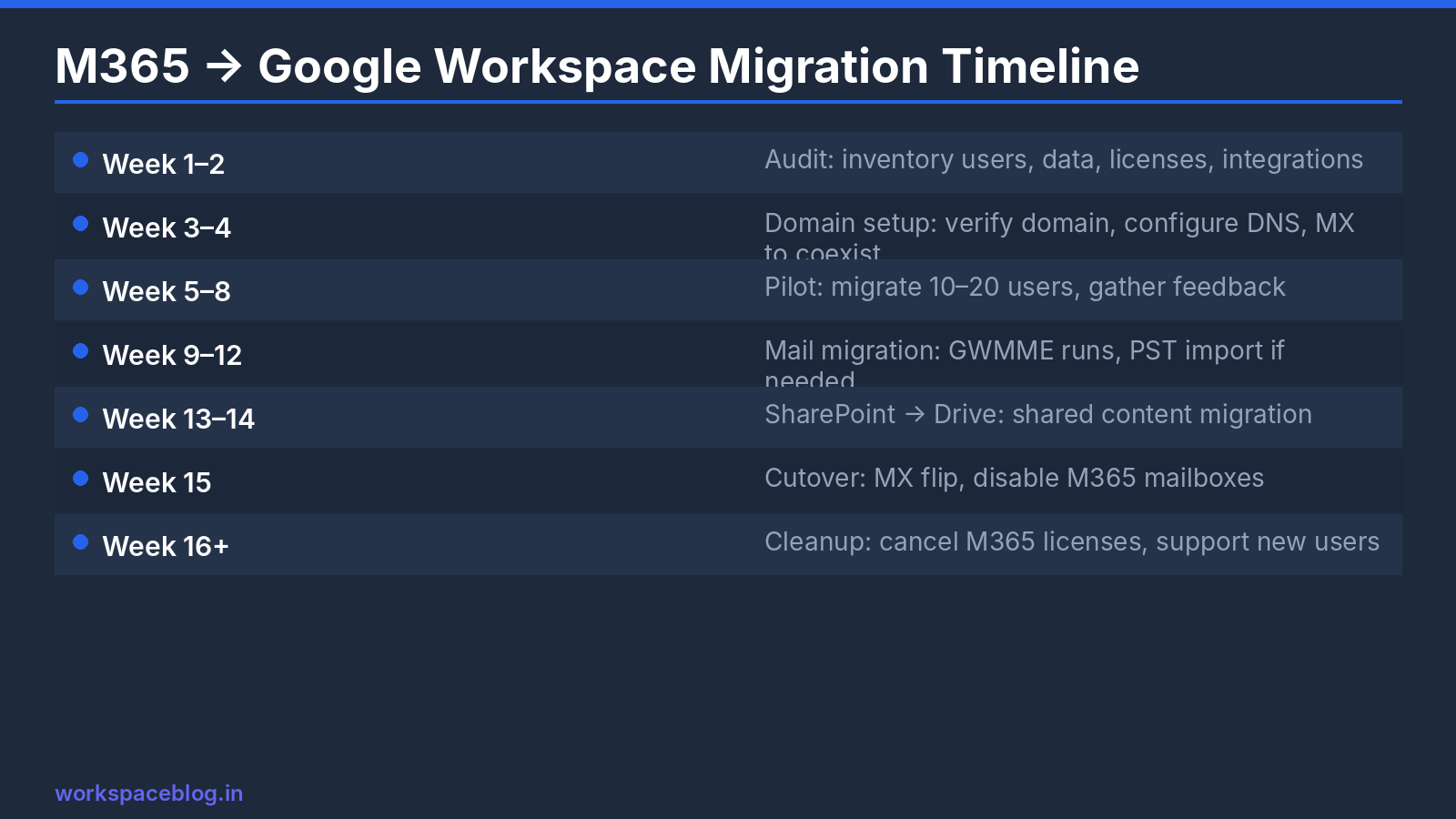
| Phase | Typical duration | What happens |
|---|---|---|
| 1. Planning and preparation | 4–6 weeks | Inventory, edition choice, domain setup, identity design, tool selection |
| 2. Pilot | 2–4 weeks | 20–50 users move; Microsoft 365 still running |
| 3. Waves | 4–12 weeks | Departments migrate in waves; data pre-staged |
| 4. Cutover | 1 week | MX records change; final delta syncs |
| 5. Post-migration | 2–4 weeks | Cleanup, stragglers, decommissioning, feedback |
Phase 1: Planning and Preparation
Inventory your Microsoft 365 environment
Document:
- Users, licenses, and mailbox sizes (including archive mailboxes)
- Shared mailboxes, distribution groups, Microsoft 365 groups, and mail-enabled security groups
- Room and equipment mailboxes
- OneDrive data volumes per user
- SharePoint sites, document libraries, and their permissions
- Teams teams, channels, chats, and files
- Mail flow rules, connectors, and third-party mail filtering
- Apps integrated with Exchange, SharePoint, or Entra ID
This inventory drives tool choice, timeline, and the target design in Google Workspace.
Set up Google Workspace
- Choose the edition (Business Standard suits many organizations; Business Plus adds Vault and advanced endpoint management)
- Add and verify your domain in the Admin console
- Don’t change MX records yet: mail keeps flowing to Microsoft 365 during migration
- Design the organizational unit structure and groups
- Recreate rooms and resources in Google Calendar
- Decide on identity (see below)
Identity: who signs users in?
| Option | When it fits |
|---|---|
| Google as identity provider | You’re moving away from Microsoft entirely |
| Keep Microsoft Entra ID, SSO into Google | Microsoft identity stays for other apps or Windows sign-in |
| Okta or another IdP for both | You already use a third-party IdP |
Provision users in Google before migration, through your IdP’s Google Workspace connector, Google Cloud Directory Sync, or CSV upload. See our SSO guide.
Choose your migration tools
Google’s migration product matrix recommends tools by source and organization size:
| Source | Up to ~1,000 users | 1,000+ users |
|---|---|---|
| Exchange Online (mail, calendar, contacts) | Data import (Admin console) or GWMME | Advanced data import |
| OneDrive | Data import | Advanced data import |
| SharePoint Online | Data import | Advanced data import |
| Microsoft Teams | Data import | Advanced data import |
| PST files | GWMMO (a few users) or GWMME | GWMME |
Data import is Google’s self-guided migration tool in the Admin console. For Exchange Online it migrates email, calendars, and contacts, has no extra tool cost, and needs no Google Cloud infrastructure. A companion planning utility estimates timelines and batches users. Only a super admin can run migrations.
Google Workspace Migrate is designed for large migrations (1,001+ users) and complex file sources such as SharePoint on-premises, file shares, and Box. Its installation and configuration take more effort. Google’s migration product matrix says Workspace Migrate for Exchange Online, SharePoint Online, and OneDrive stops being available at the end of 2026. Google’s Workspace Migrate help pages say it is no longer available for Exchange Online starting October 2026, and that its SharePoint Online and OneDrive connectors no longer get updates or bug fixes, so use data import or advanced data import for those sources.
Third-party tools (for example CloudM or BitTitan MigrationWiz) are also widely used, especially when you want a managed service.
Phase 2: Email, Calendar, and Contacts
Using data import for Exchange Online
- In the Admin console, open the data import (data migration) page and choose Exchange Online as the source
- Connect to Microsoft 365 with the required admin authorization
- Map Microsoft 365 users to Google Workspace users
- Start the migration for the pilot group
- Let the initial migration copy historical mail, calendars, and contacts
- Run delta migrations to pick up new items before and after cutover
Mail flow during migration
Until cutover, mail is delivered to Microsoft 365 and copied over by delta migrations. Some organizations set up dual delivery during the pilot so pilot users receive mail in both systems; our coexistence guide covers routing options.
Calendars and rooms
Calendar events and contacts migrate with mail. Recreate room and equipment resources in Google first, so room bookings can be mapped. Recurring meetings with complex patterns occasionally need cleanup; tell users to check their recurring meetings in the first week.
Shared mailboxes and groups
- Distribution groups → Google Groups
- Shared mailboxes → Google Groups with Collaborative Inbox, or delegated Gmail accounts
- Microsoft 365 groups → Google Groups plus a shared drive for files
Phase 3: Files in OneDrive and SharePoint
OneDrive → My Drive
OneDrive content maps naturally to each user’s My Drive. Migrate it with data import (or a third-party tool) before cutover, then run a delta pass.
SharePoint → shared drives
SharePoint document libraries usually map to shared drives:
- Design the target shared drive structure with each department. Don’t simply copy every SharePoint site
- Create shared drives and add Google Groups as members
- Map SharePoint groups to Google Groups
- Migrate content and permissions, then review access
Very large or deeply nested libraries may need splitting: a shared drive holds up to 500,000 items, including files, folders, shortcuts, and items in trash.
Convert or keep Office formats?
Convert simple, collaborative files (meeting notes, trackers, presentations) so teams get real-time co-editing. Keep complex files (heavy macros, large financial models, intricate formatting) in Office format. Google Docs, Sheets, and Slides can open and edit Office files, so files can be converted later when they’re actively used.
Teams content
Decide what to do with Teams chats and channel conversations: migrate them with supported tools, export them for records, or start fresh in Google Chat with a read-only archive period. Files in Teams channels live in SharePoint and follow the SharePoint plan.
Phase 4: Cutover
Cutover is the window when mail delivery switches from Microsoft 365 to Google Workspace.
Cutover checklist:
- Users trained and pilot feedback addressed
- Historical mail, calendars, contacts, and files pre-migrated
- SPF updated to include Google and DKIM set up for Gmail
- Groups, shared mailboxes, and rooms recreated and tested
- SSO and SAML apps tested
- Third-party apps that send mail reconfigured
- Mobile setup instructions ready
- Helpdesk briefed and staffed
Change the MX records
Google’s current MX record is a single entry:
| Priority | Mail server |
|---|---|
| 1 | smtp.google.com |
Older Google Workspace accounts may use records beginning with aspmx; those remain supported. Remove Microsoft’s MX record so there’s only Google’s. Lower the TTL a day or two before cutover so the change takes effect faster, and allow up to 72 hours for it to be recognized everywhere.
During propagation, some mail may still arrive at Microsoft 365. Keep Microsoft 365 mailboxes active and run delta migrations until no new mail arrives there.
Email authentication
Update SPF to authorize Google, turn on DKIM in Gmail, and keep DMARC monitoring through the change so you can see any sender you missed. See our SPF, DKIM, and DMARC guide.
Phase 5: Post-Migration and Decommissioning
- Run final delta migrations and check the migration reports for errors
- Keep Microsoft 365 licenses for a short safety period, then reduce them
- Export or retain any Microsoft data required by your records policy before deleting it
- Update third-party SaaS apps to use Google SSO
- Remove Microsoft MX, autodiscover, and other DNS records you no longer need
- Collect user feedback and fill training gaps
- Set up Vault retention (on editions that include it) so compliance coverage continues from day one
User Training: The Make-or-Break Factor
The technical migration is the easier part. Adoption decides whether the project succeeds.
Suggested minimum per user:
- 30 minutes: Gmail essentials (labels, search, keyboard shortcuts, Outlook differences)
- 20 minutes: Google Calendar and Meet
- 30 minutes: Drive, shared drives, and real-time editing in Docs and Sheets
- Short recorded videos and a one-page “where did my X go?” guide
Champions (trained users in each department who help colleagues) reduce helpdesk load and speed up adoption. Run drop-in sessions during the first two weeks after each wave.
Common Pitfalls
| Pitfall | How to avoid it |
|---|---|
| Changing MX before data is pre-staged | Pre-migrate, then cut over with delta syncs |
| Copying SharePoint structure blindly | Redesign as shared drives with groups |
| Forgetting shared mailboxes and rooms | Inventory them and test before cutover |
| No plan for Excel power users | Keep a few desktop Office licenses |
| Missing apps that send mail as your domain | Use DMARC reports to find them |
| Training as an afterthought | Budget time and champions from the start |
Conclusion
A Google Workspace migration from Microsoft 365 takes three to six months for most organizations above a few hundred users. Done well, it simplifies administration, lowers cost, and improves real-time collaboration. The keys are a thorough inventory, the right tools for your size (data import for most, advanced data import for the largest), a phased wave approach, careful cutover, and real investment in training.
Never rush the cutover. A slow, careful migration beats a fast one that needs a rollback.
Official Google documentation:
- Google Workspace migration product matrix
- Use the default data import method for Exchange Online
- Shared drive limits in Google Drive
- Set up MX records for Google Workspace
Related reading:
- Google Workspace and Microsoft 365 Coexistence: running both platforms during a migration window.
- Google Workspace Email Authentication: SPF, DKIM, DMARC: configure these before your MX cutover.
- Google Workspace Shared Drives: set up shared drives before migrating file content.
- Google Workspace Business Plans Comparison: choose the right plan before you start.
- Google Workspace vs Microsoft 365: if the decision to switch isn’t final yet.
This guide contains referral or affiliate links. If you sign up through one, Workspace Blog may earn a commission at no extra cost to you. Learn more.
Frequently Asked Questions
- What tool does Google provide to migrate from Microsoft 365?
- Google's data import tool in the Admin console migrates email, calendars, and contacts from Exchange Online at no additional tool cost and is available across Business, Enterprise, Education, Frontline, Essentials, and Nonprofit editions. Google's migration product matrix also lists data import for OneDrive and SharePoint Online up to about 1,000 users, and advanced data import for larger organizations.
- What MX record should I use for Google Workspace?
- Google's current MX record is a single value, smtp.google.com, with priority 1. Accounts created before 2023 may use older records beginning with aspmx, which remain supported. Remove the old Microsoft MX records, and allow up to 72 hours for the change to be recognized.
- How long does a Microsoft 365 to Google Workspace migration take?
- Small organizations can migrate in a few weeks. For a few hundred users or more, plan three to six months covering preparation, a pilot, departmental waves, cutover, and post-migration support. Training and change management usually take longer than the data migration itself.
- Do SharePoint permissions migrate to Google Drive?
- Migration tools can map users and groups so files keep their sharing, but SharePoint's site and permission model doesn't map one to one to shared drives. Plan the target shared drive structure first, map SharePoint groups to Google Groups, and review access after migration.
- Should I convert Word and Excel files to Google Docs and Sheets during migration?
- Convert simple, collaborative files so teams get real-time co-editing, and keep complex files (heavy macros, large models, intricate formatting) in Office format. Google Docs and Sheets can open and edit Office files, so you can convert later when a file is actively used.