Automated Follow-Up Emails in Gmail: Templates, Scheduled Send, Nudges, and Sequences
-
 Mohit
Mohit - 22 Oct, 2026

Most replies come from the second or third email, not the first. Anyone who has chased an overdue invoice, a vendor quote, or a sales lead knows this, and anyone who has done it by hand knows how easy it is to forget. Gmail in Google Workspace has several features that make follow-ups easier, and add-ons can turn them into fully automatic sequences.
This guide covers Gmail’s built-in tools (templates, scheduled send, and nudges), how multi-step follow-up sequences work with GMass, and the rules that keep automated follow-ups polite, effective, and within Gmail’s limits. It builds on our guide to Gmail mail merge and bulk email.
Key Takeaways
- Templates save repeated replies; turn them on under Settings > Advanced.
- Scheduled send holds up to 100 emails for later delivery.
- Nudges remind you to follow up, but do not send anything themselves.
- Sequences that stop on reply need an add-on such as GMass.
- Two or three useful follow-ups beat six reminders that say “just checking in.”
Table of contents
Open Table of contents
Gmail’s Built-In Follow-Up Tools
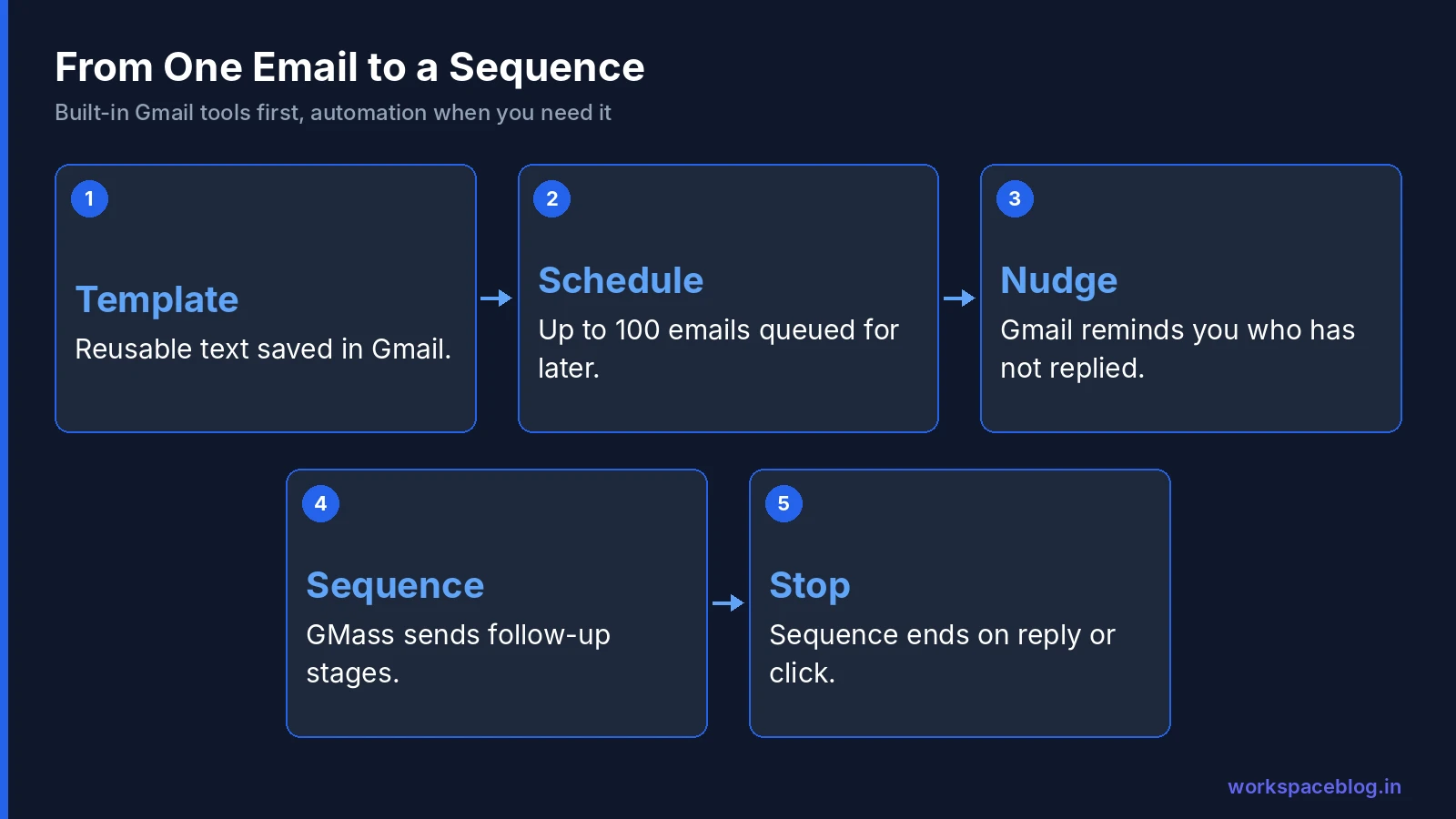
| Feature | What it does | What it does not do |
|---|---|---|
| Templates | Saves and inserts reusable message text | Personalise per recipient or send on its own |
| Scheduled send | Sends a message at a set time, up to 100 queued | Check whether someone replied first |
| Nudges | Reminds you about emails that got no reply | Send the follow-up for you |
| Mail merge | Sends personalised copies to a list | Send follow-up stages |
Used together, these cover a lot of everyday follow-up work. They stop short of automation: someone still has to notice the silence and send the next message.
Templates
Templates are saved drafts you can insert into any message in two clicks.
To turn them on: open Gmail on a computer, go to Settings > See all settings > Advanced, enable Templates, and save.
To create one: write the message, then open the three-dot menu in the compose window and choose Templates > Save draft as template > Save as new template.
To use one: open the same menu in a new message or reply, choose Templates, and pick the one you want.
Good candidates for templates:
- A polite reminder about an overdue invoice.
- The standard reply to a common help desk question.
- A meeting follow-up with next steps and a booking link.
- An onboarding welcome that HR sends to every new joiner.
Keep templates short and leave a sentence at the top to personalise. A template that reads like a form letter gets treated like one.
Scheduled Send
Scheduled send lets you write a follow-up now and deliver it later. Google’s help page says you can have up to 100 scheduled emails, and they are sent according to the time zone you scheduled them in.
To schedule: click the arrow next to Send, choose Schedule send, and pick a suggested time or a custom date and time.
To change or cancel: open the Scheduled folder, select the message, and click Cancel send. It becomes a draft you can edit and reschedule.
A useful habit: when you send an important request, immediately write the follow-up and schedule it for three working days later. If the person replies first, cancel the scheduled message. The catch is that you have to remember to cancel it, which is exactly the problem a proper sequence tool solves.
Nudges
Nudges are Gmail’s way of reminding you that something needs attention. When they are on, Gmail moves older messages to the top of your inbox with a prompt such as “Sent 3 days ago. Follow up?” for emails you sent that got no reply, and “Received 4 days ago. Reply?” for messages you have not answered.
Turn them on under Settings > General > Nudges, where you can choose suggestions for emails to reply to, emails to follow up on, or both.
Nudges are helpful for personal follow-up discipline, but they rely on you acting on them. For a list of fifty prospects or customers, they do not scale.
Automated Sequences With GMass
A sequence is a series of emails to each recipient that stops automatically when that person responds. This is where an add-on is needed, because Gmail has no built-in equivalent.
GMass adds follow-up stages to campaigns sent from Gmail. Its documentation describes how it works:
- Write the first email and choose recipients, usually from a Google Sheet.
- In the GMass settings box, add follow-up stages, each with its own wait time and message. GMass now supports unlimited stages; it previously allowed eight.
- Choose when each recipient leaves the sequence. Options include stopping when they reply, when they click a tracked link, or when they reply or click.
- Send. GMass then sends each stage only to recipients who have not yet met the stop condition.
Follow-ups and sequences are included on GMass’s Premium plan and higher, not on Standard, according to its pricing page.
A sample three-step sequence
| Step | When | Message idea |
|---|---|---|
| 1 | Day 0 | The request or offer, with one clear question |
| 2 | Day 3 | A short note adding one useful detail, such as a customer example |
| 3 | Day 7 | A direct question: “Should I close this for now?” |
The third email often gets the most replies, because it gives the reader an easy way to say no.
How reply detection behaves
GMass processes clicks almost immediately, but it takes longer to confirm replies, because it checks that a reply is genuine and not an out-of-office message. Leave at least a day between stages so a real reply is always detected before the next email goes out.
Rules for Polite, Effective Follow-Ups
- Stop on reply, always. Nothing damages trust faster than a “just following up” email after someone has already answered.
- Add value each time. Each message should give the reader a new reason to respond.
- Keep the thread. Follow-ups that reply in the same thread give context; a new subject line for each step looks like spam.
- Respect time zones and working days. Schedule sends for the recipient’s morning, and skip weekends for business contacts.
- Offer an easy exit. Include an unsubscribe option for marketing and cold outreach, and honour it promptly. In GMass, turn on the List-Unsubscribe header under Settings > Unsubscribes, which adds one-click unsubscribe support.
- Limit the sequence. Two or three follow-ups is plenty for most business email.
Staying Within Gmail’s Limits
Every follow-up is a real email from your account, so it counts towards Google’s limit of 2,000 messages a day per paid Workspace user (500 on trial accounts). A 600-person campaign with two follow-ups can mean 1,800 sends in a few days.
GMass estimates your remaining quota from recent sending and spreads campaigns across days, and you can set a lower daily cap yourself. Leave headroom for normal email: if your team also handles customer conversations from the same account, cap campaigns at around half the daily limit. Our mail merge guide lists all the limits and what happens when you hit one.
The Admin Side
Follow-up tools need permission to read and send mail, so admins should decide who can use them:
- Approve the app for the groups that need it, under Security > Access and data control > API controls, and keep high-risk Gmail scopes restricted for everyone else. Our Marketplace apps guide covers the review process.
- Check domain authentication. SPF, DKIM, and DMARC must pass before anyone sends at volume. See our email authentication guide.
- Watch for problems. A sudden rise in bounces or user complaints about sending limits is a sign a campaign needs reviewing. The Admin console’s email log search shows delivery results for individual messages.
- Agree a policy. Write down who may run campaigns, to which audiences, and from which domain or subdomain.
Using Gemini to Draft Follow-Ups
If your users have Gemini in Gmail, Help me write can draft a polite follow-up from a short prompt such as “follow up on the quote I sent last week, mention the delivery date, keep it brief.” It is a good way to get a first draft, which the user should then edit and personalise before saving it as a template or a sequence step. Our Gemini for Google Workspace guide covers which plans include it.
Troubleshooting
Follow-ups went to people who had replied. Reply detection needs time. Increase the gap between stages, and make sure replies come back to the sending account rather than a different alias.
Scheduled emails did not send. Check the Scheduled folder. Messages scheduled while offline or in a different time zone may go out a few minutes late, and drafts with errors stay unsent.
The template option is missing. Templates are turned off. Enable them under Settings > Advanced.
Users hit the sending limit mid-sequence. Lower the campaign’s daily cap or split the list. The block lifts within 24 hours.
Conclusion
Gmail’s templates, scheduled send, and nudges make manual follow-ups faster and harder to forget. When you need follow-ups to happen on their own, and stop the moment someone replies, an add-on such as GMass turns a single email into a polite, automatic sequence.
Keep sequences short and useful, stay within your daily sending limit, and make sure your Google Workspace domain is properly authenticated before you send at scale.
Official documentation:
- Schedule emails to send later (Gmail Help)
- Gmail sending limits in Google Workspace
- GMass auto follow-up stages
Related reading:
- Gmail Mail Merge and Bulk Email From Google Workspace: limits and tools for the first send.
- Google Workspace Email Authentication: SPF, DKIM, and DMARC: authenticate before you scale.
- Gemini for Google Workspace: drafting help inside Gmail.
This guide contains referral or affiliate links. If you sign up through one, Workspace Blog may earn a commission at no extra cost to you. Learn more.
Frequently Asked Questions
- Can Gmail send automatic follow-up emails by itself?
- Not as a sequence. Gmail can schedule a message for later, store reusable templates, and nudge you to follow up on messages that got no reply, but it does not send a second email automatically when someone fails to respond. For that you need an add-on such as GMass, which sends follow-up stages until a recipient replies or clicks.
- How many emails can I schedule in Gmail?
- Google's help page says you can have up to 100 scheduled emails at a time. You can cancel a scheduled email from the Scheduled folder, which turns it back into a draft that you can edit and reschedule.
- How do I turn on templates in Gmail?
- On a computer, open Gmail settings, choose See all settings, go to the Advanced tab, and enable Templates. Then, in a new message, use the three-dot menu and choose Templates to save the current draft as a template or insert an existing one.
- How many follow-ups should I send?
- For most business outreach, two or three follow-ups spaced a few days apart is enough. Each follow-up should add something new, such as a short case study or a direct question, and the sequence should stop as soon as the person replies.
- Do follow-up sequences count towards Gmail sending limits?
- Yes. Every follow-up is a normal email sent from your account, so it counts towards the 2,000 messages per day limit for a paid Google Workspace user. Tools such as GMass track your remaining quota and spread sending so you stay within it.