Google Workspace SSO: Configuring SAML Single Sign-On for IT Admins
-
 Mohit
Mohit - 14 May, 2026
- Updated 27 Oct, 2026

Single Sign-On (SSO) is a foundational security and usability control for any organization deploying Google Workspace alongside other SaaS applications. With SSO, users authenticate once (to their Identity Provider) and access all connected applications without re-entering passwords. For IT admins, SSO means one place to control access, one place to enforce MFA, and one place to deprovision users instantly.
This guide covers SAML-based Google Workspace SSO setup in both directions: using Google as the Identity Provider (IdP) for third-party apps, and using a third-party IdP (Okta, Microsoft Entra ID, Ping) to control sign-in to Workspace itself. It also covers SSO profiles versus the legacy profile, OIDC, provisioning, rollout planning, and the error messages you’re most likely to see.
Table of contents
Open Table of contents
Two Ways Google Workspace Uses SSO
Option 1: Google as IdP → Third-Party Apps as Service Providers
Your users sign in with their Google account, and that sign-in gives them access to other SaaS tools (Salesforce, Slack, Zoom, and so on). Google Workspace acts as the IdP; the other apps are Service Providers (SPs).
This is the simpler configuration and the lowest-risk place to start, because a mistake only affects the one app you’re connecting.
Option 2: Third-Party IdP (Okta, Entra ID) → Google Workspace as SP
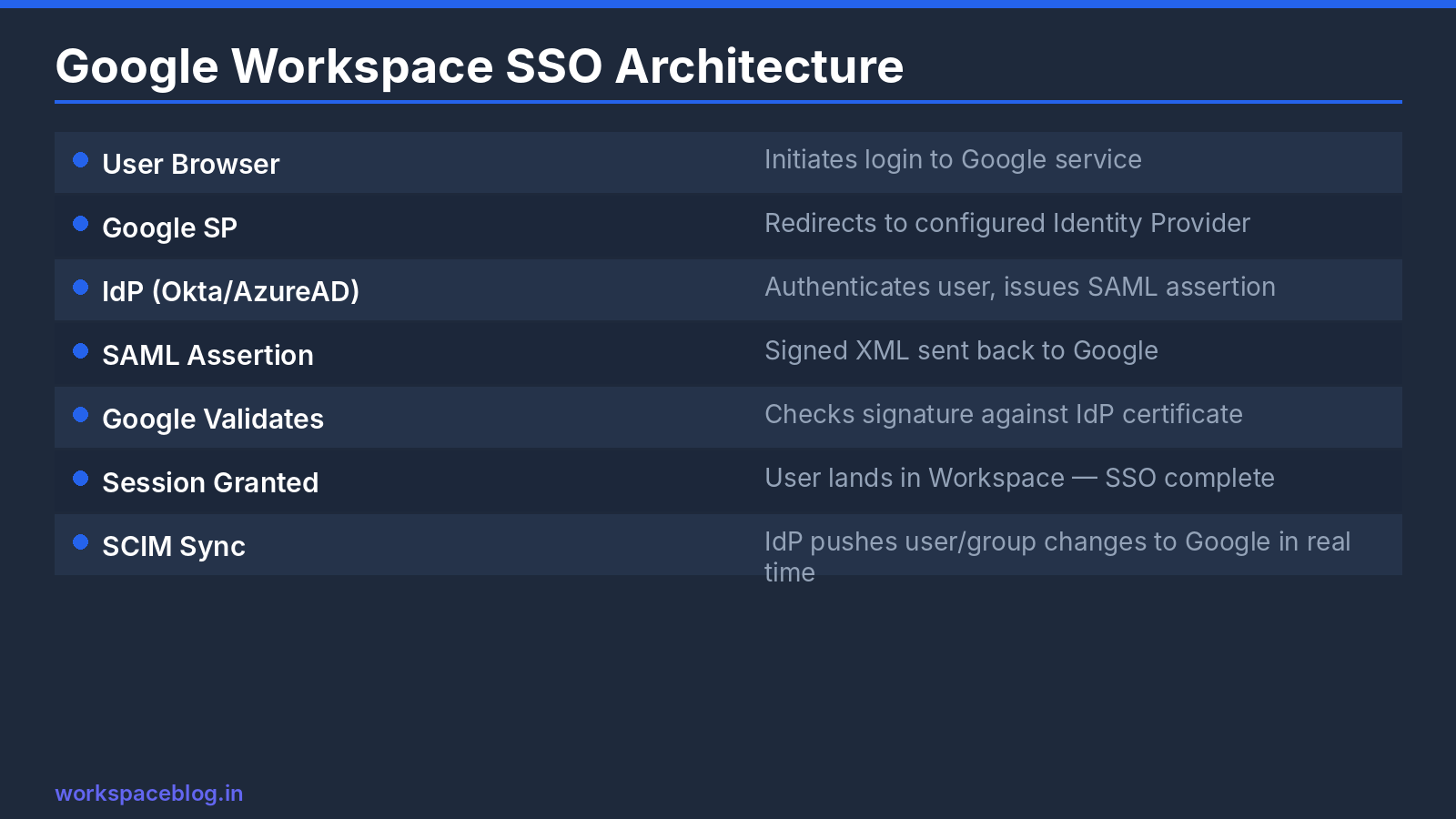
A central Identity Provider controls authentication. Users sign in to Okta or Microsoft Entra ID, which then grants them access to Google Workspace. Workspace defers to the external IdP for authentication.
This is the usual setup for organizations that already run an IdP for Microsoft 365 or other apps. It isn’t limited to Enterprise editions: current Google Workspace editions support SSO profiles with third-party IdPs.
SAML or OIDC?
Google Workspace supports both SAML and OIDC for third-party SSO. SAML is the long-standing standard and what most IdP connectors use. OIDC is available through custom OIDC profiles, and there’s a preconfigured Microsoft Entra OIDC profile for organizations whose users already have Microsoft 365 licenses. If you’re unsure, use SAML; every major IdP has a tested Google Workspace SAML connector.
Configuring Google as IdP for Third-Party Apps
Pre-built SAML App Catalog
Google maintains a catalog of pre-configured SAML integrations:
- Admin Console → Apps → Web and mobile apps
- Click Add app → Search for apps
- Search for your application (Salesforce, Slack, Zoom, ServiceNow, etc.)
- Follow the setup wizard. It pre-fills most of the SAML settings
What you’ll configure:
- ACS URL (Assertion Consumer Service), where Google sends the SAML assertion
- Entity ID: the app’s unique identifier
- Attribute mapping: which user attributes Google sends (email, first name, department, etc.)
Custom SAML App (for apps not in the catalog)
- Admin Console → Apps → Web and mobile apps → Add app → Add custom SAML app
- Enter the app name and, optionally, an icon
- Download the Google IdP metadata (or copy the SSO URL, Entity ID, and certificate)
- Enter the app’s ACS URL and Entity ID from the SP’s admin settings
- Configure attribute mapping
Key attributes to map (configure in the app’s SP settings):
NameID format: EMAIL
NameID: Basic Information > Primary email
Additional attributes as required by the SP
Enabling the App Per OU
After creating the SAML configuration, the app is off for everyone until you turn it on:
- Open the app in Web and mobile apps
- Click User access
- Select the OU or group that should have access
- Set it to ON and save
Changes can take a few minutes to apply. Test by opening the app from the Google app launcher (the “waffle” menu) as a user in that OU.
Rotating the Google IdP certificate
The certificate Google uses to sign assertions for custom SAML apps expires. Before it does, add a new certificate in the app’s settings, update the SP with the new certificate or metadata, and then switch over. Put the expiry date in your team calendar the day you set the app up: an expired signing certificate breaks sign-in for every user of that app at once.
Configuring a Third-Party IdP for Workspace
This is the configuration where Okta, Microsoft Entra ID, or another IdP becomes the authentication authority for Google Workspace.
SSO profiles vs. the legacy SSO profile
Google now uses SSO profiles. You can create many profiles (SAML or OIDC), each with its own SP details, and assign them to organizational units or groups. The older legacy SSO profile supports a single SAML IdP for the whole organization. Google recommends migrating to SSO profiles; the main reasons to keep legacy are network-mask (IP-based) redirection and super admin SSO, which only the legacy profile supports.
| SSO profiles | Legacy SSO profile | |
|---|---|---|
| Protocols | SAML and OIDC | SAML only |
| Number of IdPs | Many profiles | One |
| Assign to OUs/groups | Yes | No (network masks only) |
| ACS URL / Entity ID | Unique per profile, shown under SP Details | https://accounts.google.com/a/your-domain/acs / google.com |
Step 1: Gather IdP details
From your IdP, collect:
- IdP entity ID
- Sign-in page URL (SAML endpoint)
- Sign-out page URL
- Verification certificate (X.509, PEM format)
- Optionally, a Change password URL
Most IdPs export all of these in a metadata XML file, and Okta and Entra ID show them on the Google Workspace app’s SSO page.
Step 2: Create the SAML profile in Google Workspace
- Admin Console → Security → Authentication → SSO with third party IdP
- Under Third-party SSO profiles, click Add SAML profile
- Name the profile (for example, “Okta – Production”)
- Under IdP details, enter the IdP entity ID, sign-in page URL, sign-out page URL, and change password URL
- Click Upload certificate and select the IdP’s certificate
- Click Save
- Open the profile’s SP Details section and copy the Entity ID and ACS URL
Step 3: Configure the IdP
In your IdP, create (or open) the Google Workspace application and enter the SP details you just copied:
- ACS URL: the value from SP Details for this profile
- Entity ID / Audience: the value from SP Details for this profile
- NameID format:
emailAddress - NameID value: the user’s Google Workspace primary email
If your IdP’s built-in Google Workspace connector still asks for the legacy ACS URL (https://accounts.google.com/a/your-domain/acs) with the google.com Entity ID, it was built for the legacy profile. Either point it at the per-profile values or use the legacy profile: mixing them is a common cause of the “not configured to use single sign-on” error.
Step 4: Assign the profile to a pilot group
- On the SSO with third party IdP page, click Manage SSO profile assignments
- Click Get started (first time) or Manage assignments
- Select a pilot organizational unit or group on the left
- Under SSO profile assignment, choose Another SSO profile and pick your new profile
- Choose the sign-in option and click Save
Assignments work at the OU or group level. You can’t assign a profile to a single user, so create a small pilot group. To roll back, select the OU or group and click Inherit (OUs) or Unset (groups).
Step 5: Test before expanding
Test in an incognito window with a pilot account: sign in from accounts.google.com, sign in by opening Gmail directly, sign in from your IdP’s dashboard, and sign out. Then test on mobile: the Gmail and Drive apps follow the same redirect.
Keep a break-glass account. By default, super admins sign in with their Google password rather than through SSO profiles. Keep at least one super admin account that isn’t tied to your IdP, protect it with a security key, and store its recovery details offline. If your IdP has an outage or its certificate expires, that account is how you get back in.
Provisioning Users Alongside SSO
SSO handles authentication, not account creation. The user must already exist in Google Workspace, with a primary email that matches the NameID your IdP sends. You have three ways to keep accounts in sync:
| Method | Best for | How it works |
|---|---|---|
| IdP provisioning connector | Okta, Entra ID, OneLogin users | The IdP’s Google Workspace app creates, updates, and suspends users through Google’s APIs when you assign or unassign the app |
| Google Cloud Directory Sync (GCDS) | On-premises Active Directory / LDAP | A Windows or Linux server runs scheduled one-way syncs from AD to Google |
| Directory Sync | Active Directory or Entra ID without a sync server | Google’s cloud-based sync (in beta at the time of writing) |
Provisioning from your IdP is configured in the IdP, not in the Google Admin console. In Okta or Entra ID, enable provisioning on the Google Workspace app, authorize it with a Google admin account, and map attributes. Once it’s working, assigning the app creates the user, and removing the assignment suspends them, so your IdP becomes the single source of truth for who has access.
Google Workspace can also provision users into third-party SAML apps (for example, creating Slack accounts for users who get the Slack app). That’s set up on the app’s page under Web and mobile apps, and is separate from the IdP-to-Google provisioning above.
SSO and 2-Step Verification
When SSO is on, Google normally bypasses its own 2-Step Verification for those users, because the IdP is responsible for authentication. That means:
- Enforce MFA in your IdP. Okta, Entra ID, and Ping can all require phishing-resistant methods such as FIDO2 security keys.
- Keep Google 2SV for anyone who doesn’t use SSO, especially your break-glass super admins.
- Expect occasional Google identity checks. Google may still ask a user to verify their identity after IdP sign-in if a sign-in looks risky.
Also note that Secure LDAP requires a Google password and doesn’t work for users who sign in through SSO.
Rollout Plan
A low-risk rollout usually takes two to four weeks:
- Week 1: Build and test. Create the profile, configure the IdP, assign it to a pilot group of IT staff, and test every sign-in path, including mobile apps and the Google Drive desktop app.
- Week 2: Pilot. Add one friendly department. Watch the IdP sign-in logs and Google’s User log events and SAML log events for failures.
- Week 3: Communicate. Tell users what will change: a different sign-in page, and possibly a new MFA prompt. Explain that their Google password will no longer be used.
- Week 4: Expand. Assign the profile to the remaining OUs in stages, largest last.
After rollout, schedule a quarterly check of certificate expiry dates on both sides and review whether any OUs or groups have been left unassigned by accident.
Troubleshooting Common SSO Errors
These are the error messages from Google’s SSO troubleshooting guide that come up most often, with the usual fix:
| Error message (or symptom) | Likely cause | Fix |
|---|---|---|
| ”This domain is not configured to use single sign-on.” | IdP sends assertions to the legacy endpoint after you created SSO profiles, or the domain name is wrong | Use the per-profile ACS URL and Entity ID, or set up the legacy profile; confirm the domain |
| ”This account cannot be accessed because the domain is incorrectly configured.” | SSO isn’t fully set up | Check URLs and certificate are entered and saved, wait a few minutes, retest |
| ”The required response parameter SAMLResponse was missing” | IdP not returning a response, or encrypting it | Check IdP logs; turn off assertion encryption (Google accepts unencrypted responses only) |
| “…your login request contained invalid [destination|audience|recipient] information” | Wrong or empty Destination, Audience, or Recipient | Match the values to the profile’s SP Details |
| ”…the login credentials could not be verified.” | Certificate mismatch, or NameID doesn’t match the user | Re-upload the current IdP certificate; send the full primary email with the emailAddress format; match case exactly |
| ”…your login credentials have expired” or “are not yet valid” | IdP server clock is wrong | Resync the IdP’s clock with a reliable time source |
| Sign-in loops on iOS | Sign-in URL starts with google. or www.google. | Use a sign-in URL that doesn’t start with a Google-like prefix |
| Users get the Google password page instead of the IdP | Their OU or group has no profile assigned | Check Manage SSO profile assignments for that OU or group |
When an error isn’t obvious, capture the SAML request and response with your browser’s developer tools or a SAML tracer extension. Most problems become clear once you compare the Destination, Audience, and NameID values with the profile’s SP details.
Conclusion
SSO is one of the highest-value investments you can make in your Google Workspace security posture. It centralizes authentication, enforces MFA consistently, and makes offboarding instant. Start with Google as the IdP for a few third-party apps. It’s low risk and delivers immediate value. When you move Workspace sign-in to a central IdP, use SSO profiles, pilot with a small group, keep a break-glass super admin, and pair SSO with automatic provisioning so the IdP is the single source of truth.
Official Google documentation:
Related reading:
- Google Workspace Admin Security: 10-Point Hardening Guide: SSO and 2SV are the top two controls in any hardening checklist.
- Google Workspace User Lifecycle: Onboarding and Offboarding: automatic provisioning from your IdP handles the user lifecycle end to end.
- Google Workspace Directory Sync (GCDS): Active Directory Integration: the alternative for AD-centric organizations.
This guide contains referral or affiliate links. If you sign up through one, Workspace Blog may earn a commission at no extra cost to you. Learn more.
Frequently Asked Questions
- Can I use SSO with Google Workspace on a Business plan?
- SSO with a third-party identity provider isn't an Enterprise-only feature. Current Google Workspace editions let you create SSO profiles under Security > Authentication > SSO with third party IdP. The legacy free edition of G Suite is the main exception, and it shows the error 'This domain is not configured to use single sign-on.'
- What is the difference between a legacy SSO profile and an SSO profile?
- The legacy SSO profile supports one SAML IdP for the whole organization and uses the ACS URL
https://accounts.google.com/a/your-domain/acs. SSO profiles let you create multiple SAML or OIDC profiles, each with its own Entity ID and ACS URL, and assign them to organizational units or groups. Google recommends migrating to SSO profiles. - Does SSO replace 2-Step Verification in Google Workspace?
- When SSO is on, Google normally bypasses its own 2-Step Verification, so multi-factor authentication should be enforced at your identity provider. Google may still ask users to verify their identity in some situations, and you can choose to require Google 2SV in addition to SSO.
- Does SSO create users in Google Workspace automatically?
- No. SSO only handles sign-in. Users must already exist in Google Workspace with a primary email that matches the NameID your IdP sends. Use your IdP's Google Workspace provisioning connector, Google Cloud Directory Sync, or Directory Sync to create and suspend accounts automatically.
- How do I avoid locking everyone out when I turn on SSO?
- Assign the SSO profile to a small pilot organizational unit or group first, test in an incognito window, and keep at least one super admin account that signs in with a Google password. Only expand the assignment to the whole organization once pilot users can sign in and sign out cleanly.