Google Cloud Resource Hierarchy: Organization, Folders, and Projects Explained
Design a Google Cloud resource hierarchy that scales: how organization, folders, and projects inherit IAM and policies, with folder layouts and naming rules.

Checked against Google's official documentation.

Every Google Cloud permission and policy question eventually becomes a resource hierarchy question. Who can see this project? Why can this developer create public IPs in production? Why did the budget alert not fire? The answer is almost always “because of where the project sits.”
The resource hierarchy is the folder tree of Google Cloud. If you have designed Google Workspace organizational units, the idea will feel familiar, with one important difference: Cloud permissions add up as they flow down, and you cannot take away at a lower level what was granted above.
This guide explains each level, how inheritance works, and three folder layouts that hold up as you grow.
Key Takeaways
- The hierarchy is organization > folders > projects > resources.
- IAM allow policies are inherited and additive: access granted at a folder applies to every project inside it.
- Organization policies also inherit, and a lower level can only override them where the policy allows it.
- Put environment at the top of your folder tree in most cases; it keeps production rules simple.
- Project IDs are permanent, so agree a naming convention before anyone creates projects.
Table of contents
Open Table of contents
The Four Levels of the Google Cloud Resource Hierarchy
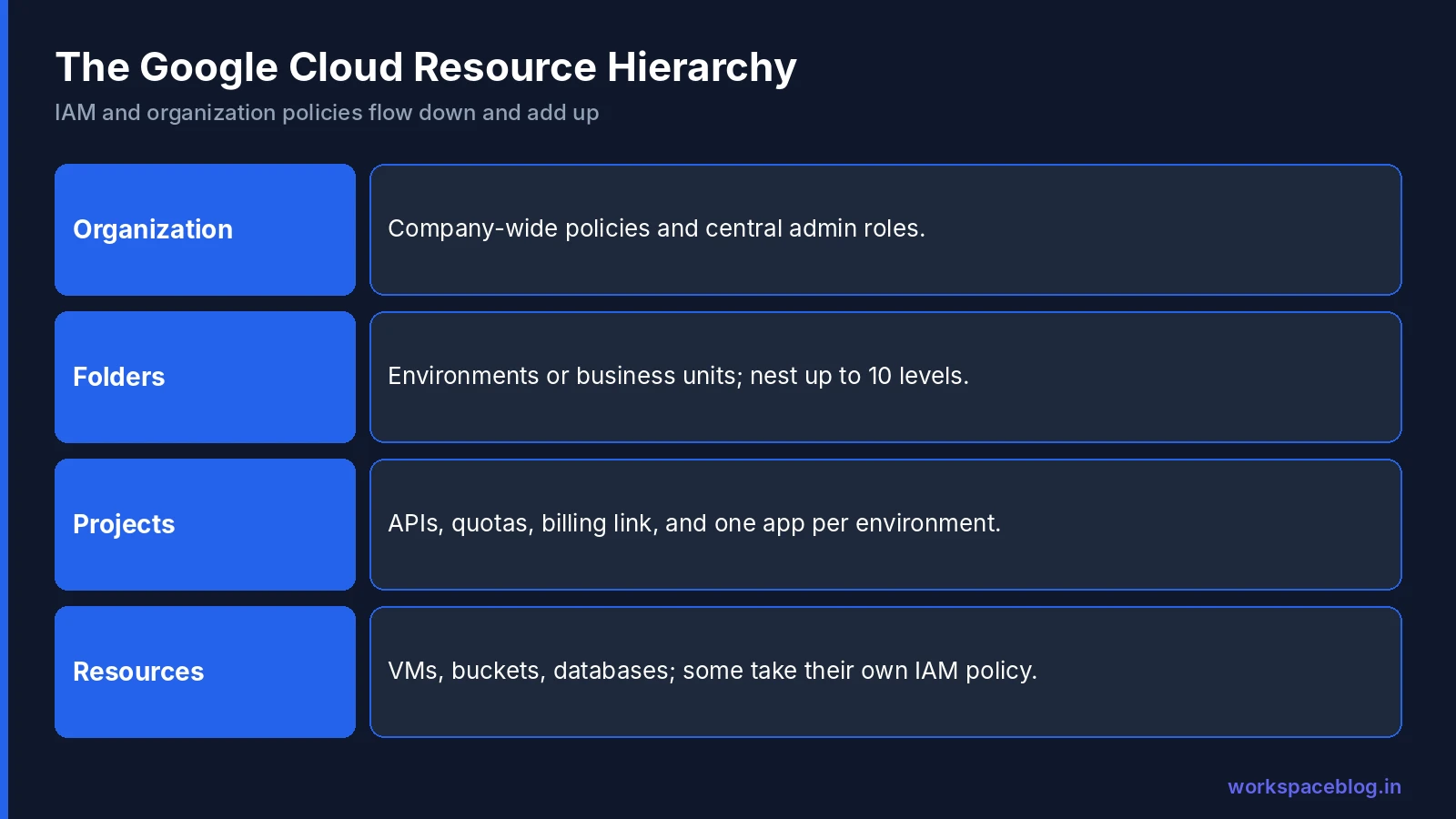
| Level | What it represents | Typical use |
|---|---|---|
| Organization | Your company, tied to your Workspace or Cloud Identity account | Company-wide policies, central admin roles |
| Folder | A grouping of projects or other folders | Environments, business units, teams |
| Project | The container for resources, APIs, quotas, and billing | One application or workload per environment |
| Resource | A VM, bucket, database, or service | The things you actually run |
The organization is the root. There is one per Workspace or Cloud Identity account. Its name is your primary domain.
Folders are optional but strongly recommended. Google’s documentation allows nesting up to 10 levels deep, with at most 300 direct children per parent. Folder display names must be 3 to 30 characters and unique among siblings.
Projects are where the real boundaries live. APIs are enabled per project, quotas apply per project, and each project links to exactly one billing account at a time.
Resources sit inside projects. Some services, such as Cloud Storage buckets, let you set permissions on the individual resource too.
How Inheritance Works
IAM allow policies attached at any level apply to everything below. If you grant the group data-team the BigQuery Data Viewer role on the Analytics folder, its members can read datasets in every project under that folder, including projects created next year.
Two rules catch people out:
- Inheritance is additive. A project cannot remove a role granted on its parent folder. If someone is a viewer at the organization level, they are a viewer everywhere. IAM deny policies exist for blocking specific permissions, but they are the exception, not the design tool.
- The effective policy is the union. To see what a user can really do on a project, you have to look at the project, every folder above it, and the organization. The Policy Analyzer in the console does this for you.
Organization policies, which restrict what can be configured rather than who can act, also inherit. A constraint set at the organization applies everywhere unless a lower level is allowed to override it. We cover them later in this series.
The practical lesson: grant broad roles high and narrow roles low. Security reviewers might get a viewer role at the organization. Developers should get editing roles only on their own projects.
Naming Projects Properly
A project has three identifiers:
- Project name: a display label you can change.
- Project ID: globally unique, chosen at creation, and permanent. It must be 6 to 30 characters of lowercase letters, digits, and hyphens, starting with a letter and not ending with a hyphen.
- Project number: assigned by Google and used internally.
Because the ID is permanent and appears in URLs, service account emails, and scripts, agree a pattern early. A simple one works well:
<company>-<app>-<env>
acme-payroll-prod
acme-payroll-dev
Avoid personal names in project IDs. A project called rahul-test-1234 will outlive Rahul’s time at the company and confuse whoever inherits it.
Three Folder Layouts That Scale
There is no single correct design, but three patterns cover most organizations.
Environment first
Organization
├── Production
├── Non-production
├── Sandbox
└── Shared services
Best for small and mid-sized companies. Production gets strict policies (no external IPs, approved regions only), Sandbox gets loose ones, and every team’s projects sit in the right folder. This is our default recommendation.
Business unit first
Organization
├── Finance
│   ├── Production
│   └── Non-production
└── Retail
    ├── Production
    └── Non-production
Suits companies where business units have their own budgets, security leads, or regulators. It costs you duplication: production policies must be applied in several places.
Team or application first
Organization
├── Team: Payments
├── Team: Website
└── Team: Data
Simple for engineering-led companies, but it makes environment-wide rules harder. Use it only if teams are fully autonomous.
Whichever you pick, add a Shared services folder for networking, logging, and security tooling that serves everyone, and a Sandbox folder with a budget and automatic clean-up for experiments.
Where Billing and Labels Fit
Billing is not part of the hierarchy. A billing account is a separate resource linked to projects, and one billing account can pay for projects in many folders. Use labels (key and value pairs such as team:payments or env:prod) on projects and resources to break costs down in reports, and tags when you need policies or firewall rules to act on a classification. Labels describe; tags can be used to enforce.
Tags versus labels
The two behave differently in the hierarchy, which matters when you design folders.
| Tags | Labels | |
|---|---|---|
| Where defined | Tag keys created under the organization or a project | On each resource |
| Inherited by children | Yes, a child can override with another value for the same key | No |
| Usable in IAM allow and deny conditions | Yes | No |
| Usable in conditional organization policies | Yes, on some resources | No |
| Billing | Cost allocation and BigQuery export | Filtering in Cloud Billing |
Because tags inherit, a tag such as environment: production bound to the Production folder applies to every project inside it, and an IAM condition or organization policy can act on it. Google says tag changes take about 2 minutes, and up to 7 minutes, to take effect.
Moving Projects Safely
You can move a project between folders with the Project Mover role (roles/resourcemanager.projectMover) on both the source and destination folders (or on the organization, if the project sits directly under it). IAM and organization policies attached directly to the project move with it, but inherited ones now come from the new parent, so the project loses the old folder’s grants and policies and picks up the new folder’s. Moving a project to a different organization is a separate migration process.
Before moving a production project:
- List the roles granted on the old folder and check what the project relies on.
- Check whether the destination folder has stricter organization policies that would block existing resources.
- Move a test project first and confirm applications still work.
- Tell the project owner when it will happen.
Common Mistakes
- No folders at all. Hundreds of projects directly under the organization become unmanageable.
- Deep trees. Five levels of folders make it hard to reason about access. Two or three is plenty.
- Roles granted at the organization for convenience. Everyone then has access to everything forever.
- One project for everything. Separate projects per environment give you clean permissions, quotas, and cost reports.
Worked Example: A 200-Person Company
Here is how a typical mid-sized company with a website, an internal HR tool, a data team, and a few experiments might lay things out.
yourcompany.in (organization)
├── Shared services
│   ├── acme-network-prod      (Shared VPC host)
│   ├── acme-logging           (log sinks, Workspace BigQuery export)
│   └── acme-security          (Security Command Center, key management)
├── Production
│   ├── acme-website-prod
│   ├── acme-hrtool-prod
│   └── acme-analytics-prod
├── Non-production
│   ├── acme-website-dev
│   ├── acme-hrtool-dev
│   └── acme-analytics-dev
└── Sandbox
    └── one project per engineer, with a small budget
Roles then follow the tree:
| Group | Role | Where |
|---|---|---|
gcp-org-admins | Organization Administrator | Organization |
gcp-security-reviewers | Security Reviewer | Organization |
gcp-network-admins | Compute Network Admin | acme-network-prod |
team-website | Editor-level predefined roles | acme-website-dev |
team-website-oncall | Narrow deploy roles | acme-website-prod |
all-engineers | Project Creator | Sandbox folder |
Organization policies follow the same tree. The Production folder blocks external IPs and restricts regions to India, the Sandbox folder allows more freedom but has a low budget, and Shared services is locked to the platform team.
Troubleshooting Inheritance
“Why can this person see a project I never shared?” Check the folders above the project and the organization. A viewer role granted high up applies everywhere below. Policy Analyzer shows exactly which grant gives the access.
“I removed the role from the project but they still have access.” The same role is probably granted on a parent folder or the organization, or through a group the person belongs to. Remove it at the level where it was granted.
“A deployment fails with an organization policy error after a project move.” The new folder has a stricter constraint. Either fix the resource to comply, or ask for a documented project-level exception.
“Why can’t I create folders?” You need Folder Creator or Folder Admin on the parent. Organization Administrators do not automatically get folder creation unless they grant themselves the role.
The Project Lifecycle
Projects should have a clear beginning and end, just like user accounts.
Creation. Remove the Project Creator role from the whole domain (Google grants it, along with Billing Account Creator, to every user when the organization is created), and give it only to the platform team and to engineers inside the Sandbox folder. Everyone else requests a project through a short form that asks for the application name, environment, owner group, cost centre label, and expected spend. The platform team creates it in the right folder with billing, labels, and a budget already attached.
Operation. Each project keeps a named owner group and a technical contact in its labels. When teams reorganise, update the labels and the IAM grants together.
Retirement. When an application is decommissioned, export anything that must be kept, remove billing, and shut the project down. Google keeps a shut-down project for 30 days, during which an owner can restore it, and then deletes it permanently. Put a reminder on the calendar before the 30 days end so nobody is surprised.
Protect production projects with liens. A lien with the restriction resourcemanager.projects.delete blocks anyone from deleting the project until an Organization Administrator or Project Owner removes it. You create one with gcloud alpha resource-manager liens create, giving a reason and origin, and you need the Project lien modifier role (roles/resourcemanager.lienModifier). Google also adds liens itself, for example on a project whose service account is attached to a resource in another project. Liens are in Preview, so check the current status before relying on them.
A quarterly report of projects with no recent activity, no owner label, or no budget catches most of the drift before it costs money.
Conclusion
The resource hierarchy is the foundation for everything else in Google Cloud. Spend an hour designing it, write the naming convention down, and grant roles at the lowest level that works. If your identities live in Google Workspace, mirror the groups you already have rather than inventing new ones.
Tomorrow we look at IAM itself: basic, predefined, and custom roles, and how to apply least privilege with Workspace groups.
Official Google documentation:
- Resource hierarchy overview
- Create and manage folders
- IAM overview
- Move a project
- Tags overview
- Protect projects with liens
Related reading:
- Google Cloud for Google Workspace Admins: how the organization resource is created.
- Google Workspace Organizational Units Guide: the Workspace equivalent for users.
- Gemini Enterprise Security and Compliance: why project placement matters for AI workloads.
This guide contains referral or affiliate links. If you sign up through one, Workspace Blog may earn a commission at no extra cost to you. Read our referral and advertising disclosure.
Frequently Asked Questions
- What are the levels of the Google Cloud resource hierarchy?
- From top to bottom: the organization resource, optional folders, projects, and the resources inside projects such as virtual machines, buckets, and databases. IAM allow policies and organization policies set at a higher level are inherited by everything below it.
- How deep can Google Cloud folders be nested?
- Google's folder documentation says folders can be nested up to 10 levels deep, and a parent can hold at most 300 direct child folders. Most organizations need only two or three levels.
- Can I rename a Google Cloud project ID?
- No. The project ID is permanent once the project is created. You can change the project name, which is only a display label, but not the ID. Choose project IDs carefully because they appear in URLs, scripts, and bucket names.
- Should I organize folders by environment or by team?
- Most organizations do best with environment at the top (production, non-production, sandbox) and teams or applications beneath it. Environment-level folders make it easy to apply stricter organization policies to production. Team-first layouts suit companies where business units manage their own budgets and security.
- What happens when I move a project to another folder?
- Policies attached directly to the project move with it, but it stops inheriting the old folder's IAM and organization policies and starts inheriting the new folder's. Test the move on a non-production project first, because access can change for users and service accounts.