Google Workspace Organizational Units: Structure, Strategy, and Admin Management Guide
-
 Mohit
Mohit - 28 Apr, 2026

Organizational Units (OUs) are how Google Workspace admins apply different settings to different sets of users. Almost every feature you configure in the Admin Console (2-Step Verification enforcement, Gemini access, Drive sharing, Gmail routing, device policies) can be applied to the whole organization or scoped to specific OUs.
Getting your OU structure right is one of the most important foundational decisions in a Workspace deployment. This guide explains how OUs and inheritance work, how they interact with groups and configuration groups, proven structures, step-by-step management, common scenarios, and how to troubleshoot “why does this user have this setting?”
What Are Organizational Units?
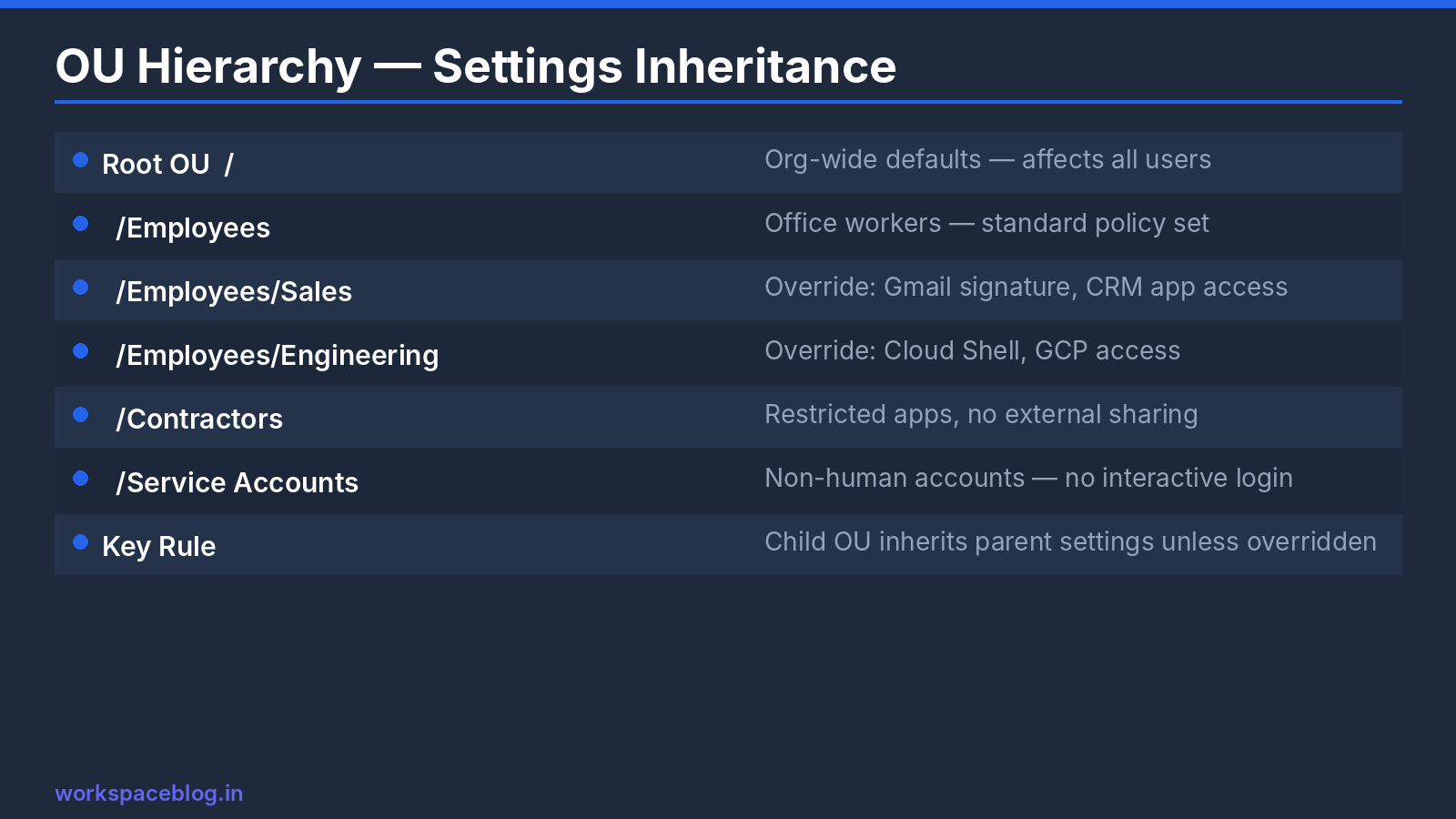
OUs are containers in the Admin Console that hold users and devices (such as Chromebooks). Every user belongs to exactly one OU. You apply settings to an OU, and those settings apply to everyone in it, unless a child OU overrides them.
Key behaviors:
- OUs are hierarchical. Child OUs inherit settings from their parent by default.
- A child OU can override any inherited setting; clicking Inherit puts it back to the parent’s value.
- Each user is in one OU at a time. Moving a user changes which settings apply to them.
- The top-level OU is your organization itself. Settings there are the default for everyone.
- Settings changes can take up to 24 hours to reach every user, though most apply much faster.
OUs, Groups, and Configuration Groups
This is the most common point of confusion for new admins, because groups can do some of what OUs do.
| Organizational units | Google Groups | Configuration groups | |
|---|---|---|---|
| Main use | Applying settings and policies | Email, sharing, and access | Applying settings to exceptions |
| Membership per user | Exactly one | Many | Many |
| Inheritance | Parent → child | None | None: priority order instead |
| Can carry settings | Yes | No | Yes, for many services |
| Precedence | Base level | - | Overrides OU settings |
| Email address | No | Yes | Yes (they’re groups) |
Configuration groups let you apply settings to a group of users wherever they sit in the OU tree. For example, give a “Gemini pilot” group access to Gemini without moving those users out of their department OUs. A user’s group settings always override their OU settings; if they’re in several configuration groups, the highest-priority group wins. One exception: a 2SV policy set on a child OU takes precedence over a configuration group.
Configuration groups work for many services, including Calendar, Drive, Meet, Sites, Keep, Vault, Gmail user features, account recovery, Context-Aware Access, and data regions. Groups created in the Google Groups app can’t be used, and dynamic groups need the security label.
Rule of thumb: use OUs for the main policy structure that rarely changes, Google Groups for email and resource access, and configuration groups for exceptions and pilots.
Structuring Your OU Hierarchy
There’s no single right answer, but there are proven patterns.
Pattern 1: Department-based
Company Root
├── Finance
├── HR
├── IT
├── Legal
├── Marketing
├── Operations
└── Sales
Simple and intuitive. Works when departments need meaningfully different settings (Finance needs stricter sharing; IT needs developer tools).
Pattern 2: Employee type
Company Root
├── Employees
├── Contractors
├── Service Accounts
└── Shared / Kiosk
Useful when access differs mainly by employment type, for example, contractors shouldn’t have Gemini or external sharing.
Pattern 3: Mixed (most common)
Company Root
├── Employees
│   ├── Finance
│   ├── HR
│   ├── IT
│   └── Sales
├── Contractors
├── Service Accounts
└── Devices
    ├── Chromebooks - Staff
    └── Kiosks
Departments for policy differences, separate OUs for contractors and non-human accounts, and a device branch for Chromebooks and kiosks.
Pattern 4: Location-based (multi-country)
Company Root
├── Region - Americas
├── Region - EMEA
└── Region - APAC
Useful when data regions, language, or local compliance rules differ by country. Often combined with department OUs underneath.
How to choose
Ask one question for each proposed OU: “Will this OU have at least one setting that’s different from its parent?” If not, it probably doesn’t need to exist, a Google Group may do the job.
Creating and Managing OUs
Create an OU:
- Admin Console → Directory → Organizational units
- Hover over the parent OU and click Create organizational unit
- Enter a name and optional description
- Click Create
Move users to an OU:
- Admin Console → Directory → Users
- Select one or more users
- At the top, click More, then Change organizational unit
- Select the target OU, click Continue, review the message and click Change
Bulk move via CSV:
- Admin Console → Directory → Users → Bulk update users
- Download the template or your current user list
- Set the Org Unit Path column (for example,
/Employees/Finance) - Upload and review the preview before confirming
Rename or delete an OU: renaming is safe. Before deleting, move all users and devices out: an OU must be empty to be deleted.
Applying Settings Per OU
Every settings page in the Admin Console has an OU (and, where supported, group) selector on the left:
- Open the settings page (for example, Apps → Google Workspace → Gmail)
- Select the OU on the left
- Change the setting
- Click Override to keep the change for this OU regardless of the parent, or Inherit to return to the parent’s value
Example: turning off a feature for contractors
- Open the service’s settings page
- Select the Contractors OU
- Turn the feature off and click Override
Employees (and their child OUs) keep the feature; contractors don’t.
Turning a service on or off
Apps → Google Workspace → [service] → Service status controls whether an app is available at all. Turning Gmail off for a “Kiosk” OU, or Drive off for a “Service Accounts” OU, is done here.
Common OU Scenarios
Scenario 1: Stricter 2-Step Verification for finance and HR Finance and HR must use security keys; others can use any 2SV method. → Set Methods: Only security key on the Finance and HR OUs.
Scenario 2: Contractors with limited features Contractors shouldn’t use Gemini, share files externally, or install Marketplace apps. → On the Contractors OU, turn off Gemini, restrict external sharing in Drive, and limit Marketplace apps.
Scenario 3: Accounts used by systems Some integrations need a Workspace user account (for example, a scanner that emails documents). → Put these accounts in a Service Accounts OU, turn off apps they don’t need, and give them strong passwords and 2SV where the system supports it. For server-to-server integrations, use a Google Cloud service account with narrowly scoped domain-wide delegation instead of a user account.
Scenario 4: Kiosks and shared Chromebooks Shared devices in a warehouse or store need a locked-down setup. → Put the devices in a Kiosks OU and apply ChromeOS device policies (kiosk mode or managed guest sessions, guest mode off).
Scenario 5: Pilots You want 30 users across departments to trial a feature. → Use a configuration group rather than a new OU, so their departmental policies stay intact.
Troubleshooting: “Why Does This User Have This Setting?”
When a user sees a setting you didn’t expect:
- Check their OU in Directory → Users
- Walk up the tree: is the setting inherited from a parent, or overridden on their OU?
- Check configuration groups: group settings override OU settings, and the “Overridden”/“Inherited” labels on a setting only reflect OUs, not groups
- Check licenses: some settings only apply to users with a particular edition or add-on
- Allow time: changes can take up to 24 hours to apply
Document which OUs override which settings; this check gets much faster.
Best Practices
Keep the hierarchy shallow. Two to three levels is ideal; five or more becomes hard to reason about.
Name OUs clearly. Finance beats FIN. Future admins should understand the structure without a legend.
Document your structure. Keep a simple diagram or sheet listing each OU, its purpose, and which settings it overrides.
Avoid one-user OUs. OUs are for sets of people. For individual exceptions, use configuration groups.
Plan OUs before syncing a directory. If you use GCDS or an IdP to provision users, decide the OU mapping before the first sync, so users land in the right place automatically.
Review after reorganizations. Mergers, reorgs, and new subsidiaries all need OU updates. Keep your Workspace structure in step with the business.
Conclusion
A well-designed OU structure is the foundation of effective Google Workspace administration. Use OUs for the stable policy backbone, configuration groups for exceptions and pilots, and Google Groups for email and access. Design it before you deploy, document every override, and revisit it when the organization changes.
Official Google documentation:
Related reading:
- Google Workspace User Lifecycle: Onboarding and Offboarding: OU assignment is the first step in user provisioning.
- Google Workspace Groups Administration Guide: groups handle email and access; configuration groups handle exceptions.
- Google Workspace Admin Security: 10-Point Hardening Guide: most security controls are applied per OU.
This guide contains referral or affiliate links. If you sign up through one, Workspace Blog may earn a commission at no extra cost to you. Learn more.
Frequently Asked Questions
- Can a user belong to more than one organizational unit in Google Workspace?
- No. Every user belongs to exactly one organizational unit at a time. If you need different settings for a subset of users without moving them, use configuration groups, which can apply settings to users across several OUs.
- Do group settings override organizational unit settings?
- Yes. A user's configuration group settings always override their organizational unit's settings, and if a user is in several configuration groups, the highest-priority group wins. One exception: a 2-Step Verification policy set on a child organizational unit takes precedence over a configuration group setting.
- How do I move many users to a different OU at once?
- Select the users in Directory > Users and use Change organizational unit, or use Bulk update users with a CSV file that sets the Org Unit Path column. Moving users changes which settings apply to them, and changes can take up to 24 hours to apply everywhere.
- How deep should a Google Workspace OU hierarchy be?
- Two to three levels works for most organizations. Deep hierarchies make it hard to see where a setting comes from. Use OUs for groups of users who need different policies, and configuration groups for exceptions.
- What is the difference between an OU and a Google Group?
- An OU is a container for applying policies; each user is in exactly one. A Google Group is a membership list used for email, sharing, and access, and a user can be in many. Groups marked as configuration groups can also carry settings, and those override OU settings.