Google Cloud for Google Workspace Admins: Your Organization, Cloud Identity, and First Project
How Google Workspace and Google Cloud share one identity: the organization resource, Cloud Identity, admin roles, and a safe first project for IT admins.

Checked against Google's official documentation.

If your company runs Google Workspace, you already own most of what Google Cloud needs. Your domain is verified, your users and groups exist, and sign-in security is in place. What many Workspace admins do not realise is that the first developer who opens the Google Cloud console with a company account quietly creates a Google Cloud organization for the whole domain.
That moment matters. Whoever gets there first decides how projects are structured, who pays, and who holds the keys. This guide explains how the two products connect, what Cloud Identity is, which admin roles matter, and how to set up a clean first project before the shadow projects pile up.
It is the first post in our 20-day Google Cloud series for Workspace admins. Each guide that follows goes deeper into one area.
Key Takeaways
- Google Workspace and Google Cloud share one identity system: the same users, groups, and domain.
- The organization resource is created automatically when someone from your domain first uses Google Cloud, or creates a billing account.
- Cloud Identity is the identity layer without the apps; use it for Cloud-only users and contractors.
- A Workspace super admin can always take control of the Cloud organization, so protect that account and delegate daily work.
- Set up admin groups, billing, and policies before projects, not after.
Table of contents
Open Table of contents
- How Google Workspace and Google Cloud Fit Together
- What Cloud Identity Is and When You Need It
- When the Organization Resource Gets Created
- Admin Roles: Workspace Versus Google Cloud
- Admin Console Settings That Control Google Cloud
- A Safe First Project, Step by Step
- Claim the Projects You Already Have
- Common Mistakes to Avoid
- Questions to Answer Before the First Workload
- Conclusion
How Google Workspace and Google Cloud Fit Together
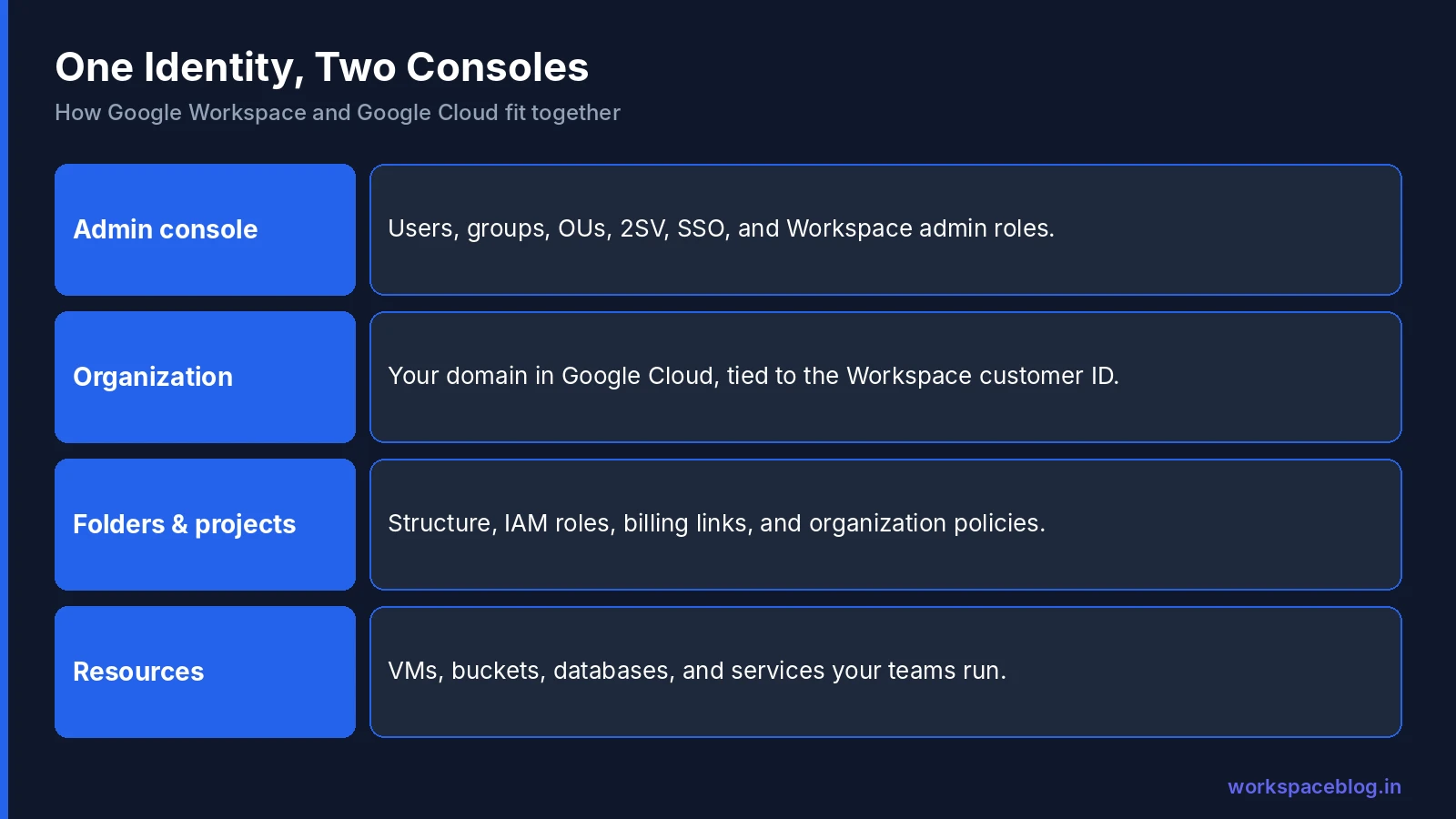
Think of your Google Workspace account as the identity layer and Google Cloud as a set of resources that hang off it. The Admin console manages people: users, groups, organizational units, passwords, 2-Step Verification, and SSO. The Google Cloud console manages things: projects, virtual machines, databases, storage buckets, and the permissions on them.
The link between the two is the organization resource. It represents your company in Google Cloud and is tied to your domain, for example yourcompany.in. It is linked to your Workspace account (each Workspace or Cloud Identity account has exactly one organization), so it trusts exactly the identities your Admin console manages.
| Managed in the Admin console | Managed in the Google Cloud console |
|---|---|
| Users, groups, and organizational units | The organization, folders, and projects |
| Password policy, 2SV, SSO, and Context-Aware Access | IAM roles on organization, folders, projects, and resources |
| Super admin and other Workspace admin roles | Organization Administrator and other Cloud IAM roles |
| Workspace and Cloud Identity licenses | Billing accounts, budgets, and invoices |
Two practical consequences follow. When you suspend a user in the Admin console, they lose access to Google Cloud as well. And when you add someone to a Google group, every Cloud permission granted to that group applies to them immediately. Good group hygiene in Workspace becomes good access control in Cloud. Our Google Workspace groups guide covers the group side.
What Cloud Identity Is and When You Need It
Cloud Identity is Google’s identity service on its own, without Gmail, Drive, or the other apps. It lives in the same Admin console and offers users, groups, sign-in security, and device management.
You need it in three situations:
- Cloud-only users. Contractors or developers who need Google Cloud access but no Workspace license. Give them a Cloud Identity Free license instead of a paid Workspace seat.
- Organizations without Workspace. A company on Microsoft 365 that wants Google Cloud signs up for Cloud Identity to get an organization resource and managed accounts.
- Service and break-glass accounts. Emergency admin accounts that should not have a mailbox can use a Cloud Identity license.
Cloud Identity Free comes with 50 user licenses by default. Google’s pricing page says you can request more at no cost through a support form. Cloud Identity Premium adds features such as advanced device management and is billed through your Workspace subscription. Our Google endpoint management guide explains what each management level includes.
If you mix Workspace and Cloud Identity users, assign the licenses by organizational unit so the right people get the right one automatically. Our organizational units guide explains how to structure that.
When the Organization Resource Gets Created
Google creates the organization resource automatically. For a new user from your domain, it happens when they first sign in to the Google Cloud console and accept the terms; for existing users, when someone creates a new project or billing account. You do not have to request it.
The catch is what happens before an admin notices. Developers sign in, create projects with personal credit cards, and grant themselves Owner. Those projects land under the organization, but nobody planned the structure. Google also states in its baseline constraints documentation that organizations created on or after May 3, 2024 get a set of secure-by-default organization policies, such as blocking service account key creation and restricting sharing to your own domain. Older organizations do not have these unless someone applies them.
To check what you have, sign in to the Google Cloud console as a super admin, open the project picker, and choose All. Your organization appears at the top with every project beneath it. If you see projects you did not expect, list them before you change anything.
Admin Roles: Workspace Versus Google Cloud
Workspace and Google Cloud have separate role systems, and that confuses people.
- Workspace admin roles (super admin, user management admin, groups admin) are assigned in the Admin console and control identities.
- Google Cloud IAM roles (Organization Administrator, Project Owner, Billing Account Administrator) are granted in the Cloud console and control resources.
Google’s documentation says the super admin who sets up the organization is automatically given the Organization Administrator role, and any super admin can assign that role to users or groups. Also note that when the organization is created, every user in the domain gets the Project Creator and Billing Account Creator roles; those defaults let anyone in the company create projects and billing accounts, so replace them with group-based grants once your admin groups exist. That makes the super admin account the most powerful account in both products. Google’s super admin best practices say to give each super admin a separate account, avoid using it for daily work, protect it with a security key, and hand day-to-day Cloud work to Organization Administrators through a private admin group.
We cover the role split in detail later in this series. For now, the rule is simple: grant Cloud roles to groups, not individuals, and keep super admin out of daily Cloud work.
Admin Console Settings That Control Google Cloud
Two settings in the Workspace Admin console decide who can use Google Cloud and how often they must prove who they are. Both apply per organizational unit, and changes can take up to 24 hours.
Turn Google Cloud on or off
Go to Apps > Additional Google services > Google Cloud Platform. You can turn the service on for everyone, for specific organizational units, or for specific groups. When it is off, users can’t create new projects or manage project ownership invitations, can’t use Cloud Shell, and can’t call the OS Login API. It does not restrict service accounts or anonymous access to public resources. Turning it off for people who have no reason to use Cloud is the simplest way to stop shadow projects.
Google Cloud session control
Go to Security > Access and data control > Google Cloud session control (needs the Security Settings privilege). Choose Require reauthentication, a frequency between 1 hour and 24 hours, and a method: password or security key. It covers the Google Cloud console, the gcloud CLI, and apps that ask for Google Cloud scopes, and you can exempt apps marked Trusted. It does not apply to the Cloud console mobile app, so pair it with Google session control. Users who must reauthenticate with a security key can’t use the console or gcloud until they have one.
A Safe First Project, Step by Step
Here is the order we recommend for a Workspace admin starting fresh.
- Protect super admin. Confirm every super admin uses a security key and a dedicated account. Our password policy and 2SV guide shows how to enforce that.
- Create admin groups. In the Admin console, create groups such as
gcp-org-admins,gcp-billing-admins, andgcp-security-reviewers. Keep membership small. - Grant organization roles. In the Cloud console, go to IAM and admin > IAM at the organization level. Grant
gcp-org-adminsthe Organization Administrator role andgcp-billing-adminsthe Billing Account Administrator role. - Set up billing. Create one billing account for the company, invoiced if you qualify, and add a budget with alerts on day one.
- Review organization policies. Check which baseline constraints are already enforced and decide on the rest, such as allowed regions.
- Create a folder structure. Something as simple as
Production,Non-production, andSandboxis enough to start. - Create the first project inside a folder. Name it clearly, link it to the company billing account, and grant access to a group.
Google’s console also includes a guided foundation setup that walks through many of these steps. It is worth running through even if you configure things by hand, because it shows the choices Google expects you to make.
Claim the Projects You Already Have
Most organizations discover existing projects when they first look. Before you lock anything down, collect three facts for each project: who owns it, which billing account pays for it, and whether anything in it runs production traffic.
Then work through them in this order:
- Move projects into folders so policies and permissions apply consistently.
- Move billing from personal cards to the company billing account. A project keeps running while you change its billing account, as long as the new one is active.
- Replace individual Owners with group-based roles, but keep one named technical owner per project.
- Shut down abandoned projects. A deleted project enters a 30-day shutdown period during which an owner can still restore it.
Do this with the project owners, not around them. A surprise permission change on a production project is how a governance programme loses goodwill in its first week.
Common Mistakes to Avoid
- Using a super admin account for daily Cloud work. One phishing email then reaches both products.
- Granting roles to individuals. People change teams; groups make the change one edit in the Admin console.
- Letting projects use personal billing. When the employee leaves, the card is cancelled and the project stops.
- Giving everyone Owner or Editor. These basic roles are far broader than most people need.
- Skipping budgets. A budget does not stop spending, but it is the only early warning you get.
Questions to Answer Before the First Workload
Before anyone deploys production workloads, agree answers to these questions with your IT lead and finance:
| Question | Why it matters |
|---|---|
| Which regions may we use? | Data residency and cost; enforce with an organization policy |
| Who pays, and how? | One billing account, invoiced or card, with budgets |
| Who are the Cloud admins? | The gcp-org-admins group and its members |
| How are projects requested? | A simple form or ticket, so projects land in the right folder |
| Which logs must we keep, and for how long? | Audit logs, Workspace exports, and retention rules |
| Who reviews security findings? | An owner for Security Command Center results |
Written answers to these six questions prevent most of the clean-up work organizations face a year later.
Conclusion
Google Cloud is not a separate world for a Workspace admin. It is the same identity system with a new set of resources attached. Get the organization, admin groups, and billing right first, and every later decision becomes easier.
If you are still choosing a Workspace plan, remember that features such as Context-Aware Access and BigQuery log export depend on the edition you buy. Compare them in our Business Starter, Standard and Plus plans comparison or start a Google Workspace trial before you commit. Tomorrow’s guide covers the resource hierarchy: how to design folders and projects so permissions and policies stay manageable.
Official Google documentation:
- Super administrator account best practices
- Manage Google Cloud security baseline constraints
- Cloud Identity pricing
- Turn Google Cloud on or off for users
- Set session length for Google Cloud services
Related reading:
- Google Workspace Admin Security: 10-Point Hardening Guide: lock down the admin console first.
- Google Workspace SSO: Configuring SAML Single Sign-On: the same sign-in protects Google Cloud.
- Gemini Enterprise Admin Setup Guide: a Google Cloud project in practice.
This guide contains referral or affiliate links. If you sign up through one, Workspace Blog may earn a commission at no extra cost to you. Read our referral and advertising disclosure.
Frequently Asked Questions
- Do I need a separate account to use Google Cloud if we already have Google Workspace?
- No. Google Cloud uses the same identities as your Google Workspace account. Your users, groups, and domain are already there. The first time someone from your domain uses the Google Cloud console, Google creates an organization resource linked to your Workspace customer account, and every project you create sits under it.
- What is the difference between Google Workspace and Cloud Identity?
- Both are identity services managed in the same Admin console. Google Workspace includes the apps (Gmail, Drive, Meet). Cloud Identity provides only the identity layer: users, groups, sign-in security, and device management. Organizations that use Google Cloud without Workspace apps, or that need identities for contractors, use Cloud Identity Free or Premium.
- Does a Workspace super admin automatically control Google Cloud?
- A super admin can grant themselves or anyone else the Organization Administrator role on the Google Cloud organization at any time, so in practice they control it. Google recommends using a separate super admin account only for emergencies and giving day-to-day Cloud administration to a group that holds the Organization Administrator role.
- Is creating a Google Cloud project free?
- Creating a project costs nothing. Charges start only when you link a billing account and use paid services beyond the free tier. New customers can also use the $300 free trial credit for 90 days.
- Which Google Cloud setting should a Workspace admin configure first?
- Start with administrator access: create a group for Google Cloud organization admins, grant it the Organization Administrator role, and stop using the super admin account for daily work. Then set up billing with budgets, review the default organization policies, and only then create projects.