Google Calendar for Business: Features, Gemini Scheduling and Recent Updates
Google Calendar for business users: working hours and location, focus time, out of office, Gemini scheduling, recent updates and which editions get each.

Checked against Google's official documentation.

Most people use Google Calendar every day without touching half of what it can do. In Google Workspace, Calendar is more than a grid of meetings: it knows your working hours and where you work, it can protect blocks of focus time, decline meetings while you’re away, and, on eligible plans, let Gemini find a time that suits everyone.
This is a living guide for Calendar users and the people who support them. It covers the features that matter most for business scheduling, which editions include each one, and a table of recent Calendar updates from Google, with dates and admin controls. Room booking, sharing policy and Exchange interoperability are covered separately in our Calendar admin and resource booking guide.
Key Takeaways
- Working hours and location tell colleagues when and where you work, and your hours follow your time zone when you travel.
- Focus time mutes Chat and can auto-decline meetings, on Business Standard and higher plus Education and Nonprofits editions.
- Out of office declines meetings for you and can show your status to people who email you in Gmail.
- Gemini suggested times checks guests’ availability, time zones and working hours, and is on by default for eligible editions.
- Recent updates add three time zones on the web, blocking unwanted inviters, quieter RSVP handling and new secondary calendar ownership rules.
Table of contents
Open Table of contents
Your Calendar Status at a Glance
Calendar has four ways to tell people about your time. They look similar on the grid, but each does a different job.
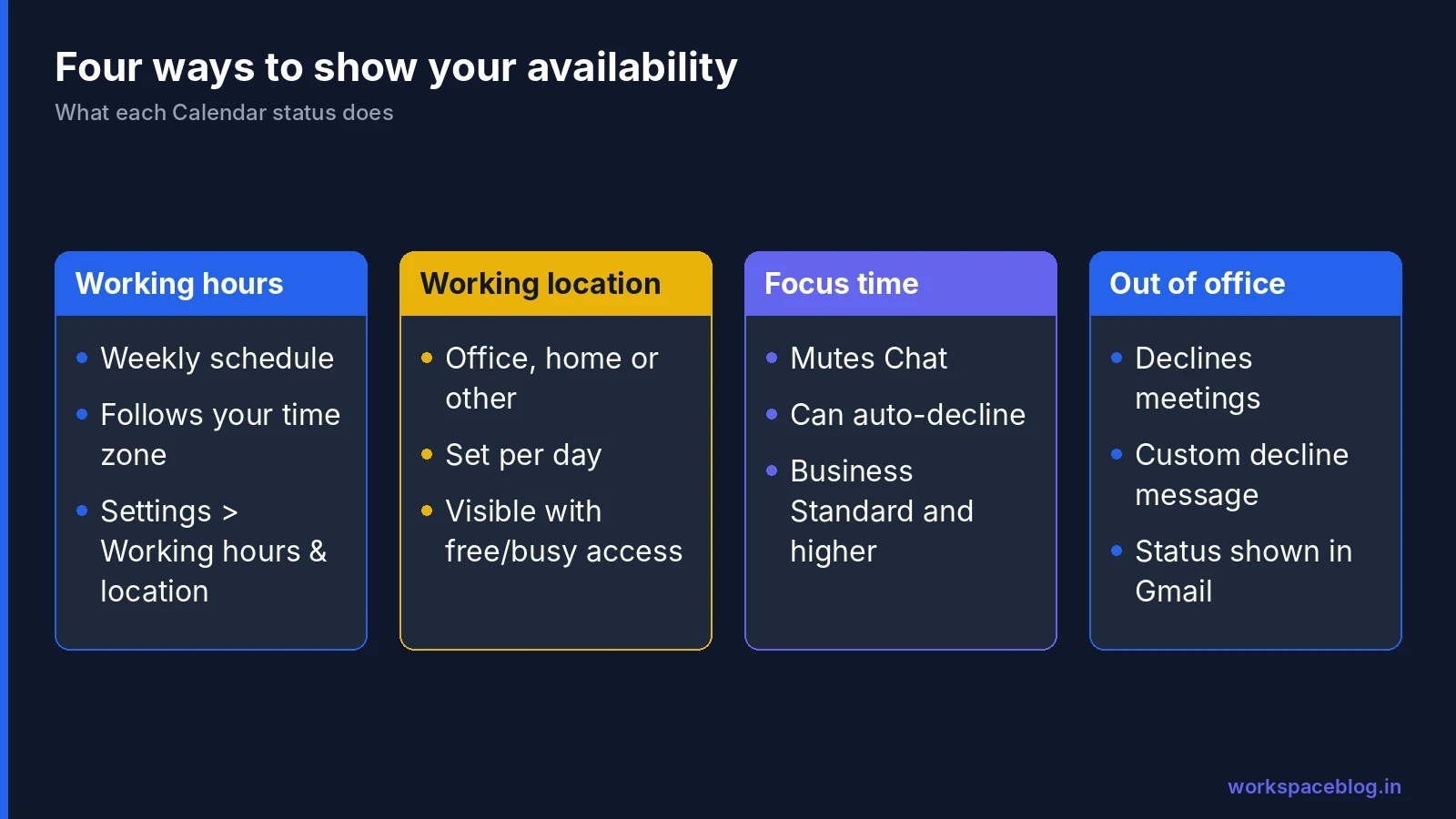
| Feature | What it tells others | Declines meetings? | Where to set it |
|---|---|---|---|
| Working hours | When you normally work, each week | No, but organisers see when you’re unavailable | Settings > General > Working hours & location |
| Working location | Office, home or another place, per day | No | Same settings page, or the location chip on a day |
| Focus time | That you’re doing deep work | Optional | Create > Focus time in Day or Week view |
| Out of office | That you’re away | Yes, by default | Create > Out of office |
A good habit for any team is to set working hours once, keep working location up to date, and use focus time and out of office rather than generic “Busy” events. Generic events look the same as meetings, so colleagues can’t tell whether a slot is truly blocked.
Working Hours and Working Location
Working hours
Working hours are available with a work or school account. On a computer, open Google Calendar, go to Settings > Settings, and under General click Working hours & location. Pick the days you work and the times for each day.
A few rules from Google’s help pages:
- Working hours are a recurring weekly schedule only. For a one-off change, edit your regular hours and change them back afterwards.
- You can split a day into several periods, for example around a long break or an overnight shift, by clicking Add.
- If you travel, change your working location or change your time zone, your hours adjust to local time at your working location.
If you don’t see the option, your administrator may have turned it off for your organisation.
Working location
Working location shows colleagues which days you’re in the office and which days you’re remote. Set a default for each day in the same Working hours & location settings, then change any single day by clicking the location chip at the top of that day. You can apply the change to that day only or repeat it weekly. On Android, you can create a Working location entry and choose Home, Office or a custom location, including for part of a day.
Anyone with free/busy access to your calendar can see your working location names. Working location appears on Calendar surfaces only, not on your directory profile.
Editions: admins can turn working location on or off on Business Plus, Enterprise Standard and Plus, and the Education and Nonprofits editions. Business Standard users can share their working location, but admins can’t switch the feature on or off for them. Admins can also show a banner that asks users to set their working location, with a choice of standard or custom wording.
Focus Time
Focus time is a calendar block for uninterrupted work. During it, Calendar can:
- Mute Chat notifications (shown as Do not disturb), if your organisation uses Chat and the block is shorter than 24 hours.
- Automatically decline meetings. By default it declines both new and existing meetings in the slot. When editing the event you can switch to declining only new invitations.
To create one on a computer, open Day or Week view, click a time, choose Focus time at the top of the event, set a start and end time, choose your options and click Save. Focus time events show a headphones icon and can repeat like any other event.
Editions: Business Standard and Plus, Enterprise Standard and Plus, Google Workspace for Education and Google Workspace for Nonprofits. Business Starter users don’t get focus time. If you’re comparing plans for this reason, our Business Starter, Standard and Plus plans comparison sets out what else changes between editions.
Out of Office
Out of office is the right way to block holidays, leave and travel days, because Calendar declines meetings for you.
- On a computer, open Google Calendar and click Create, then Out of office.
- Select your dates. For part of a day, deselect All day.
- To repeat it, change Does not repeat to a frequency.
- Optionally change the decline settings and edit the decline message.
- Click Save.
Gmail can show your out of office status to people who email you, as long as they have access to your calendar. For this to work, the event must last the whole day or run past your regular working hours.
Gmail’s vacation responder is a separate setting. Set both before a long break: one handles meetings, the other handles email.
Appointment Schedules
An appointment schedule gives you a booking page that people inside or outside your company can use to pick a slot on your calendar, which suits sales calls, support sessions and office hours. What you get depends on your plan:
| Capability | Who gets it |
|---|---|
| A single booking page | Business Starter and personal accounts |
| More than one schedule, email reminders, availability across several calendars | Business Standard and Plus, Enterprise Standard and Plus, Education, Nonprofits, Workspace Individual |
| Accept payments, verify booker emails to stop spam bookings | All Business, Enterprise, Education and Nonprofits editions, Workspace Individual |
| Schedules on secondary calendars, up to 20 co-hosts | Business Standard and Plus, Enterprise Standard and Plus, Education, Nonprofits |
Frontline and Essentials editions can’t create appointment schedules. Paid bookings also need your admin to allow them; our Calendar admin guide explains that setting.
Gemini in Calendar and Gmail
Google describes Gemini in Calendar as a premium feature that needs an existing Workspace plan. Two scheduling features are the most useful day to day.
Suggested times in Calendar
When you create an event on a computer and add guests, click Suggested times. Gemini checks the availability of guests whose calendars you can see, including their time zones, working hours and existing conflicts, and offers slots. Click More suggestions for others, or use the grid and Filter to show rooms or to filter guests by required or optional.
If you organise a meeting and several guests decline, a banner can offer an alternative: click Reschedule to [date and time] to update the invite, or More times to look manually.
Limits Google lists: suggested times aren’t available in the Android, iPhone or iPad apps, for events longer than 8 hours, for meetings with too many attendees, or for dates in the past.
Editions: Business Standard and Plus, Enterprise Standard and Plus, and the Google AI Pro for Education add-on. Google says it is on by default for eligible users. Admins manage access through the Gemini settings for Workspace services.
Help me schedule in Gmail
When you’re arranging a meeting by email, Help me schedule in Gmail proposes times that work for you and your recipients, based on the calendars you can see. Since March it also handles group meetings, not only one-to-one. Gemini proposes 4 slots by default, a schedule can include up to 20 guests, and when a recipient picks a time, Calendar sends the invite to everyone, including external guests.
Green slots mean every guest is free. Amber slots mean at least one guest has a conflict, so check those by hand.
Editions: Business Standard and Plus, Enterprise Starter, Standard and Plus, Frontline Plus and the Google AI Pro for Education add-on.
Gemini in Gmail can also add events from emails: when it spots event details, an Add to Calendar option appears. For the wider picture of Gemini across Gmail, Docs and Meet, see our Gemini for Google Workspace guide.
Recent Updates
Google announces Calendar changes on the Workspace Updates blog. This table lists the user-facing changes from roughly the last few months, newest first. “All users” means all Google Workspace customers, Workspace Individual subscribers and personal Google accounts.
| Date announced | Update | Who gets it | Admin control |
|---|---|---|---|
| 5 October | Secondary calendars follow their owner: suspended or deleted with the owner’s account | Workspace customers and Workspace Individual (not personal accounts) | Transfer ownership in the Admin console or with the Calendar API |
| 25 September | Up to three time zones on Calendar web, with custom labels | All users | None |
| 28 August | Per-event option to stop RSVP emails and automatic replies | All users | None |
| 27 August | Better invites with Teams, Zoom and Webex: join links added to Location, and a Join video call button on incoming invites | All users | None |
| 18 August | Block a user in Calendar to remove their event and stop new invitations | All users | None |
| 23 July | Icon in the guest list showing a leader’s assistant | All users | None |
| 7 July | New sharing level: Make changes (see private events as free/busy), plus series-wide visibility for recurring events | All users | None |
Three time zones on the web
Calendar on the web now shows a primary, secondary and tertiary time zone on the grid in Day, Week and custom multi-day views, and in Find a time when you create or edit an event. In Settings you can give each zone a short label, such as SFO, NYC or ZRH. Rollout began on 25 September for Rapid Release domains, and Google expected Scheduled Release domains to complete by 22 October.
Fewer RSVP emails
Each event now has a Get an email when guests respond box, ticked by default. Untick it and you no longer receive RSVP emails or automatic replies such as out of office messages and vacation responders. Responses from Google Calendar users still appear on the event, but responses sent from other calendar tools such as Outlook don’t. For a recurring event, the setting applies to the whole series. Ideal for all-hands meetings and large training sessions.
Video links from other platforms
When you send an invite with a Microsoft Teams, Zoom or Webex link to external guests, Calendar now copies the link into the Location field. On incoming invites from those platforms, Calendar extracts the link, meeting ID and passcode and shows a Join video call button on the web, Android and iOS. Google noted this rollout could take longer than 15 days.
Blocking unwanted inviters
Blocking someone in Calendar removes their current event and stops new invitations from them. It uses your account-wide blocklist, so a person already blocked in another supported Google product is blocked in Calendar too. For senders who don’t use Google Calendar, block them in Gmail instead.
Secondary calendar ownership
For Workspace accounts, secondary calendars now follow the lifecycle of their owner, like primary calendars already did. If the owner is suspended, their secondary calendars are suspended; if the owner is deleted, so are the calendars. Users can transfer their own secondary calendars in Calendar settings, and admins can transfer them in the Admin console or with the Calendar API. Add this step to your offboarding process so team calendars aren’t lost when someone leaves.
Delegate sharing and recurring event privacy
The new Make changes (see private events as free/busy) level lets an assistant manage your calendar without seeing your private events, which appear to them as busy blocks they can’t edit. At the same time, visibility now applies to a whole recurring series: existing series take the strictest setting, so if one occurrence was private, the whole series became private.
Edition Availability
| Feature | Business Starter | Business Standard | Business Plus | Enterprise Standard and Plus |
|---|---|---|---|---|
| Working hours | Yes | Yes | Yes | Yes |
| Working location | Not listed | Yes, no admin switch | Yes | Yes |
| Focus time | - | Yes | Yes | Yes |
| Out of office | Yes | Yes | Yes | Yes |
| Gemini suggested times | - | Yes | Yes | Yes |
| Help me schedule in Gmail | - | Yes | Yes | Yes |
| Three time zones, blocking, RSVP option | Yes | Yes | Yes | Yes |
| Appointment schedules | One booking page | Yes | Yes | Yes |
Google’s help pages say working hours, out of office and Time Insights work with any work or school account, and that an admin can turn some of them off. Google’s working location admin page doesn’t list Business Starter, so check the Admin console before promising it to Starter users. Education, Nonprofits and add-on availability is noted in each section above.
Sharing, Security and Audit Controls
Admins decide how much of a calendar people can share. Under Apps > Google Workspace > Calendar > Sharing settings, the internal default for primary calendars can be no sharing, free/busy only, or all information. The external limit runs from free/busy only up to sharing all information with permission for outsiders to change or manage calendars. Both can be set per organisational unit or group, and changes can take up to 24 hours. External sharing for secondary calendars is set separately under Calendar > General and can’t vary by organisational unit.
For investigations, Reporting > Audit and investigation > Calendar log events records changes to calendars, events and subscriptions, such as a deleted event, a changed calendar title or a removed guest. Entries usually appear within half an hour, and you can export up to 100,000 rows (30 million with the security investigation tool on Enterprise Standard and Plus and other eligible editions). Rooms, booking rules and leaver transfers are covered in our Calendar admin guide.
Tips for Teams
- Agree on a standard. Ask everyone to set working hours and a working location, and to use out of office for leave. Scheduling tools, including Gemini, rely on this data.
- Use Time Insights. On a computer, click More insights on the left to see time spent in meetings and with whom. Only you and people who can manage sharing on your calendar can see it.
- Protect focus time across time zones. With three time zones on the grid and Gemini checking working hours, it’s easier to avoid booking colleagues at the end of their day.
- Check Meet settings. Calendar events are where Meet links, recordings and notes start. Our Google Meet admin guide covers the policies behind them.
- Transfer before you delete. Make secondary calendar transfer a fixed step in leaver checklists.
Conclusion
Google Calendar works best when everyone feeds it good information: working hours, a working location, focus time and out of office. With that in place, Gemini’s suggested times and Help me schedule can do most of the back-and-forth for you on Business Standard and higher. The latest updates make large and cross-platform meetings easier to manage and tighten how calendars are owned. Keep an eye on this page, as it will be updated as Google ships new Calendar features in Google Workspace.
Official Google documentation:
- Set your working hours & location
- Turn working location on or off for users
- Invite users to set working location
- Use focus time in Google Calendar
- Tips to manage your time in Calendar
- Let Gemini in Google Calendar find times to meet
- Suggest times to meet with Gemini in Gmail
- View how you spend time in meetings
- Compare premium features for appointment schedules
- Set Google Calendar sharing options
- Calendar log events
- Improved meeting suggestions with Gemini in Calendar
- Help me schedule for meetings with multiple guests
- New calendar sharing permission level
- View supporting calendar delegates in the guest list
- User blocking in Google Calendar
- Interoperability with third-party video conferencing
- Suppress email responses to calendar invitations
- View up to three time zones on the web
- Secondary calendars follow the lifecycle of their owner
- Google Calendar product page
Related reading:
- Google Meet Features for Teams: the companion hub for Meet features and updates.
- Google Workspace Calendar Admin Guide: rooms, booking policies, sharing limits and Exchange interop.
- Gemini for Google Workspace: Complete Guide: Gemini across Gmail, Docs, Meet and more.
- Google Workspace Business Plans Compared: which edition fits your team.
- Google Meet Enterprise Admin Guide: Meet policies and hardware.
This guide contains referral or affiliate links. If you sign up through one, Workspace Blog may earn a commission at no extra cost to you. Read our referral and advertising disclosure.
Frequently Asked Questions
- Which Google Workspace editions include focus time in Calendar?
- Google lists Business Standard and Plus, Enterprise Standard and Plus, Google Workspace for Education and Google Workspace for Nonprofits. Business Starter is not on the list.
- How does Gemini suggest meeting times in Google Calendar?
- When you create or edit an event on a computer and add guests, click Suggested times. Gemini checks the availability, time zones and working hours of guests whose calendars you can see. It is on by default for Business Standard and Plus, Enterprise Standard and Plus, and the Google AI Pro for Education add-on.
- Can I show more than two time zones in Google Calendar?
- Yes. Calendar on the web can display a primary, secondary and tertiary time zone in Day, Week and custom multi-day views, and in Find a time. You can add short labels such as NYC to each one in Settings. There is no admin control.
- How do I stop getting RSVP emails for a large meeting?
- Untick Get an email when guests respond on the event. Guest responses from Google Calendar users still show on the event, but you stop receiving RSVP emails and automatic replies such as out of office messages. For a recurring event, it applies to the whole series.
- What happens to a secondary calendar when its owner leaves?
- For Workspace accounts, a secondary calendar now follows its owner: it is suspended when the owner is suspended and deleted when the owner is deleted. Transfer ownership first, either in Calendar settings or, for admins, in the Admin console or with the Calendar API.