Google Workspace Password Policy and 2-Step Verification Enforcement Guide
-
 Mohit
Mohit - 07 Jul, 2026
- Updated 27 Oct, 2026

Weak passwords and the absence of multi-factor authentication (MFA) are behind the overwhelming majority of account compromises. For Google Workspace administrators, enforcing strong authentication is a handful of Admin Console settings, yet many organizations leave them at defaults, creating unnecessary risk.
This guide covers every password and 2-Step Verification (2SV) setting that matters, which 2SV methods to allow for which users, security keys and passkeys, the Advanced Protection Program, session length, account recovery, and a phased rollout plan that keeps helpdesk calls manageable.
Password Policy Configuration
Settings Location
Admin Console → Security → Authentication → Password management
You need the Security Settings administrator privilege. Settings apply to the organizational unit you select and are inherited by child OUs unless you override them.
What each setting does
| Setting | Options | Recommendation |
|---|---|---|
| Enforce strong password | On / off | On. Google’s strength check looks for randomness, common passwords, guessable patterns, and known breached credentials |
| Length | Minimum and maximum, 8–100 characters | Minimum 12 or more; maximum 100 so people can use passphrases |
| Enforce password policy at next sign-in | On / off | On when you tighten the policy, so weak existing passwords must change |
| Allow password reuse | On / off | Off. There’s no password-history count. It’s simply allowed or not |
| Expiration | Never, or a number of days | Never expires, if you enforce 2SV |
On forced password expiry: NIST’s guidance (SP 800-63B) recommends against mandatory periodic password changes unless there’s evidence of compromise. Forced expiry pushes users toward predictable patterns (Summer2025!, Summer2026!) that are weaker than a stable, strong password protected by MFA. Leave expiration off if you enforce 2SV.
Password policy per OU
Password settings apply per OU. If contractors or shared kiosk accounts need different rules:
- In Password management, select the OU in the left panel
- Change the settings and click Override
- To go back to the parent’s settings later, click Inherit
Monitoring password strength
The Accounts report (Reporting > User reports > Accounts, which needs the Reports privilege) shows each user’s password strength and length compliance. Before you turn on Enforce password policy at next sign-in, check how many users would be affected so the helpdesk isn’t surprised.
2-Step Verification (2SV) Enforcement
2SV methods available
Google Workspace supports several 2SV methods. They differ a lot in how well they resist phishing:
| Method | Phishing resistance | Recommended for |
|---|---|---|
| Text message (SMS) or phone call | None | Avoid where possible |
| Google Authenticator / TOTP app | Low (codes can be phished) | General users if keys aren’t available |
| Google prompts on a phone | Low to moderate | General users |
| Backup codes | None | Emergency access only |
| Security key (FIDO) | High | Admins, finance, HR, executives |
| Passkeys | High | Increasingly suitable for everyone |
Enforcing 2SV
- Admin Console → Security → Authentication → 2-step verification
- Select the organizational unit (or group)
- Check Allow users to turn on 2-Step Verification
- Under Enforcement, choose:
- Off: users can opt in (use this while you prepare)
- On: enforcement starts immediately
- Turn on enforcement from date: pick a start date; users see enrollment reminders at sign-in before then
- Set a New user enrollment period (from 1 day to 6 months) so new hires can sign in with just a password while they set up 2SV
- Under Frequency, decide whether to Allow user to trust the device
- Under Methods, choose what’s allowed (see below)
- Click Save
Enforcement from a date can take 24–48 hours to begin after the date you choose, so don’t schedule it for the morning of a critical deadline.
Choosing allowed methods
The Methods setting has three options:
| Option | What users can use | When to use it |
|---|---|---|
| Any | Every method, including SMS and phone calls | Initial rollout for the general population |
| Any except verification codes via text, phone call | Prompts, authenticator apps, security keys, passkeys, backup codes | Most organizations, once everyone has enrolled a non-phone method |
| Only security key | FIDO security keys and passkeys | Admins and high-risk roles |
Switching an OU to a stricter method locks out anyone who only has the weaker method set up. Announce the change, give a deadline, and check enrollment status first.
The new user enrollment period
New employees can’t set up 2SV until they’ve signed in at least once. The New user enrollment period lets them sign in with only a password for a set time: one or two weeks covers most onboarding. Keep it short: an unenrolled account with just a password is exactly what attackers look for.
Trusted devices
Allow user to trust the device means users aren’t asked for a second factor on that device again until they clear cookies, revoke the device, or an admin resets their sign-in cookies. It reduces prompts but also reduces protection; Google doesn’t recommend it unless users frequently switch devices. Leave it off for admin OUs.
Security Keys and Passkeys: Phishing-Resistant MFA
For admin accounts and anyone who can move money or access sensitive data, phishing-resistant methods remove the most common attack. Unlike SMS or authenticator codes, a security key or passkey checks the website’s domain before signing in, so a fake login page can’t capture a usable code.
Enforcing key-only 2SV for an OU
- Admin Console → Security → Authentication → 2-step verification
- Select the OU (for example, IT Admins or Finance)
- Under Methods, choose Only security key. This option also supports passkeys
- Set a 2-Step Verification policy suspension grace period so you can issue a temporary backup code if someone loses their key
- Save
Security codes for devices that can’t use keys
Some older devices and remote sessions can’t use a security key directly. The Security codes setting controls whether users can generate one-time codes from their key on another device: Don’t allow users to generate security codes, Allow security codes without remote access, or Allow security codes with remote access. Allow them only if you have a real compatibility need.
Key inventory
- Issue two keys per user (a primary and a backup) and have them register both
- Ship keys to remote staff before their start date
- Record which keys are assigned to whom, and retrieve them at offboarding
- Keep spare keys in IT for urgent replacements
Advanced Protection Program
For your highest-risk users (executives, super admins, people with financial authority) Google’s Advanced Protection Program adds protection on top of key-only 2SV. You first enable user enrollment in the Admin console (it requires the Security Settings privilege); users then enroll by registering their keys or passkeys.
Advanced Protection:
- Requires security keys or passkeys for sign-in
- Blocks third-party apps that request high-risk scopes unless you’ve explicitly trusted them
- Applies deeper Gmail scanning for phishing and malicious attachments
- Adds Chrome Safe Browsing warnings for risky downloads when users are signed in to Chrome
- Routes account recovery through an admin
Test it with one or two IT users first: the third-party app restrictions can surprise people who rely on desktop mail clients or niche integrations.
Session Controls
Even with strong passwords and 2SV, very long sessions increase risk if a device is lost or a browser is compromised.
Admin Console → Security → Access and data control → Google Session control
- Default web session length: 14 days
- Web session duration: choose how long before users must sign in again, per OU
- Never expire: available, but not recommended outside tightly controlled kiosks
Session length control is available on Business Plus, Enterprise, Frontline, and Education editions (and Cloud Identity Premium), not on Business Starter or Standard. A common setup is shorter sessions for admins and unmanaged devices and the default for everyone else.
Account Recovery Settings
Admin Console → Security → Authentication → Account recovery
Two settings control self-service recovery:
- Super admin account recovery: whether super admins can recover their own account by email or phone
- User account recovery: whether other users can
Recommendations:
- Turn off self-recovery for users if your helpdesk can verify identity and reset accounts; it stops attackers who control a user’s recovery email from taking over the account
- Keep at least two super admins, each with up-to-date recovery information and a security key
- Document how the helpdesk verifies identity before resetting a password or 2SV (a call-back to a known number, manager confirmation)
When a user loses their 2SV device, an admin can generate backup verification codes for them from the user’s security settings in the Admin console instead of turning 2SV off.
Rollout Strategy
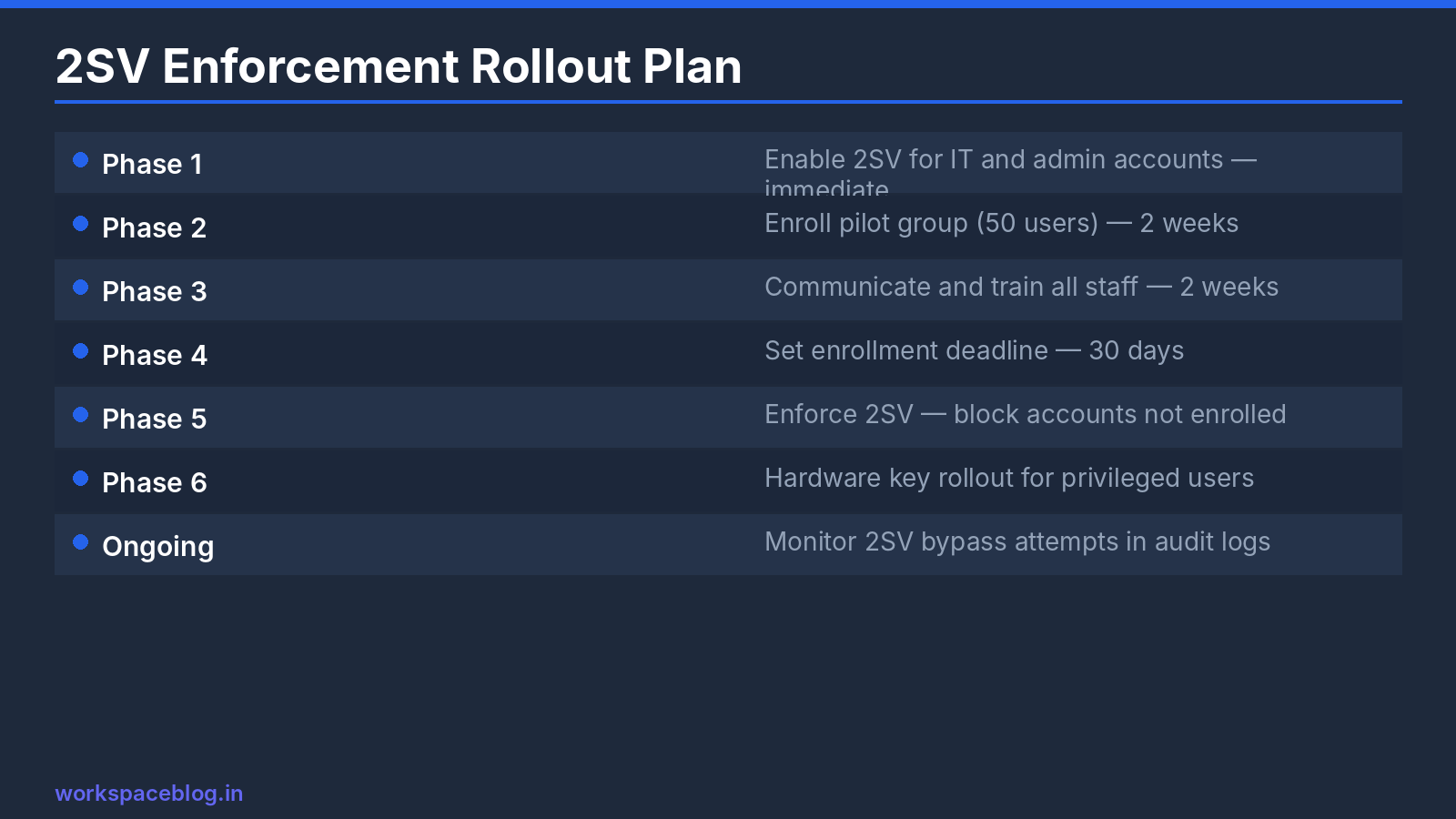
A phased rollout keeps disruption low:
| Phase | Who | Settings |
|---|---|---|
| Weeks 1–2 | Super admins and admin OUs | 2SV On, Methods Only security key |
| Weeks 3–4 | Finance, HR, Legal, executives | 2SV On; security keys or passkeys strongly encouraged |
| Weeks 5–6 | Everyone else | Turn on enforcement from date two weeks out; Methods Any |
| Week 8+ | Everyone | Methods Any except verification codes via text, phone call |
Communicate clearly. Tell users what is changing, why it matters, and exactly how to enroll. A short screen recording of the enrollment steps and a one-page guide cut helpdesk tickets significantly. During each phase, run a report of users who haven’t enrolled and contact them directly before the deadline.
Measuring Progress
Track these numbers weekly during rollout:
- Percentage of users enrolled in 2SV, by OU
- Percentage using phishing-resistant methods (security keys or passkeys)
- Accounts still on SMS or phone-call codes
- Failed 2SV attempts and suspicious sign-ins in User log events (formerly the Login audit log)
The Admin console’s security reports and User log events provide all of these. A sudden spike in failed 2SV challenges for one user is worth investigating. It can mean their password has been compromised.
Conclusion
Password policy and 2SV enforcement are two of the highest-return security controls available to Google Workspace admins. Google’s research has found that adding a second factor blocks the vast majority of automated account-takeover attempts, and phishing-resistant security keys and passkeys stop even targeted phishing.
Start with your highest-risk users. Require security keys or passkeys for admins. Enforce 2SV for everyone within about two months, then remove SMS and phone-call codes. Few configuration changes deliver more security per hour of admin effort.
Official Google documentation:
- Deploy 2-Step Verification
- Enforce and monitor password requirements for users
- Set session length for Google services
- Protect users with the Advanced Protection Program
Related reading:
- Google Workspace Admin Security: 10-Point Hardening Guide: password and 2SV settings are the first two points on the hardening checklist.
- Google Workspace SSO: SAML Setup Guide: if you use an external IdP, MFA enforcement moves to the IdP layer.
- Google Workspace Audit Logs: Monitoring Guide: monitor login events and failed 2SV attempts.
This guide contains referral or affiliate links. If you sign up through one, Workspace Blog may earn a commission at no extra cost to you. Learn more.
Frequently Asked Questions
- How do I force 2-Step Verification for all users in Google Workspace?
- In the Admin console, go to Security > Authentication > 2-step verification, select the organizational unit, check Allow users to turn on 2-Step Verification, and set Enforcement to On or Turn on enforcement from date. Enforcement can take 24 to 48 hours to begin after the chosen date, so give users time to enroll first.
- Can I stop users from using SMS codes for 2-Step Verification?
- Yes. Under Methods, choose Any except verification codes via text, phone call. Warn users before you change it, because anyone who relies on text or call codes will be locked out until they set up another method.
- Can Google Workspace block password reuse for the last 5 passwords?
- No. Google Workspace has a single Allow password reuse checkbox; leaving it unchecked blocks reuse, but you can't set a specific password history count.
- What is the Google Workspace password length range?
- Admins can set a minimum and maximum password length anywhere from 8 to 100 characters under Security > Authentication > Password management. A minimum of 12 or more characters is a common choice when combined with 2-Step Verification.
- Do security keys and passkeys count as phishing-resistant 2SV in Google Workspace?
- Yes. The Only security key method requires a FIDO security key, and Google's 2SV settings note that this option also supports passkeys, which offer the same phishing protection. Use it for admins and other high-risk users.