Google Workspace Calendar Admin Guide: Resource Booking, Rooms, and Policies
-
 Mohit
Mohit - 13 Oct, 2026
- Updated 27 Oct, 2026

Google Calendar administration is an area where IT admins often underinvest, until a meeting room system breaks, someone double-books the boardroom, or an audit asks who could see executive calendars. Google Workspace Calendar has solid admin controls for sharing, buildings and rooms, booking permissions, delegation, interoperability, and compliance that are worth setting up properly from the start.
This guide covers organization-wide sharing, buildings and room resources, booking permissions and auto-accept, delegation and API access, Calendar Interop with Exchange, Meet hardware, retention, audit logs, and a configuration checklist.
Calendar Sharing Settings
Organization-wide sharing limits
Admin Console → Apps → Google Workspace → Calendar → Sharing settings (requires the Calendar administrator privilege)
External sharing options for primary calendars:
- Only free/busy information (hide event details)
- Share all information, but outsiders cannot change calendars
- Share all information, and outsiders can change calendars
- Share all information, and allow managing of calendars
Internal sharing options for primary calendars:
- No sharing
- Only free/busy information (hide event details)
- Share all information
Recommended baseline:
- Internal: Share all information, colleagues can see meeting titles and schedule sensibly
- External: Only free/busy information, partners can see availability without details
These settings are the ceiling: users can share less than the admin allows, but not more. The internal setting is also the default for users who haven’t changed their own calendar settings.
Set stricter limits for sensitive OUs. For example, keep executives and HR at free/busy only, even internally, and rely on delegation for assistants.
External invitations
Calendar can warn users when they invite guests from outside the organization. Keep the warning on. It catches the common mistake of adding a personal email address or the wrong “John” to a confidential meeting.
Buildings and Room Resources
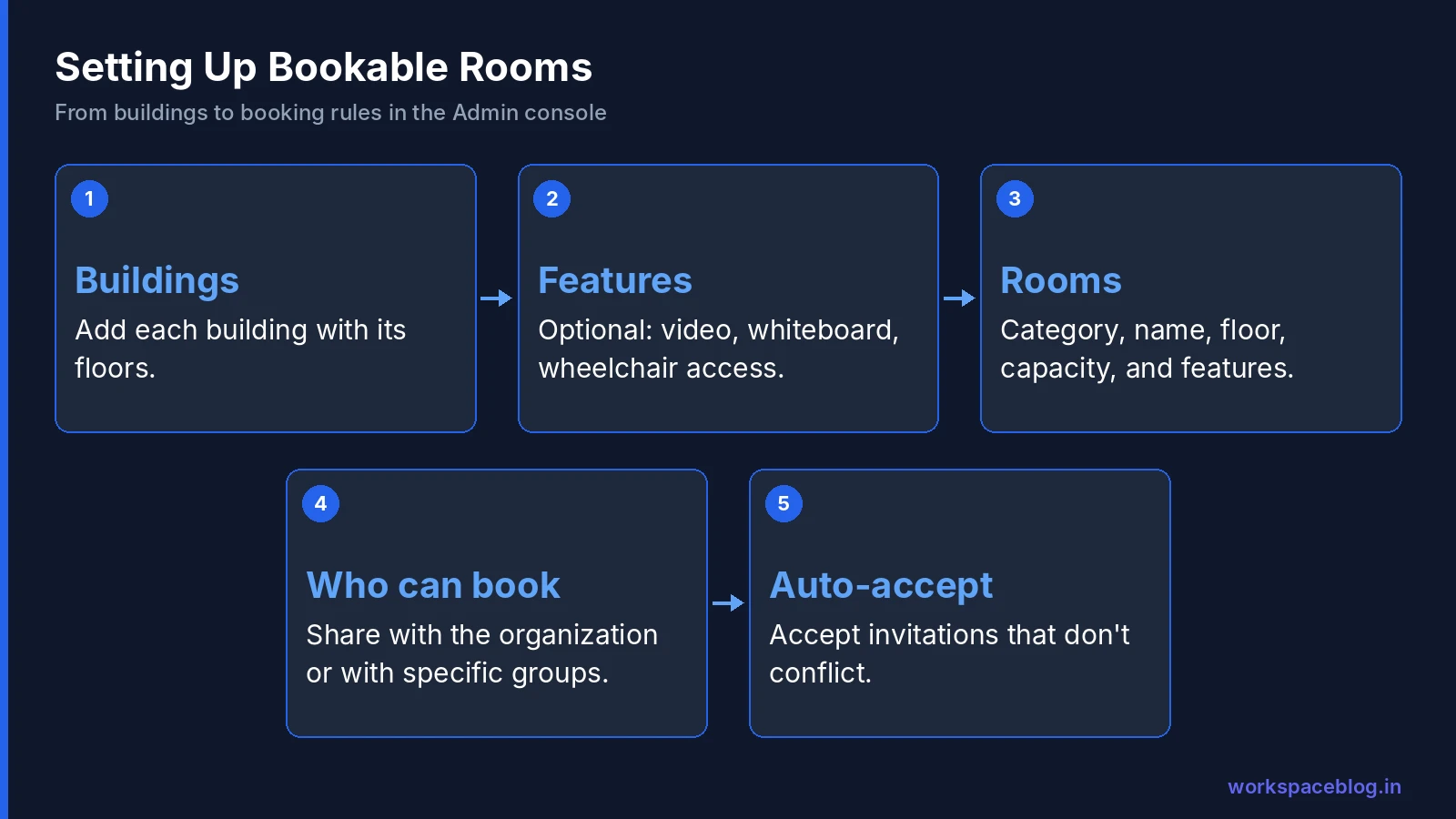
Rooms and equipment are calendar resources: special calendars that people add to events to book them.
Step 1: Create buildings
Admin Console → Directory → Buildings and resources → Manage buildings → add each building with its floors.
Buildings let people filter rooms by location and let Calendar suggest rooms near attendees: essential for multi-office organizations.
Step 2: Create features (optional)
Define room features such as video conferencing, whiteboard, projector, or wheelchair access, so people can search for rooms that have them.
Step 3: Create rooms and resources
Admin Console → Directory → Buildings and resources → Manage resources → Add:
- Category: Meeting space (room) or Other (equipment such as projectors or cars)
- Name: use a consistent pattern, for example “HQ - 3rd Floor - Conference Room A”
- Building and floor
- Capacity
- Features
- User-visible description: anything people need to know (access instructions, equipment quirks)
For many rooms, use the bulk upload option instead of adding them one by one.
Naming convention
A consistent pattern such as Building – Floor – Room name (capacity) makes rooms easy to find on phones and room displays, where long names get cut off.
Booking Permissions and Auto-Accept
Who can book a room
Booking permission comes from the resource calendar’s sharing:
| Sharing level | Can book? | Can see event details? |
|---|---|---|
| See only free/busy (hide details) | Yes | No |
| See all event details | Yes | Yes |
| Make changes to events | Yes, and edit any event on the room calendar | Yes |
| Make changes and manage sharing | Yes, and change sharing | Yes |
- Make available for your organization gives everyone booking access
- Share with specific people (individuals or groups) restricts a room, such as an executive boardroom, to certain people
- “Make changes” levels are only available for specific people, not the whole organization; give them to facilities staff, not everyone
Auto-accept behavior
In the resource calendar’s Settings and sharing → Auto-accept invitations:
- Auto-accept invitations that do not conflict (recommended): accepts open times, declines conflicts, and rejects people without booking permission. For recurring meetings, it accepts only if no more than 8 instances, and no more than half of all instances, conflict.
- Automatically add all invitations to this calendar: accepts everything, even overlapping bookings; only for resources where double-booking is acceptable
Booking approvals
For special rooms (studios, executive spaces), supported editions let you require a person to approve or deny each booking instead of auto-accepting.
Reducing “ghost” bookings
Rooms booked by recurring meetings nobody attends are the main source of complaints. Options:
- Use room check-in on Meet hardware or room displays where available
- Ask owners of long-running recurring meetings to confirm them each quarter
- Remove room bookings when employees leave (offered when you delete a user)
Delegating Calendar Access
User-level delegation
Users can share their calendar with specific people at these levels:
- See only free/busy (hide details)
- See all event details
- Make changes to events
- Make changes and manage sharing
Executive assistants usually need Make changes to events on the executive’s calendar. Assistants with this access can also see private events, so agree on that with the executive.
Application access
For systems that read or write calendars (room booking displays, HR onboarding tools, scheduling apps):
- Prefer apps from the Google Workspace Marketplace that use OAuth with limited scopes
- For custom integrations, use a Google Cloud service account with domain-wide delegation, configured at Security → Access and data control → API controls → Domain-wide delegation, and grant only the scopes it needs (for example, read-only calendar access if it only displays availability)
Review domain-wide delegation entries regularly; each one can act as any user for the granted scopes.
Calendar Interoperability with Microsoft Exchange
If you run Google Workspace alongside Exchange or Microsoft 365, Calendar Interop lets users on both platforms see each other’s free/busy information and book rooms across systems.
Admin Console → Apps → Google Workspace → Calendar → Calendar Interop management
In brief:
- Turn on interoperability
- Under Exchange availability in Calendar, choose the Microsoft Graph API endpoint for Microsoft 365, then enter the Microsoft domain and the role accounts Google uses for user availability and resource booking
- Configure Exchange so it can look up Google free/busy in return
- Test lookups in both directions
Move off EWS. Microsoft began disabling Exchange Web Services (EWS) in Exchange Online globally in October 2026 and will disable it fully in April 2027. Google’s Graph API announcement names October 1, 2026 as the end of EWS support and recommends moving to Graph API. If the Admin console shows an EWS reminder banner on your interop endpoint, switch it to Graph API. Exchange Server on-premises is not affected by Microsoft’s change.
See our detailed coexistence guide for the full setup.
Google Meet Hardware in Rooms
For rooms with Google Meet hardware:
- Enroll the device in Admin Console → Devices → Google Meet hardware
- Link the device to the room’s calendar resource
- The device shows the room’s upcoming meetings and joins with one tap
Linking hardware to the room calendar is what makes “join from the room” work, so do it for every equipped room. See our Meet admin guide for hardware policies.
Event Retention and Recovery
User recovery: users can restore deleted events from their Calendar trash for 30 days.
Vault: on editions that include Vault, Vault can retain, hold, search, and export primary calendar events (secondary calendars, tasks, and working location aren’t covered). Calendar events stay available in Vault for 30 days after removal even without a rule. Add a Calendar retention rule if your records policy requires it.
Calendar Audit Logs
Admin Console → Reporting → Audit and investigation → Calendar log events records activity such as:
- Events created, changed, or deleted
- Guests added or removed
- Calendar sharing changes, including external sharing
- Calendar subscriptions
Use it to investigate who changed a meeting, removed attendees, or shared a calendar outside the organization.
Calendar Configuration Checklist
| Policy | Setting | Location |
|---|---|---|
| Internal sharing | Share all information | Calendar sharing settings |
| External sharing | Only free/busy | Calendar sharing settings |
| Sensitive OUs | Free/busy only internally | Calendar sharing settings (per OU) |
| External invitation warnings | On | Calendar settings |
| Buildings, floors, features | Created | Buildings and resources |
| Rooms | Named consistently, capacity and features set | Buildings and resources |
| Room booking | Auto-accept non-conflicting | Resource calendar settings |
| Restricted rooms | Shared with specific groups | Resource calendar sharing |
| Calendar Interop (if hybrid) | Configured and tested | Calendar Interop management |
| Meet hardware | Linked to room calendars | Google Meet hardware |
| Vault retention | Matches records policy | Google Vault |
Conclusion
A properly configured Calendar in Google Workspace reduces scheduling friction, prevents double-booking, and gives IT the visibility it needs for security and compliance. Set sensible sharing limits, build an accurate catalog of buildings and rooms, control booking through resource sharing, keep delegation and API access tight, and link Meet hardware to every equipped room.
Official Google documentation:
- Set Google Calendar sharing options
- Share room and resource calendars
- Manage Calendar for your users
- Calendar Interop with Microsoft 365 through Microsoft Graph API
- Deprecation of Exchange Web Services in Exchange Online (Microsoft Learn)
- Retirement of Exchange Web Services in Exchange Online (Microsoft)
Related reading:
- Google Workspace and Microsoft 365 Coexistence: Calendar Interoperability setup for hybrid environments.
- Google Meet Enterprise Admin Guide: Meet hardware management and video conferencing policies.
- Google Workspace Audit Logs: Monitoring Guide: Calendar events are searchable in the investigation tool.
This guide contains referral or affiliate links. If you sign up through one, Workspace Blog may earn a commission at no extra cost to you. Learn more.
Frequently Asked Questions
- How do I stop users sharing full calendar details outside the organization?
- In the Admin console, go to Apps > Google Workspace > Calendar > Sharing settings and set External sharing options for primary calendars to Only free/busy information (hide event details). Users can't share more than the level you allow.
- How do I control who can book a meeting room in Google Workspace?
- Room booking follows the resource calendar's sharing. Share the room with your organization (See only free/busy or See all event details lets people book it) or only with specific people and groups for restricted rooms. On supported editions you can also require booking approval.
- Why does a room decline some meeting invitations?
- With Auto-accept invitations that do not conflict, a room declines invitations that clash with existing bookings and rejects users who don't have permission to book it. For recurring meetings, it accepts only if no more than 8 instances, and no more than half of all instances, conflict.
- Can deleted Google Calendar events be recovered?
- Users can restore events from their Calendar trash for 30 days. If your edition includes Vault and you've set retention rules, Vault can retain, search, and export primary calendar events.
- What should the internal calendar sharing setting be?
- Most organizations use Share all information internally so colleagues can see meeting titles and find good times to meet, and Only free/busy information for external sharing. Private events stay private either way.