Google Workspace Storage Management: Drive Quotas, Policies, and Optimization Guide
-
 Mohit
Mohit - 21 Jul, 2026
- Updated 27 Oct, 2026

Storage is one of the most common administrative headaches in Google Workspace. Organizations approach their pooled limit, users hit “storage full” errors in the middle of a project, and IT admins scramble to find out what’s consuming space. This guide gives you a systematic approach: how pooled storage works, how to see usage, how to set limits, how to clean up, and how to plan for growth.
How Google Workspace Storage Works
Pooled storage by edition
All Google Workspace Business and Enterprise editions now use pooled storage: each user’s allocation is added to one organization-wide pool that everyone draws from.
| Edition | Storage added to the pool per user |
|---|---|
| Business Starter | 30 GB |
| Business Standard | 2 TB |
| Business Plus | 5 TB |
| Enterprise Standard / Plus | 5 TB (more available on request for 5+ users) |
For example, 50 users on Business Standard share a 100 TB pool. Heavy users (video, design, engineering) draw from the same pool as light users who mostly use email. Business Starter, which once had per-user storage, now uses pooled storage too.
Storage is granted in stages for new subscriptions: you get part of the pool at purchase, and it rises to the full limit after you make a $30 USD payment for your subscription. It can take up to 72 hours after that payment for the extra storage to appear, and you can pay early to get it sooner.
What counts toward storage
- Gmail messages and attachments
- Google Drive files, including files in shared drives
- Google Docs, Sheets, Slides, Drawings, and Forms files created or edited since June 1, 2021
- Google Photos
- Meet recordings and transcripts saved to Drive
- Files shared in Chat (stored in Drive)
Items in trash continue to count until they’re deleted. Drive automatically empties items that have been in trash for 30 days.
Checking Storage Usage
Organization-level view
The Storage page in the Admin console shows:
- Total storage used against the pool
- Usage over time
- Usage split by service (Drive, Gmail, Photos)
- Users and shared drives using the most storage
Per-user storage
Admin Console → Directory → Users → add the storage columns to the user list, or open a user’s account to see their usage by service. Sort the list by storage used to find the heaviest users quickly.
Shared drive storage
The Storage page and Manage shared drives show which shared drives use the most space. Large shared drives are usually project archives or media libraries.
Helping users see their own usage
Point users to drive.google.com/drive/quota (or Google One storage settings), which lists their files by size across Drive, Gmail, and Photos.
Setting Storage Limits
Pooled storage is flexible, but one team can consume a disproportionate share. Storage limits prevent that.
User storage limits
- Admin Console → Storage (requires the Storage administrator privilege)
- Under Storage settings, click Manage
- Open User storage limit, select On, and enter the limit
- Apply it to the top-level organization, an organizational unit, or a configuration group (group settings override OU settings)
Before applying a limit to a group, Google suggests checking who already exceeds it so they aren’t surprised. Limits for Gmail and Photos can take up to 24 hours to apply; for Drive they apply the next time the user adds or edits a file.
Shared drive storage limits
You can also set storage limits for shared drives, which stops one project archive from consuming the pool.
Suggested limits
| Group | Example limit |
|---|---|
| Most employees | 100–500 GB |
| Media, design, engineering | 1–2 TB or higher |
| Contractors | Lower than employees |
| Service and shared accounts | Small |
Set limits based on your actual usage data rather than guesses, and review them twice a year.
What Happens When Users Hit Their Limit
When a user exceeds their limit:
- Drive shows “Storage low” or “Storage full” with a Free up space option
- They can’t upload or create new files in Drive, Docs, Sheets, Slides, Drawings, or Forms
- They can’t back up photos and videos to Google Photos
- Their Gmail sending and receiving is affected
- They can’t record new Meet meetings
- They can still sign in, view, and download files
Tell users what to do before you enforce limits, and give the helpdesk a short script for freeing up space.
Finding and Cleaning Up Large Files
Where the space usually goes
- Large videos, including Meet recordings
- Backup archives and disk images uploaded to Drive
- Duplicate copies of folders
- Years of email with large attachments
- Files left behind by former employees in suspended accounts
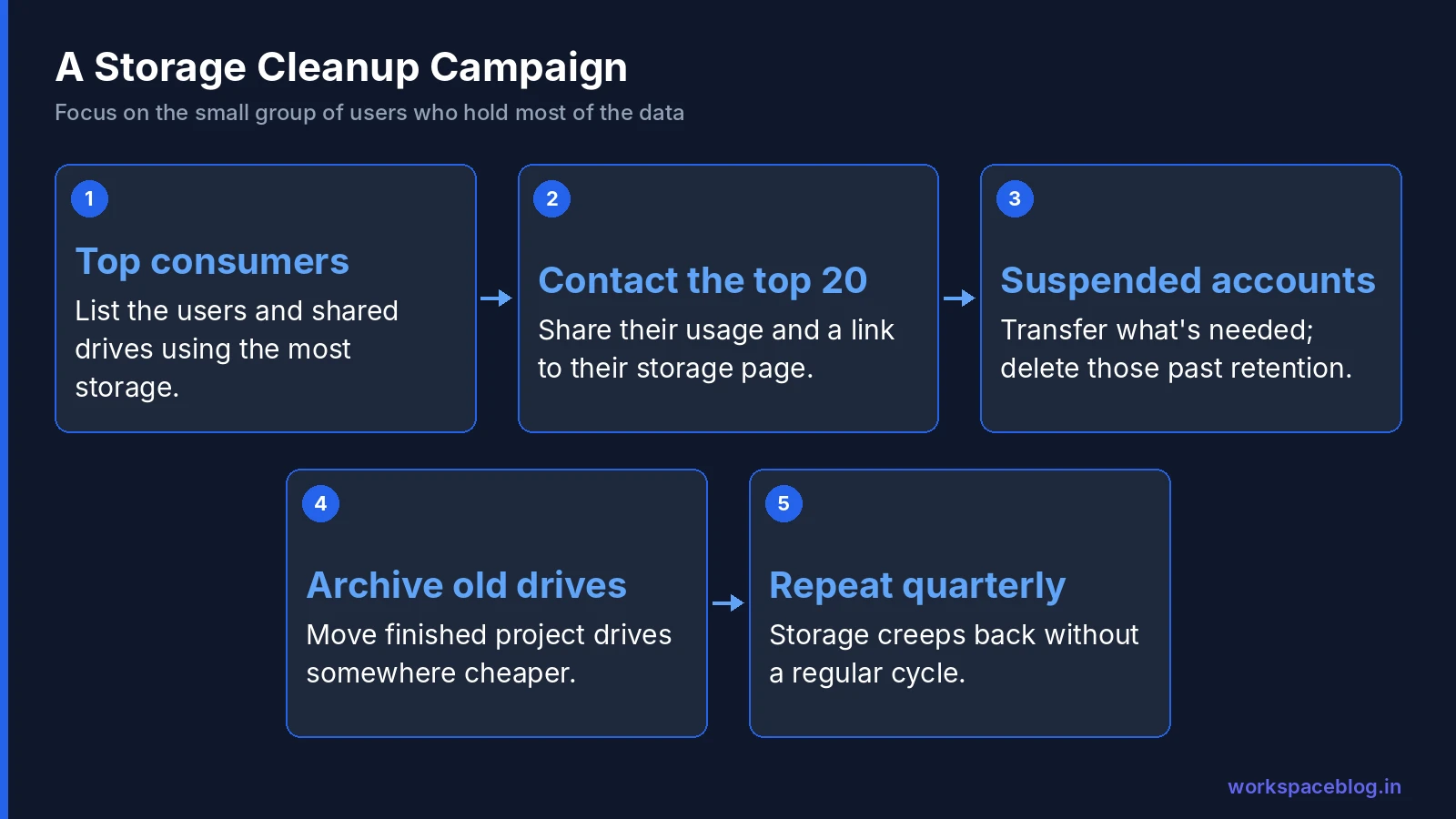
Cleanup campaign
- List the top consumers of storage (users and shared drives)
- Contact the top 10–20 with their usage figures and a link to their storage page
- Review suspended accounts: transfer what’s needed and delete accounts that are past your retention period
- Archive old project drives to a cheaper location if you don’t need them in Workspace
- Repeat quarterly
In most organizations, a small share of users accounts for most of the storage. Working with that group has the biggest impact.
Meet recordings
Meet recordings save to the organizer’s Drive in a Meet Recordings folder. Teams that record every meeting can accumulate hundreds of gigabytes. Agree a policy (for example, delete or move recordings older than 90 days unless they’re needed) and, if you use Vault, make sure your retention rules match it.
Storage and Offboarding
Suspended users keep their data, so their storage still counts. When employees leave:
- Transfer the Drive files you need to a manager or shared drive
- Decide whether to keep the account (suspended or with an Archived User license) or delete it after your retention period
- Delete accounts you no longer need. This frees their storage and license
Archived users are included in the pooled storage calculation for Business and Enterprise editions.
Storage Planning for Growing Organizations
Track storage monthly. A simple forecast:
Projected need = current usage + (new users × average storage per user)
If 100 users use 50 TB (500 GB average), 20 new hires will add roughly 10 TB as they settle in.
When the pool reaches about 80% full:
- Run a cleanup campaign (large files, suspended accounts, old recordings)
- Apply or tighten storage limits for the heaviest groups
- Compare buying extra storage with upgrading editions
Adding More Storage
If you need more storage:
- Buy additional pooled storage from the Admin console for eligible editions (or through your reseller)
- Upgrade editions: moving from Business Standard to Business Plus raises the pool from 2 TB to 5 TB per user and adds features such as Vault and advanced endpoint management
- Archived User licenses: keep former employees’ data at lower cost than a full license, where your edition supports them
Conclusion
Effective storage management in Google Workspace combines visibility, limits, and routine cleanup. Watch the Storage page monthly, set limits for the heaviest groups and shared drives, agree a policy for Meet recordings, clean up former employees’ data, and plan purchases before you hit the ceiling rather than after.
Official Google documentation:
- Set storage limits for your users
- Set storage limits for shared drives
- Google Workspace storage FAQ for admins
- Buy more Google Workspace storage for your organization
Related reading:
- Google Workspace Shared Drives: Setup and Permissions: shared drive content is part of pooled storage and easier to manage centrally.
- Google Workspace User Lifecycle: Onboarding and Offboarding: offboarding includes data transfer and storage reclamation.
- Google Workspace Business Plans Comparison: storage limits differ significantly across plans.
This guide contains referral or affiliate links. If you sign up through one, Workspace Blog may earn a commission at no extra cost to you. Learn more.
Frequently Asked Questions
- How much storage does each Google Workspace edition include?
- Storage is pooled across the organization: Business Starter provides 30 GB per user, Business Standard 2 TB per user, Business Plus 5 TB per user, and Enterprise Standard and Plus 5 TB per user, with more available on request for Enterprise customers with five or more users. Archived users are counted in the pool for these editions.
- Can I set storage limits for specific users in Google Workspace?
- Yes. From the Storage page in the Admin console, turn on a user storage limit and set it for an organizational unit or a configuration group; group settings override OU settings. You can also set separate storage limits for shared drives.
- Do Google Docs, Sheets, and Slides count toward storage?
- Yes, for files created or edited since June 1, 2021. Older Google Docs, Sheets, and Slides files that haven't been modified since then don't count.
- What happens when a Google Workspace user runs out of storage?
- They can still sign in and view or download files, but they can't upload or create new files in Drive, Docs, Sheets, Slides, Drawings, or Forms, can't back up to Google Photos, can't record Meet meetings, and Gmail sending and receiving is affected.
- How can I add more storage without changing editions?
- Admins can buy additional pooled storage from the Admin console for eligible editions, or through their reseller if they buy Workspace through one. Compare the cost with upgrading editions, which also adds features.