Google Workspace Directory Sync (GCDS): Active Directory Integration Guide
-
 Mohit
Mohit - 04 Aug, 2026
- Updated 27 Oct, 2026

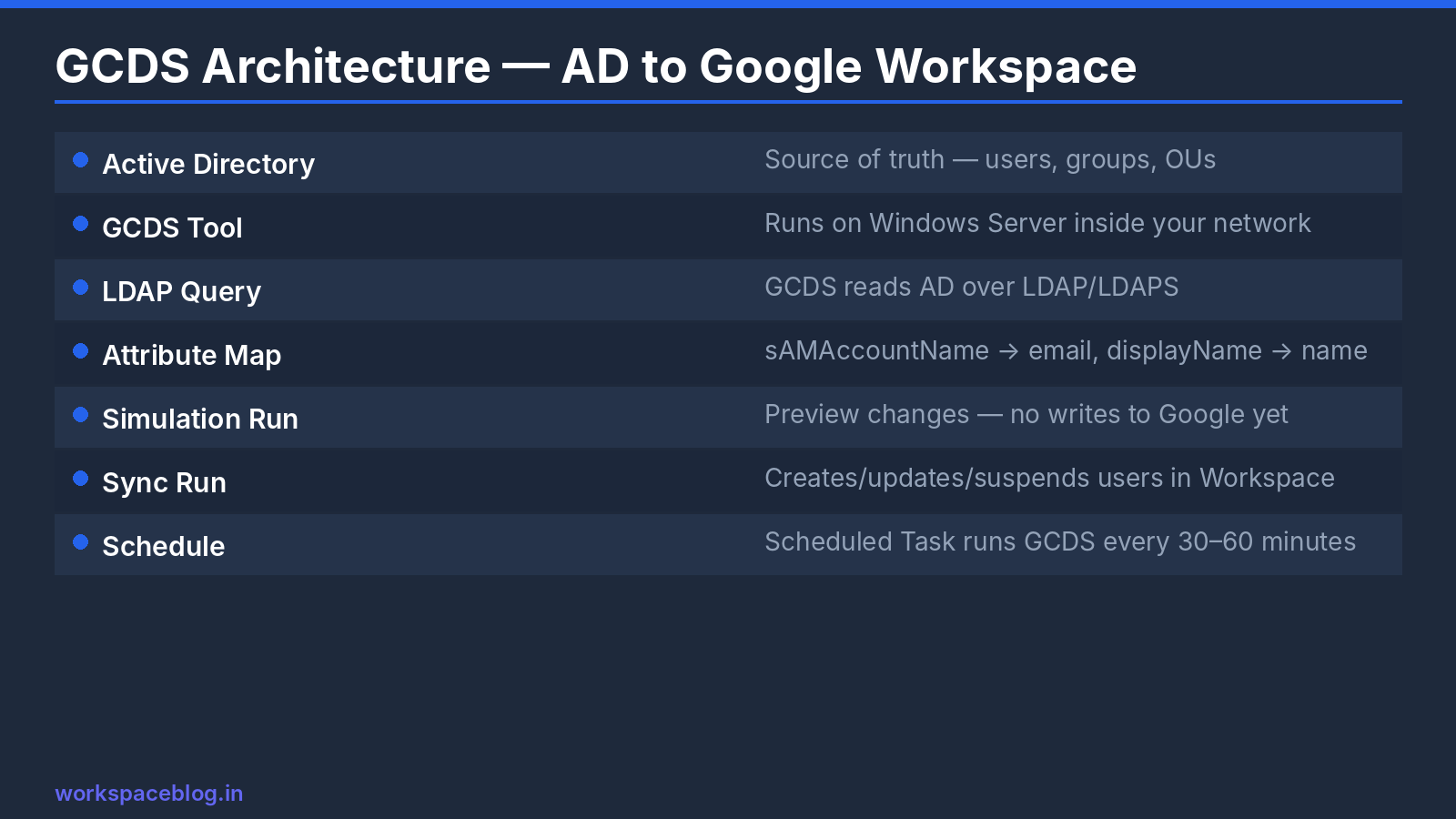
For organizations with an existing Active Directory (or any LDAP directory), manually managing users in both AD and Google Workspace is unsustainable. Google Cloud Directory Sync (GCDS) solves this: it reads your directory and automatically creates, updates, and suspends users in Google Workspace to match.
This guide covers GCDS planning, installation, every Configuration Manager section that matters, LDAP attribute mapping, simulation and scheduling, safety limits, and the troubleshooting scenarios you’re most likely to hit.
What GCDS Does (and Doesn’t Do)
GCDS does:
- Create Workspace users from AD accounts
- Update user attributes (name, title, department, manager, phone) when they change in AD
- Suspend (or delete) Workspace users when their AD account is disabled or removed
- Sync Google Groups from AD groups or mail-enabled distribution lists
- Place users in Workspace organizational units based on AD OUs or rules
- Sync shared contacts, calendar resources, custom schema fields, and license assignments
GCDS does not:
- Keep Active Directory passwords in step (that’s the job of Google Workspace Password Sync, or SAML SSO)
- Sync in real time. It runs on a schedule you control
- Modify Active Directory. It’s strictly one-way: LDAP → Google
- Replace SSO for authentication
GCDS or cloud Directory Sync?
Google also offers Directory Sync, a cloud-based service that syncs users and groups from Active Directory or Microsoft Entra ID without installing anything on a server. It was in public beta at the time of writing. Choose based on what you need:
| GCDS | Directory Sync | |
|---|---|---|
| Runs on | Your Windows or Linux server | Google’s cloud |
| Sources | Any LDAP directory (AD, OpenLDAP, others) | Active Directory, Microsoft Entra ID |
| Syncs | Users, groups, OUs, profiles, contacts, resources, licenses | Users and groups |
| Maturity | Long-established | Beta |
| On-prem AD connectivity | Direct LDAP from your network | Via a VPC access connector |
For most organizations with on-premises AD and complex OU structures, GCDS is still the safer choice.
Plan Before You Install
A few decisions made up front save a lot of cleanup later:
- Source of truth for email addresses. Decide whether the Google primary email comes from AD’s
mailattribute,userPrincipalName, or is built fromsAMAccountName. Changing this later renames accounts. - Which AD users sync. Usually one or more OUs plus an LDAP filter that excludes disabled service accounts and computers.
- Google-only accounts. List every account that exists in Google but not AD (break-glass admins, shared mailboxes, contractors). These need exclusion rules.
- What happens to removed users. Suspend is almost always right; deletion is permanent after 20 days.
- OU mapping strategy. Mirror AD OUs, or map by group membership or attribute (department, location).
Prerequisites
Before installing GCDS, check Google’s system requirements:
- Server: Windows 7–11 or Windows Server 2008–2025, or Linux (a GUI is needed for Configuration Manager, or access to another machine with one). At least 2 CPU cores and 5 GB of disk.
- Memory: about 1 GB free for fewer than 10,000 synced objects, 2–4 GB for up to 200,000, and 8 GB beyond that.
- Network: outbound access on ports 80 and 443 to Google; network access to your domain controllers over LDAP (389 by default) or LDAPS (636 by default); and SMTP access (25, 465, or 587) if you want email notifications.
- Google account: a Google Workspace or Cloud Identity super administrator to authorize GCDS.
- AD account: a dedicated service account. Google’s requirements list LDAP administrator access to your directory server and read permissions on the OUs you sync. GCDS never writes to AD.
Installation and Configuration
GCDS installs two tools: Configuration Manager (the GUI where you build and test the configuration XML) and sync-cmd (the command-line utility you schedule). Download the installer from Google’s GCDS help pages.
Configuration Manager walks you through its sections in order. These are the ones that matter for a typical AD deployment.
1. General Settings
Choose which object types to sync: Organizational units, User accounts, Groups, User profiles, Custom schemas, Shared contacts, Calendar resources, and Licenses. Start with users and OUs only; add groups once user sync is stable.
2. Google Domain Configuration
- Connection Settings: enter your primary domain and click to authorize with your super admin account. GCDS stores an OAuth token, not your password.
- Proxy Settings: only if the server reaches the internet through a proxy.
- Exclusion Rules: list Google accounts and groups that exist only in Google, so GCDS never suspends them.
3. LDAP Configuration
- Server type: Active Directory
- Connection type: Secure LDAP (LDAPS, port 636) is recommended; standard LDAP uses port 389
- Hostname: a domain controller FQDN (or your domain name for DNS round-robin)
- Authorized user: the service account, in DN or UPN form
- Base DN: the top of the tree to search, for example
DC=company,DC=com
Click Test Connection before moving on.
4. Org Units
Map LDAP organizational units to Google OUs. You can mirror the AD structure exactly or map selected AD OUs to a flatter Google structure. If you manage Google OUs by hand, use the option to stop GCDS creating or deleting Google OUs.
5. User Accounts
This is the core of the configuration:
| Google attribute | Typical AD attribute |
|---|---|
| Email address | mail (or userPrincipalName) |
| Given name | givenName |
| Family name | sn |
| Unique identifier | objectGUID |
| Aliases | proxyAddresses |
Then add a search rule to choose which users sync. A common Active Directory filter that includes enabled user accounts only is:
(&(objectCategory=person)(objectClass=user)(!(userAccountControl:1.2.840.113556.1.4.803:=2)))Use User exclusion rules for anything that should never sync, such as service accounts in a specific OU. Using objectGUID as the unique identifier means a user who is renamed or moved in AD keeps the same Google account instead of getting a new one.
6. Groups
Add a search rule for the AD groups you want as Google Groups, usually mail-enabled groups. Map the group email, name, and member attributes. In Active Directory, membership comes from the member attribute.
7. User Profiles (optional)
Sync job title, department, phone numbers, and manager so the Google directory and Gmail contact cards stay accurate.
8. Shared Contacts, Calendar Resources, and Licenses (optional)
- Shared contacts sync external contacts into the Google global directory.
- Calendar resources create rooms and equipment from LDAP data.
- Licenses assign Google Workspace licenses from rules, useful if you have more than one license type.
9. Notifications and Logging
Send a summary email after each sync to an IT mailbox, and set logging to INFO. Raise it to DEBUG only while troubleshooting.
Safety Settings You Shouldn’t Skip
Suspend, don’t delete
When a user exists in Google but no longer matches your LDAP search, GCDS can leave it alone, suspend it, or delete it. Suspend. Suspended accounts keep all their data and can be restored; deleted accounts can’t be recovered after 20 days. Delete accounts deliberately, as part of your offboarding process, after data has been transferred.
Delete limits
GCDS supports delete limits for each object type. If a sync would delete or suspend more than the limit (for example because an LDAP search base was changed by mistake), the sync stops. Set limits sized to your organization (a few percent of users is typical) and treat a triggered limit as a reason to investigate, not to bypass.
Protect admin accounts
By default, GCDS won’t suspend or delete Google administrator accounts that aren’t found in LDAP. Keep that behavior, and still add exclusion rules for your break-glass accounts so they’re explicitly protected.
Running a Sync
Simulate first, every time you change the configuration
In Configuration Manager, open Sync and click Simulate sync. From the command line, run sync-cmd without the -a flag. That’s a test run:
sync-cmd -c /path/to/config.xmlThe report shows exactly what GCDS would create, update, suspend, or delete, without changing anything. Read it carefully, especially the first time.
Apply changes
Add -a to apply:
sync-cmd -a -c /path/to/config.xmlUseful flags:
| Flag | What it does |
|---|---|
-a | Apply changes (without it, the run is a simulation) |
-c | Path to the configuration XML |
-o | Only one sync per config file at a time (use with -a) |
-l INFO | Override the log level |
-r | Write the report to a file as well as the log |
-g / -u / -ou | Skip groups / users / OUs for this run |
Scheduling Automatic Syncs
GCDS has no built-in scheduler. Use the operating system:
Windows Task Scheduler: create a task that runs sync-cmd.exe -a -o -c C:\gcds\config.xml under a dedicated service account.
Linux cron:
0 */2 * * * /path/to/GoogleCloudDirSync/sync-cmd -a -o -c /path/to/config.xml >> /var/log/gcds.log 2>&1Google recommends syncing user accounts on a separate, more frequent schedule than less urgent data such as shared contacts or group membership. A common pattern is users every hour or two and everything else daily. The -g, -s, and other skip flags make this easy with two scheduled tasks pointing at the same configuration.
Password Sync
GCDS isn’t the tool for Active Directory passwords. For users to sign in with their AD credentials, you have two options:
- Google Workspace Password Sync (GWPS): installed on every writable domain controller, it sends password changes to Google as users change them in AD.
- SAML SSO: users authenticate to your identity provider (AD FS, Entra ID, Okta), and Google never holds the password. This is usually the better long-term option because MFA and sign-in policy live in one place.
See our SSO setup guide for configuration details.
Troubleshooting Common GCDS Issues
| Symptom | Likely cause | What to check |
|---|---|---|
| LDAP connection fails | Firewall, wrong port, or certificate trust for LDAPS | Test with ldp.exe from the GCDS server; import the DC’s certificate if LDAPS fails |
| Sync stops with a delete-limit message | Search rule or base DN changed and now matches fewer users | Run a simulation and compare counts before raising any limit |
| New users created with the wrong email | Email attribute empty or not the one you expect | Check the user’s mail value in AD; confirm the attribute mapping |
| A renamed AD user got a second Google account | No stable unique identifier configured | Use objectGUID as the unique identifier |
| Users land in the wrong Google OU | No OU mapping rule matched | Review Org Units mappings and the fallback OU |
| Group members missing | Member attribute or nested groups not handled as expected | Check the group’s member values and the group search rule |
| Google-only accounts suspended | Missing exclusion rule | Add a Google Domain exclusion rule and restore the accounts |
| ”User created but no welcome email” | Expected: GCDS doesn’t send welcome emails | Send credentials through your onboarding process or use SSO |
When you contact Google support about GCDS, they’ll ask for the configuration XML (with passwords removed), the sync log at INFO or DEBUG level, and the GCDS version.
Conclusion
GCDS is the right solution for organizations with Active Directory who want Google Workspace user provisioning to be automatic and authoritative from AD. Plan your email and OU strategy first, protect Google-only accounts with exclusion rules, set delete limits, simulate before every change, and choose suspension over deletion. Pair it with SAML SSO and you have a complete identity setup where AD controls who exists and your IdP controls how they sign in.
Official Google documentation:
- About Google Cloud Directory Sync
- GCDS system requirements
- Synchronize using the command line
- GCDS best practices
- Get started with Directory Sync
Related reading:
- Google Workspace SSO: SAML Setup Guide: pair GCDS provisioning with SSO authentication for complete IdP integration.
- Google Workspace User Lifecycle: Onboarding and Offboarding: GCDS automates the provisioning part of the lifecycle.
- Google Workspace Organizational Units: Admin Guide: understand OU structure before mapping it to AD OUs.
This guide contains referral or affiliate links. If you sign up through one, Workspace Blog may earn a commission at no extra cost to you. Learn more.
Frequently Asked Questions
- Does GCDS sync passwords from Active Directory?
- Not in a typical Active Directory setup. Google's comparison lists passwords among the data GCDS can sync, but for Active Directory passwords Google provides a separate tool. To use AD passwords, either install Google Workspace Password Sync on your domain controllers or set up SAML SSO so users authenticate against your identity provider.
- How do I run a GCDS sync without making changes?
- Run sync-cmd without the -a flag, for example sync-cmd -c C:\gcds\config.xml. Without -a, GCDS runs a test sync and reports what it would change. Add -a to apply the changes: sync-cmd -a -c C:\gcds\config.xml. In Configuration Manager, use the Simulate sync button.
- Will GCDS delete my Google admin accounts that aren't in Active Directory?
- By default, GCDS won't suspend or delete Google administrator accounts that aren't found in your LDAP directory. For other Google-only accounts, such as service accounts or external contractors, add exclusion rules so GCDS leaves them alone.
- What account does GCDS need in Google Workspace?
- Google's system requirements call for a Google Workspace or Cloud Identity super administrator account to authorize GCDS. On the Active Directory side, Google's requirements list LDAP administrator access to the directory server plus read permissions on the organizational units you sync. GCDS never writes to AD, so use a dedicated service account.
- Should I use GCDS or Google's cloud-based Directory Sync?
- Directory Sync runs in Google's cloud and syncs users and groups from Active Directory or Microsoft Entra ID without a sync server, but it was in beta at the time of writing and covers fewer object types. GCDS needs a Windows or Linux server, but it's mature and can also sync OUs, profiles, shared contacts, calendar resources, and licenses.