Google Workspace User Lifecycle: Onboarding and Offboarding Automation Guide
-
 Mohit
Mohit - 05 May, 2026
- Updated 27 Oct, 2026

Every employee hire and departure is an IT event. In Google Workspace, a missed onboarding step means a user can’t do their job on day one. A missed offboarding step means a former employee may still have access to company data. Getting user lifecycle management right protects the business and saves IT teams from reactive firefighting.
This guide covers the complete user lifecycle (from account creation to permanent deletion) with Admin console steps, checklists, data-retention options, licensing considerations, and automation at each stage.
The Lifecycle at a Glance
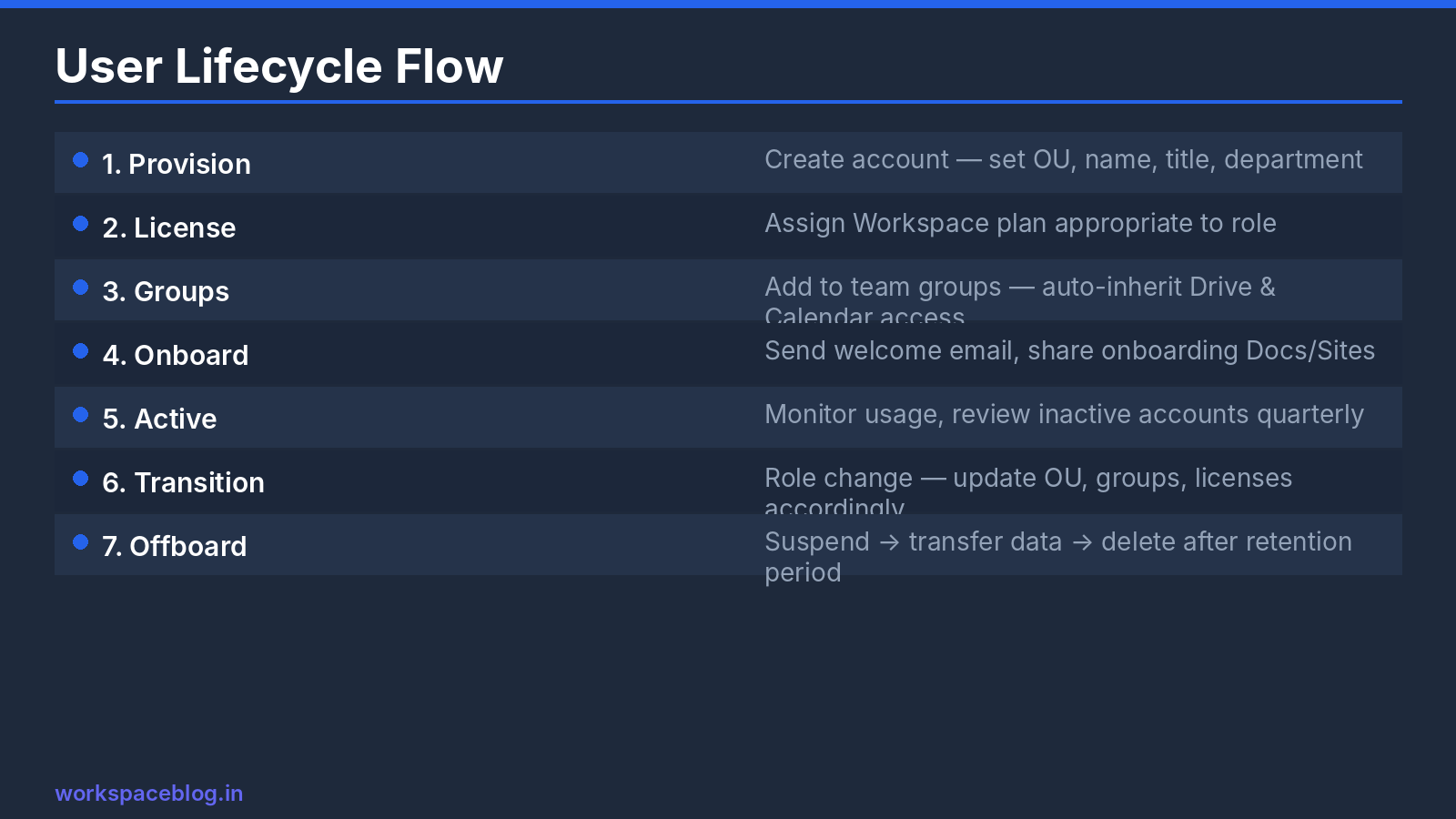
| Stage | Goal | Main tools |
|---|---|---|
| Provision | Account exists before day one | Admin console, CSV upload, GCDS, IdP provisioning |
| Onboard | User has the right access and is protected | OUs, groups, shared drives, 2SV, device enrollment |
| Change | Access follows role changes | OU moves, group membership, license changes |
| Offboard | Access removed immediately, data preserved | Password reset, session revocation, suspension |
| Retain or delete | Data kept as long as required, then removed | Data transfer, Vault, Archived User licenses, deletion |
User Provisioning: Account Creation
Manual creation
For small organizations or low hiring volume, the Admin console works well:
- Admin Console → Directory → Users → Add new user
- Fill in first name, last name, and primary email
- Choose the correct organizational unit. This decides which settings and apps apply
- Set a temporary password (and require a change at first sign-in) or auto-generate one
- Choose how to send sign-in instructions
Bulk creation via CSV
For cohort starts or seasonal staff:
- Admin Console → Directory → Users → Bulk update users
- Download the CSV template
- Fill in the required columns:
First Name [Required],Last Name [Required],Email Address [Required],Password [Required],Org Unit Path [Required] - Upload and review the preview before confirming
Use the same template later for bulk changes such as moving people between OUs.
Directory sync (GCDS)
For organizations with Active Directory or another LDAP directory as the source of truth, Google Cloud Directory Sync (GCDS) creates users when they appear in AD, updates them when attributes change, and suspends them when they’re disabled. See our GCDS setup guide.
Provisioning from your identity provider
If you use Okta, Microsoft Entra ID, or OneLogin, turn on provisioning in the IdP’s Google Workspace app. The IdP then creates, updates, and suspends Workspace users through Google’s APIs when you assign or remove the app. This is configured in the IdP, not in the Google Admin console. Our SSO guide covers how it fits with single sign-on.
Choosing a method
| Organization | Best fit |
|---|---|
| Under 50 users, no central directory | Manual creation plus a written checklist |
| Seasonal or cohort hiring | CSV upload |
| On-premises Active Directory | GCDS |
| Okta, Entra ID, or similar IdP | IdP provisioning with SSO |
Onboarding Checklist
Once the account exists, a consistent checklist makes the user productive on day one:
| Step | Action | Who |
|---|---|---|
| Account creation | Create user, set temporary password | Admin |
| OU assignment | Place user in the correct OU | Admin |
| License | Assign the correct Workspace edition and add-ons | Admin |
| Group membership | Add to team, department, and location groups | Admin or automation |
| Shared drive access | Add the team group to relevant shared drives | Drive manager |
| Calendar access | Share team calendars and resources | Manager |
| Sign-in instructions | Send access instructions to a personal or HR-provided address | Admin |
| Device setup | Enroll laptop and phone in endpoint management | IT / user |
| 2SV enrollment | User enrolls before the new-user enrollment period ends | User (enforced) |
| App access | Turn on SSO apps for the user’s OU or group | Admin |
Use groups for access, not individuals. If shared drives, calendars, and SSO apps are granted to groups, onboarding becomes “add the user to three groups”, and offboarding removes access automatically when they’re removed or suspended.
Automate the repetitive parts. Google Apps Script or the Admin SDK can add new users to standard groups based on department or OU when their account is created.
Role Changes: The Forgotten Stage
Most access problems come from people who changed teams, not people who left. When someone moves roles:
- Move them to the new OU so the right policies apply
- Remove old team groups, then add the new ones (removal is the step that gets skipped)
- Hand over shared drive manager roles and calendar ownership they no longer need
- Review admin roles if they were delegated any
A quarterly review of group membership by team leads catches what slips through.
Offboarding: The Critical First Hours
The moment a departure is confirmed, IT should follow a runbook. Google’s own guidance for keeping data secure after an employee leaves covers these steps.
Immediate actions (day of departure)
- Wipe or remove mobile devices: from the Admin console, wipe the device or just the work profile/account on a personal device
- Remove recovery information: clear the user’s recovery email and phone number so they can’t reset the password
- Change the password: this also revokes some OAuth tokens
- Revoke OAuth tokens: in the user’s Security panel, review connected applications and revoke access
- Reset sign-in cookies: signs the user out of active sessions on all devices
- Revoke security keys and app passwords: remove anything that could still authenticate
- Suspend the account: first transfer any secondary calendars the user owns (step 9), because suspending a user now also suspends their secondary calendars. Then go to Directory → Users → select the user → Suspend user
Suspension blocks access to all Google services while keeping the data. Don’t delete on day one.
Data preservation (days 1–5)
- Transfer Drive files: Apps → Google Workspace → Drive and Docs → Transfer ownership, or during deletion. Files in shared drives belong to the organization and stay put.
- Hand over calendars: transfer ownership of the user’s secondary calendars before the account is suspended or deleted, then release booked rooms (also offered at deletion)
- Handle incoming mail: add an auto-reply or route mail to a manager or shared mailbox for a set period
- Replace shared drive managers: if the user was the only manager of a shared drive, add a replacement
- Preserve mail if required: use Vault retention, an Archived User license, or migrate the mailbox into another account before deletion
Access cleanup (days 5–30)
- Remove from groups: stops group mail delivery and removes inherited access
- Check third-party apps: Security → Access and data control → API controls, and the apps listed in the user’s account (our Marketplace apps guide covers reviewing installed apps)
- Reassign licenses: reclaim the license once the account is deleted or archived
- Close accounts in non-SSO apps: anything not covered by your IdP or SAML apps
Account deletion (after retention requirements are met)
Delete only after data has been transferred or preserved and Legal has confirmed no litigation hold applies. When you delete a user, the Admin console offers to transfer their Drive files and primary calendar data to another user. Secondary calendars, including group calendars, are deleted with the user unless you transferred them first. A deleted user can be restored for 20 days; after that, anything not transferred is permanently removed.
Keeping Former Employees’ Data: Your Options
| Option | Data kept | Access for users | Licensing | Good for |
|---|---|---|---|---|
| Suspend | Everything | None | Billed at the same rate as an active account | Short periods, investigations |
| Archived User license | Everything; Vault rules and holds still apply | None | Archived User license (edition-dependent) | Long-term retention at lower cost |
| Transfer, then delete | Drive files and primary calendar data you transfer, plus secondary calendars transferred beforehand | New owner | None after deletion | Most routine departures |
| Vault retention / export | What your Vault rules cover (mail, Chat, Drive, Groups) | Vault admins | Requires an edition with Vault (Business Plus, Enterprise) | Regulated industries |
| Data export | Org-wide export of mail, Drive, and other data | Admins | None | One-off archives |
Whichever you choose, write it into your retention policy so the decision isn’t made case by case.
Handling Sensitive Departures
For involuntary terminations, the protocol changes:
- Complete the immediate actions at the same moment HR informs the employee: agree the exact time in advance
- Document every action with a timestamp for HR and Legal
- Place a Vault hold before deleting anything if a dispute is possible
- Don’t set up automatic forwarding of the former employee’s mail to another person without HR and Legal sign-off; privacy rules vary by country
Automating the Lifecycle
Directory or IdP sync: with GCDS or IdP provisioning, disabling the user in AD or Okta suspends the Workspace account automatically. This is the most reliable automation for organizations with a central directory.
Google Apps Script: an HR Google Form can trigger a script that suspends the user, resets the password and sign-in cookies, and opens an IT ticket for the remaining steps.
Workflow tools: Okta Workflows and third-party SaaS management platforms offer prebuilt Google Workspace offboarding flows with approvals and audit logs.
Audit your process: each quarter, compare the HR leavers list with active Workspace accounts. Any active account belonging to a former employee is a gap in the process worth fixing.
Conclusion
Consistent, documented user lifecycle management is a security requirement, not just an operational nicety. In Google Workspace, the Admin console gives IT admins the tools to handle onboarding and offboarding systematically, but it takes a written process and consistent execution to make it work.
Grant access through groups, automate provisioning from your directory, suspend before you delete, and decide your data-retention approach in advance. Test the runbook on voluntary departures, so when an urgent, sensitive termination happens, the process is second nature.
Official Google documentation:
- Maintain data security after an employee leaves
- Options to preserve former employee data
- Delete or remove a user from your organization
- Suspend a user temporarily
- Secondary calendars will now follow the lifecycle of their owner
Related reading:
- Google Workspace Organizational Units: Admin Guide: OU assignment is the first step in every onboarding.
- Google Workspace Shared Drives: Setup and Permissions: shared drives prevent the file-ownership problems that make offboarding difficult.
- Google Workspace Admin Security: 10-Point Hardening Guide: session management and access revocation are covered in depth.
This guide contains referral or affiliate links. If you sign up through one, Workspace Blog may earn a commission at no extra cost to you. Learn more.
Frequently Asked Questions
- Should I suspend or delete a user who leaves the company?
- Suspend first. Suspension blocks access to Google services but keeps all of the user's data, and it can be reversed. Delete only after you've transferred or preserved the data you need and confirmed no legal hold applies. A deleted user can be restored for only 20 days.
- Can I restore a deleted Google Workspace user?
- Yes, but only within 20 days of deletion. After that, the account and any data that wasn't transferred are gone. If you need to transfer data from a deleted user, restore the account within that window first.
- Does a suspended Google Workspace user still need a license?
- Yes. Google says suspended accounts are charged at the same rate as active accounts on both Annual and Flexible plans. For long-term retention of a former employee's data, Archived User licenses are designed for this purpose where your edition supports them; Vault retention and holds still apply to archived users.
- How do I transfer a departing employee's Google Drive files?
- You can transfer Drive files to another user when you delete the account, or beforehand from the Admin console under Apps > Google Workspace > Drive and Docs > Transfer ownership. Transferring files doesn't change who else can access them. Files in shared drives belong to the organization and don't need transferring.
- What should IT do first when an employee is terminated?
- Change the user's password, reset their sign-in cookies, revoke OAuth tokens, app passwords, and security keys, wipe or remove managed devices, and remove recovery email and phone. Then suspend the account. For involuntary departures, complete these steps at the moment HR notifies the employee.