Google Workspace Endpoint Management: Chrome, Android, and iOS Policy Guide
-
 Mohit
Mohit - 06 Oct, 2026

Endpoint management in Google Workspace gives IT admins control over the devices that access your organization’s data: Android phones, iPhones, Windows and Mac computers, and Chromebooks. Without endpoint controls, any device can open Gmail and Drive, whether or not it’s encrypted, patched, or lost in a taxi.
This guide covers which management level your edition includes, how to set up Android, iOS, Windows, Chrome browser, and ChromeOS management, endpoint verification and Context-Aware Access, device approvals and remote actions, and a recommended baseline.
Management Levels by Edition
Google endpoint management comes in three feature sets. Licensing is per user, not per device.
| Feature set | Editions | What it adds |
|---|---|---|
| Fundamental | Almost every edition, including Business Starter and Standard | On by default: basic passcode enforcement, remote account wipe, Android app curation, endpoint verification, Google Credential Provider for Windows |
| Advanced | Business Plus, Enterprise Standard and Plus, Frontline, Education Standard and Plus, Enterprise Essentials and Essentials Plus | Stronger passcode rules, remote device wipe, Android work profiles, device approvals, iOS app management, Windows device management |
| Enterprise | Enterprise Standard and Plus, Frontline Standard and Plus, Education Standard and Plus | Company-owned mobile device inventory, company-owned iOS management, private iOS apps |
Context-Aware Access (covered below) is available only in Enterprise Standard and Plus, Frontline Standard and Plus, Education Standard and Plus, Enterprise Essentials Plus, and Cloud Identity Premium, not Business editions.
Choosing basic or advanced
| Need | Basic is enough | Choose advanced |
|---|---|---|
| Require a screen lock on phones accessing mail | ✔ | ✔ |
| Remove the work account from a lost phone | ✔ | ✔ |
| Separate work and personal data on Android | ✔ | |
| Approve each new device before it gets data | ✔ | |
| Wipe an entire company-owned device | ✔ | |
| Manage Windows 10/11 settings | ✔ |
Turning On Management
Admin Console → Devices → Mobile & endpoints → Settings → Universal settings → General → Mobile management
Choose Basic, Advanced, or Custom (different levels for different platforms) for each organizational unit. Advanced management requires users to install management software or profiles, so announce it before switching it on.
Android Management
Work profile for personal devices
On personal (BYOD) Android phones, a work profile keeps work apps and data separate and encrypted. IT manages only the work profile; personal apps, photos, and messages stay private.
Admin Console → Devices → Mobile & endpoints → Settings → Android → Work profile → Work Profile Setup:
- User opt-in: users choose whether to create a work profile
- Enforce: users must create a work profile to sync work data
- Disable: no work profiles
For most organizations, Enforce on BYOD Android devices is the right default.
The management app
Current Android devices are managed with the Android Device Policy app; some older devices use the legacy Google Apps Device Policy app. Users are prompted to install it when they add their work account.
Key Android settings
The Android settings page groups policies into sections:
| Section | Examples |
|---|---|
| General settings | Auto wipe after inactivity, compatibility (CTS) compliance, handling older Android versions |
| Work profile | Work profile setup, work profile password |
| Apps and data sharing | Available apps, screen capture, sharing between profiles, cross-profile copy, developer options |
| Networks | VPN, tethering, Wi-Fi, Bluetooth |
| Device features | External media, microphone, factory reset |
| Lock screen features | Camera, fingerprint and face unlock, notifications |
| System updates | OS update policy |
Password requirements are set separately under the mobile password settings.
Managing Android apps
Use Web and mobile apps to publish approved apps from managed Google Play, push required apps to the work profile, and block unapproved ones. Private apps and web apps can also be distributed to work profiles.
iOS Management
Basic management
With basic management, iPhones and iPads that sync work accounts can be required to use a passcode, and admins can remove the work account remotely.
Advanced management
- Turn on advanced management for the OU
- Set up an Apple push certificate in the Admin console (this links Google endpoint management to Apple’s push service; renew it yearly)
- Users install the Google Device Policy app and its configuration profile when they add their account
Advanced management adds iOS app management for public apps, managed Wi-Fi and VPN configuration, and device-level controls. For company-owned iPhones, the Enterprise feature set adds company-owned device management and private iOS apps, and Apple Business Manager integration enables automated enrollment.
Renew the Apple push certificate on time. If it expires, managed iOS devices stop receiving policy updates and you may need to re-enroll them.
Windows and Mac Computers
Windows
- Google Credential Provider for Windows (GCPW) (Fundamental) lets users sign in to Windows 10/11 with their Workspace account
- Windows device management (Advanced) pushes Windows settings such as BitLocker and Windows updates from the Admin console, and supports remote wipe
Chrome browser on any computer
Chrome Enterprise Core (formerly Chrome Browser Cloud Management) applies policies to Chrome on Windows, Mac, and Linux. Enroll browsers with an enrollment token, or apply user policies when people sign in to Chrome with their Workspace account:
Admin Console → Devices → Chrome → Settings → Users & browsers
Use it to force-install or block extensions, require Safe Browsing, manage updates, block risky sites, and control password manager and download behavior, even on devices you don’t otherwise manage.
Endpoint verification
The Endpoint Verification Chrome extension reports device details such as OS version, encryption, screen lock, and whether the device is company-owned. It’s usually on by default, and you control it under Devices → Mobile & endpoints → Settings → Universal → Data access. Endpoint verification is what lets Context-Aware Access check the security of desktop devices.
ChromeOS Devices
Chromebooks are the most tightly managed endpoints in the Google ecosystem, but managing ChromeOS devices requires a Chrome Enterprise Upgrade (or Chrome Education Upgrade) license for each device in addition to Workspace.
Enrolling Chromebooks
- Manual: on the sign-in screen, before anyone signs in, press
Ctrl + Alt + Eand sign in with an account allowed to enroll devices - Zero-touch enrollment: devices bought from participating resellers enroll automatically when first connected to the internet
Recommended ChromeOS device settings
Admin Console → Devices → Chrome → Settings → Device
| Policy | Recommended setting |
|---|---|
| Forced re-enrollment | On: devices re-enroll after a wipe |
| Guest mode | Disabled |
| Sign-in restriction | Users in your domain only |
| Auto-update | On, with a sensible rollout schedule |
| Verified access | Enabled (needed for some access checks) |
| Developer mode | Blocked |
| Managed guest sessions / kiosk | Only for shared devices |
Context-Aware Access
On supported editions, Context-Aware Access controls access to Workspace apps based on who the user is, where they are, and the security status of their device.
Access levels can use:
- IP address ranges (for example, office networks)
- Device policy and OS: encryption, screen lock, company-owned, OS version
- Geographic origin: the country of the request
- Custom attributes through advanced expressions
Device checks need software on the device: Chrome with the Endpoint Verification extension on desktops, and basic or advanced management on mobile. IP and location checks need nothing installed.
Example policy: allow Drive and Gmail on desktops only if the device is encrypted and has a screen lock; allow the Admin console only from company-owned devices.
Context-Aware Access is the Google Workspace counterpart to conditional access in Microsoft Entra ID. Start in monitor mode where available, review which users would be blocked, then enforce.
Device Approvals and Remote Actions
Device approvals (Advanced)
Require admin approval before a new mobile device can sync work data. It adds friction, so it’s best for high-risk OUs (executives, finance) or company-owned devices only.
Remote actions
Admin Console → Devices → Mobile & endpoints → Devices → select the device:
| Action | Effect | Use when |
|---|---|---|
| Wipe account | Removes work data and the account; personal data untouched | Lost personal phone, employee leaves |
| Wipe device (Advanced) | Factory-resets the whole device | Lost or stolen company-owned device |
| Block device | Stops the device syncing work data | Suspicious device, investigation |
| Approve / Unblock | Allows a pending or blocked device | After verification |
Confirm whether a device is personal or company-owned before wiping it completely.
Recommended Endpoint Baseline
| Control | Priority | Where |
|---|---|---|
| Require a screen lock / passcode | Critical | All mobile devices |
| Remote account wipe tested | Critical | All mobile devices |
| Android work profile enforced for BYOD | High | Advanced |
| Endpoint Verification on desktops | High | All editions |
| Chrome browser policies (Safe Browsing, extensions) | High | All computers |
| Device approvals for executives and finance | Medium | Advanced |
| Windows BitLocker and updates enforced | Medium | Advanced |
| Context-Aware Access for sensitive apps | Medium | Enterprise and other supported editions |
| Forced re-enrollment and guest mode off | High | ChromeOS |
Review the device inventory monthly: remove devices that haven’t synced in months, and follow up on devices reported as compromised or out of policy.
Rollout Plan
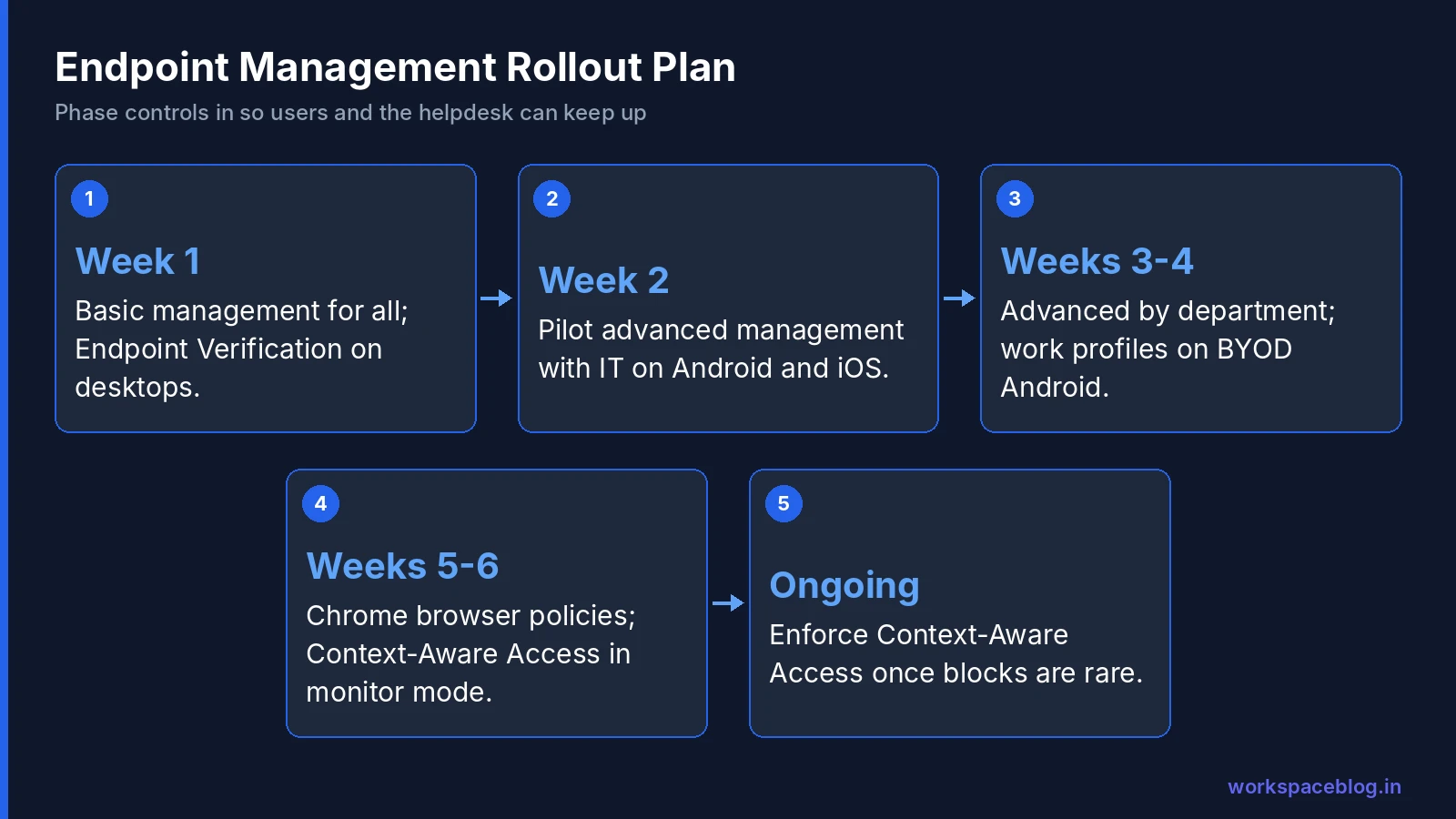
- Week 1: turn on basic management for everyone and Endpoint Verification for desktops; communicate the change
- Week 2: pilot advanced management with IT staff on Android and iOS, including the Apple push certificate
- Weeks 3–4: roll out advanced management by department; enforce work profiles on BYOD Android
- Weeks 5–6: add Chrome browser policies and, on supported editions, Context-Aware Access in monitor mode
- Ongoing: move Context-Aware Access to enforcement once reports show few unintended blocks
Conclusion
Endpoint management is the boundary between a controlled Google Workspace environment and one where company data sits on any device. Start with basic management and Endpoint Verification for everyone, move to advanced management for work profiles and full device control, manage Chrome browsers everywhere, and use Context-Aware Access on supported editions to make app access depend on device security.
Chromebooks with Chrome Enterprise Upgrade offer the tightest control with the least effort: a strong option for teams that can standardize on ChromeOS.
Official Google documentation:
- Compare Google endpoint management feature sets
- Apply settings for Android mobile devices
- Protect your business with Context-Aware Access
- Chrome Enterprise Core guide
- Turn endpoint verification on or off
Related reading:
- Googlebook and Google Meet Hardware on Android: what Google’s ChromeOS-to-Android shift means for laptops and meeting rooms.
- Google Workspace Admin Security: 10-Point Hardening Guide: endpoint controls are a key hardening category.
- Google Workspace SSO: SAML Setup Guide: combine SSO with device checks for stronger sign-in security.
- Google Workspace Business Plans Comparison: advanced endpoint management features vary by plan.
This guide contains referral or affiliate links. If you sign up through one, Workspace Blog may earn a commission at no extra cost to you. Learn more.
Frequently Asked Questions
- Which Google Workspace editions include advanced mobile management?
- Advanced endpoint management is available in Business Plus, Enterprise Standard and Plus, Frontline Starter, Standard and Plus, Education Standard and Plus, and Enterprise Essentials and Essentials Plus. Fundamental (basic) management is available in almost every edition, including Business Starter and Business Standard.
- Can I wipe only company data from an employee's personal Android phone?
- Yes. With advanced management and an Android work profile, work apps and data live in a separate profile. You can wipe the work profile or remove the account without touching the user's personal apps and data.
- Does Google Workspace include Context-Aware Access on Business plans?
- No. Context-Aware Access is supported in Enterprise Standard and Plus, Frontline Standard and Plus, Education Standard and Plus, Enterprise Essentials Plus, and Cloud Identity Premium. Users without a supported license aren't subject to Context-Aware Access policies.
- What app do Android devices use for Google Workspace management?
- Current Android devices are managed with the Android Device Policy app. Some older devices use the legacy Google Apps Device Policy app.
- What do I need to manage iPhones with Google Workspace advanced management?
- Turn on advanced mobile management and set up an Apple push certificate in the Admin console. Users then install the management profile. For company-owned iPhones, enterprise-level features and Apple Business Manager integration add stronger controls.