Deep Research in Gemini Enterprise: How It Works, Best Prompts, Quotas, and Governance
-
 Mohit
Mohit - 28 Oct, 2026

Some questions can’t be answered in one search. “How are our competitors pricing AI add-ons, and how does that compare with what our customers said in last quarter’s renewals?” needs a plan, dozens of searches across the web and internal documents, reading, comparing, and a written conclusion. That’s what Gemini Deep Research in Gemini Enterprise does: in minutes instead of days.
This guide explains how Deep Research works, how it uses company data, how to write prompts that produce useful reports, quotas and costs by edition, API access, and how admins should govern it.
It’s especially powerful when your company knowledge lives in Google Workspace and other connected systems.
Key Takeaways
- Deep Research plans, searches, and writes cited reports with a short audio summary.
- It searches connected company data and, if enabled, the web, with each user’s permissions.
- Review the research plan before starting; it’s your best lever on quality.
- Quotas: 3 per user per day on Standard, 10 on Plus, pooled per edition.
- Teach users to check citations and treat reports as first drafts.
Table of contents
Open Table of contents
- What Deep Research Is
- How Deep Research Works
- Where Deep Research Gets Its Information
- Writing Prompts That Produce Useful Reports
- How to Read a Deep Research Report Critically
- Quotas and Costs
- Using Deep Research Through the API
- Governance for Admins
- Deep Research vs. Gemini Notebook Enterprise
- Conclusion
What Deep Research Is
Deep Research is a Made by Google agent in Gemini Enterprise “for gathering, analyzing, and understanding internal and external information.” It’s one of two Google-made agents listed in Gemini Enterprise’s agent overview, alongside the core assistant that handles everyday questions.
| Regular assistant | Deep Research | |
|---|---|---|
| Best for | Quick answers, drafts, lookups | Multi-step research questions |
| Process | Answers directly | Plans, then researches step by step |
| Sources | Connected data and optional web | Connected data and optional web, many more searches |
| Output | A chat answer | A cited report plus a 1–2 minute audio summary |
| Time | Seconds | Minutes |
| Quota | 160–200 queries per user per day (Standard/Plus) | 3–10 reports per user per day (Standard/Plus) |
How Deep Research Works
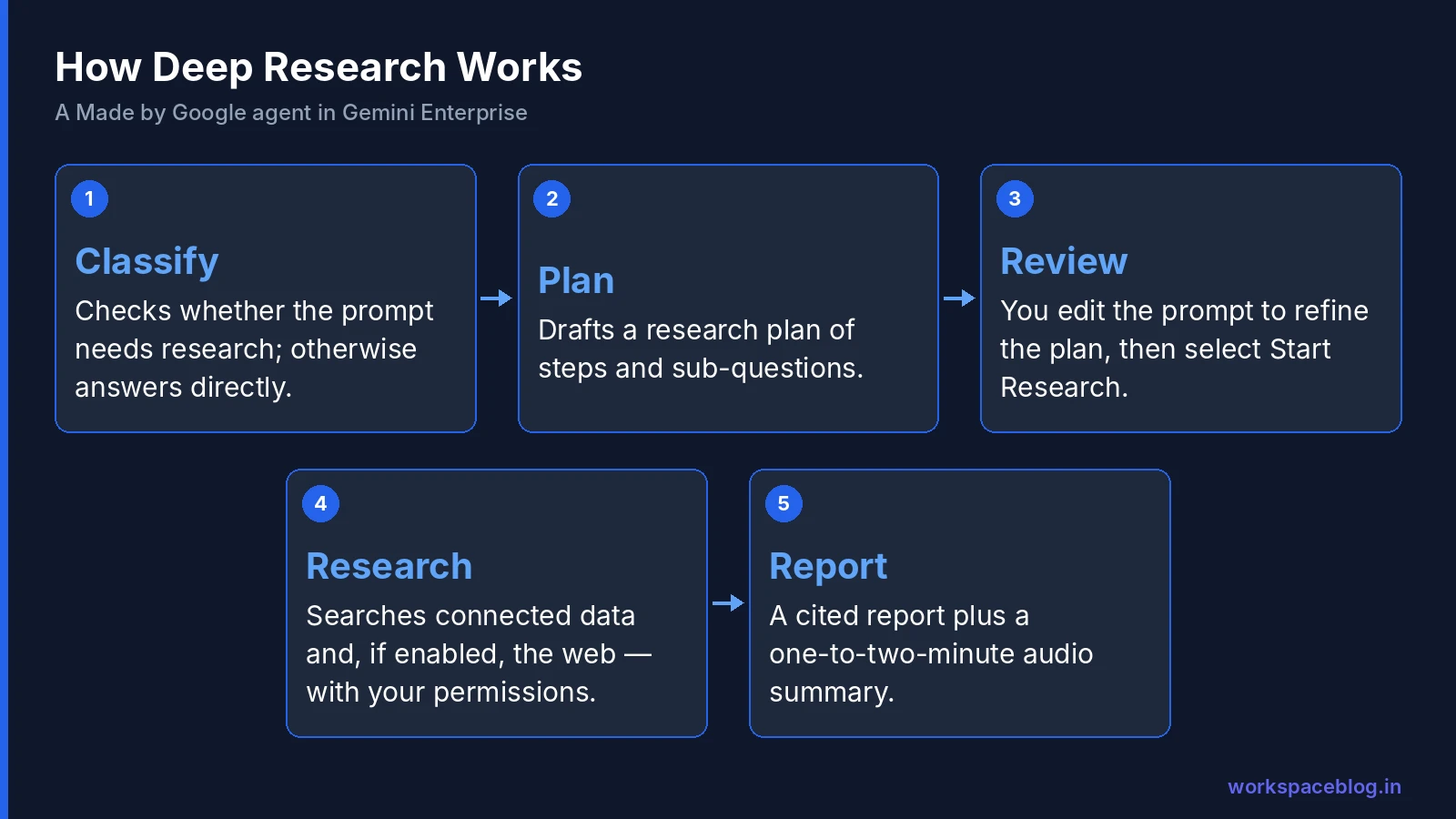
- Classification. Deep Research checks whether your prompt actually needs research. If not, it simply answers.
- Research plan. For research questions, it drafts a plan: the steps and sub-questions it will investigate.
- Your review. You read the plan. If it misses an angle, edit your prompt to regenerate the plan.
- Start Research. Once you select Start Research, it streams the topics and questions it’s investigating, and the answers it finds, as it goes.
- Report. It writes a report of findings with citations (document ID, URI, title, and domain) and creates a short audio summary.
The plan review step is what separates good reports from generic ones. Thirty seconds spent checking the plan saves a wasted report.
Where Deep Research Gets Its Information
| Source | How it’s used |
|---|---|
| Connected data stores | Everything indexed by your Gemini Enterprise app: Google Drive, SharePoint, Confluence, Jira, ServiceNow, and others |
| The web | Google Search results, if web search is enabled for the app (in the console, add Google Search from the Sources menu) |
| A single data store | Through the API, you can limit research to one data store by ID |
Because Gemini Enterprise search is permission-aware, Deep Research only reads and cites documents the person running it can access. Two people asking the same question may get different reports, which is correct, and worth explaining to users. For how connected data and permissions work, see our connectors guide.
Writing Prompts That Produce Useful Reports
Google’s examples include improving a mobile banking app’s user experience, reducing customer wait times during peak hours, analyzing economic conditions in Central European countries, and comparing BigQuery with competitors in a table. The pattern behind good prompts:
The five-part prompt
- Decision: what will the report help you decide?
- Scope: markets, products, time period, regions
- Sources: internal only, web only, or both; any documents to prioritize
- Questions: the three to five sub-questions you care about most
- Format: executive summary, comparison table, risks list, recommendations
Example: weak vs. strong
Weak: “Research AI pricing.”
Strong: “We’re deciding whether to bundle AI features into our Enterprise plan next year. Research how five major SaaS competitors price AI add-ons (per seat, usage-based, bundled), using public pricing pages and announcements from the last 12 months. Then summarize what our customers said about AI pricing in internal renewal notes and support tickets. Finish with a comparison table and three pricing options with risks.”
Prompt ideas by team
| Team | Prompt idea |
|---|---|
| Sales | Account briefing: company news, our history with them from CRM notes, open support issues, likely priorities |
| Product | Competitive feature comparison with sources, plus what customers asked for in tickets |
| IT | Evaluate three vendors for a tool category against our security requirements document |
| HR | Compare our parental leave policy with published policies of similar companies |
| Finance | Summarize analyst commentary on a sector and map it to our internal forecast assumptions |
| Legal | Summarize recent regulatory guidance on a topic and list internal policies that may need updates |
How to Read a Deep Research Report Critically
A polished report is easy to trust too much. Before you forward one, run through these checks:
| Check | What to look for |
|---|---|
| Source mix | Did it use the internal documents you expected, or only the web? If key internal sources are missing, the user may not have access, or the connector may not cover them. |
| Recency | Are cited web pages and documents current? Older pricing or policy pages are a common problem. |
| Citation support | Open two or three citations for the most important claims. Does the source actually say that? |
| Numbers | Recalculate any totals, percentages, or comparisons that matter. |
| Gaps | What did the plan include that the report barely covers? Ask a follow-up. |
| Bias toward the question | A leading prompt (“why is X better”) gets a one-sided report. Ask for counterarguments. |
Common mistakes
- Vague prompts. “Research our competitors” produces a generic summary. Name the competitors, the time period, and the decision.
- Skipping the plan. The plan is your only chance to steer before the agent spends its effort.
- Using Deep Research for simple questions. A quick lookup wastes a daily report. Use the regular assistant.
- Expecting access it doesn’t have. If a data source isn’t connected to your app, Deep Research can’t search it.
- Treating the audio summary as the report. It’s a one-to-two-minute overview, not the evidence.
- Sharing reports without checking sharing settings. A report can combine sensitive details from several sources.
Quotas and Costs
Deep Research has its own daily quota per license, pooled across users of the same edition in a project and location:
| Edition | Deep Research per user per day |
|---|---|
| Standard | 3 |
| Plus | 10 |
| EDU | 1 |
| EDU Pro | 10 |
| Frontline Worker | 1 |
| Frontline Starter | - |
| Emerging Market Standard | 1 |
Pooling means a 100-user Standard deployment gets 300 reports per day across the project, which is plenty for most organizations. When the pool runs out, Deep Research stops for that edition until the daily reset, unless overages are enabled, in which case extra reports are billed at Agent Platform rates. (Customers on Google’s legacy overage pricing pay a fixed $4.00 per Deep Research query.) See our billing guide for spend limits.
Frontline note: Google’s Deep Research page says Made by Google agents aren’t available in the Frontline edition, while the edition comparison and quotas pages list Deep Research for Frontline Worker. Check your tenant before promising it to frontline staff.
Using Deep Research Through the API
For developers building research into their own tools, Deep Research is available through the streamAssist method with agentId set to deep_research. Google notes API access is generally available only with an allowlist.
The flow has two steps:
- Send the question and receive a research plan
- Send “Start Research” with the session ID to begin
The response streams research questions, research answers, grounded text with references, and an audio summary file. Use webGroundingSpec to control web grounding per request, and specify a data store ID to limit the scope.
Governance for Admins
Decide on web access
Web grounding is controlled through the app’s sources (and per request in the API). For most organizations, enabling Google Search makes reports far more useful. Highly regulated teams may prefer separate apps: one with web access, one internal-only.
Fix permissions first
Deep Research reads widely and cites precisely. If confidential documents are over-shared, they’ll show up in reports. Review sharing on Drive and SharePoint before rollout; our DLP guide covers Workspace controls.
Monitor usage and quality
Google added Deep Research agent observability in Preview (June 2026). Combine it with Usage & Spending in the console to see which teams use Deep Research and whether they’re hitting limits.
Set expectations
Teach users three rules:
- Check the plan before starting
- Check the citations for any claim that will drive a decision
- Treat reports as a first draft: they’re research assistance, not final analysis
Watch for sensitive outputs
Reports can combine information from many sources into a new document. A report that pulls together salary data, customer contracts, or incident details may itself be sensitive: remind users to store reports with the right sharing settings.
Deep Research vs. Gemini Notebook Enterprise
| Deep Research | Gemini Notebook Enterprise | |
|---|---|---|
| Starts with | A question | A set of sources you choose |
| Finds sources | Yes, across connected data and the web | No: uses only what you add |
| Best for | Exploring an open question | Working deeply with known documents |
| Output | Cited report and audio summary | Answers, audio and video overviews, mind maps, reports, slides |
A good workflow: use Deep Research to find and summarize the landscape, then put the key documents into a notebook for detailed analysis. See our Gemini Notebook Enterprise guide.
Conclusion
Deep Research turns a day of searching, reading, and summarizing into a few minutes: it plans the research, searches your company’s connected data and the web, respects every user’s permissions, and delivers a cited report with an audio summary. The difference between a mediocre and an excellent report is almost always the prompt and the plan review.
For admins, the job is simple but important: decide on web access, clean up permissions, watch quotas, and teach users to check plans and citations. Do that, and Deep Research becomes one of the most valuable features your Google Workspace and Gemini Enterprise users have.
Official Google documentation:
- Deep Research in Gemini Enterprise
- Agents overview
- Quotas and overages
- Compare editions of Gemini Enterprise
Related reading:
- Gemini Notebook Enterprise Guide: go deep on a fixed set of sources.
- Gemini Enterprise Connectors and Data Stores: the company data Deep Research searches.
- Gemini Enterprise Pay-as-you-go, Quotas, and Overages: Deep Research quotas and overage billing.
This guide contains referral or affiliate links. If you sign up through one, Workspace Blog may earn a commission at no extra cost to you. Learn more.
Frequently Asked Questions
- What is Deep Research in Gemini Enterprise?
- Deep Research is a Made by Google agent in Gemini Enterprise for gathering, analyzing, and understanding internal and external information. It drafts a research plan you can review, then searches your connected company data and, if enabled, the web, and produces a report with citations plus a one-to-two-minute audio summary.
- Does Deep Research search company data or only the web?
- Both. It uses data indexed by your Gemini Enterprise app (the data stores you've connected, such as Drive, SharePoint, Jira, or Confluence) and web results if web search is enabled for the app. Results respect each user's permissions, so a report only cites documents the user can access.
- How many Deep Research reports can users run?
- Quotas are per user per day and pooled across the edition in a project: 3 on Standard, 10 on Plus, 1 on EDU, 10 on EDU Pro, and 1 on Frontline Worker and Emerging Market Standard, according to Google's quotas page. With overages enabled, additional reports are billed at Agent Platform rates.
- Can I use Deep Research through an API?
- Yes. Deep Research is available through the streamAssist method with agentId set to deep_research, but Google says API access is generally available only with an allowlist. The flow has two steps: request a research plan, then send Start Research with the session ID; the response streams research questions, answers, grounded text with references, and an audio summary file.
- How do I write a good Deep Research prompt?
- State the decision the research supports, the scope (markets, time period, products), which sources to prioritize (internal documents, the web, or both), and the format you want, such as a comparison table or executive summary. Then review the research plan before starting and edit the prompt if the plan misses something.