Google Workspace Marketplace: Best Apps for IT and Business Productivity
-
 Mohit
Mohit - 15 Sep, 2026

The Google Workspace Marketplace (workspace.google.com/marketplace) extends Google Workspace with third-party apps that work inside Gmail, Drive, Docs, Sheets, Slides, Calendar, Chat, and Meet. Thousands of apps are available, and choosing well (and controlling what gets access to your data) saves time and avoids security headaches.
This guide covers how IT should govern Marketplace apps first, then well-established integrations by category, and a review checklist for approving new ones.
Governing Marketplace Apps
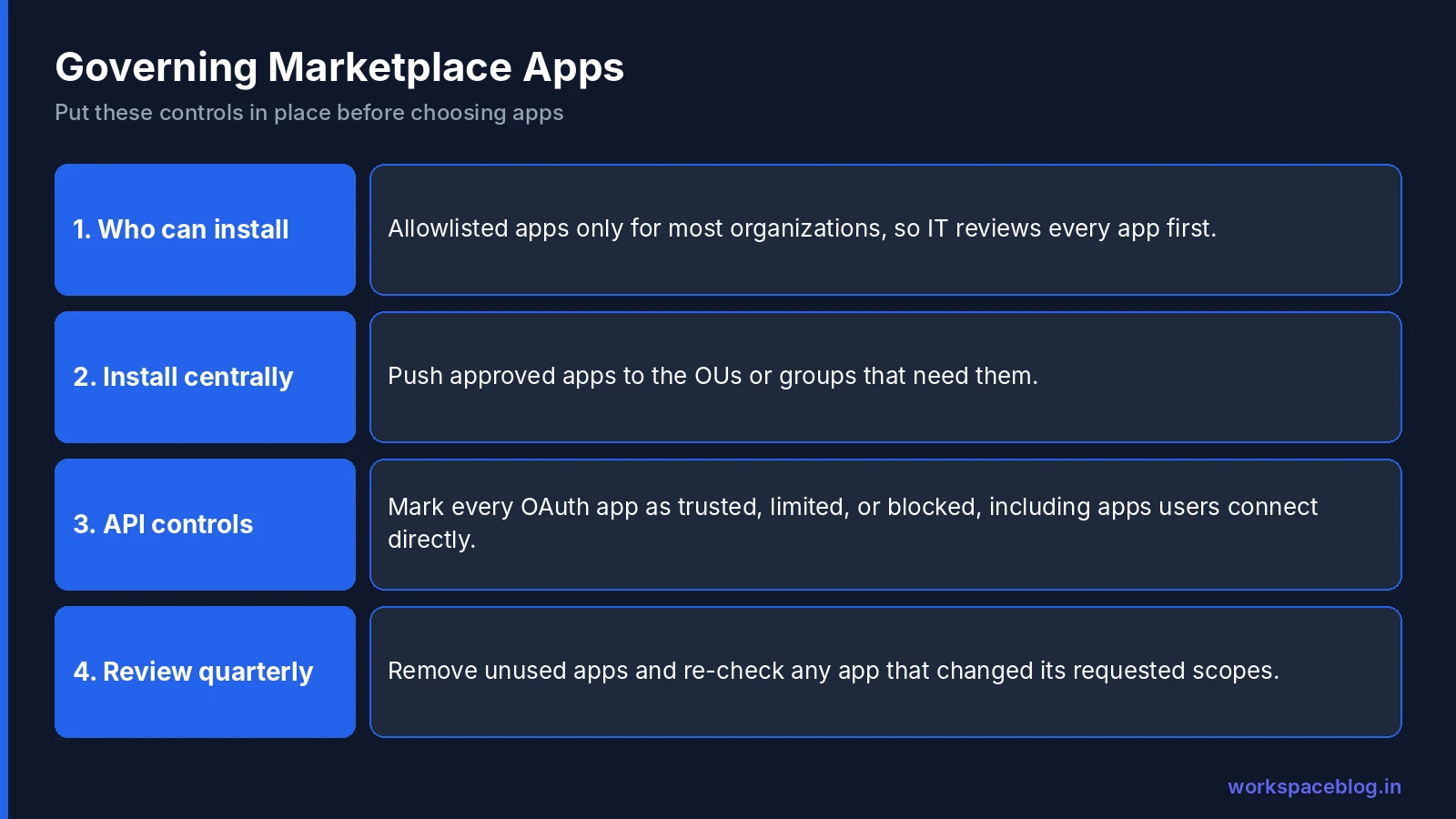
Every Marketplace app that reads email, files, or calendars gets OAuth access to Workspace data. Good governance comes before choosing apps.
1. Decide who can install apps
Admin Console → Apps → Google Workspace Marketplace apps → Apps list → User Install Settings
| Option | When to use |
|---|---|
| Any apps | Small organizations with low data sensitivity |
| Only allowlisted apps | Most organizations. IT approves apps before users can install them |
| No apps | Highly restricted environments; IT installs apps centrally |
Allowlisting forces a review before any third-party app gains access to Workspace data.
2. Install approved apps centrally
Admins can install many apps for the whole organization or for specific OUs and groups. Users get the app without installing it themselves, and you control exactly who has it.
3. Control OAuth access with API controls
Admin Console → Security → Access and data control → API controls → App access control
The Marketplace allowlist only governs Marketplace installs. API controls govern every third-party app that requests access to Workspace data through OAuth, including browser extensions and apps users connect directly. From here you can:
- See which apps users have authorized and how many users each has
- Mark apps as trusted, limited, specific Google data (only the OAuth scopes you choose), or blocked
- Restrict access to high-risk Google services (such as Gmail and Drive) to trusted apps only
4. Review regularly
Each quarter, review the apps with access to your data, remove unused ones, and re-check apps that have changed their requested scopes.
Project Management and Task Tracking
Asana for Gmail: create Asana tasks from emails and see task details alongside messages. Good for teams that run work requests through email.
Trello: attach Drive files to cards and create cards from Gmail. A long-standing, widely used integration.
monday.com for Gmail: turn emails into monday.com items from the Gmail side panel. Useful for client-facing teams tracking requests by email.
Admin note: project tools usually request access to Gmail message metadata or content. Check exactly which scopes they ask for before allowlisting.
CRM Integration
Salesforce: log emails and meetings to Salesforce records and see CRM context alongside Gmail and Calendar. Enterprise setups often use Salesforce’s own Einstein Activity Capture or Gmail integration, configured jointly by the Salesforce and Workspace admins.
HubSpot: log emails, track opens, create contacts and deals, and book meetings from Gmail. A strong fit for small and mid-sized sales teams on HubSpot.
Pipedrive: log email activity and manage deals alongside Gmail, focused on sales pipeline tracking.
Admin note: CRM integrations often need access to all mail for selected users. Scope them to sales OUs or groups rather than the whole organization.
Document Workflow and eSignature
DocuSign eSignature for Google Workspace: send Drive files and Docs for signature and track status without leaving Workspace. Common for contracts, NDAs, and HR paperwork.
Adobe Acrobat for Google Drive: view, comment on, and work with PDFs stored in Drive.
Dropbox Sign (formerly HelloSign): a lighter-weight eSignature option with Drive and Gmail integration.
Jotform: forms with conditional logic, payments, and e-signatures, with responses sent to Google Sheets and files saved to Drive. A step up from Google Forms when a form needs approvals or takes payments.
Admin note: agree templates and signing workflows with Legal, and make sure signed documents are stored in a shared drive covered by your retention rules.
Communication and Collaboration
Zoom for Google Workspace: schedule and join Zoom meetings from Calendar and Gmail, for organizations that use Zoom alongside or instead of Meet.
Slack for Google Workspace: share Drive files and send emails to Slack, for organizations that use Slack for chat.
GMass: mail merge and email campaigns from inside Gmail, with personalisation, scheduling, and automatic follow-ups. Useful on Business Starter, which does not include Gmail’s built-in mail merge. Review its OAuth scopes in API controls before you approve it.
Admin note: if you’ve standardized on Meet and Chat, consider whether these add value or just add another tool to govern.
Diagrams, Data, and Analytics
Lucid (Lucidchart and Lucidspark): flowcharts, org charts, and architecture diagrams that insert into Docs and Slides.
Supermetrics for Google Sheets: pull marketing data (Google Analytics, Google Ads, social and ad platforms) into Sheets for reporting.
Coefficient: sync data from systems such as Salesforce and HubSpot into Sheets for live dashboards.
Admin note: data connectors move business data into Sheets, where it’s easy to share. Make sure the resulting sheets live in shared drives with appropriate access.
Security and Encryption
Virtru: client-side encryption for Gmail and Drive, used by some regulated organizations. If you’re on Enterprise Plus, also compare it with Google Workspace’s built-in client-side encryption.
For identity and IT operations, most integrations (Okta, Microsoft Entra ID, SaaS management platforms) connect through SAML SSO, provisioning, and Google’s APIs rather than as Marketplace add-ons. See our SSO guide.
Build Instead of Buy
Before buying an app for a simple internal workflow, check whether you can build it:
- AppSheet: no-code apps for approvals, inspections, and inventories (AppSheet Core is included with many Workspace editions)
- Apps Script: custom functions, add-ons, and automations across Workspace apps
- Google Forms + Sheets: simple data collection
See our AppSheet guide.
Rolling Out an Approved App
Once an app passes review, a simple rollout avoids surprises:
- Pilot: install it for one team’s group and collect feedback for two weeks
- Limit scope: install it only for the OUs or groups that need it, not the whole organization
- Document: record why it was approved, which scopes it uses, who owns the vendor relationship, and its renewal date
- Communicate: tell users where to find it and what data it can access
- Monitor: check API controls a month later for unexpected access or low adoption
Removing Apps Safely
Unused apps are a quiet risk: they keep their access long after anyone remembers them. When you retire an app:
- Uninstall it for the organization and remove it from the allowlist
- Block it in API controls so users can’t re-authorize it individually
- Export any data you need from the vendor and ask them to delete the rest
- Cancel the subscription and update your app inventory
App Review Checklist
Before approving any app:
| Check | What to verify |
|---|---|
| OAuth scopes | Does it request only the access it needs? Read-only where possible? |
| Users in scope | Can it be limited to the OUs or groups that need it? |
| Vendor security | SOC 2 Type II or ISO 27001 report; security contact |
| Data storage | Where data is stored and processed; data residency requirements |
| Legal | Data processing agreement reviewed |
| Support | Enterprise support options and SLAs |
| Cost | Per-user pricing at your scale |
| Exit plan | How to export data and remove access if you stop using it |
| Pilot | Tested by a small group before wider approval |
Conclusion
The Google Workspace Marketplace adds real capability to your Google Workspace investment, but unmanaged, it’s a data governance risk. Turn on allowlisting, use API controls to manage OAuth access, install approved apps centrally for the groups that need them, and review access every quarter.
Start with the integrations that support your core workflows (CRM, eSignature, project management), add others only when there’s a clear need, and consider AppSheet or Apps Script before buying a tool for a simple internal process.
Official Google documentation:
- Set whether users can install Marketplace apps
- Manage the Marketplace app allowlist for your organization
- Install Marketplace apps for your organization
Related reading:
- Google AppSheet for IT Admins: build custom internal apps without leaving the Workspace ecosystem.
- Google Workspace Admin Security: 10-Point Hardening Guide: includes third-party app OAuth governance as a security control.
- Google Workspace SSO: SAML Setup Guide: many business apps support SAML SSO; configure it for enterprise control.
This guide contains referral or affiliate links. If you sign up through one, Workspace Blog may earn a commission at no extra cost to you. Learn more.
Frequently Asked Questions
- How do I control which Marketplace apps users can install?
- In the Admin console, go to Apps > Google Workspace Marketplace apps > Apps list and open User Install Settings. Choose whether users can install any apps, only allowlisted apps, or no apps. For regulated organizations, allowlisted apps only is the safest setting.
- What's the difference between the Marketplace allowlist and API controls?
- The Marketplace allowlist controls which Marketplace apps users can install. API controls (Security > Access and data control > API controls) control which third-party apps can access Google Workspace data through OAuth at all, including apps that aren't installed from the Marketplace. Use both.
- Can admins install a Marketplace app for everyone?
- Yes. Admins can install many Marketplace apps for the whole organization or for selected organizational units and groups, so users get the app without installing it themselves and without each user granting access individually.
- How should IT review a Marketplace app before approving it?
- Check the OAuth scopes it requests against what it needs, the vendor's security certifications (such as SOC 2 Type II or ISO 27001), where it stores data, its data processing agreement, support options, and cost per user. Pilot it with a small group before approving it more widely.
- Are Marketplace apps safe?
- Apps go through Google's review process, but approval doesn't mean an app is right for your data. Some apps request broad access, such as reading all email. Review scopes, restrict high-risk access through API controls, and remove apps nobody uses.