Gemini Enterprise Pay-as-you-go, Quotas, Overages, and Spend Caps: The Complete Billing Guide
-
 Mohit
Mohit - 18 Oct, 2026
- Updated 27 Oct, 2026

AI licensing used to be simple: buy a seat, get the feature. Gemini Enterprise in 2026 is more nuanced. Every license-based edition comes with pooled daily quotas, there’s a Pay-as-you-go edition with no quotas at all, usage above quota can be billed as overages, and agents that run for hours can now be stopped by spend caps.
Getting this right decides whether your rollout feels generous or frustrating, and whether finance gets a surprise invoice. This guide explains each piece, the numbers from Google’s current documentation, and how to set it up safely.
If you’re comparing this with the Gemini features included in Google Workspace plans, see our Gemini Enterprise add-on pricing guide first.
Table of contents
Open Table of contents
- The Two Ways to Pay for Gemini Enterprise
- How Quotas Work
- Overages: What Happens Above Quota
- Spend Limits: Your Safety Net
- Alerts: Don’t Rely on the App
- Viewing Usage and Costs
- Choosing the Right Model for Your Organization
- Worked Example: Where the Money Actually Goes
- Common Billing Mistakes
- Conclusion
The Two Ways to Pay for Gemini Enterprise
| License-based editions | Pay-as-you-go edition | |
|---|---|---|
| Editions | Business, Standard, Plus, Frontline, EDU, Emerging Market | Pay-as-you-go |
| You pay for | Licenses per user | Actual usage |
| Quotas | Pooled daily quotas per feature | None |
| Above quota | Feature stops, unless overages are enabled | Not applicable |
| Minimum | Depends on edition (Frontline needs 150+ Standard or Plus users) | 1 seat |
| Billing account | Any; overages need an invoiced account | Invoiced Cloud Billing account with an active monthly invoice |
Google made the Pay-as-you-go edition generally available on August 1, 2026, and opened it (along with AI developer tools) to all invoiced billing accounts on September 10, 2026.
The Business edition (1–500 users) is documented separately in the Gemini Enterprise Help Center; the details below cover Standard, Plus, Frontline, EDU, Emerging Market, and Pay-as-you-go.
How Quotas Work
Three rules explain almost everything:
- Quotas are per license, then pooled. If you have 100 Standard licenses, the project gets 100 × the per-user quota, shared by everyone on Standard in that project and location.
- Storage pools across editions. Storage and data indexing is pooled across all editions in a project; every other feature pools only within its edition.
- Daily features reset daily. Assistant, Deep Research, image, and video quotas reset every day (Google’s usage page says at midnight Pacific Time). AI developer tools use a rolling seven-day cycle instead.
Per-user quotas by edition
From Google’s current Quotas and overages page:
| Feature | Standard | Plus | EDU | EDU Pro |
|---|---|---|---|---|
| Storage + data indexing (per month) | 30 GiB | 75 GiB | 5 GiB | 50 GiB |
| Assistant queries (per day) | 160 | 200 | 40 | 200 |
| Create no-code agents (per day) | 1 | 10 | 1 | 10 |
| Video generation (per day) | 2 | 3 | 1 | 3 |
| Image generation (per day) | 5 | 10 | 2 | 10 |
| Deep Research (per day) | 3 | 10 | 1 | 10 |
| AI developer tools credit | $10/user/month | $15/user/month | ✗ | ✗ |
| Feature | Frontline Starter | Frontline Worker | Emerging Market Standard |
|---|---|---|---|
| Storage + data indexing | 2 GiB | 2 GiB | 10 GiB |
| Assistant queries (per day) | 20 | 40 | 40 |
| Create no-code agents | ✗ | ✗ | 1 per day |
| Video generation | ✗ | 1 per day | ✗ |
| Image generation | ✗ | 2 per day | ✗ |
| Deep Research | ✗ | 1 per day | 1 per day |
Using no-code agents is metered on the underlying agent actions rather than a fixed count. Gemini Notebook Enterprise has its own usage limits.
Check which page applies to you. Google keeps a separate legacy quotas page for customers who received the email “[Billing Update] New Gemini Enterprise overage billing controls launching August 17, 2026.” Legacy pricing uses fixed overage rates (for example, $0.10 per assistant query and $4.00 per Deep Research query).
Single-user quota limits
Since October 22, 2026, admins on Standard, Plus, and Standard Emerging Market can stop one person from draining the pool. On Usage & Spending > Usage, set a whole-number quota multiplier (1 or higher, default 10) per edition and location. Each user’s limit for a feature is the edition’s per-user quota multiplied by that value, and it covers assistant queries, no-code agent tools, video, images, and Deep Research. Single-user limits don’t restrict overage usage, so a user who hits their own limit while overages are on can keep going at pay-as-you-go rates.
What the pooled quota means in practice
Pooling is generous for typical usage. A 200-person Standard deployment gets 600 Deep Research reports per day across the project, even if only 20 people use the feature. It also means one heavy team can use up the pool for everyone on that edition: a good reason to set single-user quota limits, put very heavy users on Plus, or use a separate project.
Overages: What Happens Above Quota
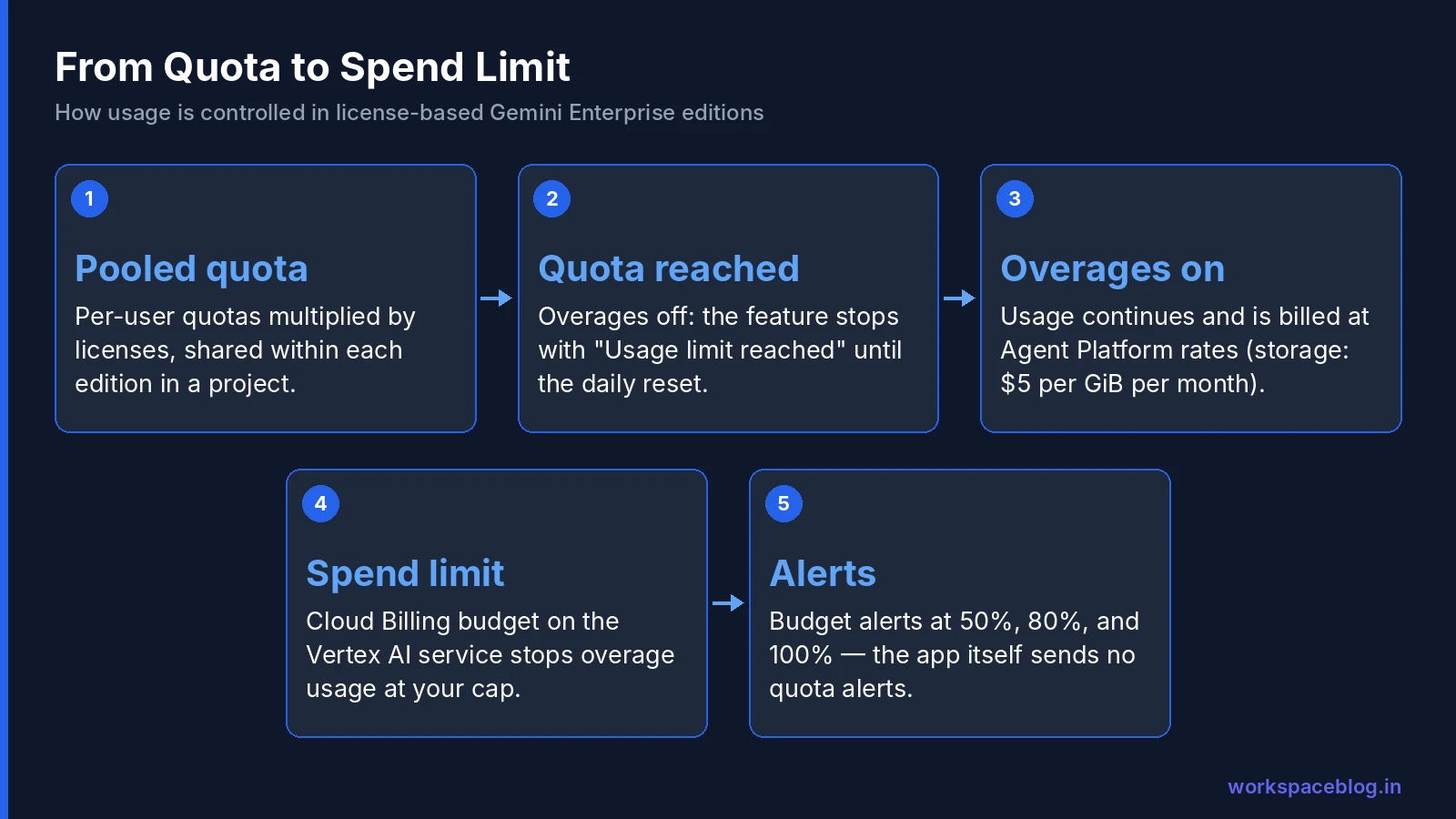
When a project reaches the pooled quota for a feature:
- Overages off (default): the feature stops for users on that edition until the quota resets. Users see “Usage limit reached.” Other features keep working.
- Overages on: users keep going, and the extra usage is billed at pay-as-you-go rates.
Storage is the exception: storage overage is always charged automatically, at $5 per GiB per month, prorated by how long the data is stored.
Overage rates
On Google’s current page, assistant queries, no-code agent use, image generation, video generation, Deep Research, and AI developer tools above quota are billed at Gemini Enterprise Agent Platform rates. Creating no-code agents and Gemini Notebook Enterprise aren’t eligible for overages.
Claude models are the exception to quota-based billing: they’re available only as pay-as-you-go usage, billed per million tokens. Google’s page lists, for example, Claude Sonnet 5.5 at $2.00 input and $10.00 output, and Claude Opus 5.5 at $4.00 input and $20.00 output, in the global location, with the us and eu multi-regions about 10% higher. Claude usage is billed on consumption and counts toward the project’s monthly spend limit, so set a spend limit before you enable these models. Google’s quotas page also says Pay-as-you-go usage above quota must be turned on for each edition where Claude models are enabled.
Requirements
- An invoiced Cloud Billing account with an active monthly invoice
- At least one active, non-trial subscription to a license-based edition
- The Gemini Enterprise Administrator role
Overages are supported on Standard, Plus, Frontline Starter and Worker, EDU and EDU Pro, and the Emerging Market editions. Google enabled them for Frontline, EDU, and Emerging Market editions on October 7, 2026.
Enable overages
- Google Cloud console → Gemini Enterprise → Usage & Spending → Usage
- In the tier selector banner, choose the edition (Choose another tier)
- Under Feature usage, set Pay-as-you-go usage above quota to Enabled
- Click Save changes, then Got it
Overages are configured per edition. If you have Standard and Plus, decide for each one.
Spend Limits: Your Safety Net
Turning on overages without a spend limit means usage above quota continues without restriction. Always set a limit first.
Set a monthly spend limit
- Gemini Enterprise → Usage & Spending → Usage
- In Project monthly spend limit, click Set limit
- Cloud Billing opens. Create a budget with spend cap actions
- Under Services, select Vertex AI (aiplatform.googleapis.com): Cloud Billing bills these charges under the Vertex AI API name
The limit covers overages and pay-as-you-go usage across the Gemini Enterprise app, Gemini Enterprise Agent Platform, and AI developer tools such as Antigravity.
When the limit is reached, Gemini Enterprise stops overage usage automatically. Stopping can take a few minutes, so charges can slightly exceed the limit. Set it a little below your real ceiling.
Agent spend caps
At Gemini at Work 2026, Google added real-time spend caps for agents: set a hard limit on a project’s AI spend in the Cloud Billing console, and when it’s reached the project’s agent pauses until someone resumes it with one click. Spend is tracked per project, which makes departmental chargebacks straightforward. See our Gemini agent guide for the rest of the announcement.
Alerts: Don’t Rely on the App
Google is explicit: the Gemini Enterprise app doesn’t send automated email or push alerts about quotas or overage charges. Use Cloud Billing budget alerts instead:
- Set thresholds such as 50%, 80%, and 100% of the budget
- Default recipients are users with Billing Account Administrator or Billing Account User
- Add custom recipients: project admins, a distribution list, or a Pub/Sub channel that posts to a Chat space
Viewing Usage and Costs
Gemini Enterprise → Usage & Spending shows usage per edition:
- For Standard, Plus, and Emerging Market, usage appears as an amount and a percentage of each pooled quota
- For Pay-as-you-go, it shows only actual usage
You need the Gemini Enterprise Administrator role (or equivalent). Two permissions trip people up: without monitoring.timeSeries.list, usage shows as 0, and without serviceconsumermanagement.quota.get, quota limits show as Unknown.
For cost reports, use Cloud Billing reports filtered to the project and the Vertex AI service.
Choosing the Right Model for Your Organization
| Situation | Recommendation |
|---|---|
| Steady, company-wide daily use | License-based editions (Standard for most, Plus for power users) |
| Small pilot or unpredictable usage | Pay-as-you-go, with a spend limit |
| Frontline staff who mostly search and ask questions | Frontline (150+ Standard or Plus users required) |
| A few heavy Deep Research or media users | Plus for those users, or overages with a limit |
| Strict budget with no surprises | License-based, overages off |
| Productivity over predictability | License-based, overages on, with a spend limit and alerts |
A sensible default setup
- Separate Google Cloud projects for production and pilots
- License-based edition for the main population
- Overages off for the first month while you learn real usage patterns
- Budget alerts at 50/80/100% from day one
- Review Usage & Spending weekly; if users hit limits often, either move them to Plus or turn on overages with a spend limit
For seat right-sizing ideas that apply here too, see our license management guide.
Worked Example: Where the Money Actually Goes
Take a company with 200 Standard and 20 Plus licenses in one project.
Storage pool. Storage pools across editions: 200 × 30 GiB + 20 × 75 GiB = 7,500 GiB per month. If connected data sources index 8,500 GiB, the extra 1,000 GiB is charged automatically at $5 per GiB: $5,000 for that month. That’s usually the biggest surprise, and it has nothing to do with overages being on or off. Check index size before connecting large file shares or mailboxes.
Deep Research. The Standard pool allows 200 × 3 = 600 reports per day, and the Plus pool 20 × 10 = 200 per day. Most organizations never reach these numbers; if yours does, the usage dashboard will show which edition is running out.
Assistant queries. 200 × 160 = 32,000 Standard queries per day is far more than a typical team uses. Hitting it usually signals automation (a script or agent calling the assistant in a loop) which is worth investigating before you pay overages for it.
The lesson: watch storage first, then whichever feature your heaviest team relies on.
Common Billing Mistakes
- Turning on overages without a spend limit. Usage above quota is then unlimited.
- Scoping the budget to the wrong service. Gemini Enterprise overages bill under Vertex AI (aiplatform.googleapis.com).
- Expecting the app to warn you. It won’t. Set Cloud Billing alerts.
- Forgetting storage. Storage overage is charged automatically at $5 per GiB per month; connecting large data sources can push you past the pooled storage quota.
- One shared project for everyone. A single heavy team can exhaust a shared pool; separate projects give cleaner limits and chargebacks.
- Ignoring AI developer tools. Antigravity and other developer tools draw from a seven-day pooled credit and count toward the same spend limit.
Conclusion
Gemini Enterprise billing comes down to four controls: edition (what’s included), quotas (pooled per edition, per day), overages (what happens above quota), and spend limits (the ceiling). Pay-as-you-go removes quotas entirely for teams that prefer to pay for exactly what they use.
Start conservative (overages off, budget alerts on) then loosen the controls once you know real usage. And if your users work in Google Workspace, keep Gemini Enterprise projects aligned with your organizational units so costs map cleanly to teams.
Official Google documentation:
- Quotas and overages
- Configure overages
- Manage costs overview
- View feature usage
- Compare editions of Gemini Enterprise
Related reading:
- Gemini Enterprise Workspace Add-On: Pricing and Features: licensing Gemini Enterprise for Workspace users.
- Gemini Enterprise Agent Platform: Introduction and Integration: editions and capabilities explained.
- Google Workspace License Management and Cost Optimization: right-sizing seats and plans.
This guide contains referral or affiliate links. If you sign up through one, Workspace Blog may earn a commission at no extra cost to you. Learn more.
Frequently Asked Questions
- What is the Gemini Enterprise Pay-as-you-go edition?
- Pay-as-you-go is a Gemini Enterprise edition with a one-seat minimum and no pooled feature quotas. Instead of paying for licenses with included quotas, you pay for what you use: storage and data indexing at $5 per GiB per month, and assistant queries, agent use, image and video generation, Deep Research, and AI developer tools at Gemini Enterprise Agent Platform rates. It requires a project linked to an invoiced Cloud Billing account.
- What are Gemini Enterprise overages?
- Each license-based edition (Standard, Plus, Frontline, EDU, and Emerging Market editions) includes pooled daily quotas. When a project reaches the quota for a feature, that feature stops unless overages are enabled. With overages on, users keep working and the extra usage is billed at pay-as-you-go rates. Storage overage is always charged automatically.
- How many assistant queries and Deep Research reports does each edition include?
- On Google's current quotas page, Standard includes 160 assistant queries and 3 Deep Research queries per user per day, and Plus includes 200 assistant queries and 10 Deep Research queries per user per day. Quotas are pooled across users of the same edition in a project and location, and they reset daily.
- How do I set a spend limit for Gemini Enterprise?
- In the Google Cloud console, go to Gemini Enterprise > Usage & Spending > Usage, and under Project monthly spend limit click Set limit. This opens Cloud Billing, where you create a budget with spend cap actions scoped to the Vertex AI service (aiplatform.googleapis.com). The limit covers overages and pay-as-you-go usage across the Gemini Enterprise app, Agent Platform, and AI developer tools such as Antigravity.
- Does Gemini Enterprise send alerts when quotas run out?
- No. Google says the Gemini Enterprise app doesn't send automated email or push alerts about quotas or overage charges. Use Cloud Billing budget alerts (for example at 50%, 80%, and 100%) and add your own recipients, such as project admins, a distribution list, or a Pub/Sub channel.