Gmail Mail Merge and Bulk Email From Google Workspace: Limits, Native Mail Merge, and GMass
-
 Mohit
Mohit - 15 Oct, 2026
- Updated 27 Oct, 2026

Sooner or later, someone in every company asks the IT team the same question: “Can I send this email to 800 customers from my Gmail, but with their names in it?” The honest answer is “yes, carefully.” Google Workspace can send personalised bulk email, but Gmail has firm daily limits, the built-in mail merge only exists on some plans, and one careless campaign can push your whole domain’s mail into spam folders.
This guide explains the limits that actually apply, how Gmail’s built-in mail merge works, when an add-on such as GMass is the better choice, and the admin settings and habits that keep bulk sending from damaging your domain.
Key Takeaways
- A paid Workspace user can send 2,000 messages a day; trial accounts get 500.
- Gmail’s built-in mail merge is capped at 1,500 recipients a day and is not available on Business Starter.
- Hitting a limit blocks sending for up to 24 hours, and admins cannot raise it.
- GMass adds personalised subject lines, scheduling, automatic spreading over days, and follow-ups.
- Protect your domain with SPF, DKIM, DMARC, an unsubscribe link, and a subdomain for large marketing lists.
Table of contents
Open Table of contents
The Limits That Actually Apply
Google’s sending limits page for Workspace is the source of truth, and the numbers that matter for bulk email are these:
| Limit | Value |
|---|---|
| Messages per user per day (paid account) | 2,000, rolling 24 hours |
| Messages per user per day (trial account) | 500 |
| Mail merge recipients per day | 1,500, within the 2,000 total |
| Recipients per message (To, Cc, Bcc) | 2,000 |
| External recipients per message | 500 |
| Recipients per message through the Gmail API | 500 |
Three details catch people out:
- Everything counts. Messages from aliases, delegated users, and even the vacation responder count towards the same 2,000.
- Trial limits stay low. Google says trial limits do not increase during the trial, and after upgrading, limits rise once the domain has paid at least $100, which can take up to 75 days. A brand-new Workspace account is the worst possible place to start a campaign.
- The block is per user. When someone hits the limit, Gmail shows “You reached a Gmail sending limit” or a similar message, and that user cannot send for up to 24 hours. Everyone else in the domain is unaffected.
There is no admin setting to raise these limits. If your organization regularly needs more, the answer is a dedicated sending service, not a bigger Gmail quota.
Option 1: Gmail’s Built-In Mail Merge
Google added mail merge directly to Gmail. According to Google’s help page, it is available on Workspace Individual, Business Standard, Business Plus, Enterprise Standard and Plus, and Education Standard and Plus. It is not included in Business Starter. Our plans comparison lists it alongside the other edition differences.
How it works
- Compose a new message and turn on Use mail merge next to the To line.
- Add recipients from Google Contacts (a contact label adds the whole group) or choose Add from a spreadsheet and pick the Email, First name, and Last name columns from a Google Sheet.
- In the body, type @ and choose a tag:
@firstname,@lastname,@fullname,@email, or any other column from your spreadsheet. Google says any column in the sheet can be used as a merge tag. - Send. Each recipient gets an individual copy with their own details.
Gmail also adds a unique unsubscribe link to each merged email. Recipients who use it stop receiving your mail merge messages, and you get a notification each time.
The limitations
Google’s documentation lists several, and they shape when the built-in tool is enough:
- 1,500 recipients a day for mail merge, within the 2,000 total.
- Tags work only in the body, not in the subject line or in linked text.
- No scheduling, replies, forwards, or confidential mode for merged messages.
- No sending from secondary domains or aliases.
- Only one Cc or Bcc per merge, and none at all when recipients come from a spreadsheet. Each copy counts towards the limit.
- Attachments are copied to every recipient, so a 10 MB file sent to 500 people uses about 5 GB of storage. Share a Drive link instead.
- Spreadsheet data must be on the first tab, as plain text.
For a newsletter to a few hundred customers with first-name personalisation, the built-in mail merge is perfectly good and costs nothing extra.
Option 2: GMass Inside Gmail
GMass is a Chrome extension that adds a campaign engine to the Gmail compose window. It sends through your own Gmail account, so messages come from your normal address and replies arrive in your inbox.
It fills the gaps in the built-in tool:
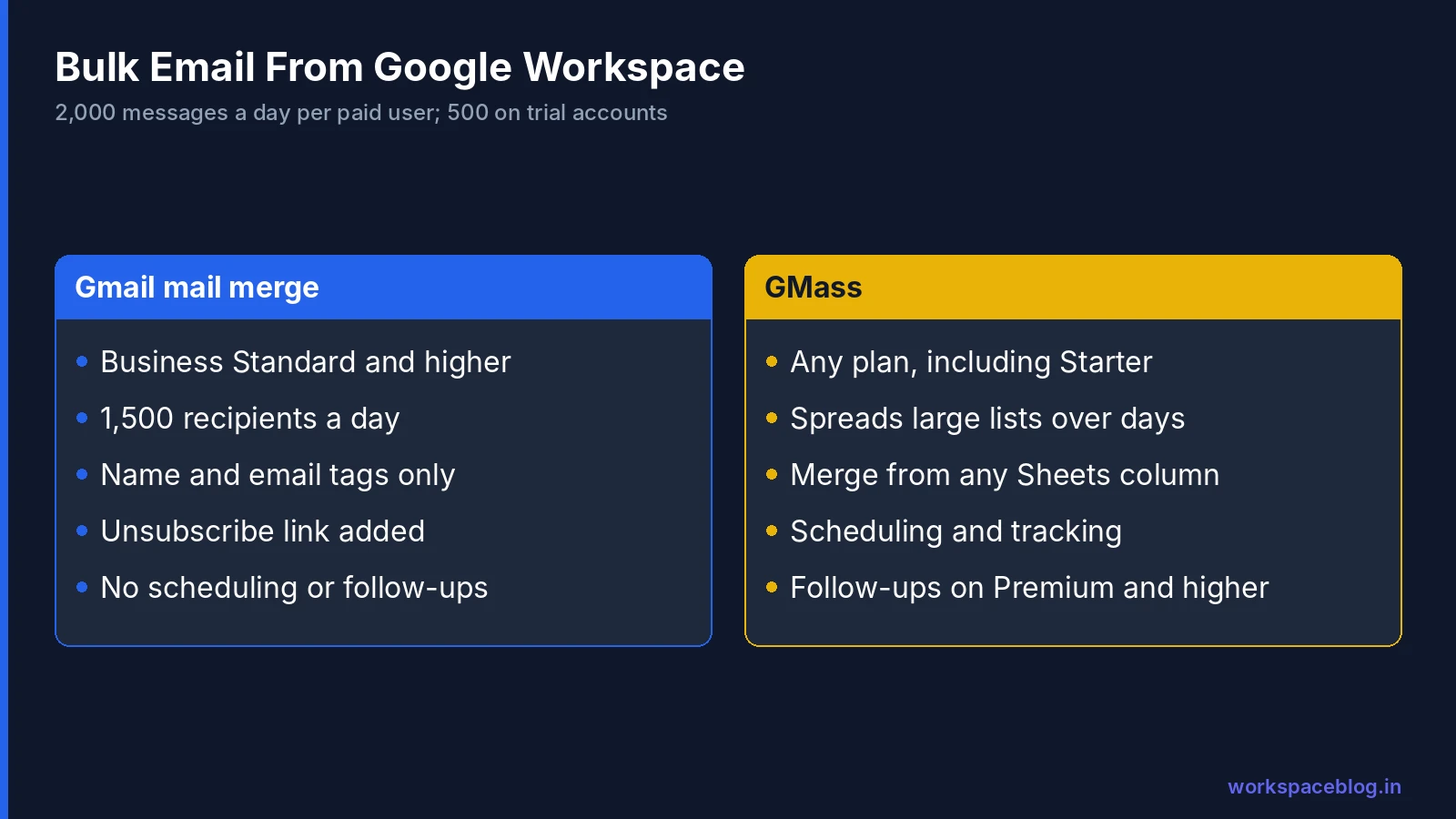
| Need | Gmail mail merge | GMass |
|---|---|---|
| Works on Business Starter | No | Yes |
| Merge fields | Any spreadsheet column, in the body only | Any column in your Google Sheet |
| Personalised subject lines | No | Yes |
| Scheduling | No | Yes |
| Large lists over the daily limit | Stops at the cap | Spreads sending over several days |
| Speed throttling between emails | No | Yes |
| Open and click tracking | No | Yes |
| Automatic follow-ups | No | Yes, on Premium and higher |
| One-click unsubscribe header | Unsubscribe link in body | List-Unsubscribe header, when enabled |
How GMass handles Gmail’s limits
GMass’s documentation explains that for large campaigns it splits the send into batches that stay under your daily limit, estimates your remaining quota from recent sending, and releases each batch after the quota resets. You can also set your own maximum per day and add pauses between emails, from a few seconds to several minutes. If bounces start, it pauses the campaign. This is exactly the behaviour you want: the user never hits the 24-hour block, and the campaign finishes on its own.
Plans and cost
GMass’s January 2026 price update lists Standard at $29.95 a month (or $249 a year billed annually), Premium at $39.95 a month (or $349 a year) with follow-ups, A/B testing, and the API, and Professional at $59.95 a month (or $599 a year) with inbox rotation and priority support. Team pricing is also available. A seven-day free trial lets you send up to 50 emails a day, so you can test it before paying. Check the pricing page for current rates.
The Admin Side: Approving a Gmail Add-On
GMass needs permission to send and read mail in a user’s account, so treat it like any other app with Gmail access:
- In the Admin console, go to Security > Access and data control > API controls > Manage third-party app access.
- Find GMass after a test user has authorised it, review the scopes it requests, and mark it as Trusted for the organizational unit or group that runs campaigns.
- Leave it blocked for everyone else if your policy restricts high-risk Gmail scopes.
Our Marketplace apps guide walks through the full approval process, including how to review apps every quarter.
Keeping Your Sending Reputation Healthy
Bulk email from your main domain shares a reputation with every invoice, proposal, and support reply your company sends. A campaign that draws spam complaints can push ordinary business mail into spam folders. These habits prevent that:
- Authenticate. SPF, DKIM, and DMARC must be in place before you send any volume. Our email authentication guide covers setup and Google’s sender requirements, including the stricter rules for senders of more than 5,000 messages a day to personal Gmail accounts.
- Send only to people who expect you. Purchased lists are the fastest way to a spam folder and may breach privacy law, including India’s data protection rules.
- Always include an unsubscribe option. Gmail’s mail merge adds one automatically. In GMass, enable the List-Unsubscribe header under Settings > Unsubscribes, which adds one-click unsubscribe support, and keep a visible link in the body too.
- Start small. Send to your most engaged contacts first, then grow the list over a few weeks.
- Use a subdomain for marketing. A separate subdomain such as
news.yourcompany.in, with its own authentication, keeps a marketing problem away from everyday email. - Watch the numbers. Google Postmaster Tools shows your domain’s spam rate. Google asks senders to keep it below 0.3%, and ideally below 0.1%.
Internal Announcements: Do Not Use Mail Merge
For messages to your own staff, mail merge is the wrong tool. A Google Group delivers one message to everyone, keeps a searchable archive, and respects membership changes automatically, so new joiners are included and leavers are not. Our Google Groups guide explains how to set up announcement-only groups with the right posting permissions.
When to Move Beyond Gmail
Gmail-based sending suits small and medium lists of people who know you. Move to a dedicated email service provider when:
- You regularly send to more than a few thousand people.
- You need detailed segmentation, automation journeys, or e-commerce integration.
- Several departments send marketing email and you need central control.
- You need contractual delivery guarantees or dedicated IP addresses.
Even then, keep the marketing platform on its own subdomain and add it to your SPF and DKIM records so it passes DMARC.
Troubleshooting
“You reached a Gmail sending limit.” The user has sent too much in the last 24 hours. Wait for the block to clear, then use smaller batches or a tool that spreads sends across days.
Merge tags show as plain text. The message is in plain-text mode, or the tag is in the subject or a hyperlink, where built-in tags do not work.
Recipients say the email went to spam. Check that SPF, DKIM, and DMARC pass in the message headers (Show original in Gmail), that the list is permission-based, and that the content is not image-heavy or full of links.
The spreadsheet will not import. Put the data on the first tab, remove formulas, and use plain column headers without special characters.
Bounces pile up. Clean the list before sending. GMass includes email verification, and removing invalid addresses protects your reputation.
Conclusion
Google Workspace handles personalised bulk email well within its limits: 2,000 messages a day per user, 1,500 through the built-in mail merge. For small newsletters on Business Standard or higher, Gmail’s own mail merge is enough. For Business Starter, larger lists, personalised subjects, scheduling, and follow-ups, GMass adds what the built-in tool lacks while keeping you inside Gmail’s rules.
Whichever you choose, authenticate your domain, send only to people who expect your email, and keep marketing volume away from the reputation of your everyday Google Workspace mail.
Official documentation:
- Send personalised emails with mail merge (Gmail Help)
- Gmail sending limits in Google Workspace
- GMass pricing
- GMass pricing FAQ
- GMass price changes, January 2026
Related reading:
- Google Workspace Email Authentication: SPF, DKIM, and DMARC: the foundation for any bulk sending.
- Google Workspace Business Plans Compared: which plans include mail merge.
- Google Workspace Marketplace: Best Apps: approving add-ons safely.
This guide contains referral or affiliate links. If you sign up through one, Workspace Blog may earn a commission at no extra cost to you. Learn more.
Frequently Asked Questions
- How many emails can I send per day from Google Workspace?
- Google's sending limits page lists 2,000 messages per day for a paid Google Workspace user, measured over a rolling 24 hours, and 500 per day for trial accounts. Mail merge is capped at 1,500 recipients per day within that total. A single message can have up to 2,000 recipients, of which at most 500 can be external.
- Which Google Workspace plans include Gmail mail merge?
- Google lists Workspace Individual, Business Standard, Business Plus, Enterprise Standard and Plus, and Education Standard and Plus. Business Starter does not include the built-in mail merge, so Starter users need an add-on such as GMass.
- What happens if I hit the Gmail sending limit?
- Gmail shows an error such as You reached a Gmail sending limit, and the user cannot send new messages for up to 24 hours. They can still sign in, receive mail, and use other Google services. Admins cannot raise the limit for a user.
- Is it safe to send marketing emails from my company Google Workspace domain?
- It is safe for small, permission-based sends to people who expect your email, with SPF, DKIM, and DMARC in place and a clear unsubscribe link. For large marketing lists, many companies use a separate subdomain or a dedicated email marketing platform so a spam complaint spike cannot hurt the deliverability of everyday business email.
- Why use GMass instead of Gmail's built-in mail merge?
- GMass works on any Workspace plan including Business Starter, supports personalised subject lines and scheduling, spreads large campaigns over several days to stay within Gmail's limits, adds automatic follow-ups on higher plans, and can add the List-Unsubscribe header for one-click unsubscribe. Gmail's built-in mail merge is simpler and free, and can use any spreadsheet column as a merge tag, but tags work only in the message body and it has no scheduling or follow-ups.