Google Cloud Billing: Billing Accounts, Budgets, Alerts, and Avoiding Surprise Bills
Set up Google Cloud billing the right way: billing accounts and roles, budgets with actual and forecast alerts, Pub/Sub automation, quotas, and cost exports.

Checked against Google's official documentation.

The most common Google Cloud horror story is not a breach. It is a bill. A test VM left running for months, a BigQuery query that scanned a petabyte, an API key leaked to a public repository and used to mine cryptocurrency. In every case, the organization had a Cloud Billing account and no budget alerts to warn anyone.
Google Cloud gives you good tools to prevent this, but almost none of them are switched on by default. This guide covers how billing accounts work, who should manage them, and how to set up budgets, alerts, and exports so a surprise bill becomes a surprise email instead.
If your company already pays for Google Workspace, note that Workspace subscriptions are billed separately in the Admin console. Google Cloud billing lives in the Cloud console.
Key Takeaways
- A billing account pays for projects; a project links to one billing account at a time.
- Alerts-only budgets do not cap spending. Spend cap budgets exist only for a few services; elsewhere, automatic action needs Pub/Sub and code.
- Use both actual and forecast thresholds, and send alerts to a group, not one person.
- Quotas are your real hard limit for risky services such as BigQuery.
- Export billing data to BigQuery on day one; at most the previous month is backfilled, so older history is lost.
Table of contents
Open Table of contents
- How Google Cloud Billing Is Structured
- Billing Roles: Who Can Do What
- Setting Up Budgets
- Actual Versus Forecast Alerts
- Cost Anomaly Detection
- Automating a Response
- Spend Caps and Quotas: The Hard Limits
- Export Billing Data to BigQuery
- Labels for Showback and Chargeback
- A Day-One Billing Checklist
- Investigating a Cost Spike
- Committed Use and Sustained Use Discounts
- A Monthly Cost Review
- Conclusion
How Google Cloud Billing Is Structured
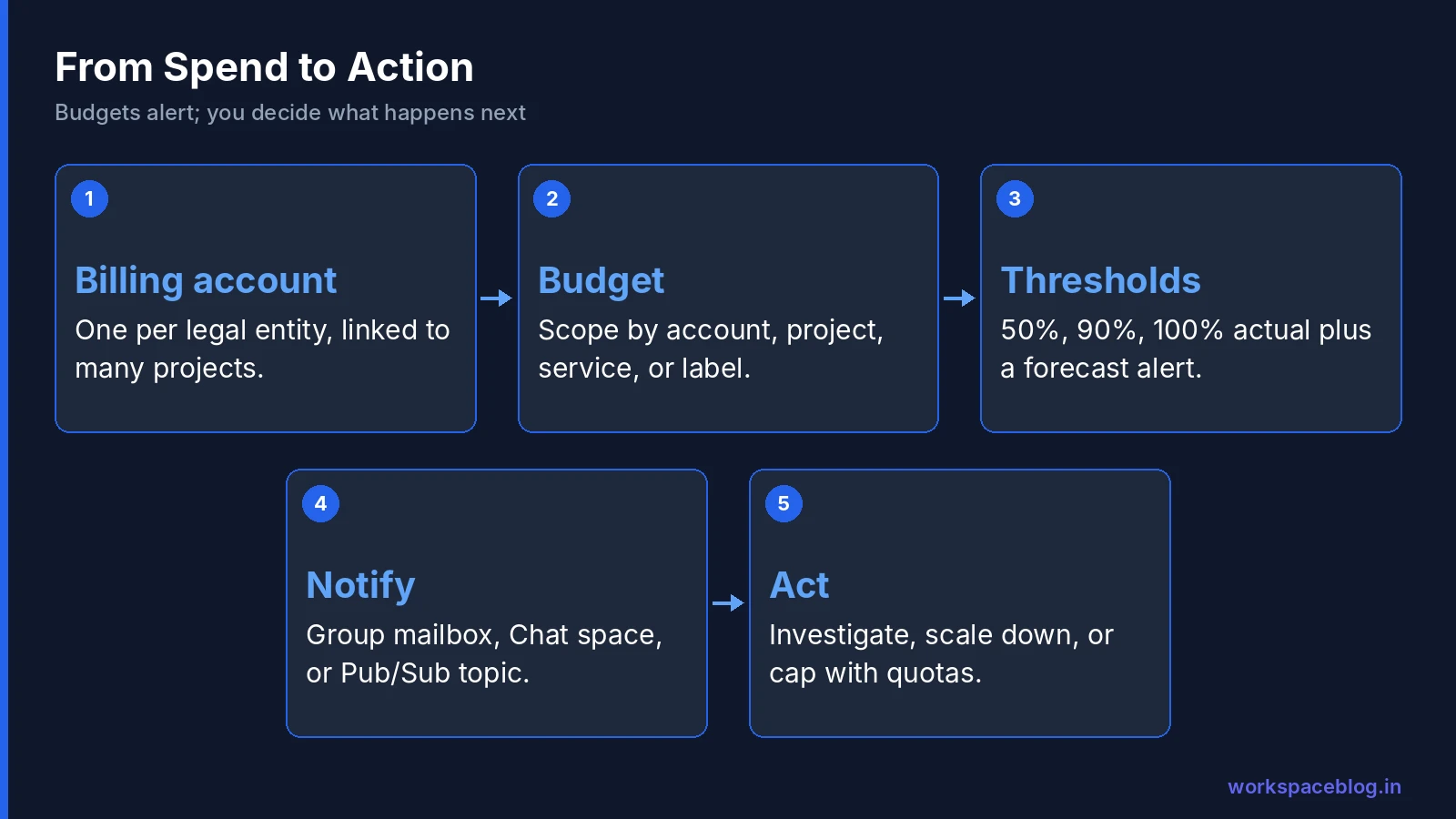
A Cloud Billing account holds the payment profile: the legal name, address, tax details, and payment method. Projects are linked to it, and their usage is charged there.
There are two main types:
- Self-serve (online): you pay by card or bank transfer and are charged automatically.
- Invoiced (offline): you receive monthly invoices and pay by bank transfer. Larger organizations can apply for this after meeting Google’s requirements.
Most companies need one billing account, or one per legal entity. Splitting billing accounts by team adds admin overhead without much benefit; labels and projects already give you per-team reporting.
Billing Roles: Who Can Do What
Billing has its own IAM roles, granted on the billing account rather than on projects.
| Role | What it allows | Who should hold it |
|---|---|---|
| Billing Account Administrator | Manage payment, users, budgets, and linked projects | Finance or IT lead, two people at most |
| Billing Account User | Link projects to the billing account | Platform team that creates projects |
| Billing Account Viewer | View costs and transactions | Finance, team leads |
| Billing Account Costs Manager | Manage budgets and view costs | FinOps or cost owners |
| Project Billing Manager (on a project) | Link or unlink that project’s billing | Project owners who manage billing |
Grant these to Workspace groups, as with every other role. A useful split is a gcp-billing-admins group with two members and a wider gcp-billing-viewers group for finance.
Setting Up Budgets
A budget watches spending for a scope and sends alerts at thresholds. Create one in the console under Billing > Budgets and alerts.
- Choose a scope. The whole billing account, selected projects, folders or the organization, selected services, or one label such as
env:prod(label scopes only work on billing-account-level budgets). - Set the amount. A specified amount for a monthly, quarterly, yearly, or custom period, or last period’s spend.
- Add thresholds. Google’s defaults are 50%, 90%, and 100% of actual spend; add a forecast threshold at 100% or 110% (forecast thresholds aren’t available for custom date ranges).
- Pick recipients. Billing admins and users get emails by default. Add a Cloud Monitoring channel that points at a shared mailbox or chat space so alerts do not depend on one person.
Create several budgets rather than one. A good starting set is:
- One for the whole billing account.
- One per production application.
- One for the sandbox folder with a low amount, so experiments get noticed quickly.
Actual Versus Forecast Alerts
An actual threshold fires after the money has been spent. If your budget is ₹50,000 and your threshold is 100%, you hear about it when you have spent ₹50,000.
A forecast threshold fires when Google predicts you will reach that level by the end of the period. On day 8 of a month with a runaway workload, a forecast alert may already fire while actual spend is still low. Billing data can lag by several hours, so the earlier warning is valuable.
Use both. Actual alerts confirm the damage; forecast alerts give you time to stop it.
Cost Anomaly Detection
Budgets only catch what you planned for. Anomaly detection compares each project’s costs with its historical pattern and flags spikes, without any budget. Open it under Billing > Cost management > Anomalies for the billing account. Each anomaly has a root cause panel listing the top contributing services, regions and SKUs, with a link to a filtered billing report.
- Who is told: by default, Cloud Billing admins get an email for every anomaly. You can add Essential Contacts or project owners, choose individual alerts or a daily summary, and send notifications to Pub/Sub. Notification settings apply to every project on the billing account.
- Thresholds: start from values set automatically from your usage. A Billing Account Administrator can then change the cost impact amount and deviation percentage.
- Timing: standard anomalies follow next-day reporting. Early anomalies for Gemini API and Vertex AI workloads, in Preview, arrive in about 20 to 40 minutes and are estimates.
- Who can view: Billing Account Viewer, Costs Manager or Administrator, or project-level billing permissions for a single project.
Point the Pub/Sub notifications at the same function you use for budgets, described next, so an anomaly can post to a Chat space as well.
Automating a Response
Because budgets only alert, automatic control needs a small integration:
- In the budget, enable programmatic notifications and choose a Pub/Sub topic.
- Deploy a small function on Cloud Run that subscribes to that topic.
- In the function, read the cost and threshold from the message and take an action.
Common actions, from gentle to drastic:
- Post a message to a Google Chat space with the cost and the project.
- Scale a service down or stop non-production VMs.
- Disable billing on the project. This stops paid services, and Google warns that resources can be shut down and data may be lost. Reserve it for sandboxes, never production.
Spend Caps and Quotas: The Hard Limits
Spend cap budgets are a separate budget type in Budgets & alerts: choose Spend cap enforcement, one project, and one eligible service (Gemini API, Gemini Enterprise Agent Platform, Cloud Run, or Cloud Run functions). When estimated gross cost passes the amount, new usage of that service in the project pauses until the next month; persistent resources keep running and billing, and enforcement isn’t instant, so small overruns are still billed. Caps are monthly only and don’t cover subscriptions such as Gemini Enterprise seats.
For every other service, quotas are the closest thing to a hard limit. They limit how much of a service a project can use, regardless of cost.
- BigQuery: set custom quotas on query bytes processed per day, per project or per user. One bad query can no longer scan your whole data lake.
- Compute Engine: lower the CPU or GPU quota in sandbox projects so nobody can launch a large cluster by accident.
- APIs: cap requests per day on paid APIs that use keys, such as Maps.
Quotas are set per project in IAM and admin > Quotas and system limits.
Export Billing Data to BigQuery
Billing reports in the console are good for a quick look. For anything more, export billing data to a BigQuery dataset. There are export types for standard usage cost, detailed usage cost (with resource-level detail), and pricing, plus a FOCUS-format usage cost export in preview.
Enable it early. With a US or EU multi-region dataset, the export backfills only from the start of the previous month, and single-region datasets and the pricing export get no backfill at all, so a company that enables it after a cost incident has little history to analyse.
Once the data is in BigQuery, you can group costs by project, service, SKU, or label, and connect a dashboard for finance. Our Workspace license cost optimization guide uses the same showback approach for Workspace seats.
Labels for Showback and Chargeback
Labels are key and value pairs on projects and resources, such as team:payments, env:prod, or costcentre:cc104. They appear in billing reports and exports.
A few rules keep labels useful:
- Agree a short list of keys and allowed values, and write it down.
- Apply labels at project creation; adding them later always leaves gaps.
- Report on unlabelled cost every month and chase the owners.
A Day-One Billing Checklist
- One company billing account, with legal and tax details correct.
- Billing admin and viewer roles granted to groups.
- Personal-card billing accounts found and their projects moved.
- A billing-account budget plus one per production app and one for sandbox.
- Spend cap budgets on sandbox projects that use Gemini API, Agent Platform, or Cloud Run.
- Actual and forecast thresholds, sent to a group mailbox or chat space.
- Anomaly notification recipients checked under Cost management > Anomalies.
- BigQuery billing export enabled.
- BigQuery and Compute quotas lowered in sandbox projects.
- Labels agreed and applied to every new project.
Investigating a Cost Spike
When a forecast alert fires, work through it in a fixed order so the investigation takes minutes, not days.
- Open Billing > Reports and set the time range to the current month, grouped by project. The project responsible usually stands out.
- Regroup by service, then by SKU. “Compute Engine N2 instance core” or “BigQuery analysis” tells you what kind of usage it is.
- Check the date chart for when the change started. A step change points to a deployment or a new resource; a steady climb points to growth or a leak.
- Go to the project and look at what changed on that date in Cloud Audit Logs, filtering on create and update operations.
- Stop the cause: scale down, delete the forgotten resource, cancel the runaway query, or rotate a leaked key.
- Record what happened and add a guardrail, such as a quota or an organization policy, so it cannot repeat.
The usual suspects are VMs and disks left running after a test, GPUs, large BigQuery queries without partition filters, egress from a public bucket, and Cloud SQL instances sized for a launch that never happened.
Committed Use and Sustained Use Discounts
Once workloads are stable, discounts reduce cost without changing anything technical. Sustained use discounts apply automatically to some Compute Engine machine types that run for a large part of the month. Committed use discounts give larger savings in return for a one-year or three-year commitment to a level of resources or spend. Only commit after a few months of billing export data show a steady baseline; commitments cannot be cancelled.
A Monthly Cost Review
Tools only work if someone looks at them. A 30-minute monthly review with the IT lead and a finance contact keeps spending honest:
- Total spend versus budget, with the trend for the last three months.
- Top five projects by cost, and whether each matches expectations.
- Top five SKUs, which often reveal a forgotten resource or an expensive storage class.
- Unlabelled cost, with owners asked to fix labels before the next review.
- Recommendations from the console, such as idle VMs, oversized machines, and unattached disks.
- Actions and owners, written down and checked at the next meeting.
Over a few months, this review usually pays for itself many times over, simply because resources nobody is using get switched off.
Conclusion
Google Cloud will happily run whatever you ask, for as long as you ask, and send the bill later. Budgets, quotas, and exports turn that into a system you can see and control. Set them up before the first production workload, and review the alerts each month with whoever owns the money.
If your organization uses Google Workspace, send budget alerts to a Google Group or a Chat space so the warning reaches a team, not a single inbox. Tomorrow’s guide covers the free tier and free trial, and what is actually free.
Official Google documentation:
- Create, edit, or delete budgets and budget alerts
- Export Cloud Billing data to BigQuery
- View and manage cost anomalies
- Protect your Google Cloud spending with budgets
Related reading:
- Google Cloud for Google Workspace Admins: billing in the first-week checklist.
- Gemini Enterprise Pay-as-you-go and Spend Caps: budgets applied to AI usage.
- Google Cloud IAM for Admins: granting billing roles to groups.
This guide contains referral or affiliate links. If you sign up through one, Workspace Blog may earn a commission at no extra cost to you. Read our referral and advertising disclosure.
Frequently Asked Questions
- Does a Google Cloud budget stop spending when it is reached?
- A normal (alerts-only) budget does not. It only sends alerts when actual or forecast costs cross the thresholds you set, and services keep running. Cloud Billing also offers spend cap budgets for a few eligible services (Gemini API, Gemini Enterprise Agent Platform, Cloud Run, and Cloud Run functions) that pause new usage of that service in one project for the rest of the month. For anything else, you need programmatic notifications to Pub/Sub plus code that acts on them, such as disabling billing on a project or scaling services down.
- What is the difference between a billing account and a project?
- A billing account holds the payment method and receives invoices. Projects are linked to a billing account, and one billing account can pay for many projects. A project can be linked to only one billing account at a time.
- Who receives Google Cloud budget alert emails?
- By default, alerts go to Billing Account Administrators and Billing Account Users on the billing account. You can also connect Cloud Monitoring notification channels to send alerts to other addresses or tools, and you can limit alerts to project owners for project-scoped budgets.
- What is a forecast threshold?
- A forecast threshold triggers when Google Cloud predicts that spending will reach a percentage of the budget by the end of the period. It warns you earlier than an actual threshold, which only fires after the money has been spent.
- How do I see costs by team or application?
- Label projects and resources with keys such as team and env, then filter the billing reports by label or export billing data to BigQuery and group by label. Consistent labels are the foundation of any chargeback or showback report.