Google Cloud IAM for Admins: Roles, Groups, and Least Privilege
Google Cloud IAM explained for admins: principals, basic vs predefined vs custom roles, Workspace groups, IAM conditions, deny policies, and access reviews.

Checked against Google's official documentation.

Identity and Access Management (IAM) answers one question in Google Cloud: who can do what on which resource. Get it right and most security problems never start. Get it wrong and you end up with forty people holding Owner on production because it was quicker than finding the right role.
The good news for a Google Workspace admin is that half the work is already done. Your users and groups come straight from the Admin console. This guide covers the other half: roles, where to grant them, and how to keep access tight without blocking people.
Key Takeaways
- An IAM grant is a principal, a role, and a resource, written into an allow policy.
- Avoid basic roles (Owner, Editor, Viewer) in production; use predefined roles instead.
- Grant roles to Workspace groups, never to individuals where you can avoid it.
- Use IAM conditions for time-limited and scoped access.
- Review access regularly with role recommendations and Policy Analyzer.
Table of contents
Open Table of contents
- How a Google Cloud IAM Grant Works
- The Three Kinds of Roles
- Groups, Not People
- Least Privilege in Practice
- IAM Conditions for Temporary and Scoped Access
- Deny Policies and Guardrails
- Reviewing Access
- Common Mistakes
- Useful Predefined Roles for Admin Teams
- Troubleshooting “Permission Denied”
- Just-in-Time Access for Powerful Roles
- Conclusion
How a Google Cloud IAM Grant Works
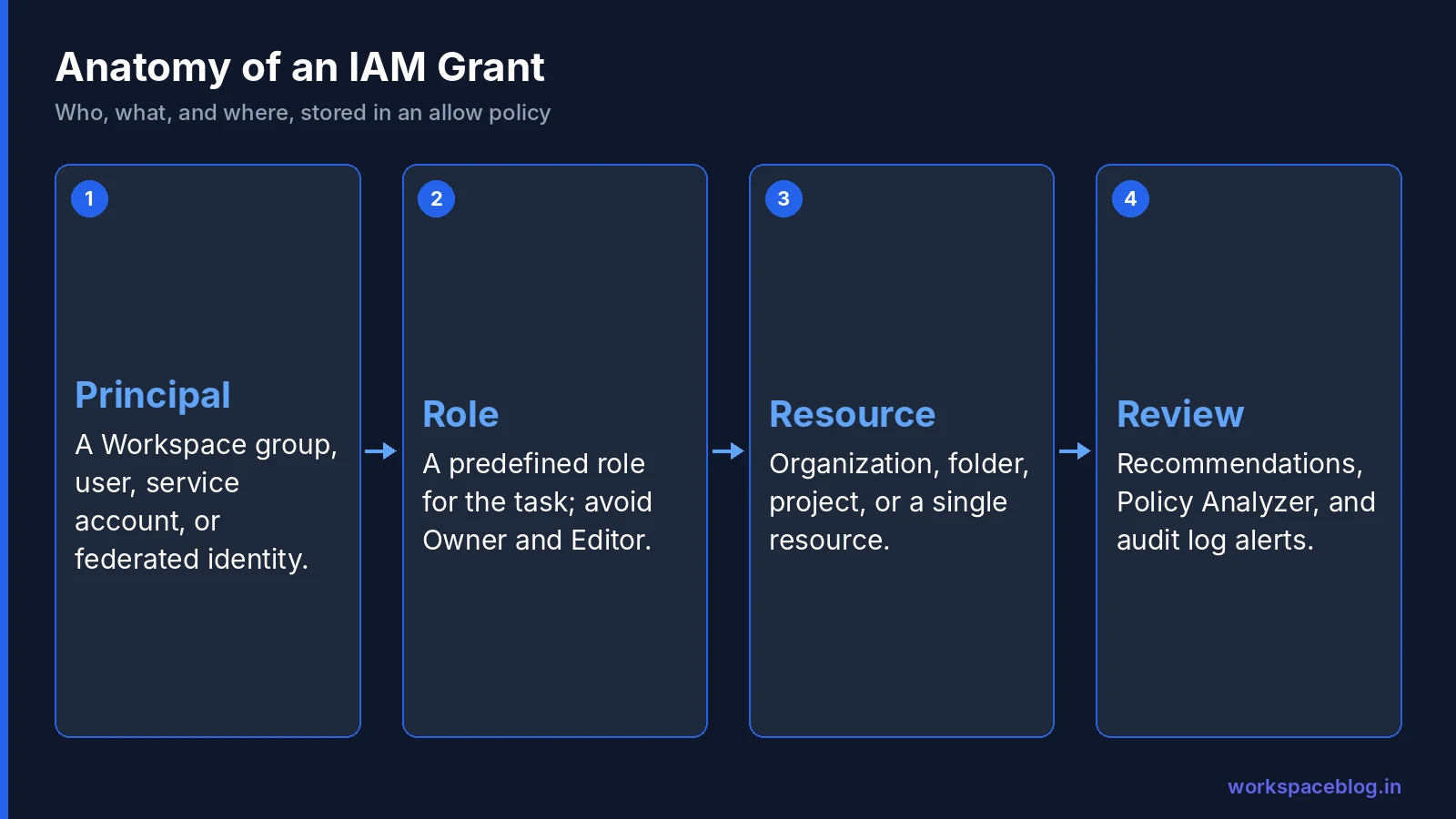
Every IAM grant has three parts.
- Principal: who gets access. This can be a Google account, a Google group, a service account, a whole domain, or an identity from workforce or workload identity federation.
- Role: what they can do. A role is a named bundle of permissions such as
compute.instances.start. - Resource: where it applies. The organization, a folder, a project, or an individual resource that supports its own policy.
Grants are stored in an allow policy attached to the resource. Because policies inherit down the resource hierarchy, a role granted on a folder applies to every project inside it. Our resource hierarchy guide explains inheritance in detail.
The Three Kinds of Roles
| Type | Examples | When to use |
|---|---|---|
| Basic | Owner, Editor, Viewer | Sandboxes and personal test projects only |
| Predefined | Compute Instance Admin, Storage Object Viewer, BigQuery Data Editor | Almost everything |
| Custom | A role you build from individual permissions | When no predefined role is narrow enough |
Basic roles are the trap. Editor can change almost every resource in a project, and Owner can also change IAM itself. They exist from the early days of Google Cloud and remain convenient, which is exactly why they spread.
Predefined roles are maintained by Google and updated as services add permissions. There are hundreds, organized by service. Searching the IAM roles page for the job you want, such as “Cloud Run developer”, usually finds the right one.
Custom roles give you full control but also full maintenance. When Google adds a permission to a service, your custom role does not get it unless you add it. Use them sparingly, typically for an auditor role that combines read permissions from several services.
Groups, Not People
Grant roles to groups you manage in the Admin console. For example:
| Group | Role | Granted on |
|---|---|---|
gcp-org-admins | Organization Administrator | Organization |
gcp-security-reviewers | Security Reviewer | Organization |
gcp-network-admins | Compute Network Admin | Shared services folder |
team-payments-devs | Cloud Run Developer | Payments non-production projects |
team-payments-oncall | Cloud Run Developer | Payments production project |
This gives you three benefits. Offboarding removes Cloud access automatically when the account is suspended, as part of your usual Google Workspace onboarding and offboarding process. Audits become a question of who is in which group. And a person changing teams needs one membership change instead of a hunt through dozens of projects.
Groups also keep you inside IAM’s limits. Google says each allow policy can contain up to 1,500 principals, and up to 250 of them can be Google groups, Cloud Identity domains or Google Workspace accounts. Every appearance of a principal in a role binding counts, without de-duplication, and conditions or very long identifiers can lower the limit. Granting roles person by person on a busy project reaches that ceiling sooner than you might expect.
If you sync users from Active Directory, keep the groups in sync too. Our GCDS guide covers group synchronisation.
Least Privilege in Practice
Least privilege sounds simple and is hard to apply under deadline pressure. A few habits make it realistic:
- Start from the task. Ask “what does this person need to do?” and pick the predefined role for that task, rather than starting from Editor and trimming.
- Grant at the lowest level. A developer who works on one project should get a role on that project, not on the folder.
- Separate read from write. Give broad viewer roles to people who need visibility and narrow editing roles to people who make changes.
- Treat IAM admin as dangerous. Roles that can change IAM policies, such as Project IAM Admin, let someone grant themselves anything else. Keep them in a very small group.
- Use service accounts for workloads. Applications should never run as a person’s account. We cover service accounts later in this series.
IAM Conditions for Temporary and Scoped Access
IAM conditions attach a rule to a single role grant. The condition uses Common Expression Language and can check the request time, the resource name, or resource tags.
Two common uses:
- Expiring access. Give a contractor a role until a fixed date. After that, the grant simply stops working.
- Scoped access. Let a team manage only buckets whose names start with their prefix.
request.time < timestamp("2030-03-31T23:59:59Z")Conditions are not supported on every role or resource, and basic roles cannot use them. Check the documentation for the service before you rely on one.
Deny Policies and Guardrails
Allow policies are additive, so a role granted high in the hierarchy cannot be removed lower down. IAM deny policies solve the opposite problem: they block specific permissions for specific principals no matter what roles they hold. Deny rules are evaluated before allow policies.
Use them as guardrails rather than everyday tools. A good example is denying project deletion to everyone except a platform team, so a mistaken click cannot delete production.
Principal access boundary policies
A third policy type works from the other direction. Principal access boundary (PAB) policies attach to a set of principals rather than to a resource, and define which resources those principals are eligible to access. They can only block, never grant: a principal still needs an allow policy, but access to anything outside the boundary is refused even if a role was granted. You bind a policy to principal sets such as your Google Workspace domain, a workforce identity pool, a project, a folder or the organization. Limits are up to 1,000 policies per organization, 500 rules per policy and 10 policies per principal set. Each policy has an enforcement version, and Google advises against using latest, because a new version can block permissions people rely on.
Reviewing Access
Access drifts. Someone gets Editor for an urgent fix and keeps it for two years. Google gives you three tools to find drift:
- Role recommendations on the IAM page flag permissions a principal has not used and suggest a smaller role.
- Policy Analyzer answers “who can access this resource?” and “what can this principal access?” across the whole hierarchy.
- Cloud Audit Logs record every IAM policy change. Google’s super admin best practices recommend a Google Cloud Observability alert on
SetIamPolicycalls, so you hear about any allow policy change.
Schedule a quarterly review: export the groups with powerful roles, confirm membership with each team lead, and act on recommendations older than 90 days.
Common Mistakes
- Owner for everyone in a project because it stops access tickets.
- Roles granted to individual accounts that outlive the person’s role.
- Service account keys downloaded to laptops instead of using impersonation.
- Using
allUsersorallAuthenticatedUserson buckets or services without realising it makes them public. - Never reviewing recommendations, which are free and already calculated for you.
Useful Predefined Roles for Admin Teams
A short list of roles that cover most admin needs without reaching for Owner or Editor:
| Need | Predefined role |
|---|---|
| See everything, change nothing | Viewer at folder level, or Security Reviewer for IAM visibility |
| Manage VMs but not networks | Compute Instance Admin (v1) |
| Manage networks and firewalls | Compute Network Admin, Compute Security Admin |
| Deploy Cloud Run services | Cloud Run Developer |
| Read files in buckets | Storage Object Viewer |
| Run BigQuery queries and read data | BigQuery Job User plus BigQuery Data Viewer |
| Read logs | Logs Viewer |
| Manage service accounts but not use them | Service Account Admin |
| Act as a service account | Service Account User or Service Account Token Creator |
The last two are worth highlighting. Service Account User lets someone attach a service account to a resource, and Token Creator lets them get its credentials. Either effectively gives the holder that service account’s permissions.
Troubleshooting “Permission Denied”
When someone gets an error such as Permission 'compute.instances.create' denied, work through these steps:
- Read the permission name in the error. It tells you exactly what is missing.
- Find a role that contains it. Search the permission on the IAM roles page; pick the narrowest predefined role that includes it.
- Check where the grant must be. Some permissions are checked on the project, others on the specific resource, such as a bucket or a service account.
- Check deny policies and organization policies. A deny rule or a constraint can block an action even when the role is present. Organization policy errors usually mention the constraint name.
- Allow time for propagation. IAM changes usually apply within a couple of minutes, and group membership changes can take a little longer.
- Use the Policy Troubleshooter in the console, which takes a principal, a resource, and a permission and explains why access is granted or denied.
Just-in-Time Access for Powerful Roles
Some roles are needed rarely but urgently, such as Project IAM Admin during an incident. Leaving them granted permanently is risky; removing them makes incidents slower.
Google Cloud’s Privileged Access Manager addresses this. You define an entitlement, for example “Compute Admin on the production project for up to two hours,” and decide who can request it and who must approve. When someone needs the access, they request it with a justification, an approver accepts, and the role is granted temporarily and removed automatically when the time is up. Every request and approval is logged.
A simple starting set of entitlements for a small organization:
| Entitlement | Duration | Approval |
|---|---|---|
| Production Compute Admin | 2 hours | One member of gcp-org-admins |
| Production Cloud SQL Admin | 2 hours | One member of gcp-org-admins |
| Project IAM Admin on production | 1 hour | Two approvers |
| BigQuery Admin on the logs project | 4 hours | Security lead |
Grants can last from 30 minutes up to 7 days. Approval is optional; requiring more than one approval or a second approval level needs Security Command Center Premium or Enterprise and is in preview, so on a plain setup treat “two approvers” as a target rather than a default.
Combine this with IAM conditions for contractors, and the number of people holding powerful roles at any moment drops close to zero.
Conclusion
IAM in Google Cloud rewards discipline more than cleverness. Use predefined roles, grant them to Workspace groups at the lowest level that works, and review what has drifted every quarter. If your identities live in Google Workspace, your existing group structure is the best starting point you could have.
Tomorrow’s guide moves to money: billing accounts, budgets, and alerts that prevent surprise bills.
Official Google documentation:
- IAM overview
- Roles overview
- Understanding allow policies
- Principal access boundary policies
- Super administrator account best practices
Related reading:
- Google Cloud Resource Hierarchy Explained: where to grant roles.
- Google Workspace Groups Administration Guide: the groups behind every grant.
- Securing AI Agents on Google Cloud: IAM for agent identities.
This guide contains referral or affiliate links. If you sign up through one, Workspace Blog may earn a commission at no extra cost to you. Read our referral and advertising disclosure.
Frequently Asked Questions
- What is the difference between basic, predefined, and custom roles in Google Cloud?
- Basic roles (Owner, Editor, Viewer) are broad and apply across almost every service. Predefined roles are maintained by Google for specific jobs, such as Compute Instance Admin or BigQuery Data Viewer. Custom roles are lists of permissions you build yourself when no predefined role fits. Google recommends predefined roles in most cases and avoiding basic roles in production.
- Should I grant IAM roles to users or groups?
- Groups. Grant roles to Google groups managed in your Workspace or Cloud Identity Admin console, then control access by changing group membership. It makes audits simpler and removes access automatically when someone leaves the group or the company.
- What are IAM conditions?
- IAM conditions add rules to a role grant, such as an expiry date, a specific resource name prefix, or a time of day. They are useful for temporary access, for example giving a contractor a role that expires at the end of the engagement.
- How do I find out what access a user actually has?
- Use Policy Analyzer in the Google Cloud console. It combines allow policies from the organization, folders, projects, and resources to show which principals can access a resource, or what a given principal can access. The IAM page also shows role recommendations that flag unused permissions.
- What are IAM deny policies used for?
- Deny policies block specific permissions for specific principals regardless of the roles they hold. They are useful as guardrails, for example stopping everyone except a security group from deleting projects. Deny rules are evaluated before allow policies.