Agent Studio on Gemini Enterprise Agent Platform: Build AI Agents Visually, Then Export to Code
-
 Mohit
Mohit - 20 Oct, 2026

Not every agent needs to start as code. Agent Studio, the visual workspace in Gemini Enterprise Agent Platform (formerly Vertex AI), lets you design prompts, compare models, and lay out an agent with sub-agents and tools on a canvas, test it in a preview chat, and then either deploy it directly or export the Python code for developers to finish.
It’s the bridge between “I have an idea for an agent” and a production deployment on Agent Runtime. This guide covers what Agent Studio does, how to build an agent step by step, the permissions model, and the governance details admins should know before opening it up to more people.
Agents you build here can be published to employees through Gemini Enterprise, alongside the Gemini features already built into Google Workspace.
Table of contents
Open Table of contents
- What Agent Studio Is
- Part 1: Prompt Design in Studio
- Part 2: Building an Agent on the Canvas
- Part 3: Testing in Preview
- Part 4: Permissions and Agent Identity
- Part 5: Exporting Code
- Part 6: Deploying to Agent Runtime
- Migrating Deprecated Tools
- Agent Studio vs. Workflow Builder vs. ADK
- Governance Checklist for Admins
- Conclusion
What Agent Studio Is
Google describes Agent Studio as a “centralized, collaborative workspace” for discovering models, refining system instructions, and optimizing prompts, with the goal of turning ideas into production-ready generative AI. In practice it has two halves:
| Area | What you do there | Console path |
|---|---|---|
| Studio (prompt design) | Write and compare prompts and system instructions, try models, configure grounding and output | Agent Platform → Studio → Multimodal |
| Agent designer (canvas) | Build agents with sub-agents, tools, and knowledge; test, export, and deploy | Agent Platform → Agents → Create agent |
Agent Studio replaced Vertex AI Studio in the April 2026 rename, and the old Vertex AI Studio App Builder is now App Builder in Agent Studio. If you’re mapping old names to new ones, see our Vertex AI to Agent Platform guide.
Status: the agent designer (“design agents”) is in Preview under the Pre-GA Offerings Terms: provided as is, with limited support. Use it for prototypes and pilots, and keep production agents in version-controlled code.
Part 1: Prompt Design in Studio
Before you build an agent, get the core instruction right. Studio gives you:
- Interactive canvas: a dual-pane view to preview and edit the code behind what you build
- Prompt refinement and comparison: natural-language tools that generate system instructions, and side-by-side comparison of instructions and models
- Developer helpers: a history “minimap” for long prompts, slash commands, and help generating sample code
- Grounding and RAG: ground answers in Google Search and Google Maps, or in your data through RAG Engine, Agent Search, or Elasticsearch
- Granular controls: thinking levels, structured output, and safety filters
Google’s overview names models such as Gemini 3.7 Flash for reasoning, Nano Banana 2 for fast image generation, and Veo 3.1 for video, with the rest of Model Garden available too.
Tip: compare at least two models on the same 10 test prompts before you choose. A faster, cheaper model is often good enough for routing and extraction, while the larger model earns its cost on reasoning-heavy steps.
Part 2: Building an Agent on the Canvas
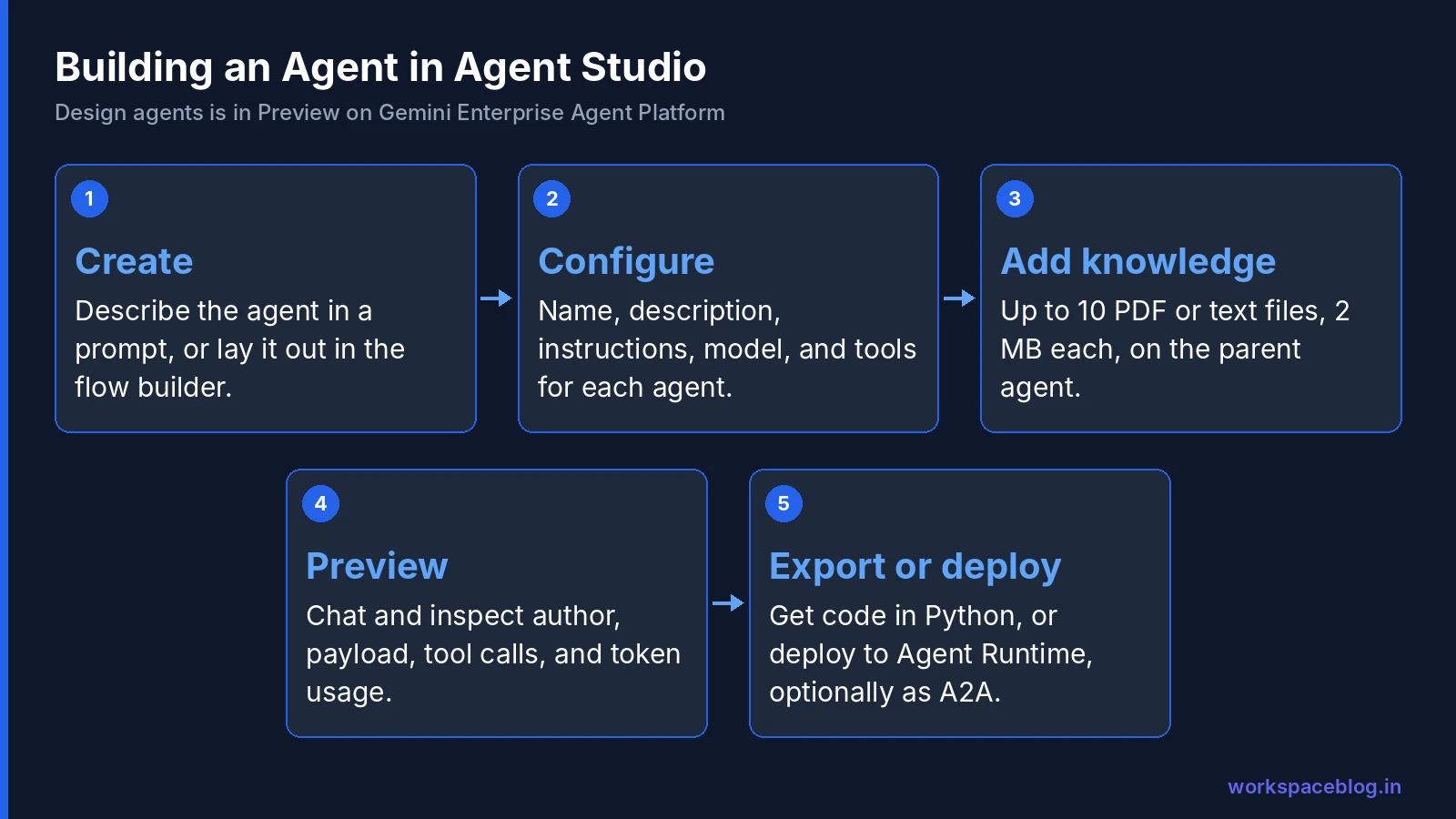
Before you start
- Your project needs the standard Agent Platform setup
- You need the Agent Platform User role (
roles/aiplatform.user) or equivalent - Agent configuration files are stored in us-west1, if your organization restricts resource locations, ask your cloud admin for an exception or agent creation will fail
Step 1: Create the agent
Go to Agent Platform → Agents and click Create agent. You can build in two ways:
Describe it in a prompt. Type what the agent should do, for example, “an IT helpdesk triage agent that classifies requests and drafts first responses.” The flow builder updates live and saves automatically; the assistant may ask clarifying questions.
Use the flow builder. On the Flow tab, create the main agent (always a local agent) and add sub-agents:
| Sub-agent type | Configured where | Notes |
|---|---|---|
| Local | On the canvas: instructions, model, tools | Best for agents that belong only to this flow |
| Agent Registry | Selected from Agent Registry | Remote agents your organization has registered; name and description are read-only. Appears after the first save |
Step 2: Configure each agent
Click an agent to open its Details panel and set:
- Name and Description: the description tells the main agent when to delegate
- Instructions: the job description, rules, and tone
- Model
- Tools
Step 3: Add tools
| Tool | Default | What it does |
|---|---|---|
| Google Search | On | Grounds answers in the web |
| URL context | On | Lets the model read URLs in the prompt |
| MCP Server from Agent Registry | Off | Attaches a registered MCP server as a tool (after first save) |
To add an MCP server: click Add (+) next to MCP Server from Agent Registry, choose the Location and MCP Server, set Auth Config to None for standard IAM-based access, and click Add.
Governance note: Google Search and URL context are on by default. For internal-only agents that shouldn’t browse the web, turn them off.
Step 4: Add knowledge
After the first save, you can attach knowledge files to the parent agent (not sub-agents):
- Up to 10 files, 2 MB each, PDF or plain text
- Files are stored in a Cloud Storage bucket in your project
- Anyone with access to the project or bucket can view them: don’t upload confidential documents
- The agent identity gets
roles/storage.objectVieweron that bucket
For larger or permission-sensitive knowledge, use Agent Search or RAG Engine instead of uploaded files.
Step 5: Save
Click Save in the canvas header and name the agent. Saving is required before you can preview, deploy, upload knowledge, or add Agent Registry tools and sub-agents. After that, changes save automatically.
Part 3: Testing in Preview
Open the Preview tab and chat with the saved agent. Click any event in the conversation to see:
- Author: which agent or sub-agent produced it
- Request and response: the model payload
- Tool calls: the arguments sent
- Metadata: model name, token usage, and timestamp
That trace is the fastest way to find out why an agent picked the wrong sub-agent or called a tool with bad arguments. Build a short test list (normal requests, edge cases, and requests the agent should refuse) and run through it after every change.
Part 4: Permissions and Agent Identity
Every Agent Studio agent gets its own IAM principal through Agent Identity, in this format:
principal://agents.global.org-ORGANIZATION_ID.system.id.goog/resources/aiplatform/projects/PROJECT_NUMBER/locations/LOCATION/reasoningEngines/REASONING_ENGINE_IDWhen you open Preview or click Deploy, Agent Studio checks whether that identity has the roles its tools need and offers Grant All or Proceed anyway. The roles it can grant:
| Role | Needed for |
|---|---|
roles/storage.objectViewer | Uploaded knowledge files |
roles/mcp.toolUser | MCP tools from Agent Registry |
roles/agentregistry.viewer | Agent Registry MCP tools or sub-agents |
roles/iamconnectors.user | MCP tools that use an auth provider |
roles/aiplatform.viewer | Delegating to A2A sub-agents |
Some tools need roles the dialog doesn’t grant, for example, roles/bigquery.dataViewer for BigQuery. Grant those manually in IAM by copying the principal from the canvas header.
Admin tip: “Grant All” is convenient, but it grants roles at whatever scope the dialog uses. In production projects, have a cloud admin review agent principals and grant the narrowest roles at the narrowest scope.
Part 5: Exporting Code
Click Get code to see the generated Python (agent.py). Copy it into your repository to continue in your own editor. This is how a prototype built visually becomes a code-reviewed, tested agent. If a sub-agent comes from Agent Registry, the generated code resolves it at runtime with AgentRegistry.get_remote_a2a_agent.
From there, developers can follow our ADK tutorial to add custom tools, evaluation, and CI/CD.
Part 6: Deploying to Agent Runtime
- From Agents, open the agent and click Deploy
- Complete the permissions dialog if it appears
- Set a Display name and optional Description
- Choose whether to Deploy as A2A: publishes it as a reusable Agent-to-Agent asset other agents can call; leave it unselected for a standalone ADK application
- Pick a region and click Deploy (it can take up to five minutes)
View deployments under Agent Platform → Deployments, filter by region, and open an agent’s Metrics page. The Playground tab lets you test the deployed version.
Migrating Deprecated Tools
Two older tool types are now read-only on existing agents:
| Deprecated | Replace with |
|---|---|
| Vertex AI Search data stores | The Agent Search MCP server (discoveryengine.googleapis.com) in Agent Registry; grant roles/discoveryengine.viewer to the agent identity and define the serving configuration in instructions |
| Direct MCP server connections | Register the server in Agent Registry, remove the legacy connection, then add it through MCP Server from Agent Registry |
Also note: a July 2026 security fix for an SSRF issue required regenerating and redeploying Agent Studio web apps created before July 1, 2026.
Agent Studio vs. Workflow Builder vs. ADK
| Workflow Builder (Gemini Enterprise) | Agent Studio (Agent Platform) | ADK | |
|---|---|---|---|
| Users | Business users | Technical makers, developers | Developers |
| Where | Gemini Enterprise app | Google Cloud console | Your IDE and repo |
| Skill needed | None | Low-code | Python, TypeScript, Go, or Java |
| Tools | Built-in actions and connectors | Google Search, URL context, Agent Registry MCP servers | Any function, MCP, or OpenAPI tool |
| Code export | No | Yes (Python) | It is code |
| Deployment | Within Gemini Enterprise | Agent Runtime (optionally as A2A) | Agent Runtime, Cloud Run, GKE |
A common pattern: prototype in Agent Studio, export to ADK for production, and publish the result to employees through Gemini Enterprise.
Governance Checklist for Admins
- Who can build: limit
roles/aiplatform.useron production projects; give makers a sandbox project - Location policy: allow us-west1 for agent configuration, or agent creation will fail
- Web access: decide whether Google Search and URL context should be on for internal agents
- Knowledge files: ban confidential uploads; use permission-aware search instead
- Agent principals: review roles granted through “Grant All” every month
- Registry first: require MCP servers and shared agents to be registered in Agent Registry
- Cost: budgets and spend caps on maker projects. See our billing guide
Conclusion
Agent Studio makes agent building approachable: describe an agent or lay it out on the canvas, add tools and knowledge, watch every step in Preview, and deploy to Agent Runtime, or hand the generated code to developers. Each agent gets its own identity, which keeps permissions and audit trails clean.
Because the agent designer is still in Preview, treat it as the fastest way to prototype rather than the final home for critical agents. Pair it with clear rules on projects, roles, and knowledge files, and your teams can move from idea to working agent quickly, including agents that serve people working in Google Workspace through the Gemini Enterprise app.
Official Google documentation:
Related reading:
- Google Agent Development Kit (ADK) Tutorial: take exported code to production.
- Vertex AI Is Now Gemini Enterprise Agent Platform: how Vertex AI Studio became Agent Studio.
- Gemini Enterprise Agent Platform: Introduction and Integration: how agents reach employees.
- Google AppSheet for IT Admins: no-code apps for the data your agents work with.
This guide contains referral or affiliate links. If you sign up through one, Workspace Blog may earn a commission at no extra cost to you. Learn more.
Frequently Asked Questions
- What is Agent Studio?
- Agent Studio is the visual workspace in Gemini Enterprise Agent Platform for discovering models, refining prompts and system instructions, and designing agents on a canvas. It replaced Vertex AI Studio when Vertex AI became Agent Platform in April 2026. Agents designed in Agent Studio can be exported as Python code and deployed to Agent Runtime.
- Is Agent Studio's agent designer generally available?
- No. Google lists the design agents feature as Preview, subject to the Pre-GA Offerings Terms, which means it's provided as is and may have limited support. Prompt design and comparison in Agent Studio are part of the main studio experience.
- What role do I need to build agents in Agent Studio?
- Google says to ask your administrator for the Agent Platform User role (roles/aiplatform.user) on the project. Agent configuration files are stored in the us-west1 region, so organization policies that restrict resource locations can block agent creation.
- Can I add documents to an Agent Studio agent?
- Yes, through the flow builder after the agent's first save. You can attach up to 10 PDF or plain-text files of up to 2 MB each to the parent agent. Files are stored in a Cloud Storage bucket in your project, and anyone with access to the project or bucket can view them, so don't upload sensitive content.
- How is Agent Studio different from Workflow Builder in Gemini Enterprise?
- Agent Studio is for developers and technical builders working in the Google Cloud console on Agent Platform, with model choice, tools, MCP servers from Agent Registry, code export, and deployment to Agent Runtime. Workflow Builder (formerly Agent Designer) is the no-code tool inside the Gemini Enterprise app for business users to build agents and workflows for themselves and their teams.