Gemini Enterprise Skills: Create, Share, and Govern Reusable AI Instructions for Your Teams
How Gemini skills work in Gemini Enterprise: the SKILL.md format, creating and uploading skills, invoking them, sharing with approval, and admin controls.

Checked against Google's official documentation, last updated 15 Nov, 2026. See what changed

Every team has instructions it repeats: “Use our brand voice.” “Review this contract against our standard terms.” “Format the weekly update like this.” Typing them into every prompt is tedious, and everyone does it slightly differently. Gemini skills in Gemini Enterprise package those instructions (plus any reference files or scripts) so the assistant applies them consistently, automatically or on request.
Creating, uploading, and sharing custom skills became generally available on August 13, 2026. This guide covers what skills are, the SKILL.md format, how to create, invoke, and share them, how admins govern them, and a set of skill ideas to start with.
If you’ve used skills in other AI tools, the format will feel familiar: Gemini Enterprise skills are built on the open skills standard.
For teams on Google Workspace, Gemini Enterprise skills sit alongside the Gemini features in Gmail, Docs, and Sheets; note that Google has delayed the separate launch of skills inside Workspace apps until further notice.
Key Takeaways
- A skill is a
SKILL.mdpackage of instructions, with optional files and Python or Bash scripts. - The description decides when Gemini Enterprise uses a skill automatically.
- Invoke skills with
@or/, by asking for them, or automatically. - Skills are off by default; admins control sharing and approvals.
- Frontline users can install and use skills but not create them.
Table of contents
Open Table of contents
- What a Gemini Enterprise Skill Is
- The SKILL.md Format
- Creating and Uploading Skills
- Using Skills
- Sharing Skills
- Admin Controls
- Writing Great Skill Instructions
- Gemini Enterprise Skills vs. Gemini App Skills
- Skills vs. Agents vs. Notebooks
- A Governance Model for Skills
- Measuring Skill Adoption
- Twelve Skills to Start With
- Conclusion
What a Gemini Enterprise Skill Is
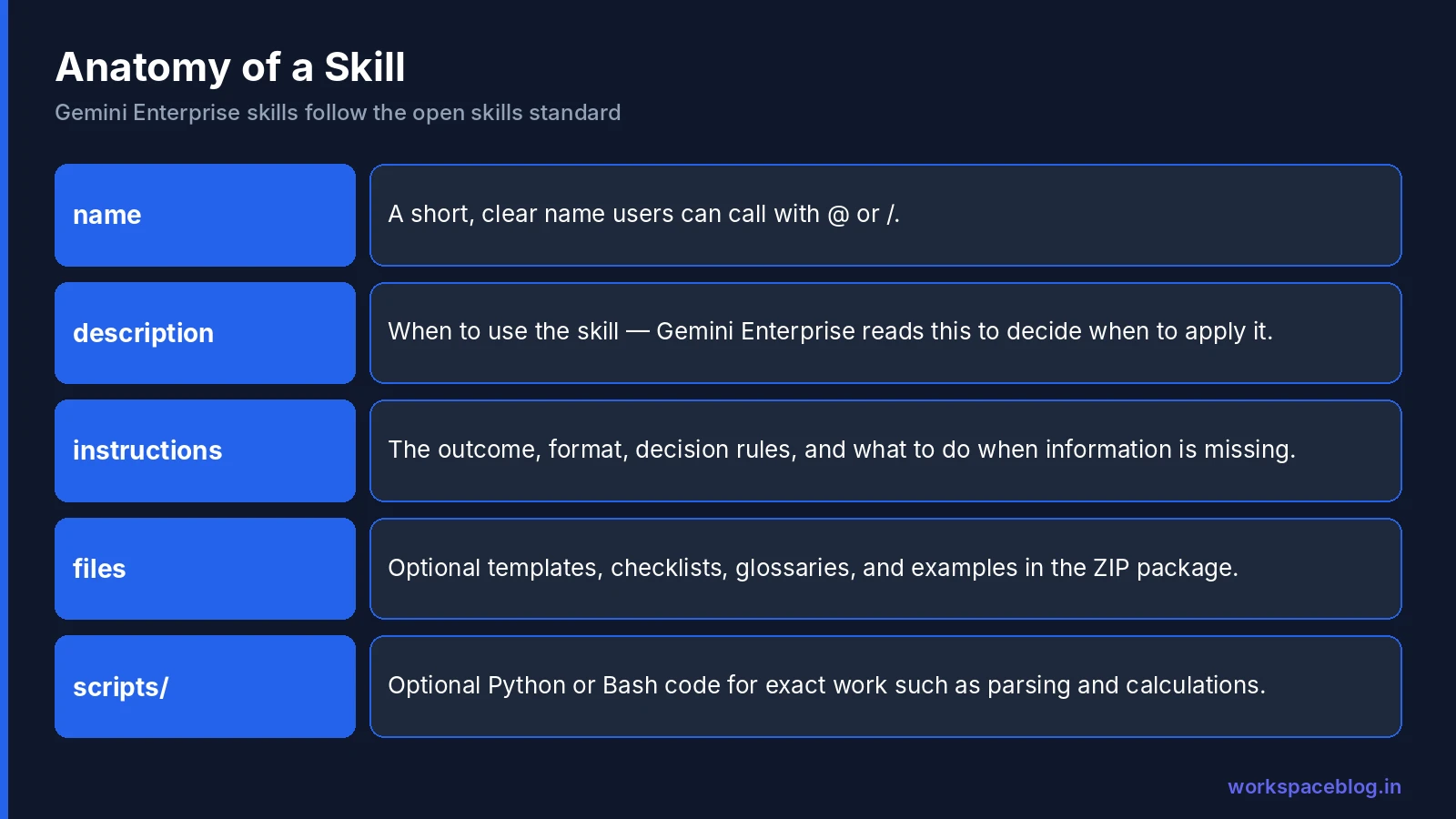
A skill is a package of reusable instructions with:
- A core
SKILL.mdfile: the name, a description of when to use it, and the instructions - Optional files: templates, checklists, examples, glossaries
- Optional scripts: Python or Bash code in a folder such as
scripts/
Gemini Enterprise reads the description to decide when a skill is relevant. That makes the description the most important line in the package.
Types of skills
| Type | Where it comes from |
|---|---|
| Google-managed | Built-in skills from Google, in the Google section |
| Personal | Skills you create or upload |
| Shared with me | Read-only skills others have shared with you |
At Gemini at Work 2026, Google described skills as a core part of the Gemini agent: a global library, team-published custom skills, and personal skills, with the agent learning from each execution to improve consistency and save tokens. See our Gemini agent guide. Skills capture how work gets done; for custom agents that also need to remember who they’re working with, see our Memory Bank guide.
The SKILL.md Format
A simple skill is one Markdown file. For example:
---
name: weekly-status-update
description: Use when someone asks to write or format a weekly project status update.
---

# Weekly status update

Write the update in this structure:

1. **Summary**: two sentences on overall status (On track / At risk / Off track).
2. **Done this week**: up to five bullets, each starting with a verb.
3. **Next week**: up to five bullets.
4. **Risks and asks**: anything blocked, with an owner and date.

Rules:
- Keep it under 250 words.
- Use plain language; no internal acronyms without spelling them out.
- If information is missing, list it under "Questions" instead of guessing.
Google’s format rules: name is 1 to 64 characters of lowercase letters, numbers, and hyphens (in a ZIP it must match the parent folder name), and description can be up to 1,024 characters.
For a skill with supporting material, upload a ZIP with SKILL.md in the root (or in one wrapper folder). Optional folders are scripts/, references/, and assets/, and a ZIP can hold up to 100 files and 100 MB:
contract-review/
├── SKILL.md
├── references/
│   ├── standard-terms.md
│   └── fallback-positions.md
└── scripts/
    └── extract_clauses.py
Writing a good description
| Weak description | Strong description |
|---|---|
| ”Brand voice" | "Use when writing or editing marketing copy, social posts, or customer emails, to apply our brand voice and banned-words list." |
| "Contracts" | "Use when reviewing a vendor contract or NDA, to compare terms with our standard positions and flag deviations.” |
Creating and Uploading Skills
Create with Gemini
- In the web app, go to Skills → add (+) → Create skill with Gemini
- Enter a name and a description (add trigger instructions if helpful)
- Write instructions in natural language in the chat box, or type them in the Instructions field
- Click Save: the skill is on by default
Note: natural-language creation doesn’t use your conversation context or connectors, so paste in any examples you want the skill to follow.
Upload a skill
Skills → add (+) → Upload skill, choose a Markdown or ZIP file, then Import. The name and description come from SKILL.md.
Install a shared or Google skill
Skills → add (+) → Browse skills → + Install.
Test it
From the Skills page, use the skill’s menu → New chat to try it in a clean conversation.
Using Skills
| Method | How |
|---|---|
| Manual | Type @ or / and the skill name, for example /Brand Voice (/ shows only your available skills) |
| Direct request | ”Use the brand voice skill to review this” |
| Automatic | Gemini Enterprise picks the skill from its description and triggers |
Turn off vs. uninstall: turning a skill off pauses automatic triggering but keeps it on your Skills page; uninstalling removes it (you can reinstall from Browse skills).
Limitations to know
- You can’t invoke an agent and a skill in the same prompt
- Google’s skills page notes skills aren’t available for use with agents
- Only Python and Bash execution is supported in scripts
- The web editor supports single-file
SKILL.mdskills; multi-file skills must be uploaded as ZIPs - Skills work best with Canvas when they contain only one
SKILL.md
Sharing Skills
When the admin allows sharing:
- Open the skill’s menu → Share
- Enter comma-separated email addresses → Done
No email is sent: recipients find it under Shared with me. If sharing requires approval, recipients can’t use the skill until an admin approves.
Tip: treat shared skills like shared templates. Give each one an owner, a version note in the instructions, and a review date.
Version history
Since November 12, 2026, skill owners can open a skill’s version history on the Skills page, inspect earlier versions read-only (instructions and files included) and restore one so it becomes the latest version. If an edit makes a shared skill behave worse, restore the previous version instead of rewriting it.
Admin Controls
Turn skills on
Skills are off by default. In the app’s Configurations → Feature Management tab, there are three toggles, each depending on the one before:
- Skills
- Skill sharing
- Sharing without admin approval
A sensible starting point: skills on, sharing on, sharing without approval off.
Review and moderate
| Action | Effect |
|---|---|
| Approve / deny share requests | Under Review share request on the Skills page |
| Suspend (needs a reason) | Visible with a Suspended label but can’t be invoked; owner can still edit and test |
| Disable | Hidden from the gallery; owner can still edit and test |
| Reject (disabled skills only, needs a reason) | Returns the skill to private |
| Delete | Permanently removes a user-created skill |
| Enable | Restores a suspended or disabled skill |
Admins can’t suspend, disable, or delete Google-managed skills for everyone; users can turn off the ones they installed. These tasks require Gemini Enterprise Admin (roles/discoveryengine.agentspaceAdmin).
Editions
| Edition | Create and upload | Use Google-managed and shared skills |
|---|---|---|
| Business, Standard, Plus, Pay-as-you-go | ✓ | ✓ |
| Frontline | ✗ | ✓ (install only) |
Writing Great Skill Instructions
The difference between a skill people love and one they ignore is usually the instructions. Practical rules:
- Lead with the outcome. “Produce a one-page contract review with a risk rating” beats “You are a helpful legal assistant.”
- Show the format. Include a short template or example output: the model copies structure reliably.
- Give decision rules, not vibes. “Flag any liability cap below 12 months of fees” is testable; “flag risky terms” isn’t.
- Say what to do when information is missing. Ask, list open questions, or state assumptions. Never invent.
- Keep reference material in files. Put long term sheets, glossaries, and style guides in separate files in the ZIP and refer to them by name.
- Use scripts for exact work. Counting, date math, and parsing are better done in Python than by the model.
- Keep it focused. One skill, one job. Split “marketing everything” into brand voice, social posts, and press releases.
- Test with five real inputs before sharing, including one messy one.
- Version it. Add a short changelog line at the bottom of
SKILL.mdwhen you change behavior.
Gemini Enterprise Skills vs. Gemini App Skills
Google now uses the word “skills” in two places. Gemini Enterprise skills, covered in this guide, live in the Gemini Enterprise app and its admin controls. Gemini skills in Google Workspace are reusable instructions for the Gemini app and Workspace apps. Skills in the Gemini app started a gradual rollout on October 13, 2026, and after a delay Google launched skills in Workspace apps and Workspace Studio on November 10, 2026, rolling out from November 9 (Rapid Release) and November 30 (Scheduled Release). They are replacing Gems: for Business and Enterprise editions, Gems stop working no sooner than March 1, 2027, and remaining Gems are migrated to draft skills. Google hasn’t documented any syncing between Gemini Enterprise skills and Gemini app skills, so plan to create a skill in each product where you need it.
Skills vs. Agents vs. Notebooks
Gemini Enterprise gives you several ways to package know-how. Choosing the right one avoids building the wrong thing:
| Use a… | When you want to… | Example |
|---|---|---|
| Skill | Apply consistent instructions, format, or rules to work the assistant does | Brand voice, status update format, contract checklist |
| Notebook | Answer questions from a fixed set of documents | A handbook Q&A notebook (Gemini Notebook for business guide, formerly Gemini Notebook Enterprise) |
| Chat agent | Give a team an assistant with its own role, data sources, and tools | An IT help agent that searches Jira and the knowledge base |
| Workflow | Automate a multi-step process with triggers and approvals | Inbox triage that drafts and routes replies |
| Custom agent (ADK) | Build complex logic, custom tools, and production-grade integrations | A claims-processing agent on Agent Runtime |
Many teams start with skills because they’re the fastest to create and the easiest to govern, then graduate the most valuable ones into agents or workflows.
A Governance Model for Skills
| Skill type | Who can publish | Review |
|---|---|---|
| Personal | Anyone with a creating edition | None |
| Team | Team leads or champions | Peer review |
| Company-wide | A small group (for example, the AI program team) | Owner + IT review; legal for compliance-related skills |
Review checklist for shared skills:
- Description clearly says when to use it
- Instructions don’t contradict company policy
- No confidential data embedded in files unless the audience may see it
- Scripts reviewed by someone technical
- Owner and review date recorded
Measuring Skill Adoption
Track which shared skills are installed and used, and ask champions which ones save the most time. Retire skills nobody uses, merge near-duplicates, and promote the most popular team skills to company-wide status after review. A small, well-maintained library of twenty excellent skills beats two hundred abandoned ones.
Twelve Skills to Start With
| Team | Skill |
|---|---|
| Marketing | Brand voice and banned words |
| Marketing | Social post formatter by channel |
| Sales | Account briefing template |
| Sales | Proposal executive summary |
| Legal | Contract review against standard terms |
| HR | Job description template |
| HR | Policy answer format with citation |
| IT | Incident communication template |
| IT | Change request writer |
| Finance | Variance commentary format |
| All | Weekly status update |
| All | Meeting notes to action items |
Skills pair well with other Gemini Enterprise features: use them inside Deep Research prompts to format reports (Deep Research guide), or alongside Workflow Builder automations that produce recurring outputs (Workflow Builder guide).
Conclusion
Skills turn your best prompts into shared, governed assets: one SKILL.md with a clear description and instructions, optional files and scripts, invoked automatically or with @ and /. They raise the floor for everyone (the new hire writes the status update the same way as the ten-year veteran) and they save tokens and time.
Turn skills on with sharing approval required, publish a starter set of company-wide skills, give every shared skill an owner, and review them quarterly. Combined with the Gemini features already in Google Workspace, skills are one of the simplest ways to make AI output consistent across your organization.
Official Google documentation:
- About the transition from Gems to skills
- Create and manage skills
- Manage skills (admin)
- Compare editions of Gemini Enterprise
- An update on the launch of skills in the Gemini app and Workspace
- Gemini Enterprise release notes
- Skills in Google Workspace and Workspace Studio (Workspace Updates)
Related reading:
- Google’s New Gemini Agent: Gemini at Work 2026: the skills registry in Google’s agent vision.
- Gemini Enterprise Workflow Builder Guide: automate multi-step processes.
- Gemini Enterprise Rollout Plan: 90 Days: where a starter skill library fits.
This guide contains referral or affiliate links. If you sign up through one, Workspace Blog may earn a commission at no extra cost to you. Read our referral and advertising disclosure.
Frequently Asked Questions
- What are skills in Gemini Enterprise?
- Skills are reusable custom instructions that help the Gemini Enterprise assistant perform specific tasks, such as reviewing contracts or writing in your brand voice. Each skill is a package built on the open skills standard, with a core SKILL.md file and optional scripts, files, or background context. Gemini Enterprise uses a skill automatically when it matches the request, or users can call it with @ or /.
- How do I create a skill?
- In the Gemini Enterprise web app, go to Skills, click the add icon, and choose Create skill with Gemini. Enter a name and a description that says when the skill is relevant, then write the instructions in the chat box or the Instructions field, and save. You can also upload a Markdown file or a ZIP package with SKILL.md in its root folder.
- Which editions can create skills?
- Standard, Plus, and Pay-as-you-go users can create and upload custom skills and use Google-managed and shared skills. Frontline users can browse, install, and use Google-managed and shared skills but can't create or upload them. Google's edition comparison also lists custom skill creation for the Business edition.
- How do admins control skills?
- Skills are off by default. Admins with the Gemini Enterprise Admin role turn them on in Configurations > Feature Management, with separate toggles for skills, skill sharing, and sharing without admin approval. When approval is required, admins review share requests on the Skills page and can suspend, disable, reject, delete, or re-enable user-created skills.
- Can skills run code?
- Yes. A skill package can include scripts in folders such as scripts/, and Google says only Python and Bash execution is supported. The web editor supports single-file SKILL.md skills; multi-file skills with scripts must be uploaded as ZIP files.