Gemini Enterprise Admin Setup Guide: Identity, Licenses, Roles, Apps, and Access Controls
Step-by-step Gemini Enterprise admin setup: projects, identity provider, attribute mapping, licenses, roles, apps, mobile, and day-two tasks.

Checked against Google's official documentation, last updated 15 Nov, 2026. See what changed

Most Gemini Enterprise problems that reach the helpdesk (“I can’t sign in,” “it can’t find our SharePoint files,” “my chats disappeared”) trace back to decisions made in the first week of setup: the identity provider, attribute mapping, licenses, and roles. Get those right and everything else is configuration; get them wrong and you may have to rebuild data stores.
This final post in our 30-day Gemini Enterprise series is a step-by-step admin setup guide. It focuses on the foundation (project, identity, licenses, roles, apps, and access) and links to the deeper guides from the series for connectors, security, and agents.
If you license Gemini Enterprise as an add-on for Google Workspace users, parts of license management happen in the Workspace Admin console; see our add-on guide. This guide covers the Google Cloud console setup for Standard, Plus, Pay-as-you-go, and Frontline editions.
Key Takeaways
- Choose the identity provider first. It decides which connectors and integrations work.
- Map
google.subjectto lowercase email; license assignment is case-sensitive. - Set up VPC-SC and CMEK before data stores, both are hard to add later.
- Grant Admin sparingly and User through groups.
- Plan day-two tasks: connector health, license reviews, and agent ownership transfers.
Table of contents
Open Table of contents
- The Gemini Enterprise Setup Sequence
- Step 1: Projects, Location, and Billing
- Step 2: Choose the Identity Provider
- Step 3: Licenses
- Step 4: Roles
- Step 5: Create the App and Connect Data
- Step 6: Feature Settings and Safety
- Step 7: Mobile App
- A One-Page Setup Record
- Day-Two Admin Tasks
- Common Setup Mistakes
- Conclusion
The Gemini Enterprise Setup Sequence
| Step | Task |
|---|---|
| 1 | Create a Google Cloud project for apps, data stores, and connectors |
| 2 | Verify billing is active |
| 3 | Purchase a subscription (or start a 30-day Standard or Plus trial) |
| 4 | Assign licenses, manually by email or automatically at first sign-in |
| 5 | Grant Gemini Enterprise Admin to administrators |
| 6 | Grant Gemini Enterprise User to licensed employees |
| 7 | Configure the identity provider |
| 8 | Connect enterprise data sources |
| 9 | Enable Model Armor templates |
| 10 | Configure the mobile app |
| 11 | Configure AI developer tools settings |
| 12 | Set up the Enterprise Gateway for AI developer tools model routing, if used |
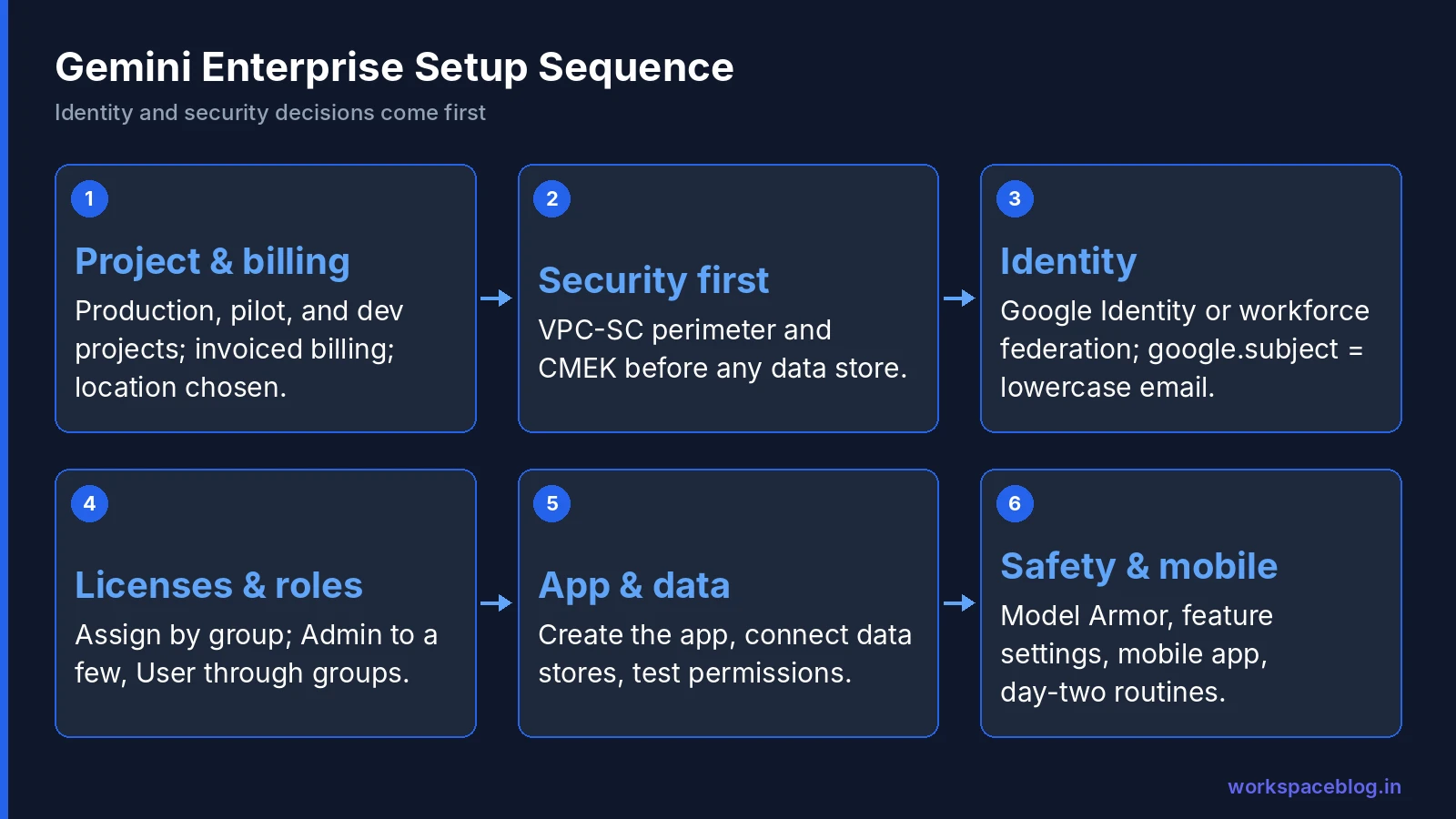
The order in practice is slightly different: decide identity and security before creating data stores, because both are hard to change afterwards.
Step 1: Projects, Location, and Billing
Project structure
| Project | Purpose |
|---|---|
| Production | The Gemini Enterprise app employees use |
| Pilot / staging | Testing connectors, settings, and agents |
| Agent development | Agent Platform work, with its own budget |
Location
Choose global, us, eu, or an in-country region per app: India, Singapore, Japan, and the UK became GA with an allowlist in mid-2026, and Canada is also available. Licenses are tied to a project and location, so a project used in two locations needs licenses in each. Identity is configured per location, with one identity provider type per location. See our data residency guide.
Billing
Pay-as-you-go, overages, and AI developer tools need an invoiced Cloud Billing account or, since November 5, 2026, a paid self-serve account with prepaid credits. Set budgets and a spend limit on day one (billing guide).
Security foundations (before data stores)
- VPC Service Controls perimeter, if required
- CMEK registered, if required
- Organization policy constraints for allowed connectors and egress domains
Step 2: Choose the Identity Provider
This is the most consequential decision in the setup.
| Google Identity | Third-party IdP (workforce identity federation) | |
|---|---|---|
| Google’s recommendation | Recommended for new setups | Supported; existing WIF customers can stay |
| Users sign in with | Google accounts (Workspace or Cloud Identity) | Entra ID, Okta, AD FS, or any OIDC / SAML 2.0 IdP |
| Google data sources | ✓ | - |
| Federated third-party sources | ✓ | ✓ |
| Ingested third-party sources | Most ✓, except Microsoft 365 ingestion (SharePoint, OneDrive, Outlook) | ✓: Microsoft 365 ingestion requires Entra ID with WIF |
| Slack app (Slack guide) | ✓ | Not supported |
How to decide:
- Google Workspace organization → Google Identity (your users already have Google accounts)
- Microsoft-only organization connecting only third-party sources → Entra ID with WIF
- Need Microsoft 365 ingestion → Entra ID with WIF
- Mixed, and Slack matters → Google Identity, with Microsoft 365 in federated mode
Configure it
Google Identity:
- Identify the unique user attribute (usually email); add aliases for users with multiple addresses
- Google Cloud console → Settings → Authentication → Add identity provider for the location → choose Google Identity → Save changes
- Grant Gemini Enterprise User (
roles/discoveryengine.agentspaceUser), ideally to a Google group
Third-party IdP (WIF):
- Configure workforce identity federation for your IdP (Google has guides for Entra ID, Okta, and generic OIDC/SAML)
- Configure attribute mapping (next section)
- Verify with Security Token Service Data Access audit logs, detailed pool logging, and a test sign-in
- Settings → Authentication → Add identity provider → 3rd party identity → choose the workforce pool. The pool must be created in the
globallocation, even if your app runs inusoreu - Grant the User role to workforce pool users in IAM
Attribute mapping: get it right once
- Map
google.subjectto the user’s lowercase email: license assignment is case-sensitive - For Entra ID with OIDC, Google’s example maps
google.subjecttoassertion.email.lowerAscii() - Add other unique identifiers with
attribute.as_user_identifier_1…_50
If the value mapped to google.subject ever changes, users are treated as new users and lose access to their chats, notebooks, and agents.
SCIM
- Entra ID: SCIM is needed to fetch large numbers of groups and for email and group autocomplete when sharing agents and notebooks
- Okta: SCIM is needed for autocomplete when sharing (Okta SCIM autocomplete became GA in August 2026)
Identity limits
- 3,000 readers per document (each user or group counts as one)
- One identity provider type per location
- Switching between Google Identity and a third-party IdP (or to a new workforce pool) means recreating data stores; editing the attribute mapping doesn’t
- Whether a data store is access-controlled is set only at creation
Step 3: Licenses
Assignment methods
| Method | Best for |
|---|---|
| Manual by email | Pilots and controlled rollouts |
| Automatic at first sign-in | Broad rollouts where everyone in the User role should get a seat |
Google made license distribution in the console generally available in June 2026. A few practical rules:
- Assign editions by group, Plus for power users and agent builders, Standard for most, Frontline for frontline staff (requires 150 or more users on Standard or Plus)
- Remember quotas pool per edition in a project, so mixing editions changes who shares which pool
- Free-trial seats count toward pooled quotas such as AI developer tools credits
- Review unused licenses monthly: user data export to CSV (GA August 2026) helps with reporting
Step 4: Roles
| Role | ID | Who | Notes |
|---|---|---|---|
| Gemini Enterprise Admin | roles/discoveryengine.agentspaceAdmin | Platform admins | Settings, security policies, data stores, skills moderation, CMEK registration; doesn’t grant AI developer tools use |
| Gemini Enterprise User | roles/discoveryengine.agentspaceUser | Licensed employees | Search, chat, agents; needed for AI developer tools |
| Discovery Engine Editor | roles/discoveryengine.editor | Connector admins | Creating data stores such as custom MCP servers |
| Cloud NotebookLM Admin / Cloud NotebookLM User | - | Notebook admins / users | Gemini Notebook for business (formerly Gemini Notebook Enterprise); users also need a notebook license |
| Project IAM Admin | roles/resourcemanager.projectIamAdmin | Setup admins | Needed for some integrations, such as the Slack app |
Google added resource-level IAM controls for apps and data stores in September 2026, so you can delegate administration of a specific app or data store without project-wide rights. Use them to give department admins control of their own connectors.
Least privilege: keep the Admin role to a small group, grant User through groups, and review assignments quarterly: the same discipline as Workspace admin roles (security hardening guide).
Step 5: Create the App and Connect Data
- Create the Gemini Enterprise app in the chosen location
- Create data stores: Google sources first (Drive, Gmail, Calendar), then priority third-party sources
- Choose federated vs. ingested per source and schedule syncs
- Test permissions with accounts from different groups before inviting users
Our connectors guide and Microsoft 365 guide cover the details.
Step 6: Feature Settings and Safety
| Setting | Recommendation at launch |
|---|---|
| Model Armor | Templates in Inspect only, then block after tuning (Model Armor guide) |
| Web grounding | Decide: off, Web Grounding for Enterprise, or Google Search |
| Workflow Builder | On for a pilot group of makers |
| Skills | On, with sharing requiring approval (skills guide) |
| Agent sharing | Share with groups rather than individuals where you can |
| Overages | Off until usage patterns are known |
| AI developer tools | Configure file access and third-party models before enabling (Antigravity guide) |
| Third-party models | Off by default; enable after legal review |
| Partner agents | Register only reviewed agents (Agent Marketplace guide) |
Usage audit logs
Turn on usage audit logs before users arrive, so you have a record from the first day. They record API calls such as search, assistant requests and responses, conversation queries, engine and agent changes, and IAM policy changes, and you read them in Cloud Logging. Prompt and response text is kept only when Enable logging of prompt inputs and response outputs is on; otherwise text values are replaced with <elided>. Observability settings must be turned on first, a Gemini Enterprise Admin turns on audit logging, and anyone reading the logs needs Logs Viewer (roles/logging.viewer). Agree with your legal and privacy teams whether prompt logging is allowed before you enable it. Our data residency and compliance guide covers how audit logs fit with VPC-SC and CMEK.
Step 7: Mobile App
The Gemini Enterprise mobile app for iOS and Android became generally available for Google Identity users in June 2026, and for bring-your-own-identity (third-party IdP) users in July 2026. Configure:
- Single sign-on with your IdP
- Device policies through your endpoint management: for Workspace organizations, see our endpoint management guide
- Team switching: users belonging to multiple teams can switch between them in the app without logging out or re-scanning a QR code
- Whether mobile access is allowed for all users or a subset
A One-Page Setup Record
Keep a short record of every foundational decision: project IDs, locations, identity provider and workforce pool, the attribute mapped to google.subject, CMEK key names, VPC-SC perimeter, editions by group, and who holds the Admin role. When something breaks six months later (or an auditor asks) this page saves hours of reconstruction, and it makes handing the platform to a new admin far easier.
Day-Two Admin Tasks
| Frequency | Task |
|---|---|
| Daily | Check connector sync health and failures |
| Weekly | Review Usage & Spending; Model Armor detections; new agent and skill share requests |
| Monthly | Unused licenses; budget vs. actual; top user questions the assistant couldn’t answer |
| Quarterly | Admin role review; agent and skill ownership review; transfer ownership of agents from leavers (supported since September 2026) |
| On every leaver | Remove license; transfer agents, skills, and notebooks; check coworker agents they owned (coworker agents guide) |
| On every release note | Check Gemini Enterprise and Agent Platform release notes for breaking changes |
Common Setup Mistakes
| Mistake | Consequence | Avoid it by |
|---|---|---|
| Choosing the IdP without considering Microsoft 365 ingestion or Slack | Data stores must be recreated; chat history lost | Map required connectors and integrations first |
google.subject mapped to a mixed-case or changeable attribute | License failures; users “lose” chats and agents | Map to lowercase email from day one |
| Creating data stores before VPC-SC or CMEK | Must recreate data stores | Perimeter and keys first |
| Granting roles to individuals | Hard to audit and offboard | Grant through groups |
| Turning on overages without a spend limit | Unbounded charges | Spend limit first |
| Skipping permission tests | Sensitive content appears in answers | Test with accounts from different groups |
| Buying subscriptions before enabling APIs | Provisioning can fail | Enable required APIs first, wait a few minutes |
Conclusion
A solid Gemini Enterprise setup comes down to a handful of early decisions: the right projects and location, security foundations before data stores, an identity provider that supports the connectors and integrations you need, a stable lowercase-email subject mapping, licenses assigned by group, and least-privilege roles. Everything after that (connectors, agents, skills, and Workflow Builder) builds on that foundation.
That wraps up our 30-day Gemini Enterprise series. If you’re still choosing a platform, start with our comparisons against Microsoft 365 Copilot and ChatGPT Enterprise. Use this guide as the checklist for week one, and the rest of the series for each layer on top. For organizations on Google Workspace, Google Identity is already in place, which makes Gemini Enterprise one of the fastest enterprise AI platforms to stand up well.
Official Google documentation:
- Before you begin with Gemini Enterprise
- Configure identity provider
- Share agents from the Google Cloud console
- Set up usage audit logs
- Gemini Enterprise release notes
Related reading:
- Gemini Enterprise Rollout Plan: 90 Days: the program around this setup.
- Gemini Enterprise Connectors and Data Stores: connecting data after identity is in place.
- Gemini Enterprise Data Residency, VPC-SC, and CMEK: the security foundation to set first.
- Google Workspace Password Policy and 2SV Enforcement: enforce strong sign-in before anyone gets Gemini access.
- Google Workspace Groups Administration: the groups you will use to assign licenses and access.
This guide contains referral or affiliate links. If you sign up through one, Workspace Blog may earn a commission at no extra cost to you. Read our referral and advertising disclosure.
Frequently Asked Questions
- What are the steps to set up Gemini Enterprise?
- Google's setup sequence is: create a Google Cloud project, verify billing, purchase a subscription, assign licenses (manually by email or automatically at first sign-in), grant the Gemini Enterprise Admin role to administrators and the Gemini Enterprise User role to licensed employees, configure the identity provider, connect data sources, enable Model Armor, configure the mobile app, configure AI developer tools settings, and set up the Enterprise Gateway for AI developer tools if you use it.
- Should I use Google Identity or a third-party identity provider?
- Google recommends Google Identity for new setups. It supports Google data sources, federated third-party sources, and most ingested third-party sources. Workforce identity federation with a third-party IdP such as Microsoft Entra ID or Okta suits organizations connecting only third-party sources; Microsoft 365 ingestion sources (SharePoint, OneDrive, Outlook) require Entra ID with workforce identity federation. Some features, such as the Slack app, require Google Identity.
- Can I change the identity provider later?
- Yes, but with consequences. Switching between Google Identity and a third-party IdP, or moving to a new workforce pool, requires recreating data stores, and changing identity providers means users lose existing chat history. If the value mapped to google.subject changes, users are treated as new users and lose access to prior chats, notebooks, and agents. Choose carefully at the start.
- What roles do Gemini Enterprise admins and users need?
- Administrators need the Gemini Enterprise Admin role (roles/discoveryengine.agentspaceAdmin) to manage settings, security policies, and data stores. Licensed employees need the Gemini Enterprise User role (roles/discoveryengine.agentspaceUser), ideally granted through a Google group. The Admin role alone doesn't grant use of AI developer tools.
- Why is attribute mapping important with workforce identity federation?
- Google says to map google.subject to the user's lowercase email because license assignment is case-sensitive. Additional unique identifiers can be mapped with attribute.as_user_identifier_1 through _50. A wrong or changing subject mapping breaks licensing and can orphan users' chats, notebooks, and agents.