Gmail for Business in Google Workspace: Features, Gemini, Updates and Admin Settings
Gmail in Google Workspace explained: business features, Gemini in Gmail, AI Inbox, Gmail Live, recent updates with rollout dates, editions and admin settings.

Checked against Google's official documentation, last updated 15 Nov, 2026. See what changed

Gmail is the app most people open first every morning, and in Google Workspace it does a lot more than the free version: your own domain, shared and delegated mailboxes, admin-managed security and, on most paid editions, Gemini built into the inbox. Google ships Gmail changes almost every week, which makes it hard to keep a clear picture of what’s available and who controls it.
This post is a hub. It covers the business features, what Gemini does in Gmail today, the updates Google has announced recently with their rollout notes, which editions get what, and the admin settings that matter most. It’s updated as new Gmail announcements appear, and it links out to deeper guides for individual topics.
Key Takeaways
- Gemini in Gmail summarises, drafts, searches and organises mail, and can schedule events and manage Drive files from the Ask Gemini panel.
- AI Inbox and Gmail Live began rolling out to paid Workspace users in October, for US users with English (US) only, and AI Inbox has no admin setting.
- AI Overviews in Gmail search went global in September for paid users with Gmail set to English.
- Most Gmail controls live under Apps > Google Workspace > Gmail: User settings, End User Access and Safety.
- Per-app Gemini switches sit under Generative AI > Gemini for Workspace > Feature access, which Google lists for Enterprise Standard and Plus and some Education editions.
Table of contents
Open Table of contents
Gmail in Workspace at a Glance
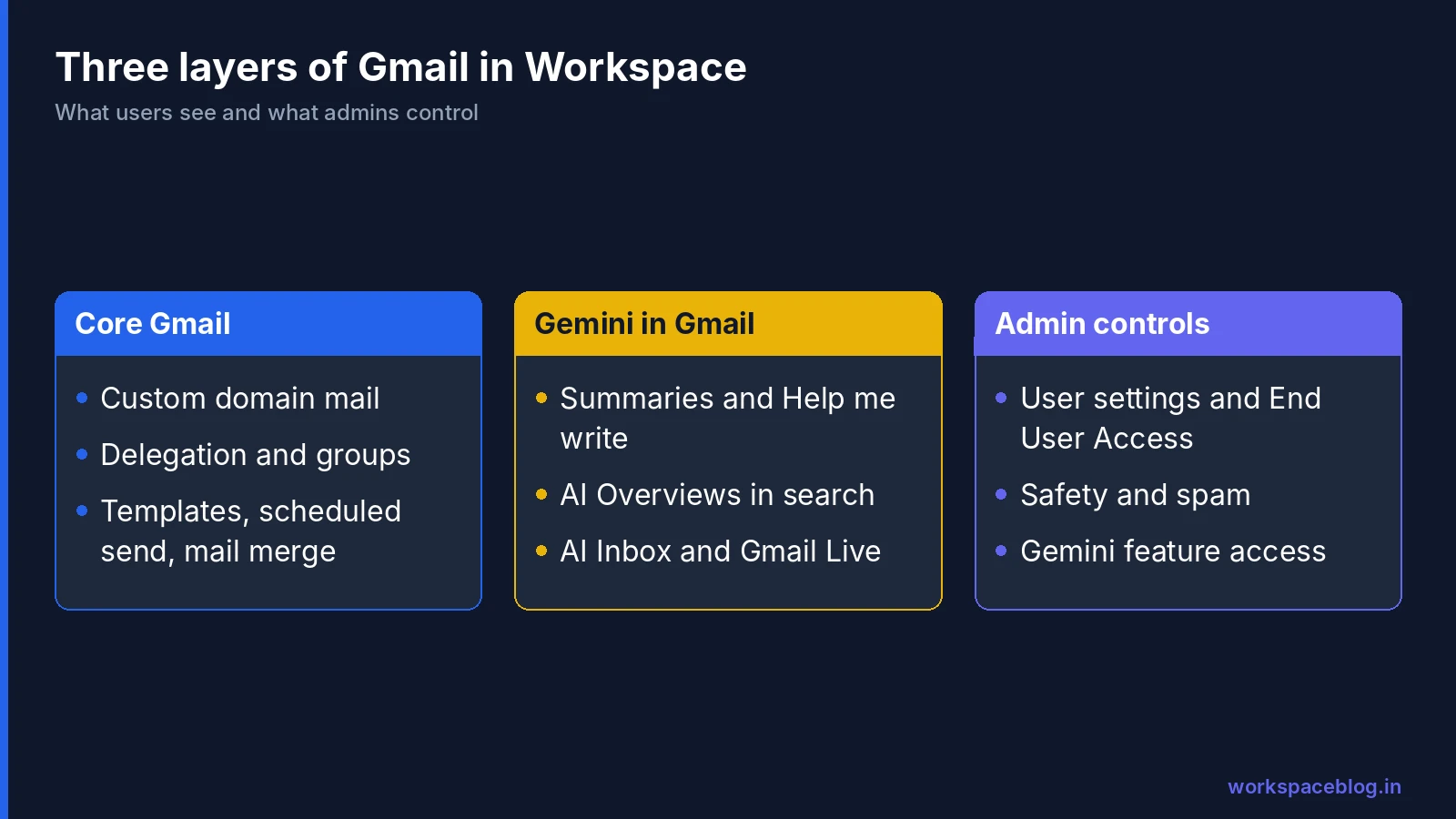
It helps to think of Gmail for business as three layers:
| Layer | What it covers | Who manages it |
|---|---|---|
| Core Gmail | Mail on your domain, labels and filters, templates, scheduled send, delegation, mail merge | Users, within admin limits |
| Gemini in Gmail | Summaries, drafting, inbox search, AI Overviews, AI Inbox, Gmail Live | Admin switches plus each user’s smart features settings |
| Admin controls | User settings, End User Access, Safety, spam, routing and compliance | Admins with the Gmail Settings privilege |
The layers interact. A user can’t use Gemini features unless smart features are on in their own Gmail settings, and some admin settings, such as the maximum message size, only exist on certain editions.
Core Business Features
These are the everyday features that set Workspace Gmail apart from a personal account. Each has, or will have, its own guide on this site, so here is the short version.
- Bulk and personalised sending. Built-in mail merge is a Gmail user setting that is on by default, and it’s included in Business Standard and Plus and Enterprise Standard and Plus, but not Business Starter. Our Gmail mail merge guide covers sending limits and when an add-on makes sense.
- Templates, scheduled send and nudges. Gmail can schedule messages, store reusable templates and remind you to follow up, but it doesn’t send automatic follow-up sequences on its own. See automated follow-up emails in Gmail.
- Shared and delegated mailboxes. Admins can let users delegate access to a mailbox, which is the usual way to run addresses such as support@ or accounts@. Google Groups can also act as a shared queue.
- Aliases and extra domains. Users can receive mail at alternate addresses and on secondary domains, managed from the Admin console.
- Attachments and message size. On Enterprise Plus, admins can set a message size limit between 25 and 50 MB; the default is 25 MB.
- Confidential mode and S/MIME. Confidential mode lets users block forwarding, copying, printing and downloading, set an expiry date, revoke access or require a text code. Hosted S/MIME encryption is a separate setting that also lets users upload their own certificates.
- Interactive and visual email. Dynamic email shows interactive AMP messages, and Layouts lets users build emails with predefined footers, images and colours (Google Drive must be on).
- Migration. In September Google added a way to import past email from any IMAP server, such as Yahoo!, iCloud or Zoho, during Workspace setup. It’s available to all Workspace customers and imports one user’s mail per use.
Deliverability sits underneath all of this. If your domain’s SPF, DKIM and DMARC records aren’t right, even internal-looking mail can land in spam. Our email authentication guide covers the setup.
Gemini in Gmail
Gemini shows up in Gmail in two places: inline buttons in the message and compose windows, and the Ask Gemini panel at the top right, which opens in a side or wide layout.
What it can do
According to Google’s Gmail Help page, Gemini in Gmail can:
- Summarise threads into bullet points, pull out action items or explain an email in simpler terms.
- Draft new emails and refine existing drafts for tone and clarity.
- Organise mail: archive, delete, label, mark read or unread and star messages. Inbox actions need confirmation, and you get 60 seconds to undo.
- Search for details such as flight times or package arrivals, and filter by unread status, date range or sender.
- Schedule events on your primary calendar and find open time slots.
- Manage tasks and Drive files, and create Docs, Sheets, Slides and images.
- Use Gems and skills. Skills are invoked with
@after they’ve been created and turned on in Workspace Studio.
Google lists a few limits worth knowing before users rely on it: Gemini only applies existing labels, it won’t process a request that matches more than 10,000 threads, it can’t mark several emails as spam at once, and Gemini in Gmail conversations aren’t saved to Gemini Apps Activity.
Inline features add to this. Help me write drafts or replies from a prompt in the compose window, Summarize this email sits at the top of a thread, and Contextual Smart Reply suggests full replies based on the conversation that users can preview and edit.
From November 10, 2026, Google is expanding two of these, the AI Overview summary at the top of long threads and non-personalised Help me write, to all Google Workspace users aged 18 and older, including editions that did not have them before. Both are on by default. Users can turn them off, and admins can turn off Gemini features in Gmail.
AI Overviews in Gmail search
Users can type a question into the Gmail search bar and get a short answer drawn from their mail. In September Google expanded this from US-only to users on paid plans worldwide whose Gmail language is English. It is on by default when Gemini in Gmail and Workspace Intelligence access to Gmail are both enabled, and users need Smart features in Gmail, Chat, and Meet and Google Workspace smart features turned on.
AI Inbox
AI Inbox gathers two things into one view: suggested to-dos (action items, deliverables and deadlines pulled from email) and topics to catch up on (summaries of important threads, including recent decisions and status changes). Users open it from the Gmail menu on the web or in the mobile app.
Google says there is no admin control for AI Inbox. At launch it was limited to users in the US with English (US) as their language. Because it relies on smart features, the practical control for admins is the smart features setting, plus clear user guidance. Our Gemini for Google Workspace guide covers what AI Inbox reads and skips.
Gmail Live
Gmail Live is a voice search experience in the Gmail apps for Android and iOS. Users tap the Live entry point in the search bar, ask a question out loud and hear an answer based on their inbox, with a source card showing which emails it used. It’s on by default for organisations with Gemini in Workspace access and respects existing smart features and personalisation settings. Like AI Inbox, it launched for US users with English (US) only.
Recent Updates
This table lists Gmail-related announcements from the Google Workspace Updates blog, newest first. New rows are added as Google publishes them. “Rapid” and “Scheduled” refer to your domain’s release track.
| Date | Update | Who gets it | Admin control |
|---|---|---|---|
| Nov 10 | Skills launch in Workspace and can be used in Gmail on the web; Rapid from Nov 9, Scheduled from Nov 30 | Business Starter, Standard and Plus, Enterprise Starter, Standard and Plus, AI Pro for Education, AI Expanded Access (users 18+, English) | On by default; can be turned off by domain, OU or group |
| Nov 10 | AI Overview conversation summaries and non-personalised Help me write expand to all Workspace users aged 18 and older; gradual rollout from Nov 10 on both tracks, up to 15 days | All Google Workspace customers and Workspace Individual subscribers aged 18 or older with smart features on | On by default; admins can turn off Gemini in Gmail and users can turn both off |
| Oct 22 | Vault can export Gemini in Workspace conversations, including from Gmail, with filters | Business Plus, Enterprise Standard and Plus, Enterprise Essentials Plus, Frontline Standard and Plus, Education Fundamentals, Standard and Plus, Vault add-on | In Vault; no user setting |
| Oct 15 | Gmail Live voice search on Android and iOS, rolling out from Oct 15 on both tracks | Business Starter, Standard and Plus, Enterprise Starter, Standard and Plus, Frontline Plus, Nonprofits, Gemini and AI add-ons. US, English (US) only | On by default with Gemini access; follows smart features settings |
| Oct 15 | AI Inbox for paid Workspace users: Rapid from Oct 12, Scheduled from Oct 26 | Business Starter, Standard and Plus, Enterprise Starter, Standard and Plus, Frontline Plus, AI Pro for Education. Starter and Education editions in a later wave. US, English (US) only | None |
| Oct 9 | Workspace Studio: Gmail Skip Replies lets Gmail thread triggers ignore follow-up replies, rolling out from Oct 13 | Customers with Workspace Studio access | Existing Workspace Studio policies |
| Sep 23 | Import past email from any IMAP server during Workspace setup | All Workspace customers | Admin-only setup flow |
| Sep 15 | AI Overviews in Gmail search expanded to paid users worldwide with Gmail in English: Rapid from Sep 3, Scheduled from Sep 21 | Business Starter, Standard and Plus, Enterprise Starter, Standard and Plus, Frontline Plus, AI Pro for Education, AI Expanded Access | On when Gemini in Gmail and Workspace Intelligence access to Gmail are on |
| Sep 15 | Gemini in Workspace connects to Asana, Atlassian Rovo, HubSpot, Mailchimp, QuickBooks, Monday and Salesforce, with Gmail named among the apps | Users with Gemini for Google Workspace access | Apps > Google Workspace Marketplace apps > Apps list |
| Sep 2 | Workspace Studio Reply to email step: admin controls from Sep 8, feature from Sep 14 | Business Starter, Standard and Plus, Enterprise Standard and Plus, Education Fundamentals, Standard and Plus, AI Pro for Education, Teaching and Learning, AI Expanded Access | Turn off individual steps; require approval when data may be shared externally |
| Sep 2 | Custom instructions for Gemini extended to the Gemini side panel in Gmail | Customers with the Gemini side panel | None |
Dates are the Workspace Updates post dates. Feature visibility can take up to 15 days on a gradual rollout, so a feature listed here may appear in your domain later than the start date.
Edition Availability
Edition lists change often, so treat this as a summary of what Google’s pages state and check the linked source before you plan a rollout.
| Feature | Business Starter | Business Standard | Business Plus | Enterprise Standard | Enterprise Plus |
|---|---|---|---|---|---|
| AI Overviews in Gmail search | Yes | Yes | Yes | Yes | Yes |
| Gmail Live | Yes | Yes | Yes | Yes | Yes |
| AI Inbox | Later wave | Yes | Yes | Yes | Yes |
| Workspace Studio Reply to email | Yes | Yes | Yes | Yes | Yes |
| Built-in mail merge | No | Yes | Yes | Yes | Yes |
| Vault export of Gemini conversations | - | - | Yes | Yes | Yes |
| Per-app Gemini Feature access panel | - | - | - | Yes | Yes |
| Message size limit up to 50 MB | - | - | - | - | Yes |
| Security health checks for Gmail | - | - | - | - | Yes |
| DLP for Gmail | No | No | No | Yes | Yes |
A hyphen means Google’s page doesn’t list that edition; the Vault export is also available with the Vault add-on. Frontline Plus is also listed for AI Overviews, AI Inbox, Gmail Live and the Gmail security health checks. For a fuller plan comparison, see Business Starter vs Standard vs Plus.
Main Admin Settings
All of these need the Gmail Settings administrator privilege, and most can be applied per organisational unit.
User settings
Go to Menu > Apps > Google Workspace > Gmail > User settings. Settings here include:
| Setting | What it controls |
|---|---|
| Smart features and personalization | Whether users can turn on the features Gemini and AI Inbox depend on |
| Email Read Receipts | Read receipt requests and responses |
| Mail Delegation | Whether users can delegate access to their mailbox |
| Name format | The display name format, or letting users choose |
| Confidential mode | Expiry, revocation and copy or print restrictions |
| Mail merge | Sending individual messages to many recipients (on by default) |
| Layouts and Dynamic email | Designed emails and interactive AMP messages |
| S/MIME | Hosted S/MIME encryption and user certificates |
End User Access
Also under Apps > Google Workspace > Gmail, End User Access holds the options that affect data leaving the mailbox: POP and IMAP access, Sync with a Microsoft Outlook account, Automatic forwarding, Allow per-user outbound gateways, Warn for external recipients, emoji reactions and, on Enterprise Plus, the message size limit. Automatic forwarding and POP or IMAP are the two settings to review first, since both can move mail outside your control.
Safety
Go to Menu > Apps > Google Workspace > Gmail > Safety. Google groups the protections into Attachments, IMAP view time protections, Links and external images and Spoofing and authentication. You can also choose to apply future recommended settings automatically, which keeps protection current as Google adds new checks. Our security hardening guide puts these alongside the rest of your tenant controls.
Gemini and smart features
Go to Menu > Generative AI > Gemini for Workspace, open Feature access, select an organisational unit or configuration group, click Edit next to Gmail, choose On or Off and save. Group settings override organisational units. Google lists this panel for Enterprise Standard and Plus and some Education editions, and notes that turning Gemini off for Gmail doesn’t stop users reaching Gmail data through Gemini in other apps. Smart features remain a separate switch, and users must turn them on themselves before Gemini features work.
Data protection (DLP) and classification labels
DLP for Gmail scans messages for sensitive content such as card or ID numbers and acts on what it finds. Google lists it for Frontline Standard and Plus, Enterprise Standard and Plus, and Education Fundamentals, Standard and Plus, so it isn’t in the Business plans.
| Rule trigger | What is scanned | Actions available |
|---|---|---|
| Message sent | Body, subject and attachments of outgoing mail | Block message, Warn users, Quarantine message, Audit only, Apply classification labels, Add custom note |
| Message received | Body, subject and attachments of incoming mail | Audit only, Apply classification labels |
Attachments include documents and compressed files; images (EPS, BMP, GIF, JPEG, PNG) are scanned only when optical character recognition is turned on. Google notes that the contents of password-protected files aren’t scanned.
Classification labels such as Confidential or Internal can be applied to Gmail messages as well as Drive files. Users pick a label while composing in Gmail on the web, and DLP rules can apply labels automatically to new messages that match their conditions, including mail written in other email clients. A message can carry up to 20 classification labels. Labels can’t be added to mail from people outside your organisation or to messages already sent or received, and Gmail search doesn’t support searching by classification label yet.
Our Gmail DLP guide walks through building and testing Gmail and Drive rules step by step.
Monitoring and compliance
On Enterprise Plus, Frontline Plus and some other editions, the security health page checks Gmail settings such as automatic forwarding, DKIM, SPF and DMARC, MTA-STS, spam allowlists, MX records and POP and IMAP access.
Gmail log events. Admins can search Gmail activity, such as sends, views, link clicks, attachment downloads, spam classification and quarantine releases, in the audit and investigation tool, which works for all users whatever their edition. The security investigation tool is listed for Frontline Standard and Plus, Enterprise Standard and Plus, Education Standard and Plus, Enterprise Essentials Plus and Cloud Identity Premium. Our audit logs guide covers the wider log set.
Encryption beyond TLS
Besides confidential mode and hosted S/MIME, client-side encryption (CSE) encrypts email with keys your organisation controls, so Google’s servers can’t read the content. Google lists CSE for Enterprise Plus, Frontline Plus, and Education Standard and Plus. The trade-offs are real: client-side encrypted mail can’t be scanned for phishing or malware, and DLP can’t inspect it, though Vault can still retain, search and export it. Each user can use only one type of encryption for Gmail, and hardware key encryption needs the Assured Controls or Assured Controls Plus add-on.
Retention and Vault
On editions that include Vault, retention rules decide how long Gmail messages are kept, even after users delete them. Each service has one default rule, and custom rules can target organisational units, date ranges or search terms; a custom rule always wins over the default, even when it’s shorter. The period starts on the day a message is sent or received, and Vault purges messages once it ends, including ones users never deleted. Holds override retention rules and keep data until the hold is removed. Our Google Vault eDiscovery guide covers rules, holds and exports in depth.
How to Keep Up With Gmail Changes
- Know your release track. Rapid Release domains see features earlier than Scheduled Release domains, as the rollout notes in the table show.
- Pilot on a test OU. Put a few IT staff on Rapid Release so you can see changes before the rest of the organisation.
- Check smart features policy. Most new Gemini features in Gmail inherit it, so decide once and write it down.
- Watch language and region notes. Several recent launches started for US English users only.
- Revisit this page. The Recent updates table is refreshed as Google posts new Gmail announcements.
Conclusion
Gmail in Workspace now combines a mature business mail service with a fast-moving layer of Gemini features. The core settings, User settings, End User Access and Safety, change slowly and deserve a careful one-time review. The AI features change monthly, and most of them follow your Gemini and smart features settings rather than adding new switches. Keep an eye on the Recent updates table, check language and edition notes before announcing anything to users, and you’ll get the most out of Gmail in Google Workspace.
Official Google documentation:
- Manage Gmail settings for your users (Admin Help)
- Advanced phishing and malware protection (Admin Help)
- Turn Gemini features on or off for users (Admin Help)
- Monitor the health of your Gmail settings (Admin Help)
- Collaborate with Gemini in Gmail (Gmail Help)
- Gemini in Gmail (Google Workspace)
- Gmail’s AI Inbox is rolling out to paid Workspace users (Workspace Updates)
- Gmail Live is rolling out to paid Workspace users (Workspace Updates)
- Gmail Search’s AI Overviews now available globally (Workspace Updates)
- New steps for Drive, Gmail and Chat in Workspace Studio (Workspace Updates)
- New logic and search steps in Workspace Studio (Workspace Updates)
- Import emails from any IMAP server (Workspace Updates)
- About DLP for Gmail (Admin Help)
- Get started as a classification labels admin (Admin Help)
- Gmail log events (Admin Help)
- Client-side encryption FAQ (Admin Help)
- How retention works (Vault Help)
- Vault filtered exports for Gemini in Workspace (Workspace Updates)
- Expanding Gemini in Gmail to more Google Workspace users (Workspace Updates)
- Skills in Google Workspace and Workspace Studio (Workspace Updates)
Related reading:
- Gemini for Google Workspace Guide: Gemini across Gmail, Docs, Sheets and Meet.
- Gmail Mail Merge and Bulk Email: limits and safe bulk sending.
- Automated Follow-Up Emails in Gmail: templates, scheduled send and sequences.
- SPF, DKIM and DMARC for Google Workspace: keep your mail out of spam.
This guide contains referral or affiliate links. If you sign up through one, Workspace Blog may earn a commission at no extra cost to you. Read our referral and advertising disclosure.
Frequently Asked Questions
- What can Gemini do in Gmail for Workspace users?
- Gemini can summarise threads, draft and refine emails, search your inbox for details, organise mail (archive, label, star), schedule events and work with Drive files from the Ask Gemini panel. Help me write, Contextual Smart Reply, AI Overviews in search, AI Inbox and Gmail Live on mobile build on the same features.
- Is there an admin setting for AI Inbox?
- No. Google's Workspace Updates post says there is no admin control for AI Inbox. It depends on users having smart features turned on, and at launch it was limited to users in the US with English (US) as their language.
- How do I turn Gemini in Gmail off for some users?
- In the Admin console go to Generative AI > Gemini for Workspace, open Feature access, pick an organisational unit or configuration group, click Edit next to Gmail, choose Off and save. Google lists this panel for Enterprise Standard and Plus and some Education editions.
- Where are the main Gmail admin settings?
- Under Apps > Google Workspace > Gmail. User settings covers delegation, confidential mode, mail merge, S/MIME and similar options; End User Access covers POP and IMAP, automatic forwarding and external recipient warnings; Safety covers attachment, link and spoofing protections.
- Is AI Overviews in Gmail search available outside the US?
- Yes. In September Google expanded it to users on paid plans worldwide whose Gmail language is set to English. It turns on by default when Gemini in Gmail and Workspace Intelligence access to Gmail are enabled.