Google Chat for Business: Features, Gemini, Huddles and Recent Updates
Google Chat for business users: spaces, threads, huddles, Ask Gemini, meeting recaps, apps, Teams import, security controls and a dated log of recent updates.

Checked against Google's official documentation, last updated 15 Nov, 2026. See what changed

Google Chat is where most day-to-day teamwork happens in Google Workspace: quick questions in direct messages, project discussion in spaces, a voice huddle when typing gets slow, and now Gemini sitting inside the conversation list. Google has shipped a steady run of Chat changes since August, from Ask Gemini in Chat to meeting recaps, persistent drafts and new partner apps.
This is a living guide for the people who use Chat every day. It explains the core features, what Gemini adds, which editions get what, and keeps a dated table of recent updates. If you manage Chat settings, our Google Chat admin and governance guide covers history, retention, external access policy and app approval; this post links to it rather than repeating it.
Key Takeaways
- Ask Gemini in Chat replaced the Gemini side panel for English-language users, in a gradual rollout that began on 26 August 2026. Open it with Ctrl + G or Command + G.
- Meeting recaps post a summary, decisions and action items into a meeting’s Chat conversation when Take notes for me was on.
- Persistent drafts keep unsent messages for up to 30 days and sync across devices, with no admin control.
- Huddles give you an instant voice call, with optional video and screen sharing, from any conversation.
- New apps from Confluence, Trello and 1Password arrived in September and October, and admins now have a free Microsoft Teams data import.
Table of contents
Open Table of contents
- Conversations: Direct Messages, Group Chats and Spaces
- Huddles: Instant Calls from a Conversation
- Gemini in Chat
- Everyday Features Worth Knowing
- Apps and Automation in Chat
- Microsoft Teams and Google Chat
- Security and Compliance Controls
- Recent Updates
- Edition Availability at a Glance
- Getting More From Chat
- Conclusion
Conversations: Direct Messages, Group Chats and Spaces
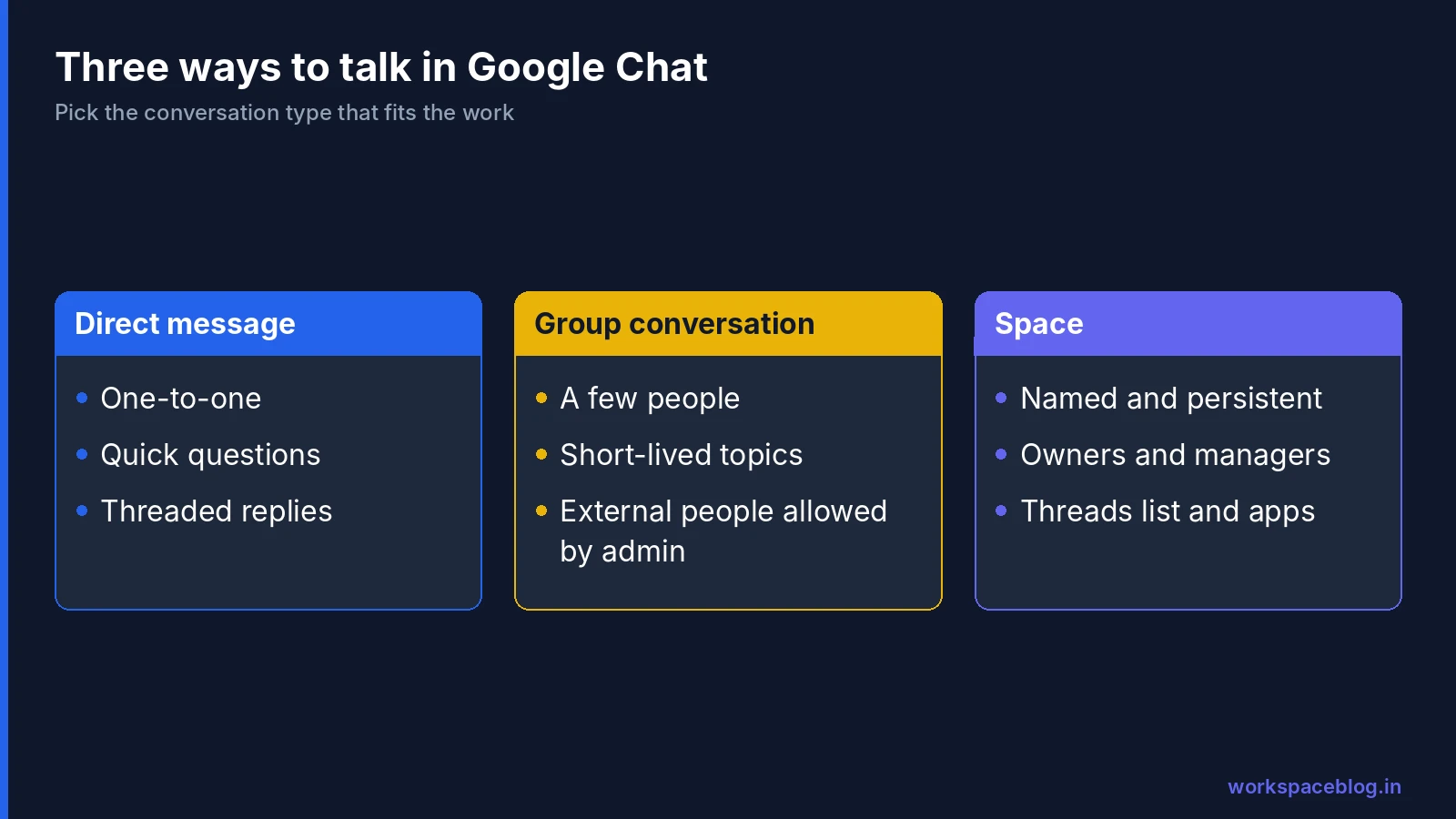
Chat has three kinds of conversation, and choosing the right one keeps work findable later.
| Type | Best for | Members | Threads |
|---|---|---|---|
| Direct message | One-to-one questions and quick decisions | You and one person | Hover and click the thread icon |
| Group conversation | A short-lived topic with a few people | A small set of people | Hover and click the thread icon |
| Space | Teams, projects, communities and announcements | Anyone invited, or anyone who finds a discoverable space | Reply button under each message, plus a threads list |
Spaces are named, persistent rooms with owners and managers. They are the place for anything the team needs to find again: decisions, files, links and announcements. Since August 2026, space owners and managers can also control who sees the member list (more on that below).
Group conversations suit a quick discussion that doesn’t deserve its own space. Since July 2026 they can include several people from outside your organisation, if your admin allows external spaces and group conversations.
Threads and replies
Google describes two ways to answer a message:
- Reply in the conversation: your message goes into the main flow.
- Reply in a thread: hover over a message and choose the thread icon, or in a space click Reply under the message. The thread opens in a side panel, and the reply count under the original message shows how many answers it has.
The thread icon at the top right lists every thread in a space, which is the fastest way to see what’s active. Quote in reply is useful when you answer an older message, but Google notes that a quoted message doesn’t update if the original is later edited or deleted. Smart Reply suggestions can be turned on in Chat settings.
A good habit for busy spaces: one topic per thread, with the thread’s first message stating the question or decision needed.
Huddles: Instant Calls from a Conversation
A huddle is an instant voice chat started from a direct message, group conversation or space. It opens as audio, and anyone can:
- Click Turn on camera to add video.
- Click Present now to share a screen.
- Resize the huddle window, add visual effects or send a reaction.
- Click Open Meet in tab to move to a full Google Meet window.
To start one on a computer, open the conversation, click the drop-down arrow at the top right and choose Huddles. People join from the huddle icon next to the conversation name or from the invitation chip. A huddle stays open while people are in it, and others can join later as long as the person who started it is still there.
Google says huddles are only for work accounts, not personal or school accounts. Huddles are powered by Meet, so if your admin turns Meet off for you, you can still join a huddle but can’t start one. Huddles first rolled out from November 2024 to Business, Enterprise, Frontline Starter and Standard, Essentials and Nonprofits editions. For scheduled meetings, recording and room hardware, see our Google Meet admin guide.
Gemini in Chat
Gemini shows up in Chat in three ways, and they don’t all have the same edition rules.
Ask Gemini in Chat
Google announced Ask Gemini on 19 August 2026 and calls it a “unified command line for your work”. It replaced the Gemini side panel in Chat for users whose Google Account language is English; others keep the side panel for now. Open it from:
- Ask Gemini under Shortcuts or in the conversation list
- The Ask Gemini icon next to the search bar
- Ctrl + G on Windows and ChromeOS, or Command + G on macOS
Google’s help page lists what it can do:
| Task | Examples |
|---|---|
| Catch up | Daily briefs of to-dos and follow-ups (on by default), summaries of unread messages, spaces and topics |
| Find answers | Search the web, Gmail, Drive and Calendar, with citations |
| Create | Draft emails and chat messages, generate Docs, Sheets and Slides, generate images |
| Organise | Create and manage tasks, schedule or move events and check availability |
| Research | Run Deep Research, which produces a cited report in a Google Doc |
| Connect | Use third-party apps such as HubSpot, Asana and Salesforce via @ mention, and skills turned on in Workspace Studio |
Work is grouped into sessions you can reopen later. A few limits to know: events can only be created on your primary calendar, slide generation can take several minutes with the tab open, and third-party integrations must be installed by an admin. Gems are no longer available inside Chat, though they remain in other Workspace side panels. History from the old Chat side panel did not move across.
Editions: Business Standard and Plus, Enterprise Standard and Plus, and the Google AI Pro for Education add-on. It is on by default when an admin has Gemini in Workspace in Chat and Workspace Intelligence turned on for all apps, and each user must be enrolled in Workspace smart features. Higher promotional usage limits ended on 1 October 2026; standard limits now apply.
Cross-app actions from Chat
On 9 September 2026 Google announced that Gemini can act across apps without switching: creating a Doc, Sheet or Slides deck in the background, drafting and sending email, scheduling meetings and logging tasks. In Chat this runs through Ask Gemini. For emails and calendar actions, Gemini shows a confirmation card so you can review and edit before anything is sent. The editions are Business Standard and Plus and Enterprise Standard and Plus, with Frontline Plus getting scheduling only. It launched in English.
Schedule a meeting from a conversation
From November 9, 2026, Gemini can notice when people in a chat of up to five participants want to meet and offer a scheduling card with suggested times, attendees and a title, so the meeting is booked in one click. Google lists Business Standard and Plus, Enterprise Standard and Plus, Frontline Plus and the AI Ultra Access add-on. It works on the web in English, is on by default for eligible users and needs smart features and personalisation turned on. There is no separate admin setting.
Meeting recaps in Chat
Announced on 19 October 2026, meeting recaps post a card into the meeting’s Chat conversation after a Meet call. The card includes:
- A summary of the main topics and takeaways
- Links to the Gemini notes document, recording and transcript
- Key decisions
- Action items with owners
A recap appears only when Take notes for me was on and the meeting has a Chat conversation. If the host set Send notes to to Hosts and co-hosts only, no card is posted. Cards arrive silently, without bolding or an unread badge, and any participant can delete one from the three-dot menu; the notes document stays in Drive. Editions: Business Standard and Plus, Enterprise Standard and Plus, and Frontline Plus. There is no user setting.
Chat as a source in the Gemini app
Since 25 February 2026, admins can let users connect Google Chat as a data source in the Gemini app, so Gemini can find project details or summarise unread messages. It is off by default and can be turned on by OU or group. Our Gemini for Google Workspace guide covers Gemini across the other apps.
Everyday Features Worth Knowing
Persistent drafts
Announced on 8 September 2026, Chat now saves unsent messages as drafts. They sync across devices, are kept for up to 30 days, and are stored per conversation, including thread drafts. They also appear in the Drafts shortcut. Google updated the rollout on 8 October 2026: Rapid Release web domains started on 8 September, Scheduled Release web domains and Android on 22 September, and iOS on 13 October. It’s available to every Workspace customer and personal accounts, with no admin control and no user setting.
Control who sees a space’s members
Since 24 August 2026, space owners and managers have a View members setting under Space settings > Membership. The options are Owners only, Owners & managers, All members (the default) and Entire organization. Anyone who posts a message stays visible regardless. It’s available to all Workspace customers and has no admin control, so it’s a space-level choice.
Group conversations with external people
Since 15 July 2026, you can include several external people when creating a new group conversation. They receive an email invitation and must accept it, and the conversation shows an external badge. You can’t add outsiders to an existing internal-only group conversation. This uses the same admin setting as external spaces, External spaces & group direct messages, so if the option is missing, ask your admin.
Numbered and nested lists
Since November 10, 2026, messages can include numbered lists and nested lists up to five levels deep. You create them on the web, and they display on the web, Android and iOS. Google lists all Workspace customers, Workspace Individual subscribers and personal accounts, with no admin control.
Apps and Automation in Chat
Chat apps bring other tools into the conversation. Users find them under Apps > Find apps, if the admin allows installation. Recent partner apps:
| App | What it does in Chat | Account needed | Announced |
|---|---|---|---|
| Confluence | Rich link previews, notifications for mentions, comment replies and page changes | Confluence Cloud | 22 Sep 2026 |
| Trello for Google Workspace | Create Trello cards from Chat messages | Trello | 6 Oct 2026 |
| 1Password SaaS Manager | IT and HR notifications, approvals and access workflows, including adding or removing space members | 1Password SaaS Manager | 8 Sep 2026 |
For automation, Workspace Studio added a Send a Chat reply step (announced 2 September 2026). It posts formatted replies into specific spaces and threads, with Markdown support for styling, lists and code blocks. Editions include Business Starter, Standard and Plus, Enterprise Standard and Plus, and Education Fundamentals, Standard and Plus. The step is on when Gemini for Google Workspace steps are allowed, and admins can turn off individual steps. Our Marketplace apps roundup covers other popular integrations.
Microsoft Teams and Google Chat
If your organisation is moving from Microsoft, the main Chat news is about bringing history across. On 25 August 2026 Google announced data import for Microsoft Teams in the Admin console. It imports Teams channel messages and private 1:1 and group chats, needs a super admin, and Google says the tool itself has no cost. It’s available on Business, Enterprise, Education, Frontline, Essentials and Nonprofits editions.
Google’s Chat announcements in this period describe moving data, not live messaging between Chat and Teams users. Plan the switch as a migration: our Microsoft 365 migration guide covers mail, files and cut-over planning.
Security and Compliance Controls
Chat’s compliance story depends on a few admin settings, so it helps to know what they do even if you never open the Admin console.
- Chat history. With history off, direct and group messages are deleted after 24 hours, and Vault can’t hold, retain or search them. With history on, admins use Vault to control how long messages are kept, hold them for legal matters and export them.
- Data loss prevention. DLP rules can scan sent messages and attachments in direct messages, group chats and spaces, then block the message, warn the sender or log it for audit. Google lists DLP for Chat on Frontline Standard and Plus, Enterprise Standard and Plus, and Education Fundamentals, Standard and Plus, not on Business editions.
- Audit logs. Admins can review Chat log events under Reporting > Audit and investigation, with events such as Message sent, Attachment uploaded and Direct message started. That search runs on all users regardless of edition, while the security investigation tool needs editions such as Enterprise Standard and Plus.
Our Chat admin and governance guide covers the history and Vault setup, and the Google Workspace data loss prevention (DLP) guide covers Chat rules in detail.
Recent Updates
The newest Chat changes from the Google Workspace Updates blog, by announcement date. “All customers” means Google listed all Workspace customers rather than specific editions.
| Date | Update | Who gets it | Admin control |
|---|---|---|---|
| 10 Nov 2026 | Skills in Workspace: use them in Chat on the web and in the Android and iOS apps (Rapid from 9 Nov, Scheduled from 30 Nov) | Business Starter, Standard, Plus; Enterprise Starter, Standard, Plus; AI Pro for Education; AI Expanded Access | On by default; admins can turn off |
| 11 Nov 2026 | Numbered and nested lists (up to five levels) in messages, created on the web; rollout from 10 Nov on both tracks | All customers, Workspace Individual, personal accounts | None |
| 10 Nov 2026 | Gemini spots meeting requests in chats of up to five people and offers a one-click scheduling card (web, English); extended rollout from 9 Nov | Business Standard, Plus; Enterprise Standard, Plus; Frontline Plus; AI Ultra Access | On by default; needs smart features and personalisation |
| 19 Oct 2026 | Meeting recaps in Chat | Business Standard, Plus; Enterprise Standard, Plus; Frontline Plus | Follows Take notes for me and Gemini policies |
| 6 Oct 2026 | Trello for Google Workspace in Chat | All customers, with a Trello account | Admins can install for users |
| 22 Sep 2026 | Confluence app for Chat | All customers, with Confluence Cloud | Admins can install for users |
| 9 Sep 2026 | Gemini cross-app actions via Ask Gemini | Business Standard, Plus; Enterprise Standard, Plus | No separate setting described |
| 8 Sep 2026 | Persistent drafts | All customers | None |
| 8 Sep 2026 | 1Password SaaS Manager app | Managed business and organisation accounts | Admins can install for users |
| 2 Sep 2026 | Send a Chat reply step in Workspace Studio | Business Starter, Standard, Plus; Enterprise Standard, Plus; Education | Steps can be turned off one by one |
| 25 Aug 2026 | View members setting for spaces | All customers | None, set by space owners and managers |
| 25 Aug 2026 | Data import for Microsoft Teams | Business, Enterprise, Education, Frontline and more | Super admin runs the import |
| 20 Aug 2026 | Space creation restrictions | Business Standard, Plus; Enterprise; Education; Frontline | Chat and space restrictions, by OU or group |
| 20 Aug 2026 | Chat usage in Gemini reports | Business; Enterprise; AI Pro for Education | Admin reporting only |
| 19 Aug 2026 | Ask Gemini in Chat | Business Standard, Plus; Enterprise Standard, Plus; AI Pro for Education | On with Gemini in Chat and Workspace Intelligence |
If a feature in the table isn’t showing for you, check your edition first, then whether your domain is on Rapid or Scheduled Release: most of these used gradual rollouts of up to 15 days, and some took longer.
Edition Availability at a Glance
| Feature | Business Starter | Business Standard and Plus | Enterprise Standard and Plus |
|---|---|---|---|
| Spaces, threads, direct and group messages | Yes | Yes | Yes |
| Persistent drafts | Yes | Yes | Yes |
| Huddles | Yes | Yes | Yes |
| View members setting | Yes | Yes | Yes |
| Ask Gemini in Chat | - | Yes | Yes |
| Meeting recaps in Chat | - | Yes | Yes |
| Send a Chat reply step in Studio | Yes | Yes | Yes |
Frontline and Education editions vary by feature, so check the row in the updates table above. Our Business Starter, Standard and Plus plans comparison sets out the wider differences between the three.
Getting More From Chat
- Put decisions in spaces, not direct messages. New members can read the history, and the right people can find it.
- Use threads for each topic so a busy space stays readable.
- Start with Ask Gemini when returning from leave. A catch-up summary of a space beats scrolling.
- Turn on Take notes for me for project meetings that have a Chat conversation, so the recap and action items land where the team works.
- Use huddles for five-minute questions instead of booking a meeting.
- Ask your admin before adding apps. Approved apps keep data access predictable.
Conclusion
Google Chat has moved well beyond simple messaging. Spaces and threads organise the work, huddles cover the quick call, Ask Gemini and meeting recaps bring summaries and action items into the conversation, and partner apps and Workspace Studio connect Chat to the rest of your tools. Most of the AI features need Business Standard or above, while drafts, huddles and space controls reach every business edition.
We’ll keep the Recent Updates table current as Google announces new Chat features. If you’re choosing a plan with Chat and Gemini in mind, start with Google Workspace Business Standard and test these features with your team.
Official Google documentation:
- Get started with Ask Gemini in Google Chat
- Introducing Ask Gemini in Chat
- Get meeting recaps with Gemini in Google Chat
- Meeting recaps in Google Chat announcement
- Learn about huddles in Google Chat
- Reply to a message in Google Chat
- Persistent drafts in Google Chat
- Manage view members permissions in Google Chat
- Group conversations with external collaborators
- Gemini actions across Workspace apps
- New steps in Workspace Studio, including Send a Chat reply
- Data import for Microsoft Teams
- Set up Chat restrictions
- Control external Chat and spaces chat options
- Turn chat history on or off for an organization
- About DLP for Chat
- Chat log events
- Schedule meetings in a single click from conversations in Google Chat (Workspace Updates)
- Numbered and nested lists in Google Chat (Workspace Updates)
- Skills in Google Workspace and Workspace Studio (Workspace Updates)
Related reading:
- Gmail for Business: the companion hub for Gmail features and updates.
- Google Slides for Business: the companion hub for Slides features and updates.
- Google Chat Admin Guide: Configuration and Governance: history, retention, external access and app approval for admins.
- Gemini for Google Workspace: Complete Guide: Gemini in Gmail, Docs, Sheets, Meet and more.
- Google Meet Enterprise Admin Guide: meetings, recordings and Take notes for me settings.
This guide contains referral or affiliate links. If you sign up through one, Workspace Blog may earn a commission at no extra cost to you. Read our referral and advertising disclosure.
Frequently Asked Questions
- What is Ask Gemini in Google Chat?
- Ask Gemini replaces the Gemini side panel in Chat for users whose Google Account language is English. You open it from Shortcuts or with Ctrl + G (Command + G on a Mac). It can search Gmail, Drive and Calendar, catch you up on spaces, draft messages, create Docs, Sheets and Slides, manage tasks and schedule meetings. It needs Business Standard or Plus, Enterprise Standard or Plus, or the Google AI Pro for Education add-on.
- Can I start a quick call from Google Chat?
- Yes. Huddles are instant voice chats you start from a direct message, group conversation or space, and you can turn on video or share your screen. Google says huddles need a work account. If an admin turns Meet off for you, you can join huddles but not start them.
- Does Google Chat save unfinished messages?
- Yes. Since September 2026 Chat saves unsent messages as drafts that sync across devices and are kept for up to 30 days. Rollout reached web, Android and iOS in stages, and there is no admin or user setting for it.
- Can I add several people from outside my company to one Chat conversation?
- Yes, if your admin has turned on External spaces and group direct messages. You can add external people when you create a new group conversation. They get an email invitation and must accept it, and the conversation shows an external badge. You can't add external people to an existing internal-only group conversation.
- Can Google Chat talk to Microsoft Teams?
- Google's Chat announcements in this period are about moving data, not live messaging between the two products. Admins can use the free data import for Microsoft Teams, announced in August 2026, to bring Teams channel messages and 1:1 and group chats into Google Workspace.