Google Slides for Business: Features, Gemini, Editions and Latest Updates
Google Slides for business: presenting tools, Gemini deck creation and image features, recent updates with dates, edition availability and admin settings.

Checked against Google's official documentation, last updated 15 Nov, 2026. See what changed

Google Slides is the presentation app in Google Workspace, and in the last year it has changed more than in the five before it. Gemini can now build a full deck from a prompt and your Drive files, edit a whole presentation in one go, and generate images and infographics. Recording moved to Google Vids, and admins gained new levers through Google Pics and client-side encryption.
This page is a living hub for Slides in a business setting. It covers the core business features, Gemini in Slides, which editions get what, and the admin settings that matter. The Recent updates table near the end is refreshed as Google ships new Slides features, so bookmark it.
Key Takeaways
- Core Slides is on every plan, including real-time co-editing, comments, audience Q&A, version history and direct PowerPoint editing.
- Gemini in Slides (deck generation, whole-deck edits, Help me visualize) needs Business or Enterprise Standard or Plus, or a qualifying add-on.
- Gemini can build a full presentation from a prompt, Drive sources and a style reference, and since October 2026 can edit many slides with one prompt.
- Recording now runs through Google Vids, from a Record option in Slides, on all Workspace plans.
- Most new Gemini Slides features have no separate admin control: the levers are the Gemini feature access setting, the Gemini app, Google Pics and Vids.
Table of contents
Open Table of contents
How Slides Fits Together
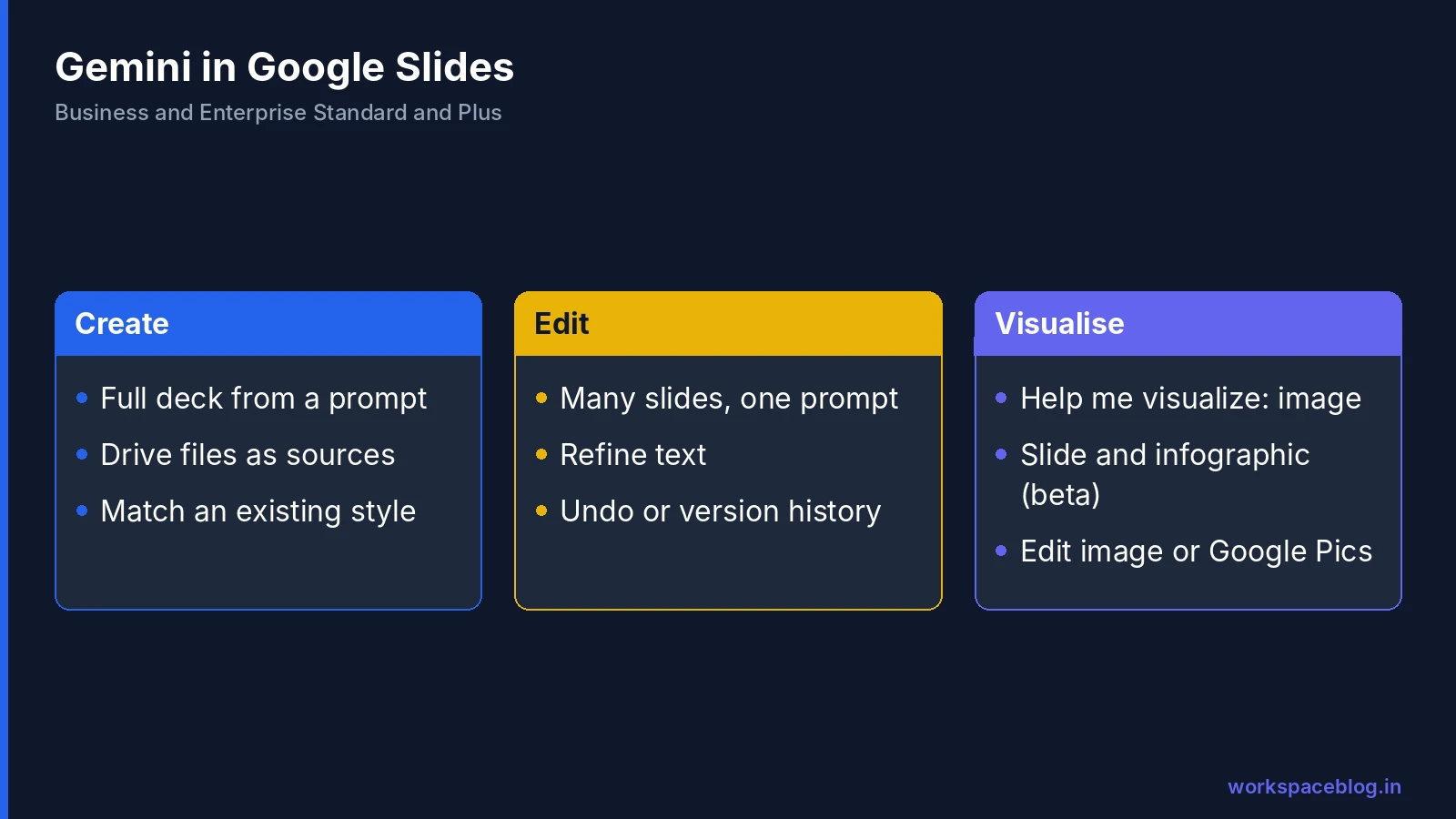
Think of Slides for business as three layers. The editor is the same on every plan: build, share, comment and present. Gemini sits on top for eligible editions and works in three ways: it creates decks, edits existing ones and visualises content as images, slides or infographics. Around both are connected apps: Google Meet for presenting live, Google Vids for recording and video versions of a deck, Google Pics for deeper image editing, and the Gemini app for drafting decks outside Slides.
Admins mostly manage the outer layers. There is rarely a Slides-only switch; instead you control Gemini access, the Gemini app, Pics, Vids, templates and sharing.
Core Business Features
These are the features Google highlights for Slides on its product page and in the Help Center. They work on all Workspace plans unless noted.
| Feature | What it does | Plans |
|---|---|---|
| Real-time co-editing | Several people edit at once, with live pointers and comments | All |
| Granular sharing | Choose who can edit, comment or view | All |
| Templates | A library of pre-designed templates with varied layouts, images, colours and fonts | All |
| Custom template gallery | Company-approved templates in the template gallery | Business Standard and Plus, Enterprise Standard and Plus, and others |
| PowerPoint and Canva import | Import PowerPoint or Canva presentations; edit PowerPoint files without converting them | All |
| Version history | Return to earlier versions of a deck | All |
| Offline and mobile | Create and edit without a connection; apps for iOS and Android | All |
| Audience Q&A | Take questions from any device during a presentation | All |
| Present from Meet | Present Slides from Google Meet, with speaker spotlight | Some Business and Enterprise plans |
| Record a presentation | Guided recording through Google Vids with a shareable link | All |
Audience Q&A
Q&A is one of the most useful and least known business features. Open the presentation, click the down arrow next to Slideshow and choose Presenter View. In the new window, click Audience tools, then Start new or Continue recent. Anyone with the Q&A link shown at the top of the slides can submit questions, upvote or downvote them, and tick Ask anonymously if they prefer. In a work account, you can limit who can ask through the Accepting questions from… setting. Past sessions are under Tools > Q&A history.
Recording with Google Vids
In August 2026 Google added a Record option to the right-hand menu in Slides. It opens a guided recording flow in Google Vids and produces a shareable link, and Vids adds transcript-based editing and voiceover tools for turning the recording into a polished video. If you already had the older Slides recording feature, you keep it: it moved to the View menu. Google says there is no admin control and no end-user setting for the new Record option.
PowerPoint users
Teams moving from Microsoft 365 can open and edit PowerPoint files directly in Slides, and the original file stays intact. For organisations using client-side encryption, Google announced a beta in September 2026 that imports PowerPoint files straight into encrypted Slides. Our Microsoft 365 migration guide covers moving files in bulk.
Gemini in Slides
Gemini in Slides lives in the side panel (the Ask Gemini icon at the top right) and in the Insert > Help me visualize menu. Google’s Help Center lists these tasks:
- Generate a full presentation from a prompt, with Drive files as sources and an existing deck as a style reference.
- Edit multiple slides or a whole deck with a single prompt.
- Generate new slides in your current theme with Help me create a slide.
- Summarise a presentation and write or rewrite titles and body text.
- Refine text in a text box: rephrase, shorten, make it more formal or turn it into bullets.
- Generate and edit images, plus beta options for slides and infographics.
- Reference Drive files with @, use Google Search in a prompt, and use Gems in the side panel.
- Act across apps from the side panel, for example drafting an email or creating a calendar event.
Generate a presentation
- In Slides, click Presentation on the start screen, or Ask Gemini in a blank presentation.
- Describe the deck you want in the side panel.
- Optional: click Add sources > Add from Drive to ground it in your files.
- Optional: click Match presentation style > Add from Drive to copy the look of an existing deck.
- Answer Gemini’s follow-up questions, or skip them, then click Next.
- Review the plan. Edit slide text, use Add step or Delete, or click Update plan.
- Click Approve and keep the tab open while Gemini builds the slides.
The result is native, editable Slides, not a picture of slides. Google says the feature works on a computer and in English only.
Edit a whole presentation
Announced on October 30, 2026, whole-deck editing lets one prompt in the side panel change several slides at once. Google’s examples include refreshing visual styles in bulk, updating content from Drive files, condensing or adding slides, matching another presentation’s style and making styling consistent. Gemini shows a summary of its changes, and because they behave like manual edits, you can undo them or use version history. It launched in English only.
Usage limits
Multi-slide generation is subject to usage limits. Google gave Workspace customers promotional higher limits through at least December 1, 2026, and said per-user limits apply after that, with details published in the Help Center. Check the current Help Center page rather than relying on an old figure. Higher limits are available through the AI Expanded Access add-on.
Help me visualize: images, slides and infographics
To create an image, click a slide and go to Insert > Help me visualize > Image. Enter a prompt, optionally choose Add a style or an aspect ratio (Square 1:1, Wide 16:9 or Tall 9:16), click Create and insert the one you like. To change an existing picture, select it and click Edit image, describe the change, then choose Replace with image, Insert as image or Insert as background. Remove background is also available on a selected image.
The same menu has beta options, Slide and Infographic, that generate a visual based on the active slide and the rest of the deck. Google warns the beta may make mistakes, so check every number on a generated infographic.
The Help Center names the model as Gemini 3 Pro image. Google brought Nano Banana Pro to Slides in November 2025, powering images, infographics and Beautify this slide. Image generation supports 29 languages, and Google notes generated images are meant for use within Slides and Vids.
Google Pics
Google Pics became generally available on September 1, 2026. In Slides, you can select an image and edit it in Pics with one click, without leaving the deck, and if your account has Pics, Edit image may open it directly. Pics usage from Slides counts against existing image generation limits.
Gemini Outside Slides That Produces Slides
Decks no longer start only in Slides:
- The Gemini app can generate an outline or slide content, preview the layout in chat, then open the deck in Slides or download it as PPTX or PDF. Slide decks work on the web only. Google lists it for all Workspace customers.
- Gemini across Workspace was announced on September 9, 2026. It lets Gemini create Slides decks while you work in Docs, Chat or Drive. In the Slides side panel it can also handle tasks such as setting a follow-up reminder in Google Tasks.
- Gemini Notebook creates Slide Decks and Video Overviews from notebook sources, and since October 2026 offers a step-by-step flow with a Review outline toggle.
- Google Vids can turn a deck into a video with Gemini-written scripts, AI voiceover and music.
Edition Availability
| Feature | Business Starter | Business Standard and Plus | Enterprise Standard and Plus |
|---|---|---|---|
| Core editor, Q&A, PowerPoint editing | ✓ | ✓ | ✓ |
| Record with Google Vids | ✓ | ✓ | ✓ |
| Custom template gallery | - | ✓ | ✓ |
| Gemini side panel in Slides | - | ✓ | ✓ |
| Generate and edit whole presentations | - | ✓ | ✓ |
| Help me visualize images | - | ✓ | ✓ |
| Google Pics | - | ✓ | ✓ |
| Gemini app deck creation | ✓ | ✓ | ✓ |
| Client-side encrypted Slides | - | - | Enterprise Plus only |
Gemini in Slides is also available with the Google AI Pro for Education add-on, and on personal accounts with Google AI Pro and Ultra. Client-side encryption is also offered on Education Standard and Plus and Frontline Plus. Our Business Starter, Standard and Plus plans comparison explains the differences in full, and the license management guide helps decide who needs Standard for Gemini.
Admin Settings That Matter
| Setting | Where | What it controls |
|---|---|---|
| Gemini feature access | Generative AI > Gemini for Workspace > Feature access | Gemini in Docs, Sheets, Slides, Drive, Forms, Drawings and Vids, per OU or group (Enterprise Standard and Plus and some Education editions) |
| Gemini app | Turn the Gemini app on or off (Admin Help) | Deck creation in the Gemini app |
| Google Pics | Turn Google Pics on or off for users | Pics, including one-click edits from Slides; on by default, set by domain, OU or group |
| Google Vids | Turn Vids on or off (Admin Help) | Vids features such as converting Slides to video; on by default |
| Custom templates | Apps > Google Workspace > Drive and Docs > Templates | Template gallery, categories and submission mode (Open, Moderated or Restricted) |
| Ask Gemini in Meet | Turn Ask Gemini in Meet on or off (Admin Help) | Includes the one-click co-presenter suggestion for Slides |
| CSE Office Interop beta | Beta registration form | PowerPoint import and download for client-side encrypted Slides |
| App access control | Control which apps access Workspace data (Admin Help) | Which apps can use the Slides API, including the new comments support |
A few points to keep in mind:
- Feature access defaults to on. Group settings override OU settings, and you need the Gemini Settings administrator privilege.
- Turning Gemini off for Slides does not stop users working with that content in other Gemini-enabled apps, such as the Gemini app.
- Users need smart features and personalisation turned on to use Gemini in Workspace services.
- Many new features have no admin control. Whole-deck editing, full presentation generation, the Vids Record option and custom instructions in the side panel all say so in their announcements. Your control is whether Gemini or the related app is on for that user.
- Template gallery submission mode is worth setting to Moderated or Restricted, so only approved brand decks appear.
For compliance teams, Google announced Vault filtered exports for Gemini in Workspace conversations in October 2026, covering apps including Slides. Our Google Vault eDiscovery guide covers Vault basics, and the Gemini for Google Workspace guide covers data protections and the wider Gemini settings.
Security and compliance controls for Slides files
Presentations are Drive files, so Drive’s data protection controls cover them. Drive DLP rules and external sharing settings apply to Slides like any other Drive file; our Google Workspace data loss prevention (DLP) guide covers rule setup.
| Control | What it does for Slides | Editions Google lists |
|---|---|---|
| Classification labels | Badged or standard labels on files; a label can be a condition or action in DLP rules, and users can search Drive by label | Check Google’s labels page for your edition |
| Vault retention | Retains files in users’ Drives and shared drives; rules can use Drive label fields | Vault editions; label-based rules on Business Standard and Plus, Enterprise, Education Standard and Plus, Essentials editions |
| Drive log events | Records events such as View, Edit, Download and external sharing, under Reporting > Audit and investigation > Drive log events | Most events are logged only for files owned by users with supported editions |
Client-side encrypted decks work differently. Google says real-time collaboration isn’t available in encrypted files and the Commenter permission is unsupported, while comments, action items and emoji reactions still work. Encrypted Slides can’t be opened in the Drive mobile app. Our audit logs guide covers investigating Drive events.
Recent Updates
This table lists Slides updates from Workspace Updates in recent months, newest first. “Rapid” and “Scheduled” are the release tracks.
| Date | Update | Who gets it | Admin control |
|---|---|---|---|
| 10 Nov 2026 | Workspace skills can be invoked in Slides on the web; Scheduled Release domains start on 30 Nov, Rapid on 9 Nov | Business and Enterprise Starter, Standard and Plus, plus AI Pro for Education and AI Expanded Access | Skills setting in Workspace Studio, on by default |
| 5 Nov 2026 | Beta: Policy-Based Enforcement uses Workspace rules to add client-side encryption to confidential decks and other files automatically; the deck keeps its URL | Enterprise Plus with an Assured Controls or Assured Controls Plus licence, beta enrolment required | Off by default |
| 30 Oct 2026 | Edit multiple slides or an entire presentation with one Gemini prompt (extended rollout began 29 Oct) | Business Standard and Plus, Enterprise Standard and Plus, Google AI Pro for Education | None |
| 29 Oct 2026 | Create and preview slide decks in the Gemini app, then open in Slides or download as PPTX or PDF | All Workspace customers, Workspace Individual | Gemini app on or off |
| 22 Oct 2026 | Vault filtered exports for Gemini in Workspace, including Slides | Business Plus, Enterprise Standard and Plus and other Vault editions | Vault and Gemini history settings |
| 30 Sep 2026 | Comments and suggestions through the Slides API (rollout began 30 Sep) | All Workspace customers | API access controls |
| 24 Sep 2026 | Beta: import PowerPoint files as client-side encrypted Slides | Enterprise Plus, Education Standard and Plus, Frontline Plus, Assured Controls and Assured Controls Plus | Beta registration |
| 9 Sep 2026 | Gemini across apps: create decks from Docs, Chat or Drive and run tasks from the Slides side panel (rollout began 2 Sep) | Business Standard and Plus, Enterprise Standard and Plus, Google AI Pro for Education, AI Expanded Access | - |
| 2 Sep 2026 | Custom instructions for Gemini in the Slides side panel (rollout began 2 Sep) | Users with the Gemini side panel | None |
| 1 Sep 2026 | Google Pics generally available, with one-click image edits from Slides (Rapid 1 Sep, Scheduled 15 Sep) | Business Standard and Plus, Enterprise Standard and Plus, Google AI Pro for Education, AI Expanded Access | Pics on or off by domain, OU or group |
| 1 Sep 2026 | Gemini suggests a co-presenter for your Slides in Meet (rollout began 31 Aug) | Business Standard and Plus, Enterprise Standard and Plus, Google AI Pro for Education, Frontline Plus | Ask Gemini in Meet setting |
| 20 Aug 2026 | Record presentations from Slides with Google Vids (Rapid 20 Aug, Scheduled 7 Sep) | All Workspace customers, Workspace Individual | None |
Earlier Slides milestones
| Date | Update |
|---|---|
| 30 Jun 2026 | Gemini generates full, native presentations from one prompt, with Drive sources and a style reference |
| 15 Apr 2026 | Beta: download client-side encrypted Slides and export to PowerPoint |
| 9 Apr 2026 | Edit AI-generated scripts when converting Slides to Vids |
| 1 Apr 2026 | Gemini creates editable, on-brand slides matching your deck’s style |
| 20 Nov 2025 | Nano Banana Pro powers image generation, infographics and Beautify this slide |
| 5 Sep 2025 | Refine text in Slides with Gemini |
Rolling Out Slides Changes Smoothly
- Put a pilot OU on Rapid Release so a few heavy presenters see Slides changes first.
- Decide on Gemini per OU or group, and confirm smart features are on for those users.
- Set up a moderated template gallery so Gemini’s Match presentation style has approved brand decks to copy.
- Tell users about the new Record option and where the old one went, before the help desk hears about it.
- Share simple rules for AI visuals: check every figure on generated infographics and keep confidential data out of feedback.
- Review Pics and Vids settings, since both now connect directly to Slides.
- Revisit this page when Google posts new Slides updates.
Anyone relying on Gems in the side panel should plan for Google’s move from Gems to skills, which reached Slides with the Workspace skills launch on November 10, 2026.
Conclusion
Slides is now two products in one: a dependable, collaborative editor that every plan gets, and a Gemini layer on Standard and Plus that can draft, restyle and illustrate a whole deck. Most of the new AI features have no Slides-specific switch, so the practical controls are Gemini feature access, the Gemini app, Google Pics, Vids and your template gallery. Settle those per OU, pilot with a small group, and your Google Workspace users get faster decks without surprises.
Official Google documentation:
- Google Slides product page (Google Workspace)
- Generate presentations with Gemini in Google Slides (Google Docs Editors Help)
- Collaborate with Gemini in Google Slides (Google Docs Editors Help)
- Generate and edit images with Gemini in Google Slides and Vids (Google Docs Editors Help)
- Accept and present audience questions (Google Docs Editors Help)
- Collaborate on encrypted files in Docs, Sheets and Slides
- Get started as a classification labels admin
- Retain Drive files with Vault
- Drive log events
- Manage access to Gemini features in Workspace services (Admin Help)
- Turn custom Drive templates on or off for users (Admin Help)
- Edit entire presentations with Gemini in Google Slides (Workspace Updates, October 2026)
- Create fully native and editable presentations with Gemini in Google Slides (Workspace Updates, June 2026)
- Google Pics brings AI image creation and editing to Google Workspace (Workspace Updates, September 2026)
- Create, preview, and edit files directly in the Gemini app (Workspace Updates, October 2026)
- Policy-based client-side encryption for Editors and Drive files, beta (Workspace Updates)
- Skills in Google Workspace and Workspace Studio (Workspace Updates)
Related reading:
- Google Docs for Business: the companion hub for Docs features and updates.
- Gemini for Google Workspace Guide: Gemini across Workspace apps and its admin settings.
- Google Sheets for Business: the companion hub for Sheets features and updates.
- Business Starter vs Standard vs Plus: which plan includes Gemini in Slides.
- Google Meet Admin Guide: recording, presenting and Meet policies.
This guide contains referral or affiliate links. If you sign up through one, Workspace Blog may earn a commission at no extra cost to you. Read our referral and advertising disclosure.
Frequently Asked Questions
- Which Google Workspace plans include Gemini in Google Slides?
- Google lists Gemini presentation generation and whole-deck editing in Slides for Business Standard and Plus, Enterprise Standard and Plus, and the Google AI Pro for Education add-on, plus Google AI Pro and Ultra for personal accounts. Business Starter does not include Gemini inside Slides.
- Can Gemini create a whole presentation in Google Slides?
- Yes. In the Gemini side panel you describe the deck, optionally add Drive files as sources and a presentation to match its style, approve an outline, and Gemini builds native, editable slides. It works on a computer and in English only.
- How do I generate an image in Google Slides?
- Go to Insert > Help me visualize > Image, type a prompt, optionally add a style or choose Square, Wide or Tall, click Create and insert the result. The same menu offers beta options to generate a full slide or an infographic.
- Can admins turn off Gemini in Slides?
- On Enterprise Standard and Plus and some Education editions, admins can switch Gemini off for Docs, Sheets, Slides and related apps at Generative AI > Gemini for Workspace > Feature access, per OU or group. Several newer Slides features, such as whole-deck editing, have no separate admin control.
- How do I record a presentation in Google Slides?
- Since August 2026 Slides has a Record option in the right-hand menu that uses Google Vids for a guided recording and gives you a shareable link. The older Slides recording option, where you already had it, moved to the View menu.